
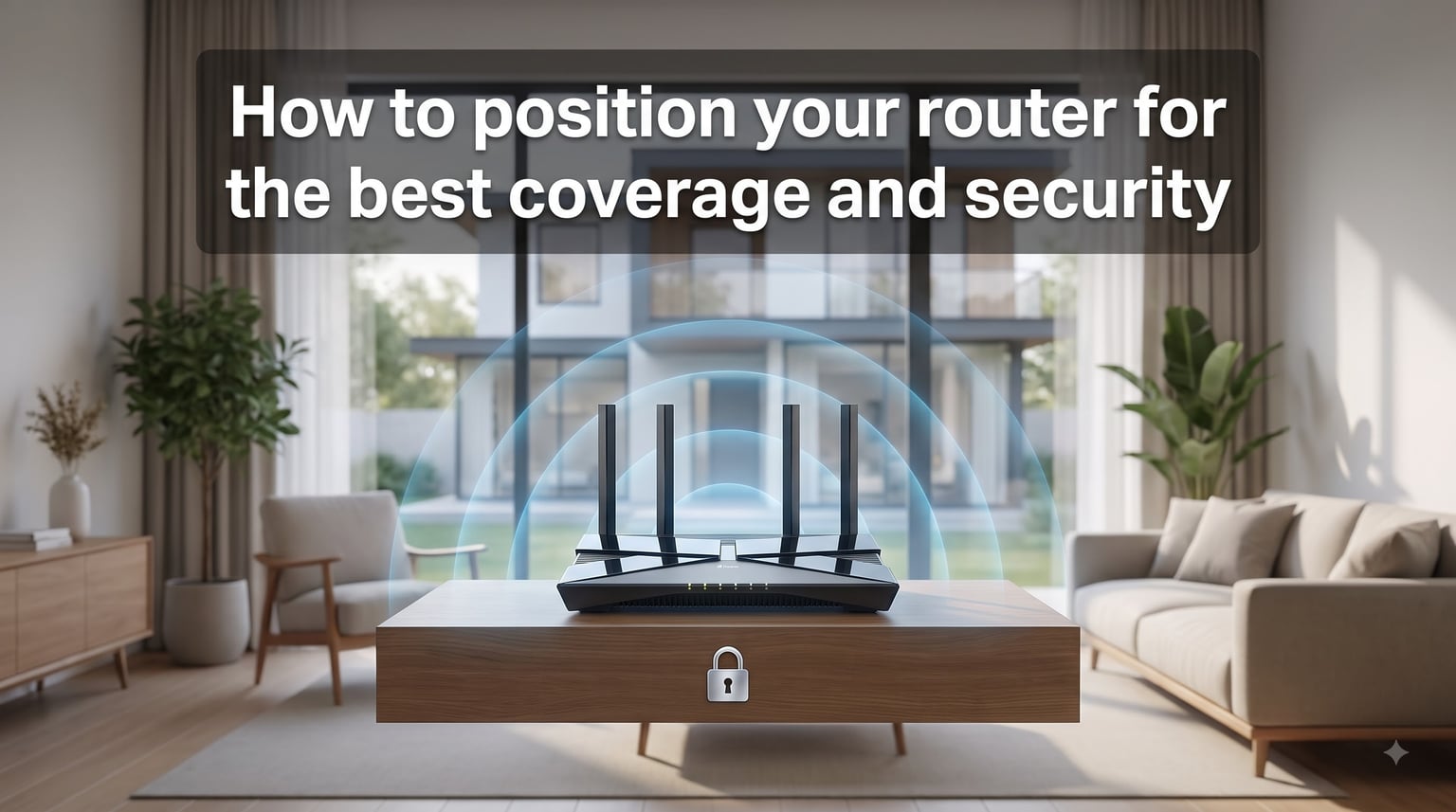
Position your router in a central, elevated location away from walls, metal objects, and electronic interference for optimal Wi-Fi coverage and security. Wi-Fi signals radiate outward and downward from the antenna, so a router placed high and centered in your home delivers the strongest, most even signal to every room.
If you are reading this, you probably have a room where Netflix buffers, a corner where calls drop, or a spot where your laptop just refuses to connect. The fix is rarely a new router. In most cases, the problem is placement. After helping friends, family, and forum readers troubleshoot their home networks for years, I can tell you that simply moving a router from the floor to a shelf often adds 30 to 50 percent more usable range.
This guide covers how to position your router for the best coverage and security in 2026. You will learn where to place it, where not to place it, how to angle the antennas, and how to use router positioning as part of your home network security strategy. I have pulled recommendations from TP-Link, NETGEAR, CISA, and real discussions from r/HomeNetworking and r/wireless so you get the combined wisdom in one place.
Table of Contents
- Why Router Placement Matters for Coverage and Security?
- How to Position Your Router: The 7 Placement Principles
- Where NOT to Put Your Router
- How to Position Router Antennas for Best Signal
- Router Positioning for Multi-Story Homes
- Router Security: How Positioning and Configuration Work Together
- How to Fix WiFi Dead Zones
- Best and Worst Router Locations: Quick Reference
- Common Router Placement Myths
- FAQs
- What is the best way to place a router for better Wi-Fi coverage?
- How to configure a router for better security?
- What is the most secure place to position a Wi-Fi router?
- Where not to put your Wi-Fi router?
- Should router antennas be vertical or angled?
- Does router height really matter?
- How do I fix WiFi dead zones in far rooms?
- Conclusion: Position Once, Benefit Every Day
Why Router Placement Matters for Coverage and Security?
Most people think of router placement only in terms of signal bars on their phone. That matters, but placement affects two things: how well your network performs and how secure it is. A poorly placed router broadcasts half your signal into the street or the neighbor’s apartment. A well-placed router keeps signal inside your home where it belongs.
Wi-Fi signals travel through air easily but lose strength every time they pass through a wall, a ceiling, or an appliance. A typical interior wall might cut signal strength by 10 to 20 percent. A concrete or brick wall can block 40 to 80 percent of the signal. Metal objects like refrigerators, mirrors, and filing cabinets act almost like walls, reflecting and absorbing the radio waves.
The security side is just as important. If your router sits against an exterior wall or near a window, your Wi-Fi signal bleeds outside. Anyone parked on the street or sitting in a neighboring unit can detect your network more easily. Moving the router toward the center of your home keeps the strongest signal inside and reduces your exposure to outsiders scanning for vulnerable networks.
I have seen this firsthand. A friend who lived in a ground-floor apartment had his router on a windowsill. Once he moved it 15 feet inward to a bookshelf near the center of the unit, his signal outside dropped from three bars to barely detectable, while his indoor coverage in the back bedroom went from one bar to four.
How to Position Your Router: The 7 Placement Principles
These seven principles form the core of how to position your router for the best coverage and security. Follow them in order and you will solve most signal problems without buying new hardware.
1. Place the Router in a Central Location
The single most effective change you can make is moving your router to the center of your home. Wi-Fi signals radiate outward in all directions, so a central position gives every room an equal share of the signal. When the router sits in a corner or against an exterior wall, half the signal wastes itself outside.
Walk through your home and identify the geographic center, not just the center of one floor. If you live in a two-story house, that center point should account for both levels. The router should be as close to the middle of the footprint as your internet entry point and cable runs allow.
If your modem is fixed to an exterior wall where the service line enters the house, you have options. A longer Ethernet cable between the modem and router lets you place the router centrally while leaving the modem where it is. I have used a 50-foot Cat6 cable to relocate a router from a basement corner to the center of the first floor, and the coverage improvement was immediate.
2. Elevate the Router Off the Floor
Keep your router off the floor. Most recommendations, including those from TP-Link and NETGEAR, suggest placing the router 4 to 6 feet off the ground on a shelf, bookcase, or mounted on a wall. The floor blocks signal downward into the ground, and many floors contain metal ductwork, pipes, and concrete that absorb radio waves.
Higher placement also helps the signal clear furniture like couches, beds, and tables that would otherwise obstruct the line of sight between the router and your devices. In multi-story homes, elevation helps push signal up to the floor above.
I tested this with a Wi-Fi analyzer app on my phone. With the router on the floor, the RSSI (Received Signal Strength Indicator) in a far bedroom measured around -75 dBm, which is weak. After moving the same router to a shelf five feet up, the reading improved to -62 dBm in the same spot. That is the difference between a connection that drops and one that streams reliably.
3. Keep the Area Around the Router Open
Wi-Fi prefers line of sight. Every object between the router and your device weakens the signal a little or a lot. Avoid enclosing the router in a cabinet, closet, drawer, or behind a stack of books. Even a wooden cabinet can cut signal strength by 20 percent or more, and it also traps heat, which shortens the router’s lifespan.
The ideal spot is an open shelf with at least a foot of clearance on all sides. If you must hide the router for aesthetic reasons, use a vented container or a decorative box with the top open. Never fully enclose a router in a metal or solid wood box.
Forum users on r/HomeNetworking regularly report that simply removing a router from a media cabinet adds 10 to 15 feet of usable range. One user described pulling their router out of a closet and watching their ping in online games drop from 80 ms to 25 ms because the signal no longer had to fight through a closed door.
4. Avoid Metal and Mirrors
Metal is the enemy of Wi-Fi. Refrigerators, ovens, filing cabinets, metal blinds, radiators, and even the foil-backed insulation inside walls can reflect or absorb signal. Large mirrors, which have a thin metal backing, act similarly. If your router sits behind a mirror or next to a kitchen full of stainless steel appliances, expect dead zones in the opposite direction.
Aquariums and large bodies of water also absorb Wi-Fi strongly. If you have a big fish tank between the router and your living room couch, that tank is likely the reason your signal drops when you sit down to stream.
5. Keep Distance from Appliances That Cause Interference
Many household electronics generate radio noise on the same frequencies your router uses. The worst offenders are microwave ovens, which operate on 2.4 GHz, the same band as older Wi-Fi. When a microwave runs, it can briefly kill your 2.4 GHz Wi-Fi in the surrounding area.
Other common interference sources include cordless phones, baby monitors, Bluetooth devices, and some LED light dimmers. Keep your router at least 3 to 5 feet away from any of these. If your kitchen is the center of your home, you have a conflict. Try to find a spot that is central but not within direct line of the microwave.
Switching your devices to the 5 GHz band helps avoid microwave interference entirely, since microwaves only disrupt 2.4 GHz. Most modern dual-band routers support both, and 5 GHz also delivers faster speeds at shorter range.
6. Avoid Exterior Walls and Windows
Placing a router against an outside wall is one of the most common mistakes I see. Half your signal broadcasts into the yard, the street, or the neighbor’s home. This wastes coverage indoors and creates a security risk by making your network loud and easy to detect from outside.
Windows are nearly transparent to Wi-Fi, so a router on a windowsill is essentially a free public hotspot for anyone nearby. Pull the router at least a few feet away from any exterior wall or window. If your only option is near a window, point the antennas away from the glass.
7. Keep the Router Cool
Routers generate heat, and heat degrades both performance and lifespan. Avoid placing the router in direct sunlight, near a heating vent, or on top of other warm electronics like cable boxes and game consoles. A router that overheats will throttle its own performance or reboot randomly, which feels like an internet outage.
The best spots are well-ventilated shelves away from heat sources. If your router feels hot to the touch, it is in the wrong place. TP-Link specifically lists heat and sunlight as a factor in their official placement guide, and they are right.
Where NOT to Put Your Router
Knowing where not to put your Wi-Fi router is just as important as knowing the ideal spot. These are the placements I see most often that ruin both coverage and security.
In a corner or against an outside wall. This wastes signal broadcasting outward and leaves the far side of your home in a dead zone. It also bleeds signal outside where it does not belong.
On the floor or under furniture. Signal pushes into the ground or gets blocked by the couch, bed, or table above. Floors often contain metal and concrete that absorb the radio waves.
Inside a cabinet, closet, or drawer. Enclosed spaces trap heat and block signal. Even a partially open cabinet door weakens the connection noticeably.
In the kitchen near appliances. Microwaves, refrigerators, and ovens all interfere with Wi-Fi. The kitchen is usually the worst room in the house for a router.
Next to a large mirror or window. Mirrors reflect signal and windows let it escape outdoors. Both create dead zones on the opposite side of the router.
In a basement or attic at the extreme end of the house. These spots are far from where you actually use devices, and they often involve thick concrete or insulation that blocks signal.
On top of or directly behind other electronics. Cable boxes, game consoles, and speakers generate both heat and radio noise that compete with your router.
How to Position Router Antennas for Best Signal
Antenna positioning is where many people get confused, and it is one of the most common questions on r/wireless. The general rule from both TP-Link and the broader networking community is simple: keep antennas vertical for same-floor coverage.
Wi-Fi antennas are omnidirectional, meaning they radiate signal in a donut-shaped pattern around the antenna shaft. When the antenna points straight up, the donut spreads horizontally, covering devices on the same floor. When you tilt the antenna, you shift that donut so some signal goes up or down, which can help with multi-floor coverage but weakens horizontal reach.
Two-Antenna Routers
If your router has two antennas, point both straight up vertically. This maximizes horizontal coverage across the floor where most of your devices live. Tilting them does not help unless you specifically need to push signal to a floor above or below.
Four-Antenna Routers
For routers with four antennas, a common recommendation is to keep two antennas vertical and angle the other two outward at about 45 degrees. The vertical antennas handle same-floor coverage while the angled ones help reach devices one floor up or down. This mixed approach gives you coverage in both planes.
I tested this with a four-antenna router in a two-story home. With all four antennas vertical, the upstairs bedroom got around -72 dBm. With two angled at 45 degrees, the upstairs improved to -65 dBm while the downstairs signal stayed roughly the same. The community consensus on this matches my results.
Internal Antenna Routers
Many modern routers, especially mesh systems, have internal antennas. You cannot adjust these, but the orientation of the unit still matters. Keep the router upright as the manufacturer designed it. Laying a vertically designed router on its side can shift the coverage pattern in unexpected ways.
Router Positioning for Multi-Story Homes
Multi-story homes need a slightly different approach than single-story homes because you are trying to cover a vertical space, not just a horizontal one. Here is how to position your router based on your home layout.
Single-Story Homes
In a single-story home, focus entirely on horizontal coverage. Place the router centrally, elevated on a shelf 4 to 6 feet high, with antennas vertical. Avoid exterior walls and keep it out of the kitchen. This setup covers most homes up to about 2,000 square feet with a single router.
Two-Story Homes
For a two-story house, the best placement is usually on the upper floor near the center, or on the ceiling of the lower floor. Wi-Fi signal travels downward more easily than upward through floors and ceilings. Placing the router on the second floor lets gravity and signal physics help cover the floor below.
If you cannot place the router upstairs, put it on the first floor as high as possible and angle one or two antennas to push signal upward. Ceiling mounts work well for this. Forum users report that a router on a second-floor hallway shelf at the top of the stairs covers both floors better than any other single location.
Three-Story or Large Homes
In homes over 2,500 square feet or with three or more stories, a single router usually cannot cover everything regardless of placement. This is where mesh Wi-Fi systems become necessary. Place the main router centrally and satellite nodes on different floors to create a blanket of coverage.
Apartments and Rentals
Renters face a unique challenge: you often cannot drill holes or run long cables. Focus on the center of your unit, elevated on a bookshelf or the top of a dresser. Shared walls with neighbors are actually less blocking than exterior walls, so a router near a shared interior wall is better than one against the outside of the building. Be aware that neighboring networks can cause interference, so use the 5 GHz band and pick a less crowded channel through your router settings.
Router Security: How Positioning and Configuration Work Together
Security is the half of this topic that most guides skip. Knowing how to position your router for the best coverage and security means thinking about who can see your network, not just how fast it runs. Here are the security steps that tie directly to placement.
Keep Signal Inside Your Home
The farther your signal reaches outside your walls, the easier it is for someone to detect, scan, and attempt to breach your network. A router placed centrally keeps the strongest signal inside and lets the signal fade to near-zero at your exterior walls. This is physical security through smart placement.
If you live in an apartment or attached home, your neighbors can already see your network name. That is normal. But a router against a shared wall broadcasts at full strength into their unit. Centering the router reduces how loudly your network advertises itself to everyone nearby.
Disable WPS to Reduce Attack Surface
WPS (Wi-Fi Protected Setup) is a convenience feature that lets devices connect with a button press or an 8-digit PIN. It is also a known security weakness. The PIN method is vulnerable to brute-force attacks that can crack it in hours. Disable WPS in your router settings regardless of placement.
Change Default Admin Credentials
Every router ships with a default admin username and password. These are published online and are the first thing an attacker tries. Change both immediately during setup. Use a long, unique password stored in a password manager.
Use WPA3 or WPA2-AES Encryption
Set your network to use WPA3 if your router and devices support it. If not, use WPA2 with AES encryption. Never use WEP or WPA-TKIP, both of which are obsolete and can be broken in minutes. CISA recommends WPA3 as the current standard for home networks.
Disable Remote Management
Most routers have a remote management feature that lets you access the admin panel from outside your home network. Unless you specifically need this, disable it. Remote management opens a door that attackers can probe from anywhere on the internet.
Keep Firmware Updated
Router manufacturers release firmware updates to patch security vulnerabilities. Check for updates every few months or enable automatic updates if your router supports them. An outdated router is one of the easiest targets on a home network.
Consider a Separate Guest Network
If you have smart home devices, visitors, or kids who connect lots of gadgets, set up a separate guest network. This isolates those devices from your main network where your computers and phones live. If a smart bulb or a visitor’s phone is compromised, the attacker cannot easily reach your personal devices.
How to Fix WiFi Dead Zones
Sometimes placement alone is not enough. If you have moved the router to the best spot and still have dead zones, here are the next steps ranked from best to least effective.
Mesh Wi-Fi systems are the best solution for large or multi-story homes. A mesh system uses a main router and one or more satellite nodes placed throughout the home. The nodes communicate with each other to create a single, seamless network. Place nodes so each one has a strong signal from the previous node, and put them where you actually need coverage.
Range extenders are cheaper than mesh systems but less effective. An extender grabs your existing Wi-Fi and rebroadcasts it. The catch is that the extender must be placed where it still gets a decent signal from the router, which means it cannot extend coverage very far. Extenders also cut your bandwidth in half because they use the same radio to receive and transmit.
Ethernet backhaul is the most reliable option if you can run a cable. Connect a second access point to your router using a Cat6 Ethernet cable, then place the access point in the dead zone. This gives you full speed with no wireless degradation. Mesh systems that support wired backhaul combine the convenience of mesh with the reliability of Ethernet.
WiFi analyzer apps help you find the best spots before you commit. Apps like WiFi Analyzer for Android or NetSpot for desktop show you signal strength at every point in your home. Walk around with the app running and watch the readings to find where signal is strong and where it dies.
Best and Worst Router Locations: Quick Reference
Here is a quick comparison to help you evaluate any spot in your home at a glance.
Best locations: open central shelf on the main living floor, top of a bookcase in a hallway, wall mount near the center of the home at ceiling height, second-floor central location in a two-story home.
Worst locations: the floor in a corner, inside a cabinet or closet, next to a microwave or refrigerator, on a windowsill, in the basement at the far end of the house, behind a large mirror or metal object, on top of a hot cable box.
Middle ground: a desk near the center of the home but cluttered with other devices, a kitchen counter away from appliances, a bedroom nightstand if the bedroom is central. These spots work but are not ideal.
Common Router Placement Myths
A few persistent myths circulate in forums and well-meaning blog posts. Let me address the ones I see most often.
Myth: Aluminum foil or a tin can behind the antenna boosts signal. DIY reflectors can redirect signal in one direction, but they do so by stealing it from another direction. You are not creating more signal, just reshaping it. In most homes, this creates new dead zones elsewhere. Professional engineers and NETGEAR both recommend against these hacks.
Myth: More antennas always mean better range. The number of antennas relates more to speed (through multiple spatial streams) than to raw range. A well-placed two-antenna router will outperform a poorly placed eight-antenna router every time.
Myth: Tilting antennas always improves signal. Vertical is almost always best for same-floor coverage. Tilting only helps when you specifically need to reach a floor above or below.
Myth: You need the most expensive router to fix dead zones. Placement fixes more problems than upgrades. Try repositioning before you spend money on new hardware.
FAQs
What is the best way to place a router for better Wi-Fi coverage?
Place your router in a central, elevated location on a shelf 4 to 6 feet off the floor, away from walls, metal objects, and appliances. Keep antennas vertical for same-floor coverage and ensure the area around the router is open with clear line of sight to your main devices.
How to configure a router for better security?
Change the default admin password, enable WPA3 or WPA2-AES encryption, disable WPS and remote management, keep firmware updated, and set up a separate guest network for visitors and smart home devices. CISA recommends WPA3 as the current security standard for home networks.
What is the most secure place to position a Wi-Fi router?
The most secure position is the center of your home, away from exterior walls and windows. This keeps your strongest signal inside where it belongs and reduces how detectable your network is from the street or neighboring units.
Where not to put your Wi-Fi router?
Avoid placing your router on the floor, in corners, against exterior walls, inside cabinets or closets, near microwaves and refrigerators, on windowsills, behind large mirrors, or near other heat-generating electronics. All of these spots weaken signal or create security risks.
Should router antennas be vertical or angled?
Keep antennas vertical for single-floor coverage. If you have a four-antenna router in a multi-story home, keep two vertical and angle two at about 45 degrees to push signal to other floors. For two-antenna routers, vertical is almost always best.
Does router height really matter?
Yes. Elevating the router 4 to 6 feet off the floor measurably improves signal strength. Floor placement wastes signal downward into the ground and puts the router behind furniture that blocks the radio waves.
How do I fix WiFi dead zones in far rooms?
First try repositioning the router centrally. If dead zones persist, add a mesh Wi-Fi system with satellite nodes in the weak areas, or run an Ethernet cable to a second access point. Range extenders are a budget option but cut bandwidth in half.
Conclusion: Position Once, Benefit Every Day
Learning how to position your router for the best coverage and security is a one-time effort that pays off every single day. A central, elevated, open location with vertical antennas solves most coverage problems. Keeping the router away from exterior walls, windows, and appliances protects both your signal strength and your network security.
Start by walking through your home with a Wi-Fi analyzer app to find your current dead zones. Then apply the seven placement principles, configure your security settings, and re-test. If dead zones remain, consider a mesh system or a wired access point. The right placement combined with proper security configuration gives you faster speeds, fewer dropouts, and a network that is harder for outsiders to reach.
Your router works hardest when it sits in the right spot. Move it once, and your entire home network improves.