
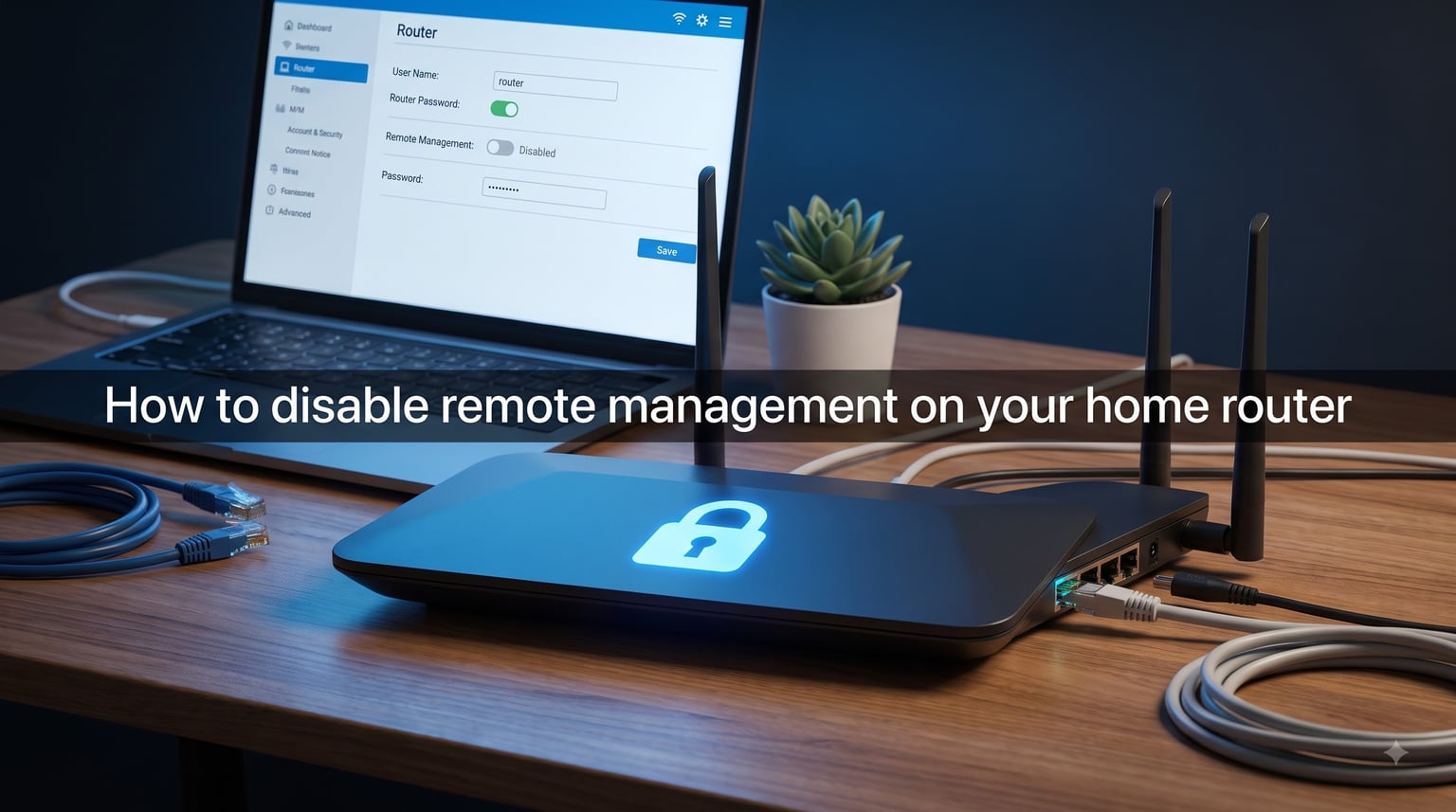
If you have never opened your router’s settings page, there is a real chance someone on the other side of the planet could right now. Learning how to disable remote management on your home router closes one of the most overlooked doors into your personal network.
Remote management is a feature that exposes your router’s admin panel to the public internet. I have seen it enabled by default on routers fresh out of the box, on ISP-leased devices, and even quietly turned back on after a firmware update.
In this guide I will walk you through what remote management actually does, why leaving it on is a serious security risk, and the exact step-by-step process to disable remote management on your home router across every major brand including NETGEAR, TP-Link, ASUS, Linksys, D-Link, and Xfinity.
I will also cover the hidden ISP problem, the mobile app conflict nobody warns you about, and safer alternatives like VPN access that give you remote control without the exposure.
Table of Contents
- What Is Remote Management on a Router?
- Why You Should Disable Remote Management: Security Risks
- Finding Your Router’s IP Address
- How to Log Into Your Router Admin Panel
- How to Disable Remote Management on Your Home Router: Brand-by-Brand
- Mobile App Considerations and Conflicts
- Safer Alternatives to Remote Management
- ISP Remote Management: The Hidden Problem
- Additional Security Settings to Check After Disabling
- Should You Disable Remote Management on Your Router?
- FAQs
- What does disabling remote management on a router do?
- How do I disable remote administration on my router?
- Can someone control my router remotely?
- Should I disable remote management on my router?
- What is remote management in a router?
- Should remote management be on or off?
- How do I turn remote management off?
- Conclusion
What Is Remote Management on a Router?
Remote management is a router feature that lets you access and configure your router’s admin panel from outside your home network, over the public internet. When enabled, your router publishes its web-based management interface on its WAN (wide area network) IP address instead of keeping it confined to your local network.
In plain terms: anyone who knows your public IP address can pull up your router login page from anywhere in the world. The only thing standing between them and your settings is your admin password.
This is fundamentally different from accessing your router locally. Locally, you type something like 192.168.1.1 into a browser connected to your Wi-Fi. Remote management takes that same interface and makes it reachable from the internet side of your connection.
Some routers expose remote management over HTTP on port 80 or 8080. Others use HTTPS on port 443. A few also open Telnet (port 23) or SSH (port 22) for command-line administration. Each open port is another entry point an attacker can probe.
For the vast majority of home users, there is zero reason to manage the router while away from home. The feature exists primarily for IT professionals and network administrators who manage dozens of devices across multiple locations.
Why You Should Disable Remote Management: Security Risks
Leaving remote management enabled turns your router into a publicly accessible target. Here is why that matters more than most people realize.
Default and Weak Credentials Are Trivially Exploitable
Countless routers still ship with default usernames and passwords like admin/admin or admin/password. Attackers maintain automated botnets that scan the entire IPv4 address space looking for routers with remote management turned on. When they find one with default credentials, they are inside within seconds.
Even if you changed your password, brute-force attacks against routers with remote management exposed are common. A weak or reused password will eventually fall.
Once Inside, an Attacker Owns Your Network
If someone gains admin access to your router, they can change your DNS servers to redirect your traffic through malicious servers. They can disable your firewall, open additional ports, set up port forwarding to internal devices, monitor unencrypted traffic, and even push malicious firmware updates.
Forum users on r/HomeNetworking have shared real stories of attackers changing DNS settings on compromised routers to redirect banking websites to phishing pages. The victim often never realizes the router was the entry point.
Firmware Vulnerabilities Get Amplified
Router firmware vulnerabilities are discovered regularly. When remote management is off, those vulnerabilities can only be exploited by someone already inside your network. When it is on, the vulnerability is exposed to the entire internet the moment it is disclosed.
This is exactly how large-scale router botnets like Mirai and VPNFilter spread. They scanned for devices with known vulnerabilities and default credentials exposed on the WAN.
HTTPS Does Not Make It Safe
Some routers offer an “always use HTTPS to access router” option for remote management. This encrypts the connection between you and the router, but it does nothing to stop credential attacks, brute-force attempts, or exploitation of firmware flaws. It just means the attack traffic is encrypted.
Finding Your Router’s IP Address
Before you can change any settings, you need to reach your router’s admin panel. The first step is finding your router’s local IP address, also called the default gateway.
On Windows
Step 1: Press Windows Key + R to open the Run dialog.
Step 2: Type cmd and press Enter to open Command Prompt.
Step 3: Type ipconfig and press Enter.
Step 4: Look for the line that says Default Gateway under your active network adapter. The number next to it (commonly 192.168.1.1, 192.168.0.1, or 10.0.0.1) is your router’s IP address.
On Mac
Step 1: Click the Apple menu and select System Settings (or System Preferences on older macOS).
Step 2: Click Network and select your active connection (Wi-Fi or Ethernet).
Step 3: Click Details or Advanced.
Step 4: Look for the Router field. The IP address listed there is what you need.
How to Log Into Your Router Admin Panel
Open a web browser and type your router’s IP address into the address bar. Press Enter and you should see the router’s login page.
Enter your admin username and password. If you never changed them from the defaults, they are usually printed on a sticker on the bottom or back of the router. Common default combinations include admin/admin, admin/password, and a blank username with admin as the password.
If the defaults do not work and you cannot remember your credentials, you may need to perform a factory reset by holding the reset button on the router for 10 to 15 seconds. This erases all custom settings, so use it as a last resort.
Once you are logged in, the layout you see depends entirely on your router’s brand and firmware version. The next section covers exactly where to find the remote management toggle for each major brand.
How to Disable Remote Management on Your Home Router: Brand-by-Brand
Every router manufacturer buries the remote management setting in a slightly different location. I have tested these paths on current firmware versions as of 2026. If your interface looks different, you may be running an older or newer firmware version, but the setting name will be similar.
NETGEAR (Including Nighthawk)
Step 1: Log into your router at routerlogin.net or 192.168.1.1.
Step 2: Click the ADVANCED tab at the top.
Step 3: Navigate to Advanced Setup, then select Remote Management.
Step 4: Make sure the checkbox or toggle for Turn Remote Management On is unchecked. If a port number field is shown (commonly 8080), clearing the checkbox is enough.
Step 5: Click Apply or Save.
Note: NETGEAR also offers remote access through the Nighthawk app, which uses NETGEAR’s cloud service rather than direct WAN access. This is a separate feature from the Remote Management setting in the web interface. If you want to disable all remote access, you should also unlink the router from your Nighthawk app account.
TP-Link
TP-Link uses different interfaces depending on the model and firmware version. Here are the paths for the three most common versions.
Blue Interface (newer firmware): Go to Advanced, then System Tools, then Administration. Look for the Remote Management section and set it to Disabled or uncheck Enable Remote Management. Save your changes.
Green Interface (older firmware): Navigate to Access Management, then find Remote Management under the Service Configuration section. Uncheck the box and save.
Tether app users: The TP-Link Tether app connects through TP-Link’s cloud. Disabling remote management in the web interface does not disable cloud access through the app. To fully disable remote access, log out of your TP-Link ID in the app settings or unlink the router from your account.
ASUS
Step 1: Log into your router at router.asus.com or 192.168.1.1.
Step 2: Go to Administration under the Advanced section in the left sidebar.
Step 3: Click the System tab.
Step 4: Find the Remote Control (WAN) setting or Enable Web Access from WAN. Set it to No or uncheck it.
Step 5: Click Apply.
Important conflict: The ASUS Router app requires your router to be linked to your ASUS WebStorage account, which uses cloud-based remote access. If you disable WAN web access but keep the app linked, you still have a remote access pathway through ASUS servers. Users on r/ASUS have reported that the app cannot connect locally when the router is unlinked, so you will need to decide between app convenience and maximum security.
Linksys
Step 1: Log into your router at linksyssmartwifi.com or 192.168.1.1.
Step 2: Click Connectivity in the left menu.
Step 3: Click the Administration tab.
Step 4: Under Remote Management, set it to Disabled. If you previously enabled it, there may be a port number field that becomes greyed out.
Step 5: Click Apply and then OK to confirm.
Linksys Smart Wi-Fi also offers cloud access through your Linksys account. If you want to disable all remote management, unlink the router from your Linksys cloud account in the Account settings.
D-Link
Step 1: Log into your router (commonly at 192.168.0.1).
Step 2: Click Tools from the top menu.
Step 3: Select Admin from the left sidebar.
Step 4: Find the Remote Management section. Set the remote management port to blank or uncheck Enable.
Step 5: Click Save Settings.
On newer D-Link models with the redesigned interface, look under Settings, then Tools, then Admin. The Remote Management toggle may be labeled as Enable Remote Management with a port field.
Xfinity / Comcast (xFi Gateway)
Xfinity gateways work a bit differently because they are managed through the Xfinity app and web portal rather than a traditional admin panel.
Step 1: Open the Xfinity app on your phone or go to xfinity.com/myaccount.
Step 2: Navigate to your gateway settings under Network or Devices.
Step 3: Look for Advanced Security and enable it if it is not already on.
Step 4: For remote management specifically, Xfinity controls this through their cloud platform rather than a user-facing toggle. The most effective way to limit exposure is to disable Bridge Mode if you are using your own router behind the gateway, and contact Xfinity support to request that remote management be turned off on their end.
Several Reddit users have reported that Xfinity enables remote management on leased gateways for support purposes and that the setting is not visible in the consumer interface. Calling support and explicitly requesting removal is sometimes the only option.
Mobile App Considerations and Conflicts
One of the biggest sources of confusion I see in forums is the conflict between disabling remote management and using manufacturer mobile apps.
Apps like the ASUS Router app, TP-Link Tether, NETGEAR Nighthawk app, and Linksys app all use cloud-based remote access. They connect through the manufacturer’s servers rather than directly to your router’s WAN IP.
This means that disabling remote management in the web interface closes the direct internet-facing door, but the cloud pathway through the app may remain open. These are two separate channels.
If your goal is maximum security, you need to disable both. Log out of your manufacturer cloud account or unlink the router from the app. The trade-off is that you lose the ability to check your network status or run speed tests from your phone while away from home.
For most people, this is an acceptable trade-off. If you genuinely need remote visibility into your network, use a VPN instead of the manufacturer cloud, as covered in the next section.
Safer Alternatives to Remote Management
If you need to manage your router or home network while away from home, there are far more secure options than exposing your admin panel to the internet.
Use a VPN to Access Your Home Network
A VPN creates an encrypted tunnel between your remote device and your home network. Once connected, your device behaves as if it is on your local network. You can then access your router’s admin panel at its local IP address just as if you were sitting in your living room.
Many routers have a built-in VPN server feature. ASUS routers support OpenVPN and WireGuard out of the box. NETGEAR and TP-Link also offer VPN server functionality on select models. This keeps the admin panel behind the VPN tunnel rather than exposed on the public internet.
Tailscale or WireGuard for Simple Setup
If your router does not support a built-in VPN server, you can install Tailscale on a device inside your network such as a Raspberry Pi, NAS, or always-on computer. Tailscale uses WireGuard under the hood and creates a secure mesh network between your devices with almost no configuration.
Once Tailscale is running on a device in your home network, you can connect to it from anywhere and reach your router’s local IP address through the tunnel. This is the approach I personally use and recommend, because it provides remote access without opening any inbound ports on your router.
SSH Tunneling for Advanced Users
If you are comfortable with the command line, you can set up an SSH server on a device inside your network and create a tunnel to access your router’s web interface. This is more technical but gives you fine-grained control over who can connect and from where.
Make sure to disable password authentication and use key-based authentication only. Never expose SSH directly to the internet without hardening it first.
ISP Remote Management: The Hidden Problem
One of the most alarming findings from forum discussions is how often ISPs enable remote management on customer routers without consent or notification.
Users on r/HomeNetworking and r/NETGEAR have reported cases where a technician visited for a routine installation or repair, turned on remote management to configure the device, and never turned it off. In some cases, users discovered the feature was enabled months later during a security check.
ISP-leased gateways from Xfinity, Spectrum, AT&T, and Verizon often have remote management enabled by design so that support staff can push firmware updates and troubleshoot remotely. You typically cannot disable this through the normal consumer interface.
If you are using an ISP-leased gateway, here is what I recommend:
Call your ISP and explicitly ask them to disable remote management on your device. Document the call with a reference number. Some ISPs will comply, while others will claim it is necessary for support.
The most effective solution is to buy your own router and modem. Put the ISP gateway into bridge mode if required, and use your own equipment where you control every setting. This eliminates the ISP remote access pathway entirely.
Forum users consistently report that switching to personally-owned networking equipment resolves the ISP remote management problem. The upfront cost pays for itself in both security and the elimination of monthly rental fees.
Additional Security Settings to Check After Disabling
Disabling remote management is one of the most impactful changes you can make, but it is not the only one. While you are logged into your router, take five minutes to check these settings.
Change the Default Admin Password
If you have not changed it yet, do it now. Use a strong, unique password that is not used anywhere else. Store it in a password manager. This protects you even if someone gains access to your local network.
Disable Telnet and SSH If Unused
Even if remote web management is off, Telnet and SSH may still be enabled on some routers. Check the same administration or tools section where you found remote management. Disable both unless you specifically need them and know how to secure them.
Disable WPS (Wi-Fi Protected Setup)
WPS has known vulnerabilities that allow attackers to brute-force the PIN and gain access to your Wi-Fi network. Most routers have a WPS toggle in the wireless settings section. Turn it off.
Disable UPnP If You Do Not Need It
Universal Plug and Play (UPnP) automatically opens ports for devices and applications. While convenient, it can be exploited by malware to open ports without your knowledge. If you do not rely on UPnP for gaming or specific applications, disable it.
Update Your Firmware
Check for firmware updates in the administration or system tools section. Firmware updates patch known security vulnerabilities, including some that specifically affect remote management functionality. Set automatic updates to on if your router supports it.
Should You Disable Remote Management on Your Router?
Yes, you should disable remote management on your router unless you have a specific, active need to manage your router from outside your home network. The security risk of exposing your admin panel to the public internet far outweighs the convenience for the vast majority of home users.
If you do need remote access, use a VPN instead. A VPN tunnel gives you full access to your router’s local interface without exposing it to the entire internet.
FAQs
What does disabling remote management on a router do?
Disabling remote management removes your router’s admin panel from the public internet. It ensures your router settings can only be accessed from devices connected to your local home network, closing a common entry point for attackers.
How do I disable remote administration on my router?
Log into your router’s web interface using its local IP address, navigate to the Advanced or Administration section, find the Remote Management setting, uncheck or disable it, and save your changes. The exact menu path varies by brand but is typically under Advanced Setup or System Tools.
Can someone control my router remotely?
Yes. If remote management is enabled and your admin password is weak or unchanged from the default, an attacker can access your router from anywhere on the internet. They could then change DNS settings, disable your firewall, or redirect your traffic to malicious sites.
Should I disable remote management on my router?
Yes. Unless you are an IT professional who actively manages routers across multiple locations, you should disable remote management. The security risk of exposing your admin panel to the internet outweighs the convenience for home users.
What is remote management in a router?
Remote management is a router feature that allows you to access and configure your router’s admin panel over the internet from any location. It exposes the management interface on the router’s public WAN IP address rather than restricting it to the local network.
Should remote management be on or off?
Remote management should be off for home routers. It should only be enabled on managed networks where IT staff need remote access and have implemented additional security measures like VPN tunneling and strong authentication.
How do I turn remote management off?
Log into your router admin panel, find the Remote Management setting under Advanced Setup or Administration, disable the toggle or uncheck the enable box, and click Save or Apply. On NETGEAR go to ADVANCED then Advanced Setup then Remote Management. On TP-Link go to System Tools then Administration.
Conclusion
Disabling remote management on your home router is one of the simplest and highest-impact security changes you can make. It takes about two minutes once you know where the setting lives.
Log into your router today, find the remote management toggle under Advanced Setup or Administration, turn it off, and save. Then change your default password, disable WPS and Telnet, and update your firmware. If you need remote access later, set up a VPN or Tailscale instead of reopening that door.
Your router is the gateway to every device on your network. Locking it down is worth the few minutes it takes.