
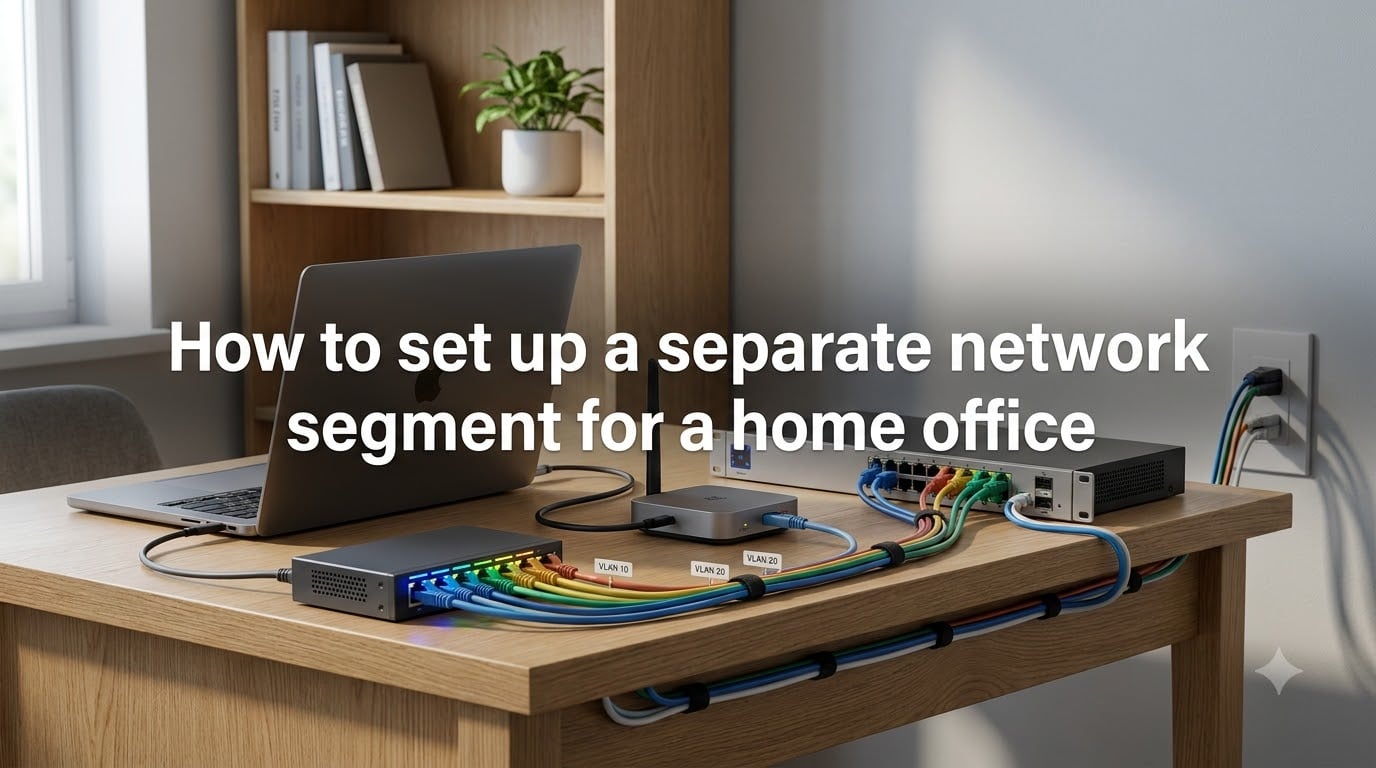
Yes, you can absolutely create a separate network inside your own home, and if you work remotely, you probably should. Network segmentation is the practice of dividing your home network into isolated segments so that your work devices, personal devices, smart home gadgets, and guest devices all operate on their own contained networks with controlled access between them.
I have helped dozens of people set up segmented home networks over the past several years, and the transformation is always the same. Once you separate your work laptop from the rest of the household traffic, you gain real security boundaries instead of hoping for the best on a single flat network.
In this guide, I will walk you through how to set up a separate network segment for a home office from scratch. We will cover the core concepts, the equipment you need at different budget levels, a full step-by-step setup, firewall configuration, troubleshooting the most common headaches, and security hardening. Whether you have a basic ISP router or a full Ubiquiti stack, you will find an approach that fits your situation.
Table of Contents
- Why You Need a Separate Network Segment for Your Home Office?
- Network Segmentation Concepts: VLAN, Subnet, and Firewall Explained
- Equipment Needed for Home Office Network Segmentation
- How to Set Up a Separate Network Segment for a Home Office: Step by Step
- Configuring Firewall Rules Between Network Segments
- Troubleshooting Common Network Segmentation Issues
- Security Best Practices for Your Segmented Home Office Network
- Frequently Asked Questions
- Conclusion
Why You Need a Separate Network Segment for Your Home Office?
Putting your work laptop on the same network as your kids’ tablets, your smart TV, and a dozen IoT devices is a serious risk. A single compromised IoT lightbulb or an infected phone on the same flat network can pivot directly to your work machine, and your company security team will not be happy about that.
Here is why segmentation matters specifically for home office workers:
Malware containment. When devices are isolated into separate segments, malware that lands on one device cannot freely scan and infect devices in another segment. The blast radius shrinks dramatically.
Company compliance. Many employers require work devices to connect through a secured network. Some VPN clients check whether the host network is trusted. Segmenting your work devices into their own zone satisfies these requirements without inconveniencing the rest of the household.
IoT isolation. Smart plugs, cameras, and cheap IoT gadgets are notorious for poor security. Keeping them on a segmented VLAN means even if one gets compromised, your work laptop and personal files stay protected.
Bandwidth control. With separate segments, you can apply quality-of-service rules that prioritize your video calls over someone streaming 4K movies in the living room. No more stuttering on important meetings.
Peace of mind for family sharing. If you share your home with others, segmentation means a family member clicking a bad link on their phone does not put your work data at risk. Everyone keeps their access, but with boundaries.
Network Segmentation Concepts: VLAN, Subnet, and Firewall Explained
Before you start changing router settings, you need to understand the three core building blocks of segmentation. These terms get thrown around interchangeably, but they are distinct tools that work together.
What Is a VLAN?
A VLAN (Virtual Local Area Network) is a logical grouping of devices that behave as if they are on the same physical network, even when they are not. Your router or switch creates these virtual boundaries in software, so you do not need separate physical cables for each segment.
For example, you can plug your work laptop into port 3 on a managed switch and assign that port to VLAN 10, while the smart TV on port 5 goes to VLAN 20. The two devices never see each other’s traffic at the network level, even though they share the same hardware.
What Is a Subnet?
A subnet is a range of IP addresses that defines a network. Your home network probably uses something like 192.168.1.x, where x is assigned to each device. Each segment you create typically gets its own subnet range, like 192.168.10.x for work and 192.168.20.x for IoT.
The subnet mask (usually 255.255.255.0 on home networks) tells devices which part of the address identifies the network versus the individual device. Devices on different subnets cannot talk directly to each other without a router forwarding traffic between them.
What Is a Firewall and ACL?
A firewall controls what traffic can flow between segments. Even with VLANs and subnets in place, without firewall rules your router might happily forward traffic between segments. An ACL (Access Control List) is the set of rules that says “allow this, deny that.”
A typical home office firewall rule allows the work segment to reach the internet but blocks all incoming connections from the IoT segment. This is how you turn isolation into actual security.
VLAN vs Subnet vs Firewall Isolation
These three approaches are not competing options. They are layers that work together:
Subnets divide IP address space. They are the addressing layer of segmentation.
VLANs divide broadcast domains at the switch level. Devices in different VLANs do not see each other’s broadcast traffic, which reduces noise and improves isolation.
Firewalls enforce what traffic can cross between segments. Without firewall rules, VLANs alone may not prevent inter-segment traffic if your router routes between them.
For a proper home office segment, you want all three: a VLAN for your work devices, a dedicated subnet for addressing, and firewall rules that control exactly what can enter and leave that segment.
A Note on the 5-4-3 Rule
If you have read older networking material, you may have come across the 5-4-3 rule. This is a legacy Ethernet guideline stating that a network can have a maximum of 5 segments, 4 repeaters, and only 3 of those segments can be populated with nodes. Modern switched networks made this rule obsolete, but it is useful context if you encounter it. For your home office segmentation, you do not need to worry about it.
Equipment Needed for Home Office Network Segmentation
You do not need enterprise hardware to get started. Here are the three main approaches, from simplest to most capable.
Option 1: Use Your Existing Router’s Guest Network (Free)
Most modern ISP routers and consumer routers include a guest network feature. This creates a separate WiFi network that is isolated from your main network by default. Connect your work laptop to the guest WiFi, and it will not be able to reach your personal devices.
This is the zero-cost starting point. The limitation is that guest networks are usually WiFi-only and do not give you firewall control or wired connections for your work segment.
Option 2: Add a Second Router (Budget)
If your ISP router cannot do VLANs, the simplest hardware upgrade is a second consumer router. You connect the second router to your ISP router, then plug your work devices into the second router. The second router’s NAT creates a natural barrier between your work segment and the rest of the house.
For this approach, look for a router that supports custom firmware or at least has decent firewall settings. Many people in the homelab community recommend this as the entry point before moving to managed equipment.
Option 3: Managed Switch or Business-Grade Router (Enthusiast)
For real VLAN support, you want either a managed switch with VLAN capability paired with a VLAN-aware router, or an all-in-one solution. Popular options in the home networking community include:
Ubiquiti UniFi equipment, which is frequently recommended on Reddit’s r/HomeNetworking and r/homelab for its user-friendly interface and built-in VLAN management. A UniFi Dream Router or Dream Machine gives you a single device that handles routing, firewall, WiFi, and VLANs.
pfSense or OPNsense running on a mini PC or dedicated box. This is a free, open-source firewall operating system that gives you enterprise-grade control over firewall rules, VLANs, and traffic shaping. The learning curve is steeper, but the flexibility is unmatched.
Synology routers like the RT6600ax, which offer VLAN and traffic control features through the Synology Router Manager interface. One competitor I studied used this exact router for their home office segmentation project.
A basic managed switch (around 30 to 50 dollars from brands like TP-Link or Netgear) paired with a VLAN-capable router is enough for most home offices. You do not need to spend hundreds.
How to Set Up a Separate Network Segment for a Home Office: Step by Step
This is the core process. Follow these six steps in order, and you will have a working segmented network by the end.
Step 1: Inventory and Categorize Your Devices
Before touching any router settings, make a list of every device on your network. You can find them by checking your router’s connected devices page, or by running a free network scanner like Nmap.
Group your devices into categories. A practical starting split for a home office looks like this:
Work segment: Work laptop, work phone, any company-issued devices, your personal printer if you print work documents.
Personal segment: Personal laptops, phones, tablets, desktop computers.
IoT segment: Smart speakers, smart plugs, security cameras, smart TV, gaming consoles if you want them isolated.
Guest segment: Devices that visitors connect to.
Most experienced users on Reddit recommend starting with just two or three segments before getting more complex. Do not overthink it on day one.
Step 2: Choose Your Segmentation Approach
Based on your equipment from Step 1 of the planning phase, decide which method you will use:
If you only have an ISP router, use the guest network for work devices. It takes five minutes.
If you are adding a second router, plan where it will sit physically and which devices connect to it.
If you have a managed switch or business router, plan your VLAN IDs and subnet ranges now. Write them down so you do not lose track.
Step 3: Create the VLAN or Configure the Second Router
For a second router setup, connect the WAN port of your second router to a LAN port on your ISP router. The second router will get an IP from the ISP router and create its own separate network behind NAT. Connect your work devices to the second router.
For a VLAN setup on a managed switch and compatible router, the process looks like this:
Log into your router’s admin interface (usually 192.168.1.1 or similar). Navigate to the VLAN or network settings section. Create a new VLAN with a unique ID, for example VLAN 10 for work. Assign a subnet to it, like 192.168.10.1 with a DHCP range of 192.168.10.100 to 192.168.10.200.
On your managed switch, tag the VLAN on the uplink port to your router and untag it on the port where your work device connects. Exact terminology varies by brand, but the concept is the same: the port your work laptop plugs into should be assigned to the work VLAN.
Step 4: Set Up Firewall Rules Between Segments
This is where segmentation becomes security. Without firewall rules, your router may route traffic freely between VLANs.
Create a default deny rule first. This blocks all traffic between segments unless explicitly allowed. Then add specific allow rules for the traffic you actually need, such as allowing the work segment to reach the internet on standard ports.
Block incoming connections from the IoT segment and the guest segment to your work segment. Your work devices should be able to reach out, but nothing should be able to reach in.
Step 5: Configure WiFi SSIDs for Each Segment
If your work devices use WiFi, create a separate SSID mapped to your work VLAN. On UniFi, this is a checkbox when creating a new wireless network. On pfSense with a separate access point, you tag the SSID’s traffic to the correct VLAN ID.
Name your SSIDs clearly so family members know which one to use. Something like “Home-Work” for the work segment and “Home-IoT” for smart devices prevents confusion.
Use WPA3 encryption if your devices support it. At minimum, use WPA2 with a strong, unique password for each SSID.
Step 6: Test Isolation and Connectivity
Before relying on your new setup, verify that it actually works. Connect a device to your work segment and try to ping or access a device on your personal segment. If the connection fails, your firewall rules are working.
Then confirm that your work device can still reach the internet, connect to your VPN, and access any company resources it needs. If something breaks, check your firewall allow rules and DHCP settings.
Run an Nmap scan against your own network from each segment to confirm visibility is limited to what you intend. This is a great way to catch misconfigurations before they become security problems.
Configuring Firewall Rules Between Network Segments
Firewall rules are the heart of effective segmentation. Getting them right takes some thought, but the principles are straightforward.
The Default Deny Principle
Start with a default deny rule between segments. This means any traffic that does not match a specific allow rule is blocked. It is far safer than trying to block specific threats one by one.
Most consumer routers default to allowing all traffic between local networks. You need to explicitly override this if your router supports it. Business-grade platforms like pfSense and UniFi default to a more locked-down posture.
Allowing Specific Traffic
After denying by default, add rules for the traffic you genuinely need. Common examples:
Allow your work segment to reach the internet on ports 80, 443, and any VPN ports your company uses. Allow DNS queries from all segments to your router or a trusted DNS server. Block all inbound connections to the work segment from other local segments.
If you need to print from your work segment to a shared printer, you will need to allow the specific print protocols (typically port 9100 for raw printing or port 631 for IPP) to the printer’s IP address.
Handling mDNS and Service Discovery
This is the number one pain point reported in home networking forums. mDNS (Multicast DNS), also known as Bonjour, is how devices discover each other for things like AirPrint, Chromecast, and AirPlay. It uses multicast, which does not cross VLAN boundaries by default.
If you segment your network and suddenly your printer disappears or your Chromecast stops working, this is why. The solution is an mDNS repeater or reflector.
On pfSense, install the Avahi package and enable it on the VLANs that need service discovery. On UniFi, there is a built-in mDNS setting you can enable per network. This forwards mDNS announcements between segments so discovery works without opening up full access between them.
Troubleshooting Common Network Segmentation Issues
Even with a solid setup, you will likely hit a few of these issues. Here are the most common ones and how to fix them.
Printers Not Found Across VLANs
This is the most frequently reported problem. Printers that use mDNS for discovery will not show up from a different VLAN. Fix this by enabling an mDNS repeater on your router or firewall, or by adding a firewall rule that allows print traffic to the printer’s specific IP address.
Alternatively, install the printer manually using its IP address instead of relying on auto-discovery. This works around the mDNS issue entirely.
Chromecast and Smart Home Devices Breaking
Chromecast, Apple TV, and many smart home devices rely on multicast for casting and discovery. When you put these on a separate IoT VLAN, casting from your phone on the personal VLAN stops working.
The fix is the same mDNS repeater solution mentioned above. Some users also place their casting control devices (phones, tablets) on the same VLAN as the casting targets to avoid the issue entirely.
File Sharing Across Segments
Windows file sharing and SMB use broadcast discovery that does not cross VLANs. If you need to access a file share from another segment, use the direct IP address or hostname instead of browsing the network.
Ensure your firewall allows SMB traffic (port 445) between the specific devices that need it, rather than opening it broadly.
Performance Degradation
Some users notice slower speeds after adding VLANs, usually because their router or switch is underpowered for inter-VLAN routing. If your router’s CPU maxes out handling traffic between segments, consider a layer 3 switch for hardware-accelerated routing, or upgrade to a more capable router.
In most home setups, the performance impact is negligible. If you see significant slowdowns, check whether hardware NAT offload is enabled on your router.
Network Connectivity Drops After Configuration
If devices lose internet access after you apply VLAN or firewall changes, double-check your DHCP settings for each VLAN. Each segment needs its own DHCP server or relay configured with the correct subnet and gateway.
Also verify that DNS is working. A common mistake is blocking DNS traffic when tightening firewall rules. Allow port 53 (both UDP and TCP) from all segments to your DNS resolver.
Security Best Practices for Your Segmented Home Office Network
Segmentation is your foundation, but it is not the whole security picture. Here is how to harden your setup further.
Use WPA3 on all WiFi networks. If your devices support it, enable WPA3 for stronger encryption. At minimum, disable WPS, which is a known security weakness on many routers.
Disable unused services and ports. Turn off UPnP on your router. It is convenient but a common attack vector. Close any ports you opened during setup that you no longer need.
Keep firmware updated. Check for router and switch firmware updates regularly. Vulnerabilities in router firmware are discovered frequently, and manufacturers do not always auto-update.
Change default credentials. If you are still using the default admin password on your router or switch, change it immediately. This is the single most common way home networks get compromised.
Run periodic Nmap scans. Use Nmap to scan your own network every few months. Verify that each segment can only see what you intended. This catches configuration drift and catches devices you may have forgotten about.
Monitor your network. If your router supports traffic logging or you run pfSense, review logs occasionally. Unusual outbound traffic from a device can indicate a compromise. Tools like Pi-hole can give you visibility into DNS queries across your network.
Frequently Asked Questions
Can I create a separate network in my own home?
Yes, you can create a separate network inside your own home. The simplest method is enabling the guest network feature on your existing router, which isolates connected devices from your main network. For more control, you can add a second router or set up VLANs using a managed switch and a VLAN-capable router.
How should I segment my home network?
Start with two or three segments: one for work devices, one for personal and family devices, and optionally one for IoT and smart home equipment. Assign each segment its own VLAN and subnet, then add firewall rules that block traffic between segments unless you specifically need it. Most experienced users recommend keeping it simple at first and adding more segments only as needed.
What is the 5 4 3 rule of network design?
The 5 4 3 rule is a legacy Ethernet guideline stating that a network segment can have a maximum of 5 segments connected by 4 repeaters, with only 3 of those segments being populated with nodes. This rule applied to old coaxial and early twisted-pair Ethernet and is no longer relevant on modern switched networks.
How to set up a home office network?
To set up a home office network, start by inventorying your devices and deciding which ones need isolation. Then choose a segmentation method: use your router’s guest network for a free option, add a second router for a budget setup, or configure VLANs with a managed switch for full control. Create your segments, assign subnets and SSIDs, add firewall rules to control traffic between segments, and test that isolation works before relying on it.
What equipment do I need for network segmentation?
At minimum, you need a router that supports VLANs or a guest network feature. For more advanced segmentation, add a managed switch with VLAN support and optionally a dedicated access point for WiFi segments. Popular options include Ubiquiti UniFi devices, pfSense or OPNsense on a mini PC, or consumer routers with built-in VLAN support like Synology models.
Should I use subnetting or VLANs?
You should use both. Subnets divide your IP address space so each segment has its own address range, while VLANs create the actual isolation at the switch level so devices in different segments cannot see each other’s traffic. Add firewall rules on top to control what traffic can cross between segments. Using all three together gives you proper network segmentation.
Conclusion
Learning how to set up a separate network segment for a home office is one of the highest-impact security improvements you can make as a remote worker. Start simple with your router’s guest network if that is all you have today, then graduate to VLANs and firewall rules when you are ready for more control.
The key steps are inventorying your devices, choosing your segmentation approach, configuring VLANs or a second router, setting up firewall rules with a default deny posture, handling mDNS for service discovery, and testing everything before you rely on it. Take it one step at a time, and you will have a properly segmented home office network that protects both your work and your personal data.