
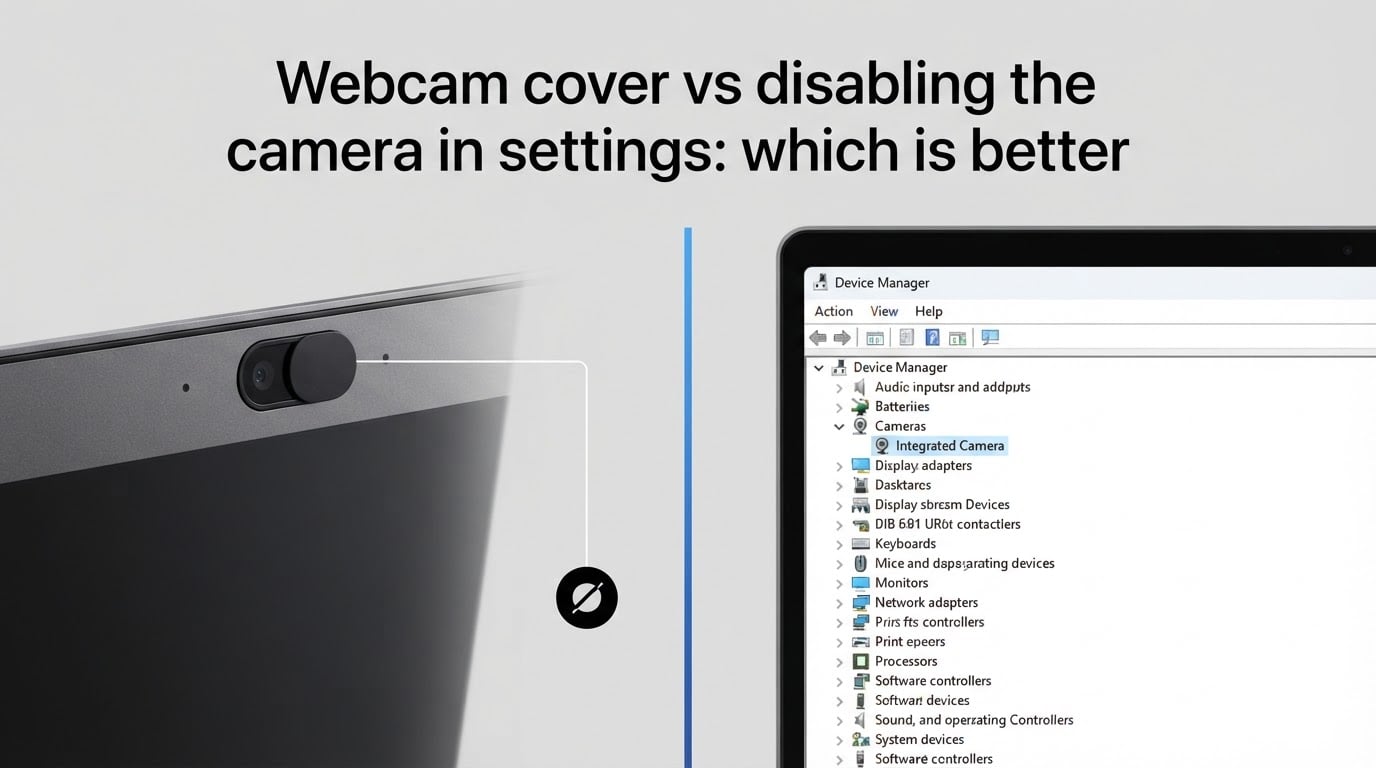
If you want the short answer up front: a physical webcam cover is more reliable than disabling the camera in your operating system settings, but the strongest protection comes from using both methods together. A webcam cover creates a physical barrier that no software can bypass, while disabling the camera in settings only blocks apps that respect your operating system permissions. Sophisticated malware with the right privileges can sometimes re-enable a camera that you have only disabled in software.
I have spent years testing laptop security setups, and this question comes up constantly. In this guide, I will walk you through both methods, show you exactly how to disable your camera in Windows and macOS, break down the real risks of camfecting, and explain why most security professionals recommend a layered approach for 2026.
Table of Contents
- What is camfecting and why should you care?
- Method 1: Disabling the camera in your operating system settings
- Method 2: Using a physical webcam cover
- Webcam cover vs disabling the camera in settings: direct comparison
- The combined approach: cover plus software disable
- What about the microphone? Addressing the related concern
- Which method should you actually use?
- Frequently Asked Questions
- Final verdict: webcam cover vs disabling the camera
What is camfecting and why should you care?
Camfecting is the act of hacking into someone’s webcam to spy on them without their knowledge. The term comes from combining “camera” and “infecting,” and it is more common than most people think.
The attack usually works through a Remote Access Trojan (RAT), which is a type of malware that gives an attacker full control over your computer. Once installed, the RAT can activate your webcam, disable the indicator light on some models, and stream the video to a remote server. The victim usually has no idea anything is happening.
High-profile targets have taken this seriously for years. Mark Zuckerberg was famously photographed with tape over his laptop camera and microphone. Former FBI Director James Comey admitted he does the same thing. Edward Snowden has repeatedly warned about webcam attacks in interviews. If people with access to top-tier cybersecurity teams cover their cameras, regular users should pay attention too.
But it is not only celebrities and executives who get targeted. Common victims include:
Remote workers handling confidential client information
Children using laptops in bedrooms or shared spaces
People being stalked by ex-partners who have physical access to install spyware
Gamers whose accounts get compromised through stolen credentials
Anyone using older laptops without recent security updates
The good news is that a webcam cover or a software-level disable stops the vast majority of these attacks. The bad news is that neither method is perfect on its own, which is exactly why the comparison matters.
Method 1: Disabling the camera in your operating system settings
Disabling your webcam in OS settings tells your computer to ignore all software requests to access the camera. It is a software-level block that works at the operating system layer, so any app trying to use the camera will be denied.
This approach has real advantages. It is free, reversible, and does not require buying any hardware. It also disables the camera system-wide, meaning no single app can secretly turn it on. For most everyday users, this is enough protection against opportunistic malware.
How to disable the webcam in Windows 11
The most reliable way to disable your camera in Windows 11 is through Device Manager. Here are the exact steps I use:
Right-click the Start button and select Device Manager.
Scroll down to the Cameras section and click the arrow to expand it.
Right-click your integrated camera (usually labeled “Integrated Webcam” or “HP Wide Vision HD Camera”).
Select Disable device from the context menu.
Confirm the warning that Windows displays.
When you need the camera again, repeat the same steps and choose Enable device. You can also disable it through Windows Settings under Bluetooth and devices > Cameras, but Device Manager gives you a stronger block.
How to disable the webcam in macOS
macOS does not give you a single “disable camera” button like Windows does, but you can stop apps from accessing it through Screen Time controls:
Open System Settings and click Screen Time.
Go to Content and Privacy Restrictions.
Toggle on Content and Privacy Restrictions if it is off.
Click Apps in the sidebar.
Set Camera to Don’t Allow.
For deeper protection, macOS users can also revoke camera permissions from individual apps under System Settings > Privacy and Security > Camera. Tools like OverSight monitor for any app trying to access the camera or microphone and alert you immediately.
Why disabling in settings is not foolproof
Here is the catch with the software approach: it only blocks apps that respect your operating system’s permission system. A sophisticated RAT running with kernel-level access can sometimes re-enable a disabled camera or talk directly to the hardware. Security researchers have demonstrated this on multiple occasions.
Another weakness: a determined attacker who has physical access to your laptop can simply flip the camera back on in Device Manager or boot from a USB stick with its own operating system. A software disable is a speed bump, not a wall.
Method 2: Using a physical webcam cover
A physical webcam cover creates a literal barrier between the lens and the outside world. No software, no matter how advanced, can see through opaque plastic or metal. This is the core advantage that makes covers the gold standard for webcam privacy.
The most popular style is the sliding cover, which has a small plastic tab you can move left or right to open or close the camera. Adhesive covers stick directly over the lens. Both work, but sliding covers are more convenient if you actually use your camera for video calls.
Types of webcam covers compared
There are three main types, each with different trade-offs:
Ultra-thin sliding covers: Best for modern laptops with thin screen bezels. They measure around 0.6mm to 0.8mm thick so the lid closes properly. Look for one rated under 1mm if you have a MacBook or slim ultrabook.
Adhesive covers (3M style): Stick directly to the bezel. Cheaper, but harder to remove and can leave residue. Great for desktops or external monitors.
Tape or stickers: The classic DIY option. A piece of electrical tape or a sticky note works, but glue residue builds up over time. I have seen a friend’s laptop where the tape goo made the webcam image blurry during an important meeting. Not recommended.
The MacBook warning you need to know
If you own a MacBook, be careful with cover thickness. Apple has stated that closing the lid with a cover thicker than the “piece of paper” it was designed for can cause pressure damage to the display. Several users have reported cracked screens from thick covers being pressed against the screen when the laptop was closed.
For MacBooks specifically, use only ultra-thin covers rated under 0.8mm, or skip the cover entirely and rely on the software disable plus an app like OverSight to monitor camera access.
Webcam cover vs disabling the camera in settings: direct comparison
The webcam cover wins on raw security, while the software disable wins on convenience and zero cost. Here is how the two methods stack up against each other across the criteria that matter most.
| Criteria | Physical Webcam Cover | Disabling in Settings |
|---|---|---|
| Bypass resistance | Cannot be bypassed by software | Can be re-enabled by privileged malware |
| Cost | A few dollars for a pack | Free |
| Reversibility | Slide open in 1 second | Toggle in settings when needed |
| Works against physical attackers | Yes | No, can be flipped in Device Manager |
| Indicator light integrity | Not relevant (lens blocked) | Could be disabled by malware |
| MacBook compatibility | Only ultra-thin versions | Full compatibility |
| Risk of screen damage | Low with thin models, high with thick tape | None |
| Visual confirmation of privacy | Yes (you can see the cover is closed) | Only via system tray |
The biggest difference is the first row. A physical cover stops everything, including nation-state level malware. The software disable only stops the 95% of threats that follow the rules. For most home users that 95% is fine. For high-risk users, only the cover gives true peace of mind.
The combined approach: cover plus software disable
Using both a webcam cover and disabling the camera in settings gives you layered defense. This is the approach I personally use on every laptop I own, and it is what most security professionals recommend.
The cover handles the “in case of catastrophic breach” scenario where malware somehow gets administrative access. The software disable handles everyday hygiene, like blocking random apps from quietly turning on the camera when you install a new program.
If you want to go even further, add a dedicated monitoring app. OverSight for Mac and CamGuardian or Who Stalks My Cam for Windows alert you the moment any process tries to access the camera. These tools catch the sneaky malware that disables your OS-level block in the first place.
One Reddit user summed it up well after being targeted by a former partner: “I disabled the camera in Device Manager so any malware would have to fight through that AND see a black cover. Belt and suspenders.”
What about the microphone? Addressing the related concern
Covering your camera does nothing for the microphone, and that is the real gap most people miss. A RAT that can spy on you through the camera can almost certainly listen through the mic too, regardless of whether your webcam is covered.
For full protection, you also need to manage microphone access. In Windows, go to Settings > Privacy and Security > Microphone and revoke access from apps that do not need it. In macOS, the same Screen Time controls that block the camera can block the mic. For high-risk users, an external USB microphone with a hardware mute button gives you the same “physical barrier” guarantee that a webcam cover does for video.
That “We can still hear you” note a paranoid office worker once taped to his monitor? It was a joke, but the underlying point was serious. Camera privacy without mic privacy is half a solution.
Which method should you actually use?
Pick the method based on your actual risk level, not the worst-case scenario you imagine. Ask Leo is right that most people are not interesting enough to target, but that does not mean you should do nothing.
My recommendations by user type:
Casual home users: Disable the camera in OS settings. Add a $5 sliding cover if you want extra peace of mind for less than the cost of a coffee.
Remote workers and corporate users: Use both. A sliding cover plus OS-level disable, plus monitor your camera permissions monthly.
High-profile individuals: Layer everything. Cover, OS disable, dedicated monitoring app, and consider a hardware webcam kill switch.
Parents: Cover and disable on any device children use in bedrooms. Kids are frequent targets of creepy strangers online.
MacBook owners: Use only ultra-thin covers under 0.8mm or skip the cover entirely and rely on software plus OverSight.
For most people reading this in 2026, the simple answer is: buy a pack of sliding webcam covers for a few dollars, disable the camera when you are not on calls, and stop worrying. The security basics like keeping your OS updated and not clicking suspicious links do far more for your safety than either method alone.
Frequently Asked Questions
Is a webcam cover really necessary?
A webcam cover is not strictly necessary for most users if you keep your operating system updated, run reputable antivirus software, and disable the camera when not in use. However, a cover provides guaranteed physical protection that no malware can bypass, which is why security experts including the former FBI director recommend one. For high-risk users like executives, journalists, or domestic abuse survivors, a cover is essential.
Does a webcam cover damage a MacBook screen?
Yes, a webcam cover that is too thick can damage a MacBook screen. Apple has stated that closing the lid with anything thicker than a piece of paper can put pressure on the display. To avoid damage, use only ultra-thin covers rated under 0.8mm, or skip the physical cover and rely on disabling the camera in macOS settings plus a monitoring app like OverSight.
Can malware activate the webcam without the indicator light?
Yes, sophisticated malware with kernel-level access can sometimes activate the webcam without triggering the indicator LED on some laptop models. Security researchers have demonstrated this capability multiple times. This is the main reason physical covers are considered more secure than software-only solutions, because a cover blocks the lens regardless of what the malware does to the LED.
How do I disable the webcam in Windows 11?
To disable the webcam in Windows 11, right-click the Start button and open Device Manager. Expand the Cameras section, right-click your integrated camera, and choose Disable device. To re-enable it later, return to Device Manager, right-click the camera, and select Enable device. You can also limit camera access app-by-app under Settings u0026gt; Privacy and Security u0026gt; Camera.
Is tape as good as a webcam cover?
Tape works as a physical barrier, but it is not as good as a dedicated sliding cover for everyday use. The main problems with tape are sticky residue that builds up over time and can blur the camera when you remove it, plus the inconvenience of replacing it every time you need the camera. A sliding cover costs a few dollars and avoids both issues.
Final verdict: webcam cover vs disabling the camera
The webcam cover is the more secure option, but the best answer for 2026 is to use both. Disabling the camera in settings handles 95% of everyday threats for free. A physical webcam cover handles the 5% of catastrophic scenarios where malware gets administrative access. Combined, they give you complete protection against webcam spying.
Start by disabling the camera through Device Manager or macOS Screen Time. Then pick up a pack of ultra-thin sliding covers for a few dollars and stick one on every device you own. That is the simplest, cheapest, and most effective path to webcam privacy in 2026.