
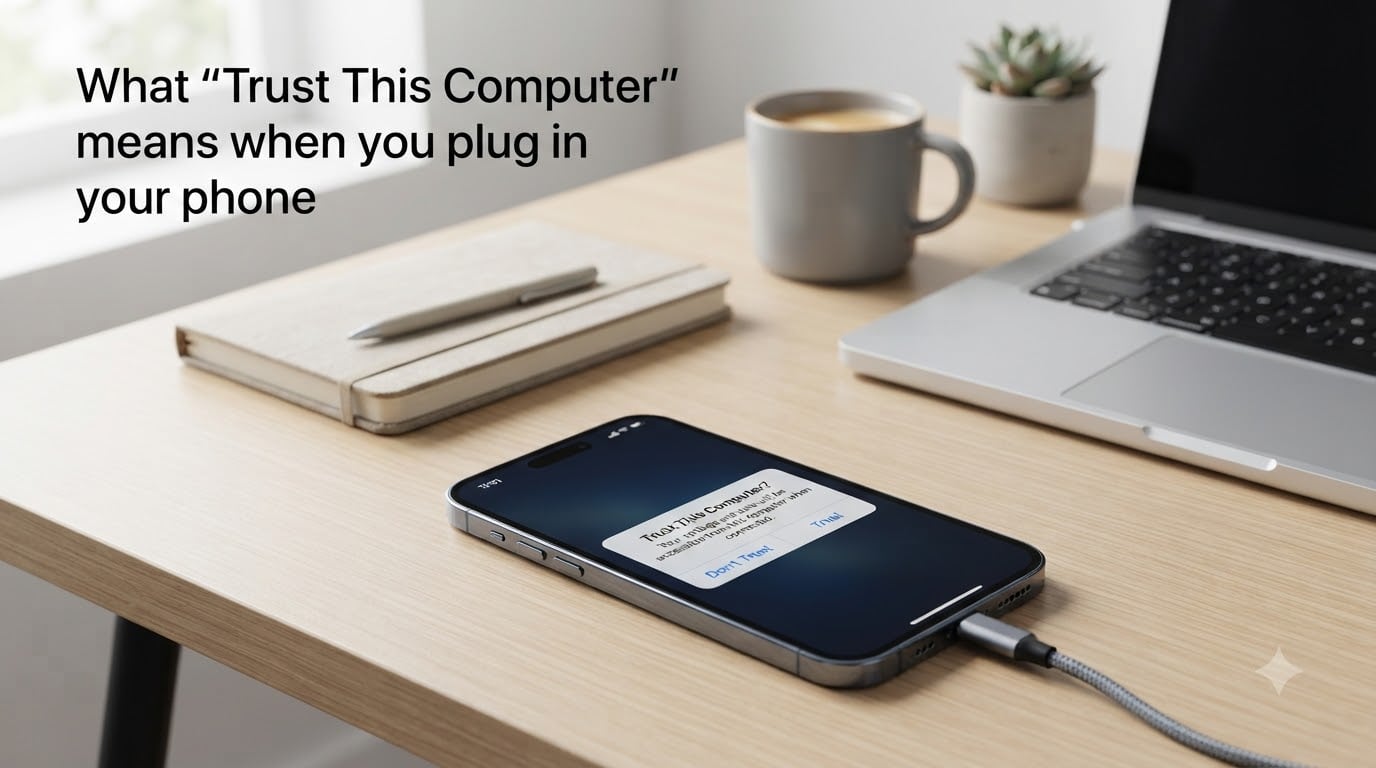
When you plug your iPhone into a computer or charger and see the alert “Trust This Computer?”, your device is asking for permission before letting that machine talk to your files. This single tap decides whether the computer can sync your photos, read your contacts, or pull other data from your phone.
I have walked dozens of friends through this prompt, and the reaction is almost always the same: confusion, mixed with a flicker of worry. In this guide I will explain what the prompt really means, why Apple built it, and how to manage it so you stay in control of your data.
Table of Contents
- What “Trust This Computer” Means on Your Phone?
- What Happens When You Tap “Trust” on a Computer
- Why Apple Built the Trust This Computer Feature
- How to Trust or Untrust a Computer on iPhone
- How to Reset the List of Trusted Computers
- Why the Trust This Computer Alert Keeps Popping Up?
- What to Do if the Trust Alert Never Appears?
- Android Equivalent: USB Debugging and File Transfer
- Frequently Asked Questions About Trust This Computer
- Final Thoughts on the Trust This Computer Prompt
What “Trust This Computer” Means on Your Phone?
The “Trust This Computer” alert is a security feature built into iOS. It appears the first time you connect your iPhone, iPad, or iPod touch to a new computer or USB accessory that wants to communicate with your device.
Your phone is simply asking: “Do I let this machine see my stuff?” Until you tap Trust, the computer can usually only charge the device, not read or write data.
The exact prompt reads: “Trust This Computer? Your settings and data will be accessible from this computer when connected.” You have two choices:
Trust – grants the computer ongoing access to sync and transfer data.
Don’t Trust – blocks data access. Charging will usually still work.
Until you make a choice, the device stays in a limited state where most data transfers are blocked.
What Happens When You Tap “Trust” on a Computer
Once you tap Trust, the computer is marked as a trusted device. From that point on, that machine can do most of what an iPhone allows over USB.
A trusted computer can typically access the following on your iPhone:
Photos and videos in your camera roll.
Contacts, calendars, and notes (depending on settings).
Music, podcasts, and other media you want to sync.
Files you choose to share through Finder, iTunes, or third-party apps.
Backups created through Finder or iTunes.
The trust relationship is stored on your iPhone, not on the computer. Apple remembers the pairing until you actively reset it.
Here is the important nuance: even after tapping Trust, your phone still protects itself with your passcode. A trusted computer cannot unlock a locked iPhone without your passcode. So if your device is locked, sensitive data stays safe.
Why Apple Built the Trust This Computer Feature
The Trust This Computer prompt exists to defend against a real attack class called juice jacking. The idea is simple but clever: a malicious charging station or USB cable pretends to be a computer and quietly pulls data from any phone that plugs in.
Public USB ports at airports, cafes, and hotels are the classic example. Without the trust prompt, plugging in to “just charge” could hand your photos and contacts to a stranger.
Apple’s solution is to force a human decision before any data moves. The cable can still deliver power, but software-level access requires explicit consent. This is also why you sometimes see the prompt even when using a basic charger if that charger has any smart chip inside.
I think of it as a seatbelt for your USB port. The inconvenience is small, and the protection is real.
How to Trust or Untrust a Computer on iPhone
The process is straightforward once you have seen it. Follow these steps to trust a computer for the first time.
Unlock your iPhone with your passcode, Face ID, or Touch ID.
Connect the iPhone to the computer using a USB or USB-C cable.
Open Finder (on Mac) or iTunes (on Windows) if it does not open automatically.
Wait for the alert “Trust This Computer?” to appear on your iPhone.
Tap Trust, then enter your passcode to confirm.
If you tapped Don’t Trust by accident, simply unplug the cable and plug it back in. The prompt will appear again.
To remove a computer from your trusted list, you can also use the Reset Location and Privacy option, which I cover in the next section.
How to Reset the List of Trusted Computers
Apple does not give you a dedicated “Trusted Computers” menu. Instead, it hides the controls inside location and privacy settings. This trips up many people, so here is the exact path.
Open the Settings app on your iPhone.
Scroll down and tap General.
Tap Transfer or Reset iPhone.
Tap Reset at the bottom of the screen.
Choose Reset Location & Privacy.
Enter your passcode when prompted.
Confirm the reset.
After this, every computer you have ever trusted will be forgotten. The next time you connect to any of them, you will see the “Trust This Computer?” alert again.
A factory erase of the iPhone also clears the trusted list, but that is a much heavier step. Reset Location and Privacy is the lighter, safer option.
Why the Trust This Computer Alert Keeps Popping Up?
One of the most common frustrations I hear from readers is that the Trust alert keeps appearing every single time they plug in. If this sounds familiar, here are the usual causes and fixes.
The iPhone is locked. iOS hides the trust setting until you unlock the device with your passcode or biometrics. Unlock and the prompt will hold steady.
USB accessory restrictions are on. Go to Settings > Face ID & Passcode (or Touch ID & Passcode), scroll to Allow Access When Locked, and enable USB Accessories.
Another computer or device is interfering. If you sync with multiple machines, the iPhone may treat each one as separate. Trust them one at a time.
The computer is not running Finder or iTunes. Without software requesting access, the alert may time out and reappear later. Open the app first.
You previously reset Location & Privacy. That clears all trust relationships, so every computer needs to be re-trusted.
In my experience, the most common culprit is the locked-phone rule. People plug in while the screen is off and assume nothing happens, then panic when they see the alert flash by later.
What to Do if the Trust Alert Never Appears?
If you expected to see the prompt but nothing shows up, walk through this checklist before assuming something is broken.
Make sure the iPhone is unlocked and the home screen is visible.
Confirm the cable is a data cable, not a charge-only cable. Some cheap cables carry power only.
Try a different USB port, preferably one directly on the computer rather than a hub.
Update iTunes on Windows or update macOS so Finder is current.
Restart the iPhone and the computer, then try again.
Check Settings > Face ID & Passcode > USB Accessories and toggle the setting once.
If none of these work, the USB port on the computer may simply not be sending a data signal. In that case, the iPhone will charge without ever showing the prompt. This is normal behavior, not a bug.
Android Equivalent: USB Debugging and File Transfer
Android phones use a similar but different model. When you plug an Android device into a computer, you usually see a notification asking which connection mode to use: charging only, file transfer (MTP), photo transfer (PTP), or MIDI.
Android does not lock data behind a single permanent trust tap like iOS does. Instead, the user selects the mode each time. For developers, Android also offers USB debugging, which is more invasive and should only be enabled on computers you fully trust.
The core idea is the same on both platforms: data access requires explicit consent, and charging alone should not expose your files. If you switch between iPhone and Android, expect a slightly different prompt, but the same security principle applies.
Frequently Asked Questions About Trust This Computer
How do I get my phone to stop saying trust this computer?
Unlock your iPhone, tap Trust once, and enter your passcode. The prompt will not appear again on that computer unless you reset Location u0026amp; Privacy or erase the device. If it keeps popping up, enable USB Accessories under Face ID u0026amp; Passcode settings.
Can you bypass trust computer on iPhone?
No. iOS requires a manual Trust tap before any computer can sync or read data from your iPhone. Even with third-party software, the device will still prompt you unless you tap Trust yourself.
What does do you trust this computer mean?
It is a security prompt that asks you to confirm whether a computer is allowed to sync and access data on your iPhone. Until you tap Trust, the computer can usually only charge the device.
Why is trust this computer flashing on my iPhone?
The alert flashes when the iPhone is locked or when the USB accessory restriction is active. Unlock your iPhone and enable USB Accessories in Settings under Face ID u0026amp; Passcode to make the prompt stick.
Why do I keep getting trust this computer on my iPhone?
Each time you reset Location u0026amp; Privacy, erase the iPhone, or plug into a new computer, the prompt returns. Make sure you tap Trust with the iPhone unlocked and that your USB cable supports data, not just power.
Is it safe to trust my own computer for iPhone?
Yes, trusting your personal Mac or Windows PC is generally safe, especially when your iPhone has a passcode set. Avoid tapping Trust on shared or public computers, and reset Location u0026amp; Privacy if you ever do so by accident.
Final Thoughts on the Trust This Computer Prompt
The “Trust This Computer” prompt is one of those iOS features most people only notice when something feels wrong. Once you understand what it actually does, it stops being mysterious and starts feeling like a useful guardrail.
My rule of thumb is simple. Trust your own computer at home with a passcode set on your phone, and never tap Trust on a public or shared machine. If you ever change your mind, the Reset Location and Privacy option wipes the slate clean in seconds.
For 2026, with juice jacking attacks still a real threat in airports and cafes, this little prompt is doing more work than most users realize. Treat it as a feature, not a nuisance, and your iPhone will stay exactly as private as you want it to be.