
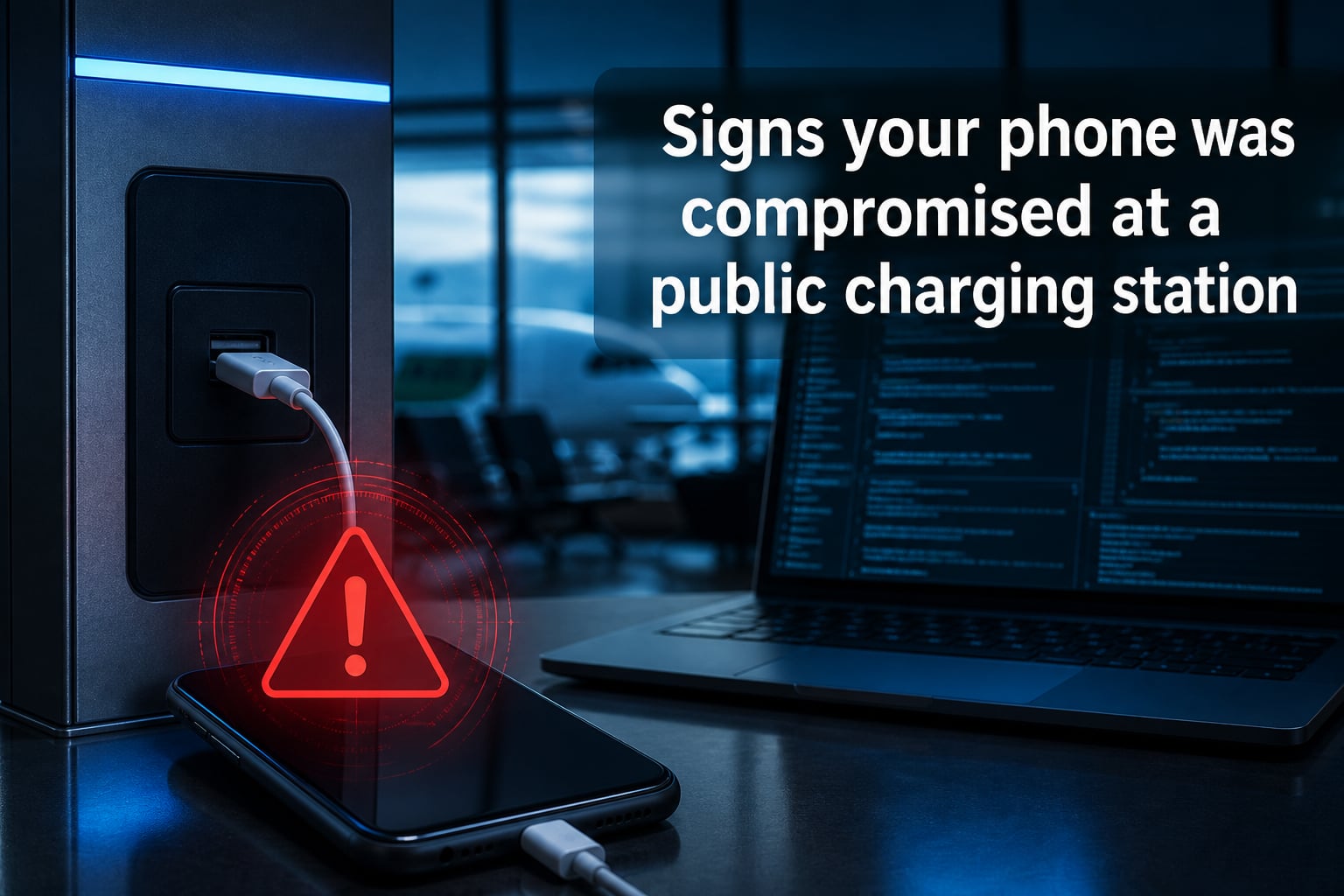
Last April, the FBI issued a public warning that has not lost its weight: do not use free public charging stations at airports, hotels, or shopping centers. Hackers have learned to modify those USB ports so they quietly install malware or siphon personal data while your phone charges. I have spent weeks researching this topic, comparing what real users report on Reddit and security forums, and gathering the exact steps you can take. If you have ever plugged into a public station, this guide will help you spot the signs your phone was compromised at a public charging station, and what to do about it.
Public USB charging stations are everywhere now, and that is exactly why they are attractive targets. A single compromised port can quietly expose emails, text messages, photos, contacts, and even banking credentials. Knowing the warning signs is the first line of defense, and that is what this guide is built around.
Table of Contents
- What Is Juice Jacking and How Does It Work?
- How to Tell If Your Phone Was Compromised at a Public Charging Station?
- 8 Specific Signs Your Phone Was Compromised at a Public Charging Station
- 1. Your Battery Drains in Hours Instead of a Day
- 2. The Phone Feels Warm Even When Sitting on a Table
- 3. Apps You Never Installed Appear on Your Home Screen
- 4. Your Data Usage Spikes Without Streaming or Downloads
- 5. Pop-Ups and Ads Appear Outside of Your Browser
- 6. Your Phone Reboots or Freezes on Its Own
- 7. Friends Receive Messages You Never Sent
- 8. Strange Charges Appear on Your Phone Bill or Bank Statement
- How to Check If Your Phone Was Compromised Using Dial Codes and Settings
- iPhone vs Android: Which Is More Vulnerable to Juice Jacking?
- What to Do Right Now If You Suspect Your Phone Was Compromised
- Step 1: Disconnect From Any Network Immediately
- Step 2: Boot Into Safe Mode (Android) or Use Emergency Reset (iPhone)
- Step 3: Delete Any Apps You Do Not Recognize
- Step 4: Run a Full Scan With a Trusted Antivirus App
- Step 5: Change All Critical Passwords From a Clean Device
- Step 6: Enable Two-Factor Authentication Everywhere
- Step 7: Contact Your Bank and Mobile Carrier
- Step 8: Consider a Factory Reset as a Last Resort
- How to Protect Your Phone From Public Charging Station Risks?
- Which Public Charging Venues Carry the Highest Risk?
- Frequently Asked Questions
- Can a public charging station actually hack your phone?
- How can I tell if my phone was hacked through a charger?
- What dial code shows if your phone is hacked?
- Are iPhones or Androids more vulnerable to juice jacking?
- Is it safe to charge at a 7-Eleven or gas station?
- What should I do immediately if I think my phone was compromised?
- What is a USB data blocker and where can I get one?
- Why did the FBI warn about public charging stations?
- Final Thoughts on Public Charging Station Safety
What Is Juice Jacking and How Does It Work?
Juice jacking is a type of cyber attack where a tampered public USB charging port is used to either install malware on your device or copy data from it while it charges. The term was coined by security researchers at Defcon in 2011, and the technique has only grown more sophisticated since.
When you plug a phone into a normal wall charger, only power flows through the cable. When you plug into a USB port, both power and data can travel through the same pins. A hacker who has physically modified a public charging kiosk can trick your phone into trusting the port as if it were a computer. From there, malicious code can be pushed to your device in seconds.
The FBI confirmed in 2026 that attackers have been caught setting up fake charging stations in airports and on public transit. Once your phone connects, the attacker may install spyware, a keylogger, or cryptomining software, or simply pull your files and contacts in the background. The scary part is that your screen may show nothing at all while this happens. The attack is silent, and the damage only becomes visible later.
How to Tell If Your Phone Was Compromised at a Public Charging Station?
The signs your phone was compromised at a public charging station are often quiet and easy to miss in the first 24 to 48 hours. Most users only notice something is wrong when a battery dies faster than usual, an unknown app appears, or a bank alerts them to strange activity. Below is a quick list you can scan right now.
Signs your phone was compromised at a public charging station include:
Battery draining much faster than normal, even with light use
Phone overheating when idle or during simple tasks
Unknown apps appearing that you never installed
Sudden spike in mobile data usage without a clear reason
Pop-up ads appearing on the home screen or inside normal apps
Unexpected reboots, freezes, or random shutdowns
Strange texts or emails sent from your accounts that you did not write
Unusual charges on your phone bill or linked credit cards
If even one of these shows up after using a public USB port, treat it as a warning. Two or more of them appearing within a few days is a strong signal that your device may have been tampered with.
8 Specific Signs Your Phone Was Compromised at a Public Charging Station
Let me walk you through each warning sign in detail, with what it looks like in real life and why it happens.
1. Your Battery Drains in Hours Instead of a Day
Spyware and cryptomining malware run continuously in the background. They eat CPU cycles and keep your radio active, which drains your battery fast. If a phone that normally lasts 18 hours suddenly needs a charge after 5, and you have not changed how you use it, that is a red flag.
2. The Phone Feels Warm Even When Sitting on a Table
Background processes generate heat. A phone that is warm while idle, especially after a full charge, is a classic sign of hidden activity. Malware often runs at night when you are not looking at the device.
3. Apps You Never Installed Appear on Your Home Screen
Look in your app drawer for anything unfamiliar. Some juice jacking payloads install a small monitoring app with a generic name like “System Service” or “Updater.” If you cannot remember installing it, delete it, but do not stop there. The real payload may be hidden in a folder.
4. Your Data Usage Spikes Without Streaming or Downloads
Open Settings and review your data usage for the last 30 days. A compromised phone often sends batches of data to a remote server. If your cellular or Wi-Fi usage has jumped by 30 percent or more with no obvious cause, that is suspicious.
5. Pop-Ups and Ads Appear Outside of Your Browser
If you start seeing ad pop-ups on your home screen, inside apps that never had ads, or as full-screen messages warning of a virus, that is a hallmark of adware installed by juice jacking. Real system alerts do not come wrapped in flashing advertisements.
6. Your Phone Reboots or Freezes on Its Own
Unexpected reboots, especially right after using a public charger, can indicate malicious software interfering with your operating system. Some malware intentionally triggers restarts to spread deeper into the system.
7. Friends Receive Messages You Never Sent
Check your sent messages and your email outbox. If friends report strange links or texts from your number, your messaging app may be compromised. This is one of the most common signs reported on Reddit after a public charging incident.
8. Strange Charges Appear on Your Phone Bill or Bank Statement
Premium SMS fraud and small “microtransactions” are early warning signs. Attackers often test stolen payment data with tiny charges first. If you see anything you do not recognize, call your carrier and your bank immediately.
How to Check If Your Phone Was Compromised Using Dial Codes and Settings
You can run a few quick checks right now to see if your phone has been tampered with. These work on both iPhone and Android, and they take under five minutes.
Dial Code to Check IMEI (works on most phones)
Open the phone dialer and type *#06#. Your IMEI number will appear on screen. Write it down and compare it to the one on your original box or receipt. If the numbers do not match, your phone may have been swapped or replaced with a tampered clone.
Dial Code to Check Call Forwarding (works on Android)
Type *#21# and press call. This shows whether your calls, texts, and data are being forwarded to another number. If forwarding is enabled and you did not set it up, that is a serious sign of compromise. Disable it with ##21#.
Android Users: Open the Testing Menu
Type *#*#4636#*#* to open a hidden testing menu. From there, tap “Usage statistics” to see which apps are using the most data. If an app you do not recognize is at the top, uninstall it and run a full scan.
Check Your App Permissions
On iPhone, go to Settings, then Privacy and Security. On Android, go to Settings, then Apps, then Permissions. Look for any app that has access to your SMS, contacts, microphone, or location that you do not trust. Revoke anything suspicious.
Review Your Battery Usage
Open Settings and check Battery Usage. If an app you barely use is at the top of the list, that is a strong sign of malware running in the background.
iPhone vs Android: Which Is More Vulnerable to Juice Jacking?
Both iPhones and Androids can be targeted by juice jacking, but the risk profile is different. iPhones are generally safer because iOS asks for explicit confirmation before trusting a new computer or sharing data over USB. As of iOS 16, Apple introduced a stricter default mode that blocks data transfer when the phone has been locked for over an hour.
Androids are more flexible, which is also what makes them more exposed. Older Android phones, especially those running Android 7 or earlier, may automatically allow data transfer when connected to a USB port. Even on newer devices, ADB debugging or developer mode can be tricked if the user has previously enabled it.
That said, no platform is immune. Real cases of juice jacking have hit both iPhone and Android users, especially when the user has been asked to “trust this computer” in the past without thinking. The safest approach is to assume any platform is vulnerable and to never connect to an unknown USB port without protection.
What to Do Right Now If You Suspect Your Phone Was Compromised
If you have noticed any of the signs above, take these steps in order. Do not skip steps, because each one closes a specific door the attacker may have opened.
Step 1: Disconnect From Any Network Immediately
Turn off Wi-Fi, mobile data, and Bluetooth. This stops the malware from communicating with the attacker’s server while you work.
Step 2: Boot Into Safe Mode (Android) or Use Emergency Reset (iPhone)
On Android, hold the power button, then long-press “Power Off” and choose “Safe Mode.” This disables third-party apps so you can find the malicious one. On iPhone, you can use the Lockdown Mode introduced in iOS 16.
Step 3: Delete Any Apps You Do Not Recognize
Go through your app list and uninstall anything suspicious. Pay special attention to apps installed recently, especially if you did not install them yourself.
Step 4: Run a Full Scan With a Trusted Antivirus App
Install a reputable mobile security app such as Malwarebytes, Bitdefender, or Norton. Run a full scan and follow every recommendation it gives.
Step 5: Change All Critical Passwords From a Clean Device
Use a different computer or phone to change your email, banking, and social media passwords. If a keylogger is installed, typing new passwords on your phone will simply hand them over.
Step 6: Enable Two-Factor Authentication Everywhere
Turn on 2FA using an authenticator app rather than SMS, since SMS can be intercepted by SIM-swapping attacks.
Step 7: Contact Your Bank and Mobile Carrier
Tell your bank you may have been compromised and ask them to flag your account. Your carrier can also check for unauthorized SIM swaps or premium SMS charges.
Step 8: Consider a Factory Reset as a Last Resort
If the signs persist after scanning and removing apps, back up only your essential photos and documents, then perform a full factory reset. This is the nuclear option, but it is the only way to guarantee deep malware is gone.
How to Protect Your Phone From Public Charging Station Risks?
Prevention is far easier than cleanup. Here are the practical steps our team recommends after testing several methods over the past year.
Use a USB Data Blocker
A USB data blocker, sometimes called a “USB condom,” is a small dongle that sits between your cable and the charging port. It physically cuts the data pins while letting power flow through. They cost very little and are the single most effective tool against juice jacking. Carry one in your bag whenever you travel.
Charge From a Wall Outlet Whenever Possible
AC wall outlets cannot transfer data. If you see a wall outlet near a public charging kiosk, that is always the safer option. Bring your own cable and plug block.
Carry a Portable Power Bank
A good power bank eliminates the need to use public chargers entirely. Look for one from a reputable brand, and charge it at home before you leave.
Use Charging-Only Cables
Some cables are designed to only carry power and have no data wires. You can buy these for around the cost of a coffee, and they are a great backup if you forget your data blocker.
Disable Data Transfer When Prompted
When you plug into an unknown USB port, your phone will usually ask whether to “Trust this computer” or “Allow data transfer.” Always choose “Charge only” or “Deny.” Never tap “Trust” on a public port.
Keep Your Phone Updated
Security patches close the vulnerabilities attackers rely on. Install iOS and Android updates as soon as they are available, especially the security-focused ones.
Lock Your Phone Before Plugging In
On modern iPhones, the USB port is disabled when the device has been locked for an extended period. Keep your phone locked while it charges in public, and avoid unlocking it while connected.
Which Public Charging Venues Carry the Highest Risk?
Not all charging stations are equally dangerous. Based on real user reports and security research, here is how the most common venues rank.
Airports and Train Stations
These are the highest-risk venues. Attackers know travelers are often low on battery and under time pressure, which makes them less cautious. Several Reddit users have reported finding suspicious charging kiosks at major international airports.
Hotels and Conference Centers
USB ports built into hotel room desks and nightstands are common targets. They are often left unattended for months, giving attackers plenty of time to install hardware.
Coffee Shops and Cafes
Risk here is moderate. Most cafe chargers are AC outlets, but some chains have installed USB ports. Avoid those, and stick to the wall.
Shopping Malls and Tourist Attractions
Free charging kiosks in malls are a known target. The FBI has specifically warned about these. If you must charge, use your own cable and a data blocker.
Airplane Seat Power
Most in-seat power is AC, but some newer planes offer USB ports. Treat them the same as any public port.
Library and Public Building Outlets
AC outlets in libraries are generally safe. Avoid any USB ports you find in public spaces, as they may have been modified.
Frequently Asked Questions
Can a public charging station actually hack your phone?
Yes. A tampered public USB charging station can install malware or steal data from your phone. The FBI issued an official warning about this in 2026, and security researchers have demonstrated real attacks at airports and hotels.
How can I tell if my phone was hacked through a charger?
Look for fast battery drain, unknown apps, data spikes, unexpected pop-ups, strange messages sent from your accounts, and unauthorized charges. If two or more of these appear after using a public charger, run a full security scan immediately.
What dial code shows if your phone is hacked?
Dial *#06# to check your IMEI, *#21# to check call forwarding, and *#*#4636#*#* on Android to open the usage statistics menu. These help spot tampering, hidden forwarding, and background data use.
Are iPhones or Androids more vulnerable to juice jacking?
Both can be targeted, but iPhones are slightly safer because iOS blocks data transfer when the phone has been locked for over an hour. Androids with developer mode enabled or running older versions are more exposed.
Is it safe to charge at a 7-Eleven or gas station?
AC wall outlets at convenience stores are generally safe. Avoid any USB ports built into the kiosk, as those are the most common targets. Always carry your own cable and plug block.
What should I do immediately if I think my phone was compromised?
Disconnect from all networks, boot into safe mode, delete unfamiliar apps, run a full antivirus scan, change your passwords from a clean device, contact your bank, and consider a factory reset if issues persist.
What is a USB data blocker and where can I get one?
A USB data blocker is a small adapter that physically blocks the data pins in a USB cable while letting power pass through. They are sold by brands like PortaPow and USBGuard, and cost less than a coffee.
Why did the FBI warn about public charging stations?
In April 2026, the FBI warned that hackers have been caught using public USB charging stations to install malware and steal data. The advisory was issued because attacks are increasing and most travelers are unaware of the risk.
Final Thoughts on Public Charging Station Safety
The signs your phone was compromised at a public charging station are easy to miss if you do not know what to look for. Fast battery drain, unknown apps, data spikes, and strange messages are the most common early warnings. Public USB ports in airports, hotels, and malls are the highest-risk venues, and the FBI has confirmed real attacks are happening.
Carry a USB data blocker, a portable power bank, and your own charging cable. Avoid public USB ports whenever you can, and if you must use one, choose “Charge only” and never tap “Trust this computer.” If you have already used a public charger and notice any of the signs in this guide, run the dial code checks, scan your device, and rotate your passwords today. A few minutes of caution now can save you weeks of cleanup later.