
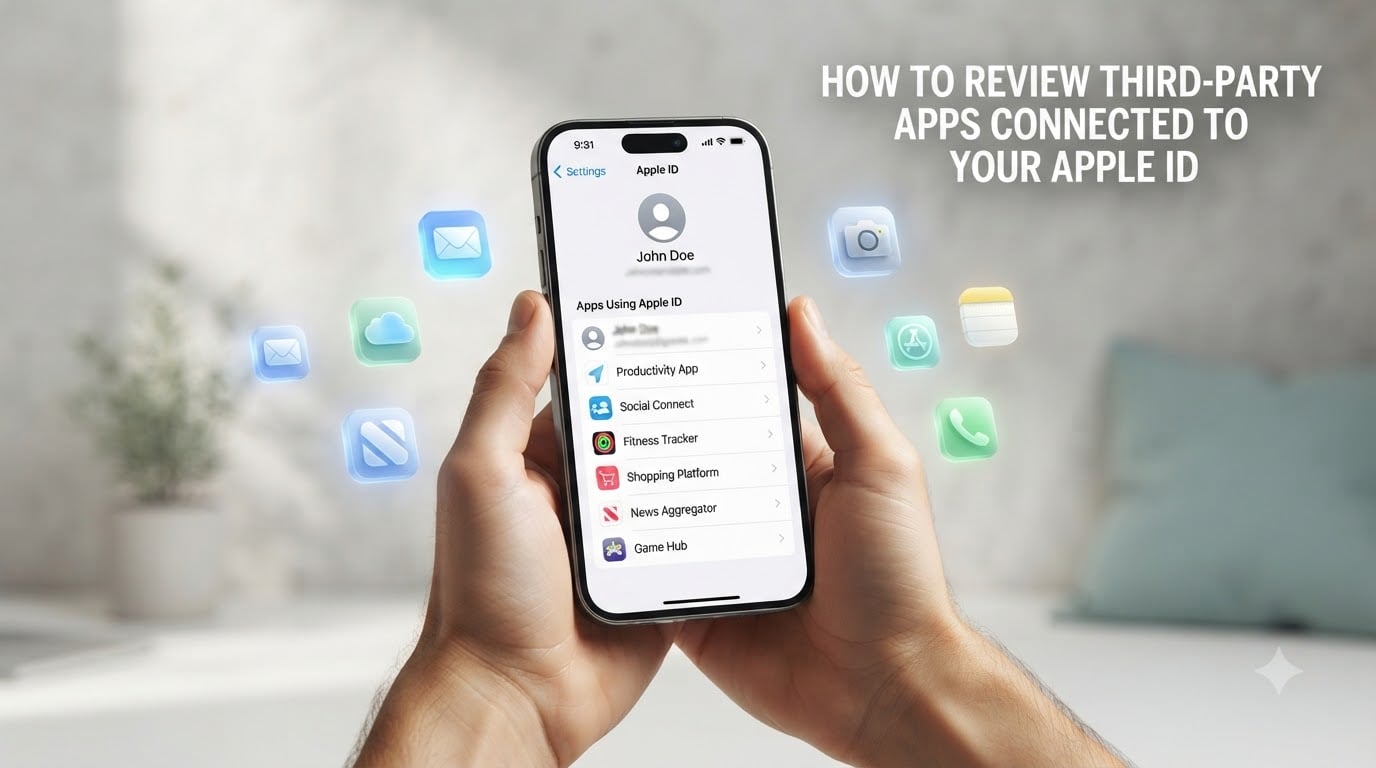
If you use Sign in with Apple or have ever linked an app to your Apple Account, you have probably forgotten about at least a few of those connections. I have, too. I just looked at mine and found a budgeting app I tried in 2022, a travel planner I no longer use, and a workout tracker from a brand that has since shut down.
Here is the thing: those forgotten apps may still be able to read your email, see your name, or, if you used it, even send and receive messages through your private relay address. If any of those services suffers a data breach, your information could leak alongside thousands of other users. That is exactly why I make it a habit to review third-party apps connected to my Apple ID every few months, and why I wrote this guide.
In this article I will show you exactly how to review third-party apps connected to your Apple ID on every device you own: iPhone, iPad, Mac, and even the web. I will also cover what actually happens when you remove an app, how to handle Hide My Email, and what to do if you find an app you do not recognize.
Table of Contents
- How to view third-party apps connected to your Apple ID on iPhone or iPad?
- How to view connected apps on your Mac?
- How to view connected apps on the web?
- How to remove or disconnect a third-party app from your Apple ID?
- What happens to your data after you remove an app?
- How to manage Hide My Email and email forwarding?
- What to do if you find an unknown or suspicious app?
- FAQs
- How to see 3rd party apps connected to Apple ID?
- How do I see what apps my Apple ID is linked to?
- How do I check my third party apps?
- Can someone log into my Apple ID and see my text messages?
- How often should I review third-party apps connected to my Apple ID?
- What information does Sign in with Apple share with third-party apps?
- Final thoughts on reviewing your Apple Account connections
How to view third-party apps connected to your Apple ID on iPhone or iPad?
The fastest way to check your connections is right from your iPhone or iPad settings. Open the Settings app and you will see your name at the top. Tap it, then tap Sign in with Apple. You will see a complete list of every app and developer that uses your Apple Account to sign you in.
Here is the exact step-by-step process:
Open the Settings app on your iPhone or iPad.
Tap your name at the top of the screen.
Tap Sign in with Apple.
Review the list of apps that have access to your Apple ID.
Tap any app to see what data it shares and to remove it.
On the latest iOS and iPadOS versions, this section is labeled Sign in with Apple. On slightly older builds it may appear under Password & Security or under your Apple Account profile. If you do not see it, update your device to the newest version of iOS or iPadOS first.
For third-party apps linked through Connected Accounts (the new feature in iOS 26 that lets apps mirror your sign-in), the path is slightly different:
Open Settings and tap your name.
Tap Media & Purchases.
Choose Connected Accounts to see every third-party account linked to your Apple Account.
Tap any app to review permissions or disconnect it.
This second list is separate from your Sign in with Apple apps, so I always check both. I have seen users disconnect apps from Sign in with Apple and not realize other apps were still linked through Connected Accounts.
How to view connected apps on your Mac?
If you spend most of your day on a Mac, you can review your third-party app connections without picking up your phone. Open System Settings, click your Apple Account name at the top of the sidebar, then look for Sign in with Apple on the right.
Follow these steps on macOS:
Click the Apple menu and choose System Settings.
Click your name at the top of the sidebar.
Click Sign in with Apple in the right pane.
Review every app in the list.
Select an app to see its permissions or remove its access.
On older macOS versions the same option may sit inside Apple Account settings under Password & Security. The exact wording changed a bit across Sonoma, Sequoia, and Tahoe, so do not panic if the label looks slightly different. The functionality is the same.
I usually do this once every three months, right after I update macOS. It takes me under two minutes, and I always find at least one app I forgot about.
How to view connected apps on the web?
Sometimes you want to review your connections from a computer that is not yours, like a library terminal or a friend’s laptop. Apple lets you do this from any browser through your account page.
To view your connected apps on the web:
Open a browser and go to account.apple.com.
Sign in with your Apple Account using your password and a trusted device.
Click Sign in with Apple in the sidebar.
Review the list of apps that have access to your account.
Click an app to view its permissions or remove it.
You can also manage Connected Accounts the same way. Look for Connected Accounts under Media & Purchases or under Apps & Services, depending on how Apple organizes your account at the moment of sign-in.
Tip: when you sign in on the web for the first time from a new browser, Apple will ask you to confirm with two-factor authentication. Have your iPhone, iPad, or Mac nearby so you can approve the sign-in.
How to remove or disconnect a third-party app from your Apple ID?
Once you find an app you no longer trust or use, removing it is straightforward. The exact steps look the same on iPhone, iPad, and Mac, with very small wording differences.
To remove a third-party app from your Apple Account:
Open Settings on your device, or System Settings on Mac.
Tap or click your name, then choose Sign in with Apple.
Select the app you want to remove.
Tap or click Stop Using Sign in with Apple.
Confirm your choice when prompted.
For Connected Accounts, the flow is similar:
Go to Settings, tap your name, then Media & Purchases.
Tap Connected Accounts.
Choose the app you want to disconnect.
Tap Disconnect and confirm.
On the web, the same options appear under your Sign in with Apple page at account.apple.com. Pick the app, click Remove or Stop Using, then confirm.
After you confirm, the app will no longer be able to sign you in with your Apple Account. The next time you open that app, it will ask you to create a new sign-in method.
What happens to your data after you remove an app?
Removing an app from your Apple Account stops future sign-ins and revokes the token that app used to access your Apple ID. That part is instant. What is not always instant is what happens to the data the app already collected.
Here is the deal: Apple does not control what the app developer stored on their servers before you disconnected. Apple only blocks new access. To actually delete the data the developer already has, you usually need to:
Open the app one more time and look for a Delete Account option in the settings.
Visit the developer’s website and request account deletion through their privacy or data request form.
Email the developer directly if no self-service option is available.
I always recommend doing this in writing and keeping a copy of the request. Under most privacy laws, the developer is required to respond within a set timeframe, usually 30 to 45 days.
Also remember that if you used Hide My Email with the app, you should turn off email forwarding for that app as well. Otherwise the app can still reach you through the relay.
How to manage Hide My Email and email forwarding?
Hide My Email is the privacy feature that lets you sign up for apps using a unique random email address instead of your real one. All messages sent to that random address are forwarded to your real inbox, and Apple keeps your true address hidden from the app.
To manage your Hide My Email addresses:
Open Settings and tap your name.
Tap iCloud, then tap Hide My Email.
Review every unique address you have created.
Tap an address to see which app or website it is linked to.
Tap Forward To to change where messages are delivered, or deactivate the address when you no longer need it.
If you stop using Sign in with Apple but leave email forwarding on, the developer can still contact you. Always deactivate the address at the same time you remove the app.
An iCloud+ subscription unlocks unlimited Hide My Email addresses. If you have the free tier, you can create a small number of addresses, so it makes sense to review them more often.
What to do if you find an unknown or suspicious app?
Sometimes you will scroll through your list of connected apps and see one you do not recognize at all. Do not panic, but do not ignore it either. Treat it as a small security incident and follow these steps:
Write down the exact app name and developer shown in your Apple Account settings.
Search online for the developer name plus the word breach or leak to see if they have had a known incident.
Remove the app from your Apple Account right away.
Change your Apple Account password and review your recovery settings.
Check that two-factor authentication is still enabled under Settings, your name, Sign-In & Security.
Watch your email inbox for any suspicious sign-in or password reset attempts over the next 30 days.
If the app used Hide My Email, deactivate the forwarding address immediately so the developer cannot reach you through your relay. If you believe your account was actually compromised, contact Apple Support directly and consider rotating any reused passwords elsewhere.
FAQs
How to see 3rd party apps connected to Apple ID?
Open the Settings app on your iPhone or iPad, tap your name, then tap Sign in with Apple. You will see a list of every app that uses your Apple Account to sign you in. Tap any app to review what it can access or to remove it.
How do I see what apps my Apple ID is linked to?
Go to Settings, tap your name, then choose Sign in with Apple to see apps using Sign in with Apple. To see apps linked through Connected Accounts, tap your name, then Media u0026amp; Purchases, then Connected Accounts. On Mac, open System Settings, click your name, and choose Sign in with Apple.
How do I check my third party apps?
You can check your third party apps on iPhone and iPad through Settings, on Mac through System Settings, or on the web by signing in to account.apple.com and clicking Sign in with Apple. The web option is helpful when you do not have access to your Apple devices.
Can someone log into my Apple ID and see my text messages?
No. Sign in with Apple lets a third-party app see only your name and email, unless you shared more through Hide My Email or granted extra permissions. Apple does not give apps access to your iMessages, photos, contacts, or files just because you signed in with your Apple ID.
How often should I review third-party apps connected to my Apple ID?
Review your connected apps every 3 months, or immediately after any major data breach is reported. Setting a calendar reminder every quarter is the easiest way to keep the habit. Always check both Sign in with Apple and Connected Accounts, since they are separate lists.
What information does Sign in with Apple share with third-party apps?
Sign in with Apple shares your name and a verified email address by default. If you choose Hide My Email, the app sees a unique random address that forwards to your real inbox. Apple does not share your activity in other Apple services, your device data, or your location with third-party apps that use Sign in with Apple.
Final thoughts on reviewing your Apple Account connections
Reviewing the third-party apps connected to your Apple ID is one of those small habits that pays off in a big way. Every app you remove is one less service holding a token that could be exposed in a future breach. I have turned it into a quarterly routine and I rarely spend more than five minutes on it.
Set a reminder, walk through Sign in with Apple and Connected Accounts, deactivate any Hide My Email addresses you no longer need, and reach out to developers to actually delete the data they still hold. That is the complete review I run, and the one I recommend you start using today.
Your Apple Account is the door to a lot of personal data. Treat the lock the way you would treat the front door of your house, check it regularly and only hand the keys to apps you actually use. For a deeper look at securing your Apple Account overall, take a few minutes to enable two-factor authentication and review your trusted devices in the same Sign-In & Security screen.