
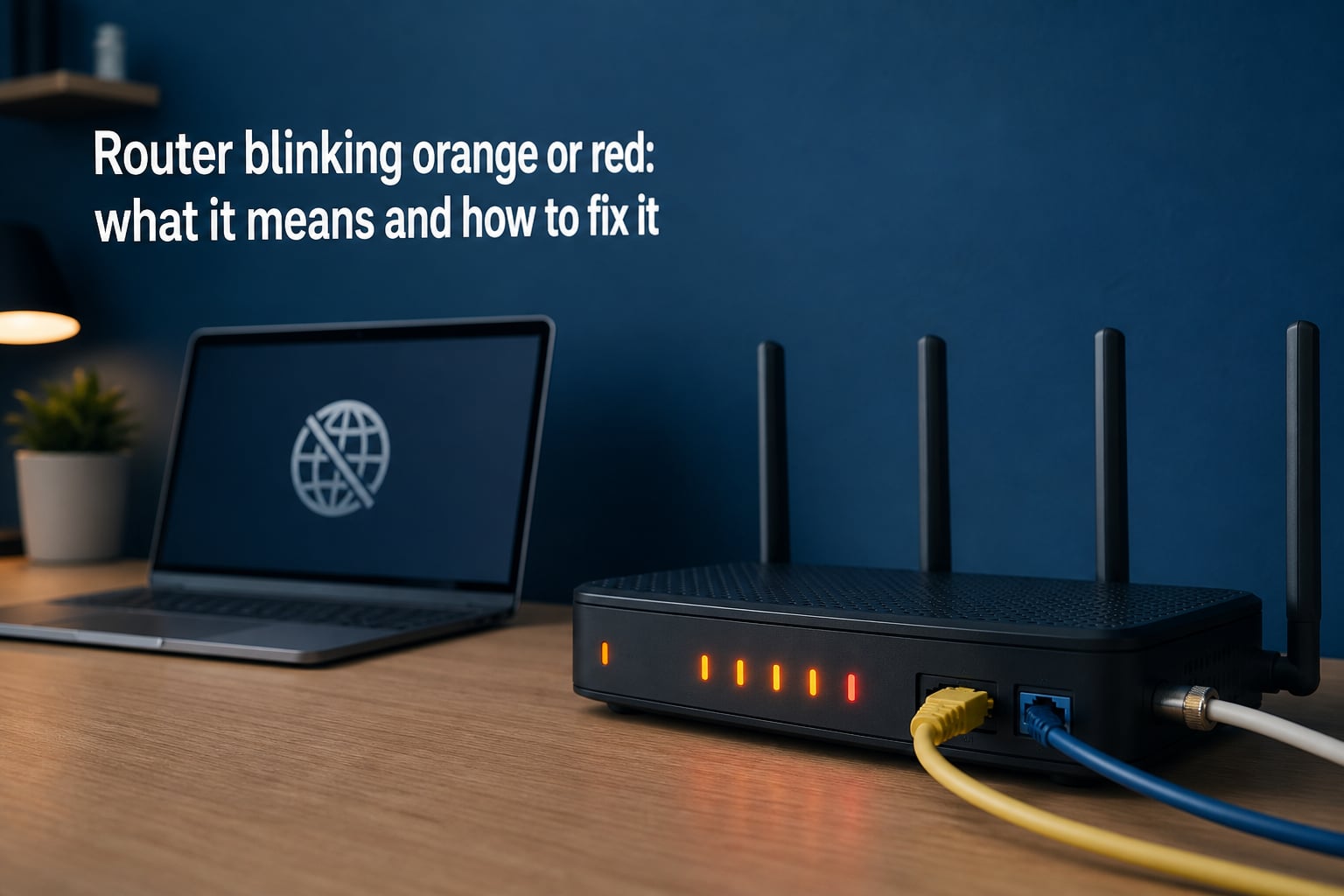
You walk over to your router and notice a light blinking orange or red. No web pages load. Your phone disconnects from Wi-Fi. The streaming stick freezes mid-show. Sound familiar?
A router blinking orange or red is one of the most common home internet problems people face in 2026. The good news is that most causes are fixable without a service call, new equipment, or advanced technical knowledge.
In this guide, I will walk you through exactly what those warning lights mean, why your router uses different colors and patterns, and how to fix the issue step by step. I have spent years helping friends, family, and online communities troubleshoot stubborn router lights, and the methods below cover the fixes that actually work.
Whether you have an Xfinity gateway, a Spectrum router, a Netgear unit, or a fiber ONT connection, you will find clear instructions tailored to your situation. Let us get your internet back up and running.
Table of Contents
What Orange and Red Lights Mean on Your Router?
A blinking orange or red light on your router is your device’s way of telling you something is wrong with your internet connection. The exact meaning depends on the color, the pattern, and which light is blinking, but the short version is this: your router cannot establish or maintain a stable connection to the internet.
Here is the general rule. Green or white lights mean things are working. Orange, amber, or yellow lights mean a partial connection or an in-progress action. Red lights mean a more serious problem, like a complete signal loss or hardware failure.
Solid vs Blinking: Why the Pattern Matters
The pattern of the light matters just as much as the color. A solid orange light typically means your router has power but cannot connect to your ISP. A blinking orange light usually means the device is actively trying to connect, downloading a firmware update, or searching for a downstream signal.
A solid red light often points to a hardware malfunction or total loss of signal. A blinking red light can indicate the router is in a boot loop, failing authentication with your ISP, or experiencing a critical system error.
Quick Reference: Router Light Colors and What They Mean
Use this chart as a fast lookup when you see an unfamiliar light on your device:
Green or white (solid): Connected and working normally.
Green or white (blinking): Active data transfer or WPS pairing in progress.
Orange or amber (solid): Powered on but no internet connection established.
Orange or amber (blinking): Trying to connect, downloading firmware, or establishing upstream/downstream channels.
Red (solid): Critical failure, hardware malfunction, or complete signal loss.
Red (blinking): Boot failure, authentication error, or overheating shutdown.
No lights at all: Power issue, dead adapter, or failed power supply.
Which Light Is Blinking?
Before you panic, identify which specific LED is lit. The power light, internet light, Wi-Fi light, and LAN port lights each tell a different story. If the internet or online light is blinking orange, the problem is between your router and your ISP. If a LAN port light blinks orange, the issue is between your router and a specific wired device.
Many users confuse the WPS indicator with an error light. The WPS button blinks amber or orange while it searches for devices to pair. This is normal behavior, not a sign of a problem.
Why Different Brands Use Different Colors
There is no universal standard for router LED colors. Xfinity uses orange and red on its gateways. Spectrum uses red and blue. AT&T fiber equipment relies on red and green. Netgear and ASUS often use amber instead of orange, which can look nearly identical depending on the LED brightness.
This is why I always recommend checking your specific router model’s manual or the manufacturer’s website. The general meanings above cover most cases, but brands do vary. I will break down brand-specific guidance later in this guide.
How to Fix a Router Blinking Orange or Red: Step-by-Step Troubleshooting
Follow these steps in order. I have arranged them from the simplest fix to the most involved. Most blinking light issues get resolved in the first two or three steps, so do not skip ahead.
Step 1: Power Cycle Your Router and Modem
Power cycling fixes the majority of router blinking orange or red issues. I have seen this single action resolve problems dozens of times, and it should always be your first move. The process clears the router’s memory, refreshes its connection to your ISP, and forces it to re-establish all network channels from scratch.
Here is the proper way to power cycle, not just unplug and replug:
Shut down your computer, phone, and any other devices connected to the network.
Unplug the power cable from your router. If you have a separate modem, unplug that too.
Wait at least 30 seconds. One full minute is better. This gives the capacitors inside the equipment time to fully discharge.
Plug the modem back in first. Wait for its lights to stabilize, which usually takes 1 to 2 minutes.
Plug the router back in. Wait another 2 to 3 minutes for it to fully boot and reconnect.
Turn your devices back on and check whether the light has turned green or white.
If the light returns to orange or red after power cycling, move to the next step. Do not repeat the power cycle more than twice in a row. If two cycles do not fix it, the problem is elsewhere.
Step 2: Check All Cable Connections
Loose or damaged cables are a frequent cause of connection errors. A coaxial cable that wiggled loose, a kinked Ethernet cable, or a corroded connector can all trigger a blinking orange light on your modem or router.
Check each cable connection one at a time:
Coaxial cable: If you have cable internet, unscrew the coaxial cable from both the wall outlet and the modem. Inspect the copper center conductor for damage. Reconnect it finger-tight. A loose coax connection is one of the most common causes of US/DS channel failures.
Ethernet cable: If your modem and router are separate devices, check the Ethernet cable between them. Unplug and firmly reseat both ends. Listen for the click. If you see an Ethernet port light blinking orange, try swapping in a different cable to rule out a bad wire.
WAN cable: For fiber connections, check the cable running from your ONT (Optical Network Terminal) to your router. Do not bend or crimp fiber cables, as they are fragile.
Power cable: Make sure the power adapter is firmly seated at both ends. A partially unplugged power brick can cause erratic behavior and random reboots.
If you find a cable that looks frayed, corroded, or physically damaged, replace it. Ethernet cables are inexpensive, and a bad coaxial cable can cause intermittent connection drops for months before failing completely.
Step 3: Check for ISP Service Outages
Before spending more time troubleshooting your equipment, verify that the problem is not on your ISP’s end. Service outages are a common cause of collective router blinking orange issues, and no amount of router troubleshooting will fix an outage in your area.
Here is how to check:
Use your ISP’s outage map: Most major providers including Xfinity, Spectrum, AT&T, and Cox offer online outage tools. Log in to your account or use the provider’s mobile app to check for reported outages at your address.
Check community reports: Sites like Downdetector show real-time user reports of ISP outages. If you see a spike for your provider, the issue is likely regional.
Ask a neighbor: If neighbors use the same ISP, ask if their internet is also down. This confirms an area-wide issue.
Call your ISP’s automated line: Most providers have an automated system that tells you about outages before connecting you to an agent.
If there is a confirmed outage, all you can do is wait. Your router light should return to green once service is restored. If the outage has been resolved but your light stays orange, power cycle once to re-establish the connection.
Step 4: Wait for Firmware Updates to Complete
Routers and modems receive firmware updates from the manufacturer or ISP automatically. During an update, the device may display a blinking orange or amber light. This is completely normal, and interrupting the update can brick your equipment.
Many users panic when they see the orange light after a restart and immediately power cycle again. This is the worst thing you can do during a firmware update. If your router started blinking orange right after a reboot or at an unusual time of day, an update is the likely cause.
Here is what to do:
Do not unplug or restart the router.
Leave it alone for 15 to 30 minutes. Some updates can take up to 45 minutes on older equipment.
Check the light periodically. If it transitions from blinking orange to solid green, the update succeeded.
If the light has not changed after 45 minutes, then it is safe to proceed with other troubleshooting steps.
Reddit users on r/Comcast frequently report Xfinity modems blinking orange for 20 to 30 minutes during scheduled firmware pushes. Patience is genuinely the fix in these cases.
Step 5: Check for Overheating
Routers generate heat during operation, and overheating is an underdiagnosed cause of blinking red or orange lights. When internal temperatures rise too high, the router may throttle performance, drop connections, or shut down to protect itself. This is called thermal throttling, and it triggers warning lights on some models.
Signs your router is overheating:
The case feels hot to the touch.
The router reboots randomly throughout the day.
The orange or red light appears after several hours of use but disappears after a cooldown period.
The router is in a closed cabinet, on carpet, or near a heat source.
To fix overheating issues, move the router to an open, well-ventilated area. Do not stack it on top of other electronics. Keep it away from direct sunlight, radiators, and heating vents. If the router sits in a media cabinet, leave the door open or install a small USB fan to improve airflow.
For older routers that have run hot for years, the internal components may already be damaged. In that case, no amount of ventilation will help, and replacement is the answer.
Step 6: Factory Reset Your Router
A factory reset returns your router to its original out-of-the-box settings. This is a last-resort fix that clears corrupted configurations, network bugs, and misconfigured settings that can cause persistent orange or red lights.
Before you reset, understand the consequences. A factory reset will erase your Wi-Fi network name and password, any custom DNS settings, port forwarding rules, and parental controls. You will need to set everything up again from scratch.
To factory reset your router:
Locate the small reset button on the back or bottom of the router. It is usually recessed inside a pinhole.
Use a paperclip or SIM ejector tool to press and hold the button for 10 to 15 seconds.
Watch the lights. They should all turn off and then begin the startup sequence.
Release the button and wait 3 to 5 minutes for the router to fully reboot.
Reconnect using the default network name and password printed on the router’s label.
After the reset, you may need to reconfigure your internet connection. If you have a combined modem-router gateway from your ISP, it should reconnect automatically. If you have your own router connected to a separate modem, you may need to log in to the admin panel and re-enter your ISP settings.
Step 7: Contact Your ISP Support
If you have tried all the steps above and the light is still blinking orange or red, it is time to contact your ISP. There could be an account-level issue, a provisioning error, a problem at the local node, or equipment failure that requires a technician visit.
Before you call, gather this information to make the process faster:
Your account number and the phone number associated with the account.
The make and model of your router or modem.
A list of the troubleshooting steps you have already tried. This prevents the support agent from asking you to repeat basic steps.
The color and pattern of the blinking light and when it started.
Here are direct support numbers for major ISPs:
Xfinity (Comcast): 1-800-XFINITY (1-800-934-6489)
Spectrum: 1-833-267-6094
AT&T: 1-800-288-2020
Cox: 1-800-234-3990
Verizon Fios: 1-800-837-4966
CenturyLink: 1-800-244-1111
Forum users consistently report that ISP support is more helpful when you can describe exactly which troubleshooting steps you have completed. Mention that you have already power cycled, checked cables, verified no outages, and attempted a factory reset.
Step 8: Consider Hardware Replacement
If your ISP confirms there is no outage and no account issue, and every troubleshooting step has failed, your router or modem may have reached the end of its life. Most routers last 4 to 5 years. ISP-provided gateways may need replacement sooner due to heavier use and more frequent firmware pushes.
Signs your hardware needs replacing:
The orange or red light appears immediately after every boot and never connects.
The router makes unusual clicking or buzzing sounds.
It worked fine for years and then suddenly will not connect at all.
Your ISP’s tech support says the device is not responding to their remote diagnostics.
Contact your ISP about replacement options if you are using their equipment. Most providers replace failed gateways at no charge, though you may need to schedule a technician visit. If you own your router, it is time to shop for a replacement.
Brand-Specific Light Meanings and Fixes
Different router and modem brands use different LED systems. Here is a breakdown of what blinking orange or red lights mean for the most common brands and ISPs in 2026.
Xfinity (Comcast) Gateways
Xfinity modems and gateways are the most common source of blinking orange light questions online. A blinking orange light on an Xfinity xFi gateway typically means the device is in the process of establishing a connection or downloading a firmware update.
If the light blinks orange during initial setup, this is normal. The device is activating and can take 10 to 15 minutes on the first boot. If it persists beyond 30 minutes, power cycle the gateway and check the Xfinity app for activation status.
A blinking red light on an Xfinity gateway is more serious. It usually indicates a connection failure, upstream channel problem, or hardware issue. Start with a power cycle, then check the coaxial cable connections, and finally contact Xfinity support if the red light persists.
Reddit’s r/Comcast community reports that Xfinity firmware updates frequently trigger orange blinking lights, especially during overnight hours. Users also note that service outages in a region cause collective orange blinking issues that resolve once the outage is fixed.
Spectrum Routers
Spectrum routers use a different color scheme. A blinking red light on a Spectrum router typically means no internet connection is detected. A solid blue light means the router is online and functioning. If you see red, check for outages first, then power cycle the router.
Spectrum’s Wave routers and the newer SAC2V1A models can also show an amber or orange light during firmware updates. As with Xfinity, patience is the best fix here. Spectrum’s online outage tool is available through their website and mobile app.
AT&T Fiber Gateways
AT&T fiber uses a combined ONT and gateway system. A blinking red light on an AT&T gateway can mean a lost fiber signal, an ONT failure, or an authentication problem. The BGW320 and BGW210 models both use red lights for critical errors.
For AT&T fiber customers, also check the ONT (Optical Network Terminal), the small box typically mounted on the wall where the fiber cable enters your home. If the ONT shows a red FAIL or LOS (Loss of Signal) light, the fiber connection itself is disrupted. Contact AT&T support, as this requires a technician to fix.
Netgear, ASUS, TP-Link, and Other Standalone Routers
Standalone routers from Netgear, ASUS, and TP-Link typically use amber or orange LEDs instead of red for most error states. An amber internet light usually means the router cannot reach the internet through your modem. Check the Ethernet cable between the modem and router, power cycle both devices, and verify the modem is online.
Netgear routers with a solid red power light have a firmware corruption issue. The router may need a firmware reflash via TFTP, which is a more advanced procedure. Check the Netgear support site for your specific model.
ASUS routers sometimes show a slowly pulsing red light when in rescue mode, which is triggered by a failed firmware update. ASUS provides a firmware restoration tool on their support website that can recover the router from this state.
Fiber ONT Lights
If you have a fiber connection, your ONT has its own set of status lights. The most important ones:
PON (Passive Optical Network) light: Solid green means the fiber link is active. Off or red means no optical signal.
LOS (Loss of Signal) light: If this light is red or lit, the fiber cable is damaged or disconnected. This requires a technician.
Alarm light: A red alarm light indicates a hardware fault in the ONT itself.
Fiber cables are extremely delicate. Never bend a fiber cable sharply, and never look directly into the end of a disconnected fiber cable. If the LOS light is on, do not attempt to fix it yourself. Call your ISP.
How to Prevent Router Light Issues?
Most router blinking orange or red problems are preventable with a few simple habits. Here is what I recommend to keep your equipment running smoothly.
Keep Your Router in a Cool, Open Space
Heat is a router killer. Place your router in an open area with good airflow. Avoid enclosed cabinets, stacked electronics, and direct sunlight. If the router has rubber feet, keep them exposed so air can flow underneath.
A router operating at a comfortable temperature will last longer, perform better, and experience fewer random disconnects. I have seen routers that dropped connections daily improve dramatically just by being moved to a better-ventilated spot.
Use a Surge Protector
Power surges from lightning strikes, grid fluctuations, and appliance cycling can damage your router’s power supply. A damaged power adapter causes intermittent reboots, corrupted firmware, and blinking light errors. Plug your router and modem into a quality surge protector to protect against voltage spikes.
A basic surge protector costs very little and can save you from premature equipment failure. For areas with frequent storms, consider a small UPS (uninterruptible power supply) that keeps your router running through brief outages.
Restart Your Router Monthly
Even modern routers benefit from periodic restarts. A quick power cycle once a month clears the device’s memory, refreshes the ISP connection, and installs any pending firmware updates on your schedule rather than at random times. I restart my own router on the first of every month as a routine.
Schedule the restart during a time when no one is using the internet, like late at night or early morning. A planned restart takes 5 minutes and prevents many of the issues that lead to blinking orange lights.
Keep Firmware Updated
Firmware updates fix security vulnerabilities, improve stability, and add features. Most modern routers update automatically, but it is worth checking your router’s admin panel periodically to confirm updates are being installed.
If your router allows manual updates, check the manufacturer’s website every few months for new firmware. Always follow the update instructions carefully, and never interrupt power during an update.
Inspect Cables Periodically
Cables degrade over time. Coaxial connectors corrode, Ethernet cables develop kinks, and power adapters wear out. Once every few months, do a quick visual inspection of all cables connected to your networking equipment. Replace anything that looks frayed, bent, or corroded.
Keep spare Ethernet cables on hand. They cost almost nothing, and having a known-good spare makes troubleshooting much faster when a light starts blinking.
When Blinking Lights Are Actually Normal
Not every blinking light means trouble. Some blinking patterns are completely normal and require no action from you.
During startup, routers go through a boot sequence that involves multiple lights blinking in various colors. This typically lasts 2 to 5 minutes and is not a cause for concern. Wait for the router to finish booting before troubleshooting.
The WPS light will blink amber or orange when you press the WPS button to pair a new device. This is expected behavior. The light stops blinking once pairing is complete or times out after about 2 minutes.
LAN port lights blink green or orange when data flows through that specific Ethernet connection. A blinking LAN light is healthy. It means data is actively transferring to or from a wired device.
During a firmware update, as I mentioned earlier, a blinking orange light is normal. The key is knowing the difference between a brief, expected blink and a persistent warning light that indicates a real problem. When in doubt, wait 10 to 15 minutes before taking action.
FAQs
Why is my router blinking orange light?
A blinking orange light on your router usually means the device is trying to establish an internet connection, downloading a firmware update, or searching for upstream and downstream channels. If it persists beyond 15 minutes, try power cycling your router and modem.
Is a blinking orange light a common Xfinity problem?
Yes. A blinking orange light is one of the most commonly reported Xfinity gateway issues. It frequently occurs during firmware updates, initial setup, and regional service outages. Most cases resolve on their own or after a power cycle.
How to fix wifi orange light?
To fix a Wi-Fi orange light, power cycle your router and modem, check all cable connections, verify there is no ISP outage in your area, wait 15 to 30 minutes for any firmware updates to finish, and perform a factory reset if the issue persists.
How to fix Ethernet blinking orange?
An Ethernet port blinking orange usually indicates a connection speed mismatch or a bad cable. Try unplugging and reseating the Ethernet cable, swapping it for a known-good cable, and checking that both ends are firmly connected. If the issue persists, test the port with a different device.
How long should I wait for a router firmware update to finish?
Most firmware updates complete within 15 to 30 minutes. Some updates on older equipment can take up to 45 minutes. Do not unplug or restart the router during this time, as interrupting an update can permanently damage the device.
Is a blinking red light on my router dangerous?
No, a blinking red light is not a fire hazard or safety risk. It indicates a technical problem such as signal loss, authentication failure, or a boot error. However, if your router feels hot to the touch or makes unusual sounds, unplug it immediately and contact your ISP.
Conclusion
A router blinking orange or red can be frustrating, but in most cases the fix is straightforward. Start with a power cycle, check your cables, verify there is no ISP outage, and be patient during firmware updates. If those steps do not work, a factory reset or a call to your ISP support will usually resolve the issue.
Remember that not every blinking light signals a problem. Startup sequences, WPS pairing, and data transfers all produce normal blinking patterns. The key is knowing what is expected for your specific router brand and what requires action.
If your equipment is more than 4 or 5 years old and the blinking light never goes away, replacement may be your best option. Modern routers offer better performance, more reliable connections, and fewer warning light headaches. Take the prevention steps I outlined above, and you will spend far less time staring at a blinking orange light.