
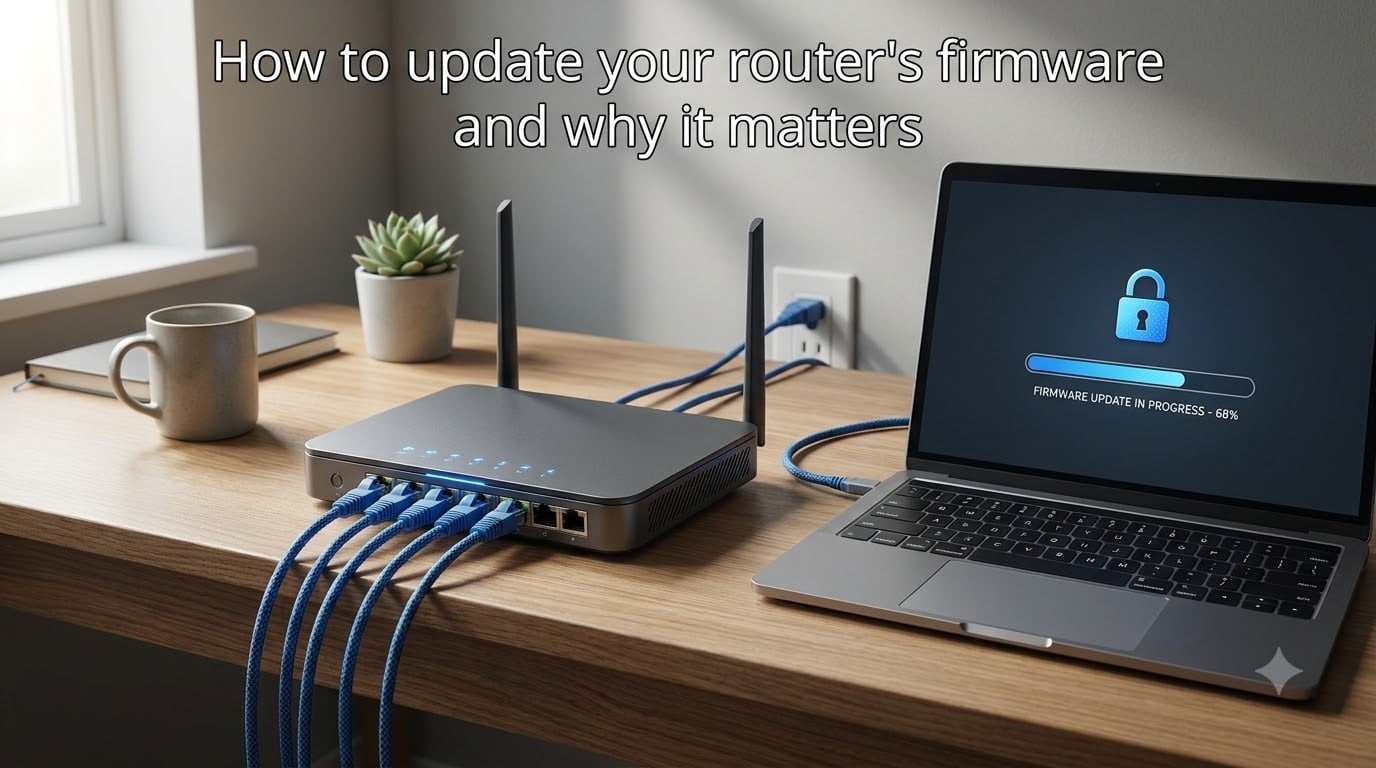
Learning how to update router firmware is one of the most important things you can do for your home or business network security. Router manufacturers release firmware updates to patch security vulnerabilities, fix bugs, improve performance, and add new features. Despite this, most people never touch their router after the initial setup, leaving their networks exposed to threats that could have been prevented with a simple update.
In this guide, I walk you through everything you need to know about router firmware updates in 2026. You will learn what firmware actually is, how to check if your router needs an update, and the exact step-by-step process to update firmware on any router. I also cover brand-specific instructions for NETGEAR, TP-Link, and ASUS routers, how to handle ISP-provided equipment, and what to do when an update goes wrong.
I spent time digging through forum discussions on Reddit communities like r/HomeNetworking, r/NETGEAR, and r/TpLink to gather real user experiences. Their pain points, mistakes, and success stories shape the advice in this article. Whether you are dealing with an aging router that keeps dropping connections or you simply want to lock down your network, this guide has you covered.
Table of Contents
- What Is Router Firmware and Why Updates Matter?
- Why You Should Update Your Router Firmware?
- Security Risks of Running Outdated Router Firmware
- How to Check Your Current Router Firmware Version?
- Before Updating: Backup Your Router Settings
- How to Update Router Firmware: Step-by-Step Process
- Brand-Specific Router Firmware Update Instructions
- ISP Routers and the Modem vs Router Distinction
- Tips to Avoid Firmware Update Errors
- End-of-Life Routers: When to Update and When to Replace?
- FAQs
- Why should I update my router’s firmware?
- What happens if you don’t update router firmware?
- How do I tell if my router needs a firmware update?
- How do you update your router’s firmware to the latest version?
- How to fix outdated router firmware?
- Do I need to update the firmware for my router?
- How often should I update my router firmware?
- How do I check if my router firmware is up to date?
- Final Thoughts on Keeping Your Router Firmware Updated
What Is Router Firmware and Why Updates Matter?
Router firmware is the embedded software that controls how your router operates. Think of it as the operating system for your router, similar to how Windows runs on a PC or iOS runs on an iPhone. Every function your router performs, from directing internet traffic to managing Wi-Fi signals and firewall rules, is controlled by firmware code.
Firmware updates are new versions of this software released by the manufacturer. These updates serve several purposes: they patch security holes that researchers and hackers have discovered, fix performance bugs that cause dropped connections or slow speeds, and sometimes add entirely new features. A router running outdated firmware is like a computer running an old operating system that no longer gets security patches.
Many people confuse firmware with regular software. The key difference is that firmware lives on a chip inside the device itself. When you update firmware, you are replacing the code that tells the hardware how to function at a fundamental level. This is why updates can sometimes feel risky, but also why they are so important for security.
Why You Should Update Your Router Firmware?
The single biggest reason to update your router firmware is security. Hackers actively scan for routers running outdated software because they know many people never update them. When a security researcher discovers a vulnerability in router firmware, the manufacturer releases a patch, but that patch only helps if you actually install it.
Beyond security, firmware updates deliver real performance improvements. I have seen forum posts from users who fixed persistent Wi-Fi dropouts, improved range, and resolved slow speeds simply by installing the latest firmware. Manufacturers continuously tune their code to work better with newer devices and Wi-Fi standards.
Updates also add compatibility with newer protocols and devices. If you bought a new phone or laptop that supports Wi-Fi 6 or Wi-Fi 6E, your older router might need a firmware update to communicate with it properly. Without that update, you could be missing out on faster speeds and better battery life on your devices.
Here are the main benefits of keeping firmware current:
Fixes known security vulnerabilities that attackers exploit
Improves Wi-Fi performance, range, and connection stability
Adds support for newer devices and Wi-Fi standards
Fixes bugs that cause random reboots or dropped connections
Ensures compatibility with your internet service provider’s network
Security Risks of Running Outdated Router Firmware
Running outdated router firmware is a serious security risk. Your router sits between your entire home or business network and the public internet. If an attacker compromises your router, they can potentially access every device connected to it: phones, computers, smart home devices, cameras, and more.
One of the most infamous examples is the Mirai botnet, which infected hundreds of thousands of routers and IoT devices by exploiting known vulnerabilities. Many of those routers had patches available, but owners never installed them. The infected devices were then used to launch massive distributed denial of service attacks that took down major websites.
Forum users on r/HomeNetworking frequently report issues that trace back to outdated firmware. Intermittent internet problems, mysterious network slowdowns, and devices that keep disconnecting are common symptoms. In some cases, users discover their router has been compromised without them even realizing it.
Here is what can happen if you ignore firmware updates:
Attackers exploit known vulnerabilities to access your network
Your router gets recruited into a botnet for large-scale attacks
Malware installs on your router and intercepts your web traffic
Sensitive data like banking credentials gets intercepted
Devices on your network become vulnerable to lateral attacks
Smart home devices get hijacked through your compromised router
The risk grows over time. The longer you go without updating, the more vulnerabilities accumulate. After a router reaches its end of life and stops receiving updates entirely, the risk becomes even greater because no new patches will ever be released.
How to Check Your Current Router Firmware Version?
Before updating, you need to know what firmware version your router is currently running. This helps you determine whether an update is available and gives you a reference point in case something goes wrong during the update process.
Here is how to check your current firmware version:
Find your router’s IP address. On Windows, open Command Prompt and type
ipconfig. Look for the Default Gateway entry, usually something like 192.168.1.1 or 192.168.0.1. On Mac, go to System Settings, then Network, and check your router address.Open a web browser. Type the IP address into the address bar and press Enter. This loads the router’s admin interface, which is the control panel for your router.
Log in. Enter your admin username and password. If you never changed these from the defaults, check the sticker on the bottom or back of your router. Common default usernames are “admin” and passwords like “password” or “admin”.
Navigate to the firmware section. Look for sections called Advanced, System Tools, Administration, Maintenance, or Firmware. The exact name varies by brand, but the firmware version number is usually displayed prominently here.
Write down the version number. Note the current version so you can compare it with the latest version available on the manufacturer’s website.
Once you know your current version, visit the manufacturer’s support website, search for your exact router model, and compare your version against the latest available firmware listed there.
Before Updating: Backup Your Router Settings
Before you start any firmware update, back up your router’s current configuration. This is a step that forum users universally recommend after learning it the hard way. If an update resets your router or something goes wrong, you can restore your settings instead of reconfiguring everything from scratch.
Here is how to prepare properly:
Back up your configuration file. In the router admin interface, look for a Backup or Save Settings option, usually found under Administration, System Tools, or Maintenance. This downloads a file to your computer that contains all your current settings: Wi-Fi names and passwords, port forwarding rules, parental controls, and DNS settings.
Write down your important settings. Even with a backup file, jot down your Wi-Fi network name (SSID), Wi-Fi password, and any custom DNS servers you use. If you need to reconfigure manually, having these notes saves time.
Find your exact model number. Check the label on your router for the exact model name and hardware version. A single model name can have multiple hardware revisions, and installing firmware for the wrong revision can permanently damage your router.
Connect via Ethernet if possible. Use a wired connection instead of Wi-Fi during the update. A wireless dropout during firmware installation can corrupt the router and turn it into an expensive paperweight. Forum users call this “bricking.”
Make sure your router has stable power. Do not unplug or power off the router during the update. If you have an unstable power supply or use a power strip that gets switched off, fix that before starting.
Taking these five minutes of preparation can save you hours of frustration if something goes wrong. I have read dozens of forum posts from users who skipped backup and then spent hours reconfiguring every device on their network after an update wiped their settings.
How to Update Router Firmware: Step-by-Step Process
Now for the main event. The exact menus vary by brand, but the overall process is similar across all consumer routers. Here is the complete step-by-step process to update router firmware safely.
Step 1: Access the router admin interface. Open your web browser and type your router’s IP address (commonly 192.168.1.1, 192.168.0.1, or 10.0.0.1) into the address bar. Log in with your admin credentials. If you forgot your password, you may need to factory reset the router using the physical reset button on the back.
Step 2: Navigate to the firmware update section. Look for a menu option called Firmware Update, Firmware Upgrade, System Update, or similar. This is usually found under Advanced, Administration, System Tools, or Maintenance, depending on your router brand.
Step 3: Check for updates. Many modern routers have a “Check for Update” or “Check for Upgrade” button. Click it, and the router will contact the manufacturer’s servers to see if a newer firmware version is available. If your router supports this, this is the easiest method.
Step 4a: Install via automatic update (if available). If an update is found, click the Upgrade or Install button. The router will download and install the new firmware automatically. Do not power off the router or close the browser during this process. Wait for the router to reboot, which can take 3 to 10 minutes.
Step 4b: Install manually (if no automatic option). If your router does not have an automatic check, visit the manufacturer’s official website. Search for your exact model number, download the latest firmware file, and save it to your computer. Back in the router admin interface, click “Browse” or “Choose File,” select the downloaded firmware file, and click Upload or Upgrade. Wait for the process to complete.
Step 5: Verify the update succeeded. After the router reboots, log back into the admin interface and check the firmware version number again. It should now match the version you just installed. Test your internet connection on a few devices to make sure everything works.
Step 6: Restore settings if needed. If the update reset your configuration, use the backup file you created earlier to restore your settings. Reconnect your devices and verify that Wi-Fi networks and passwords are correct.
For routers that support automatic firmware updates, consider enabling this feature. Many newer NETGEAR, ASUS, and TP-Link routers can update themselves overnight. However, some forum users report that automatic updates sometimes cause unexpected issues, so test the feature and monitor your network afterward.
Brand-Specific Router Firmware Update Instructions
While the general process above works for any router, each brand has slightly different menu layouts. Here are the specifics for the three most popular consumer router brands.
NETGEAR firmware update: Open a browser and go to routerlogin.net or type 192.168.1.1. Log in with your admin credentials. Navigate to Settings, then Advanced, then Administration, and click Firmware Update. Click the Check button to see if an update is available. If so, click Install. NETGEAR also offers the Nighthawk app for mobile devices, which can handle updates remotely, though forum users on r/orbi recommend the web interface for reliability.
TP-Link firmware update: Type 192.168.0.1 into your browser or use tplinkwifi.net. Log in and go to Advanced, then System Tools, then Firmware Upgrade. Click Check for Upgrade to see if a new version exists. TP-Link also offers automatic firmware updates on newer models through the TP-Link Tether app and the web interface. Some r/TpLink users report inconsistent update support on older models, so if no update appears, check the TP-Link website manually for your specific hardware version.
ASUS router firmware update: Type router.asus.com or 192.168.1.1 into your browser. Log in and navigate to Administration, then the Firmware Upgrade tab. Click Check to see if an update is available. ASUS routers support automatic updates that can be scheduled for a specific time. ASUS also offers the ASUS Router app for mobile management. Some ASUS RT-AX series users on r/ASUS have reported occasional connectivity issues after updates, so monitor your network for a few days after installing.
For Linksys routers, use linksyssmartwifi.com and navigate to Connectivity, then Firmware Update. For Arris modems and modem-router combos, updates are typically pushed by your ISP rather than installed manually.
ISP Routers and the Modem vs Router Distinction
If your internet service provider gave you a router or a combination modem-router device, the update process is different. In most cases, you cannot update the firmware yourself. Instead, the ISP pushes updates remotely over the internet.
For ISP-provided equipment from providers like Xfinity (Comcast), AT&T, Spectrum, or Verizon, the best approach is to check your provider’s mobile app or customer portal. Many providers now offer apps that show your equipment status and sometimes let you trigger a firmware refresh. If you suspect your ISP router has outdated firmware, call customer support and ask them to push the latest update.
One common point of confusion is the difference between modem firmware and router firmware. If you have a separate modem and router, the modem’s firmware is controlled by your ISP, and you typically cannot update it yourself. The router’s firmware, however, is entirely under your control. If you have a combination device (a gateway), both functions share firmware managed by your ISP.
Many users on forums like forums.xfinity.com discover that buying their own router instead of renting one from the ISP gives them full control over firmware updates. This also means you are responsible for keeping it updated, which is exactly what this guide covers.
Tips to Avoid Firmware Update Errors
Firmware updates can fail for several reasons. Forum users have shared their hard-earned lessons on what goes wrong and how to fix it. Here are the most important tips to avoid problems.
Never interrupt power during an update. This is the number one cause of bricked routers. The update process writes new code to the router’s flash memory, and cutting power mid-write can leave the router in an unrecoverable state. Keep the router plugged into a reliable power source and do not touch it until the update fully completes.
Use the correct firmware for your exact model and hardware version. Installing firmware meant for a different model or hardware revision can permanently damage your router. Double-check the model number and hardware version printed on the router’s label before downloading any firmware file.
Prefer the web interface over mobile apps. Many Reddit users recommend avoiding app-based firmware updates because they tend to be less reliable than the web interface. The web interface gives you more control and better error messages if something goes wrong.
What to do if the update fails:
Wait at least 10 minutes before panicking, as some updates take longer than expected
Power cycle the router by unplugging it for 30 seconds, then plugging it back in
Try accessing the admin interface again to see if it loads
If the router is unresponsive, try a factory reset using the recessed reset button
If the router still does not respond after a factory reset, check the manufacturer’s recovery procedure, which varies by brand
If firmware updates repeatedly cause Wi-Fi connectivity issues, you may need to roll back to the previous version. Check the manufacturer’s website for older firmware files, as some brands archive previous releases.
End-of-Life Routers: When to Update and When to Replace?
Every router eventually reaches end of life (EOL), meaning the manufacturer stops releasing firmware updates for it. This is a critical moment because once a router goes EOL, any newly discovered security vulnerabilities will never be patched.
Most consumer routers receive firmware updates for 3 to 5 years after release, though this varies by manufacturer. NETGEAR, for example, stopped updating some older Orbi models around 2025, leaving users on r/orbi scrambling for alternatives. TP-Link has also been criticized on forums for inconsistent long-term firmware support.
Here are signs your router may be approaching or past end of life:
No firmware updates have appeared in over a year
The manufacturer’s website no longer lists firmware for your model
Your router is more than 5 years old
The model is no longer sold or supported on the manufacturer’s site
Security websites flag your model with unpatched vulnerabilities
If your router is EOL, no amount of updating will protect it. The right move is to replace it with a current model that is actively receiving firmware updates. A new router with current firmware is far more secure than an old one running its final update from years ago.
FAQs
Why should I update my router’s firmware?
Updating your router’s firmware patches known security vulnerabilities, fixes performance bugs that cause dropped connections, and adds support for newer devices and Wi-Fi standards. Without updates, your router becomes increasingly vulnerable to attacks over time.
What happens if you don’t update router firmware?
Running outdated firmware leaves your network exposed to known security exploits. Attackers can use these vulnerabilities to access your devices, intercept your data, or recruit your router into a botnet. You may also experience performance issues like slow speeds and dropped connections.
How do I tell if my router needs a firmware update?
Log into your router’s admin interface by typing its IP address (usually 192.168.1.1) into a browser. Navigate to the firmware or system tools section to see your current version. Then compare it against the latest version listed on the manufacturer’s website for your model.
How do you update your router’s firmware to the latest version?
Log into the router admin interface, find the firmware update section (usually under Advanced or Administration), and click Check for Update. If an update is available, click Install or Upgrade. Alternatively, download the firmware file from the manufacturer’s website and upload it manually. Never power off the router during the update.
How to fix outdated router firmware?
To fix outdated firmware, check the manufacturer’s website for the latest version compatible with your exact model and hardware version. Download the firmware file, then upload it through the router’s admin interface under the firmware upgrade section. If your router no longer receives updates, it has reached end of life and should be replaced.
Do I need to update the firmware for my router?
Yes. Firmware updates are the primary way to keep your router secure and performing well. Skipping updates leaves known security holes unpatched and can cause compatibility problems with newer devices. Most security professionals recommend checking for updates every few months.
How often should I update my router firmware?
Check for firmware updates every 2 to 3 months. If your router supports automatic updates, enable that feature so it installs new versions overnight. At minimum, check once or twice a year, especially after major security news involving router vulnerabilities.
How do I check if my router firmware is up to date?
Log into your router admin interface using the router’s IP address in a web browser. Navigate to the firmware or system information section to view the installed version. Compare this number to the latest version available on the manufacturer’s support website for your specific model.
Final Thoughts on Keeping Your Router Firmware Updated
Keeping your router firmware updated is one of the simplest yet most impactful things you can do for your network security and performance. Now that you know how to update router firmware, make it a habit to check for updates every few months. The entire process takes about 15 minutes once you know the steps, and it can prevent serious security headaches down the road.
If your router has reached end of life and no longer receives updates, replacing it is the only safe option. Look for a current model from a manufacturer with a strong track record of long-term firmware support. In 2026, routers with Wi-Fi 6 or Wi-Fi 7 support and automatic update features are widely available and worth considering.
Your router is the gatekeeper for your entire digital life. Treat firmware updates with the same importance as updating your phone or computer. A few minutes of maintenance today can save you from a security breach tomorrow.