
Every app on your Android phone carries a silent contract. You installed it for one job, but behind the scenes it may be reading your location, scanning your contacts, or listening through your microphone. If you have never checked what your apps can actually access, you are not alone. Most people tap “Allow” without a second thought and move on.
That habit is exactly why learning how to audit app permissions on Android and revoke the risky ones matters more than ever in 2026. A flashlight app does not need your call logs. A calculator does not need your camera. Yet thousands of apps request far more access than they need, and some of that access gets exploited for advertising, data brokering, or worse.
In this guide, I will walk you through the entire process from start to finish. You will learn what Android permissions actually are, which ones are genuinely dangerous, how to find every permission on your device, and exactly how to strip away the ones that put your privacy at risk. I have built this around the steps our team uses on our own devices, so everything here is practical and tested.
Table of Contents
- What Are Android App Permissions?
- Why Dangerous Permissions Matter for Your Privacy?
- How to Audit App Permissions on Android?
- How to Revoke App Permissions on Android?
- Complete List of Dangerous Permissions and What They Mean
- How to Identify Risky Apps and Hidden Spyware?
- Your Android Permission Audit Checklist
- FAQs
- Conclusion
What Are Android App Permissions?
Android app permissions are access controls that decide what data and hardware features an app can use on your device. When a photo editor asks for camera access, or a navigation app asks for your location, that request flows through Android’s permission system. Nothing gets through without your approval for sensitive categories.
Android splits permissions into different protection levels. The two you need to understand are normal permissions and dangerous permissions. Normal permissions cover low-risk activities like setting a wallpaper or vibrating the phone. These are granted automatically and require no action from you.
Dangerous permissions are the ones that involve your personal data or device hardware. Camera, microphone, location, contacts, SMS, call logs, and storage all fall into this category. Since Android 6.0, these permissions use what Google calls runtime permissions. That means the app must ask for access while you are using it, not silently at install time.
Runtime permissions changed the game because they put you in control. Before Android 6.0, every permission in an app’s AndroidManifest.xml file was granted the moment you hit install. Now, you can grant or deny each dangerous permission individually, and you can change your mind at any time through settings.
Android also organizes permissions into groups. For example, the location group includes coarse and fine location. If you grant one, the app can technically request the other without a fresh prompt. Understanding this grouping helps you make smarter decisions when auditing.
Why Dangerous Permissions Matter for Your Privacy?
Every dangerous permission you grant opens a door to your personal life. Location access tells someone where you live, where you work, and where you sleep. Camera and microphone access can capture your face, your voice, and your surroundings. Contact access hands over the phone numbers and email addresses of everyone you know.
The risk is not theoretical. According to CISA, the U.S. cybersecurity agency, unchecked app permissions are a primary vector for data exposure. Apps that collect sensitive information, health data, financial data, and geolocation data routinely share that information with third parties, including advertisers and data brokers.
On Reddit communities like r/AndroidQuestions, users frequently discover apps they never consciously installed carrying dangerous permissions. Some report finding pre-installed bloatware with location and microphone access that they never agreed to. Others describe factory resetting their phones only to find the same permission problems return with system apps they cannot remove.
The core principle here is data minimization. Every app should have access to the fewest permissions possible to do its job. A weather app needs your location to show forecasts, but it does not need your contacts. A messaging app needs your microphone for voice notes, but a game has no business with it.
When you leave risky permissions in place, you are trusting the app developer, their advertising partners, and whoever might breach their servers. Auditing your permissions breaks that chain and puts the control back in your hands.
How to Audit App Permissions on Android?
The permission manager built into Android lets you see exactly which apps have access to each sensitive category. This is the fastest way to audit because you can review by permission type rather than digging through apps one by one.
Here is the step-by-step process to audit your permissions on any modern Android device running Android 10 through Android 14:
Step 1: Open the Settings app on your Android phone. You can find it in your app drawer or by swiping down from the top of the screen and tapping the gear icon.
Step 2: Scroll down and tap on Privacy. On some devices running Android 12 and earlier, this may be labeled as Privacy and safety or located under a Security section. Samsung devices place it under Settings, then Privacy.
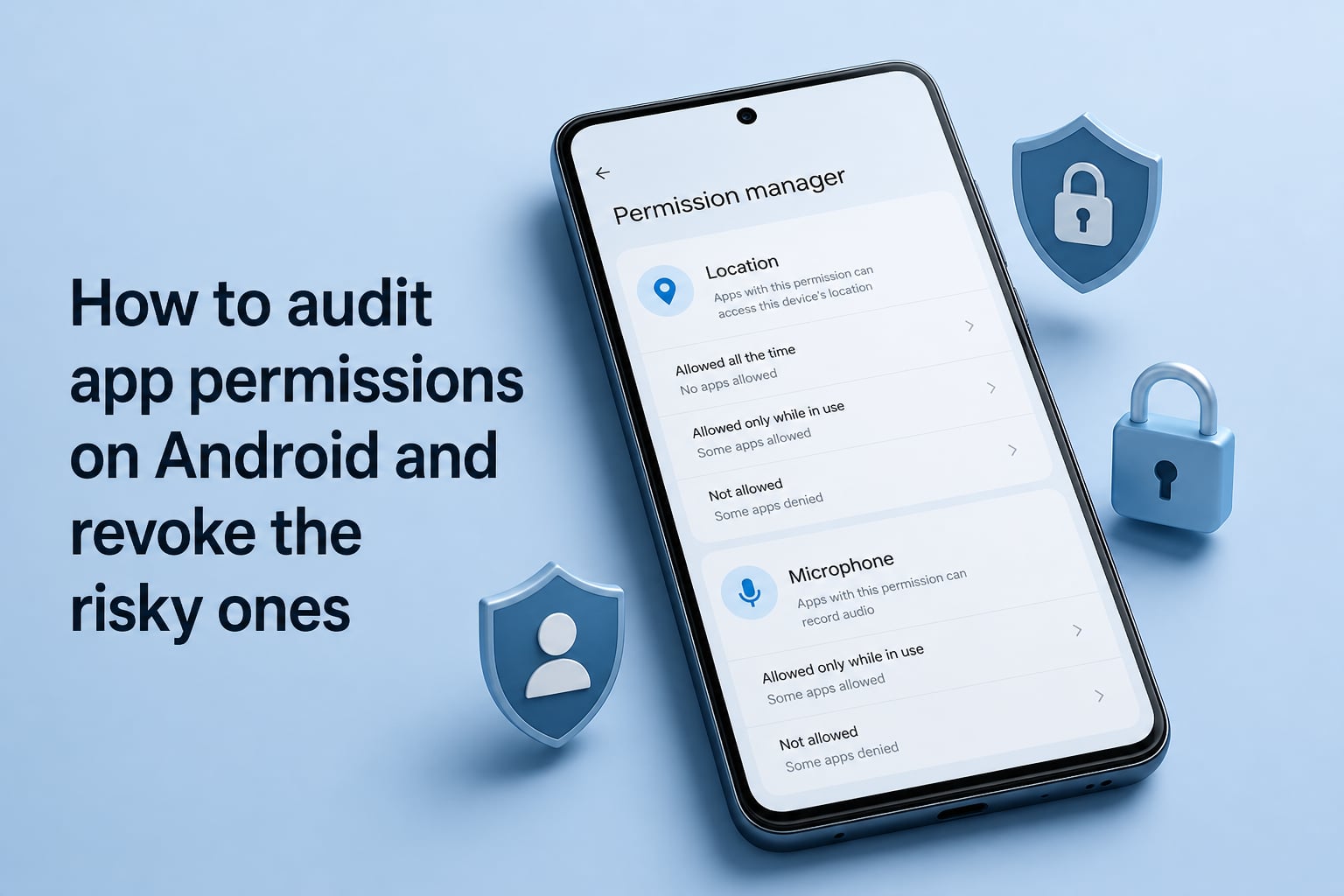
Step 3: Tap on Permission manager. This screen shows every dangerous permission category, including location, camera, microphone, contacts, SMS, calendar, call logs, and files and media.
Step 4: Tap into each permission category one at a time. You will see a list of every app that currently has access. Pay close attention to apps under the “Allowed all the time” or “Always allow” sections, especially for location and microphone.
Step 5: For each app listed, ask yourself a simple question: does this app need this permission to function? If a calculator has your location, or a flashlight has your contacts, that is a red flag. Note these for the revocation step.
Step 6: If you prefer to audit by app rather than by permission, go to Settings, then Apps, then tap any app and select Permissions. This shows you everything that single app can access at a glance.
On Android 13 and 14, Google introduced additional granularity. You will now see separate permissions for photos, videos, music, and files, rather than one broad storage permission. Android 12 added approximate location versus precise location, so you can share your general area without revealing your exact coordinates. These updates give you more control than older versions, so take advantage of them.
One feature many people miss is Android’s auto-revoke option. On Android 11 and later, the system can automatically revoke permissions for apps you have not opened in several months. You can check this by going to Settings, Apps, selecting an app, then looking under Permissions for the option to remove permissions if app is unused. Make sure this is turned on for every app.
How to Revoke App Permissions on Android?
Revoking a permission takes seconds, and Android gives you multiple options for how much access to remove. You do not always have to deny a permission entirely. Sometimes switching from “Allow all the time” to “Allow only while using the app” is the smarter move.
Follow these steps to revoke any app permission on Android:
Step 1: Open Settings and go to Privacy, then Permission manager. Alternatively, go to Settings, Apps, tap the app you want to fix, then tap Permissions.
Step 2: Tap the specific permission you want to change. For example, tap Location to see the access options for that app.
Step 3: You will see several options depending on the permission and Android version. These typically include “Don’t allow,” “Ask every time,” “Allow only while using the app,” and sometimes “Allow all the time.”
Step 4: Choose the most restrictive option that still lets the app do its job. For most apps, “Allow only while using the app” is the right choice for location and microphone. Selecting “Don’t allow” completely cuts off access.
Step 5: Tap the back button and repeat for each permission you want to revoke. The changes take effect immediately. There is no need to restart the app or your phone.
The difference between “Allow only while using the app” and “Allow all the time” is significant. “Allow only while using” means the app can access that feature when it is open and on your screen. “Allow all the time” means the app can access it in the background, even when you are not actively using it. For location especially, “Allow all the time” is almost never necessary unless the app is a navigation or tracking tool you rely on constantly.
What happens when you revoke a permission? The app simply cannot access that data or feature anymore. A photo app without camera permission can still edit existing photos but cannot take new ones. A messaging app without microphone access can still send text but cannot record voice messages. Most apps degrade gracefully, so do not be afraid to revoke aggressively and see what breaks.
One important caveat: some pre-installed system apps and manufacturer bloatware cannot have all permissions revoked through the standard settings. If you encounter this, you can usually disable the app entirely from Settings, Apps, then tapping Disable. On rooted devices, advanced tools like App Ops paired with Shizuku can force-revoke permissions that the standard interface hides, but those are options for power users comfortable with technical setup.
Complete List of Dangerous Permissions and What They Mean
Not all dangerous permissions carry the same risk. Some are essential for normal app function, while others are almost never justified outside of specialized tools. Here is every dangerous permission category on Android, ranked by how much risk it creates for your privacy.
Location (Fine and Coarse): This is the most sensitive permission on your phone. Fine location pinpoints you within a few meters. Coarse location gives a rough area. Any app with always-on location access can build a detailed map of your daily routine, home address, workplace, and habits. Prioritize switching every non-navigation app to “Ask every time” or denying location entirely.
Camera: Camera access lets an app capture photos and video. The risk goes beyond selfies. A malicious app with camera access can potentially capture images of your environment, documents, or screen. Deny camera access to any app that does not have a clear photographic purpose, like a camera app, video calling app, or social platform with a camera feature.
Microphone: Microphone access allows audio recording. Like the camera, this is a high-risk permission. Voice assistant apps, calling apps, and recording apps legitimately need it. Games, shopping apps, and utilities generally do not. Android 12 added a microphone indicator that appears in the status bar whenever an app is actively listening, which helps you catch unexpected access.
Contacts: This permission hands over your entire address book. Apps can read names, phone numbers, email addresses, and any notes you have attached to contacts. Messaging and dialer apps need this. Most others do not. Be especially cautious with social apps that ask for contacts to “find friends,” because some have been caught uploading full contact lists to their servers.
SMS: SMS permissions let an app read, send, or intercept text messages. This is particularly dangerous because text messages often contain two-factor authentication codes. A malicious app with SMS access could intercept your verification codes and compromise your accounts. Only your default messaging app should have this permission.
Call Logs: Call log access reveals who you called, when, and for how long. This metadata is deeply personal. Only dialer and call management apps should have it. If a utility or game requests call log access, revoke it immediately.
Phone: Phone permissions can include the ability to make calls, read phone state, and access your phone number. Some of this is necessary for calling apps, but many apps request phone state access unnecessarily. Review this carefully.
Calendar: Calendar access exposes your schedule, appointments, and events. Productivity and scheduling apps need it. Most other apps do not. A flashlight or wallpaper app with calendar access is a clear red flag.
Files and Media (Storage): On Android 13 and later, this is split into separate permissions for photos, videos, music, and documents. On older versions, it is a single broad storage permission. File access lets an app read potentially everything stored on your device. Photo gallery and file manager apps need it. Be more selective with everything else.
Nearby Devices: Introduced in Android 12, this permission covers Bluetooth and ultrasonic cross-device communication. Smart home and accessory apps need it. Others generally do not.
How to Identify Risky Apps and Hidden Spyware?
Some of the most dangerous apps are the ones you did not consciously install. Pre-installed bloatware, system tools from manufacturers, and occasionally malicious apps that slipped onto your device can all carry dangerous permissions you never approved.
Here are the warning signs that an app may be risky or malicious:
The app has a generic or vague name like “System Service,” “Update Helper,” or “Device Optimizer” but does not correspond to a known manufacturer feature. Legitimate system apps usually carry recognizable brand names like Google, Samsung, or your carrier.
The app requests a combination of permissions that makes no sense together. A calculator with microphone and location access, or a wallpaper app with SMS permissions, is behaving suspiciously. No legitimate app needs that combination.
The app appeared on your device without you installing it. Check your full app list in Settings, Apps, and scroll through everything. If you see something you do not recognize, investigate it before assuming it is safe.
The app drains your battery or uses data in the background unexpectedly. Spyware and stalkerware often run constantly, sending data to remote servers. Check Settings, Battery, and Settings, Network and Internet, Data usage for anomalies.
For finding hidden or disguised spyware specifically, the permission manager is your best tool. Go through each permission category and look for apps that should not be there. If you find an unknown app with location, microphone, or SMS access, revoke those permissions immediately and research the app name online.
If you suspect your device has been compromised, the most thorough solution is a factory reset followed by careful reinstallation of only essential apps. Some persistent spyware survives factory resets on rooted or heavily modified devices, but for standard phones, a clean reset removes most threats. After resetting, audit permissions before you install anything beyond the basics.
Google Play Protect, built into Play Store, also scans for harmful behavior and can flag apps that abuse permissions. Make sure it is enabled in Play Store settings under Play Protect.
Your Android Permission Audit Checklist
No competitor in the current search results offers a structured audit checklist, so here is one you can use every few months to keep your device clean. Run through these items in order, and you will catch the most common privacy problems in under 15 minutes.
1. Open Settings, Privacy, Permission manager and review the Location category. Switch every app that does not need background location to “Allow only while using the app” or “Don’t allow.”
2. Check the Microphone category. Deny microphone access to any app that is not a calling, recording, or assistant app.
3. Check the Camera category. Remove camera access from apps that have no photographic function.
4. Check Contacts. Only messaging, dialer, and social communication apps should appear here. Revoke from anything else.
5. Check SMS and Call Logs. Your default messaging app and dialer are the only apps that need these. Revoke from everything else.
6. Review Files and Media (or Photos, Videos, Music on Android 13+). Be selective here, because storage access exposes a lot of personal data.
7. Go to Settings, Apps and scroll through your full app list. Uninstall anything you do not recognize or no longer use.
8. For each remaining app, tap the app, go to Permissions, and confirm that auto-revoke is enabled. This ensures unused apps lose their permissions automatically.
9. Open Play Store, tap your profile, then Play Protect, and run a scan to check for harmful apps.
10. Set a recurring reminder to repeat this audit every three months. Apps update and change their permission requests over time, so a one-time check is not enough.
FAQs
How to revoke app permissions on Android?
Open Settings, go to Privacy, then Permission manager. Tap any permission category like Location or Camera, select the app you want to change, and choose Don’t allow or Allow only while using the app. Alternatively, go to Settings, Apps, tap the specific app, select Permissions, and adjust each permission individually. Changes take effect immediately.
What app permissions are most risky?
The most risky Android permissions are location (especially always-on background access), SMS (because it can intercept verification codes), microphone, camera, contacts, and call logs. These permissions expose deeply personal data. Location reveals your daily movements, SMS compromises account security, and contacts expose everyone in your address book. Deny these permissions unless the app has a clear, specific need.
How to find hidden spyware apps on Android?
Go to Settings, Apps, and scroll through your full app list looking for apps you do not recognize, especially ones with generic names like System Service or Update Helper. Then check the Permission manager for unknown apps with location, microphone, or SMS access. Look for unusual battery drain or background data usage. Run a Google Play Protect scan from the Play Store. If you find suspicious apps, revoke their permissions, uninstall them, and consider a factory reset.
How do you revoke app permissions?
You revoke app permissions through the Android Permission manager. Open Settings, tap Privacy, tap Permission manager, then select the permission type. Tap the app and choose Don’t allow to fully revoke access. You can also go to Settings, Apps, tap the app name, tap Permissions, and toggle each permission off. Both methods work instantly without restarting your device.
Conclusion
Auditing your Android app permissions is one of the highest-impact privacy steps you can take, and it costs you nothing but fifteen minutes. By learning how to audit app permissions on Android and revoke the risky ones, you close doors that apps should never have opened in the first place. Work through the checklist above, repeat it every few months, and you will stay ahead of the apps that quietly expand their access over time. Your data, your contacts, and your daily movements belong to you, not to every developer whose app happens to be on your phone.