
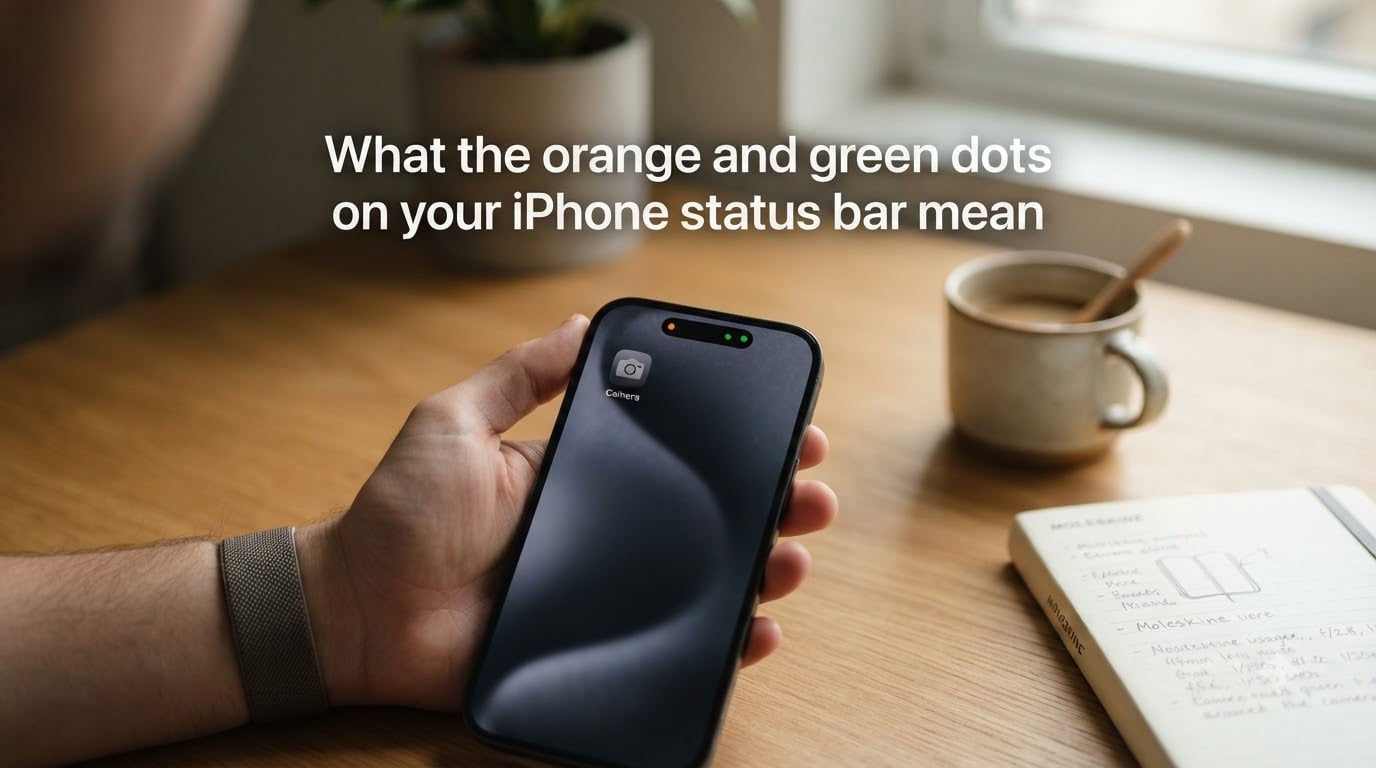
If you have ever noticed a small orange or green dot near the top of your iPhone screen, you are looking at one of Apple’s built-in privacy indicators. The orange dot on your iPhone means an app is using your microphone, and the green dot means an app is using your camera (sometimes along with the microphone).
These tiny lights show up in the status bar at the top of your screen, and they are there to keep you informed. I use them as a quick check whenever something feels off, and they have helped me catch apps that woke up my mic when I did not expect them to.
These indicators are a privacy feature Apple added in iOS 14, and they work on every iPhone running iOS 14 or later. This guide explains what each color means, how to find out which app triggered it, and what to do if the dots will not go away.
Table of Contents
- What the Orange and Green Dots on Your iPhone Status Bar Mean?
- The Orange Dot Means an App Is Using Your Microphone
- The Green Dot Means an App Is Using Your Camera
- Orange Square vs Orange Dot: The Differentiate Without Color Setting
- How to Check Which App Is Using Your Microphone or Camera?
- When to Worry: Normal vs Suspicious Indicator Behavior
- How to Manage App Permissions on Your iPhone?
- How to Fix a Dot That Will Not Go Away?
- FAQs
- Bottom Line
What the Orange and Green Dots on Your iPhone Status Bar Mean?
The orange and green dots on your iPhone status bar are real-time privacy indicators. They tell you, at a glance, whether any app is currently using your microphone or camera. Apple introduced them in iOS 14 as part of a broader push to make app behavior more transparent.
Here is the simple color-to-meaning mapping:
Orange dot: An app is actively using your microphone.
Green dot: An app is actively using your camera (it may also be using the microphone at the same time).
Orange square: Same as the orange dot, but shown in a square shape because the Differentiate Without Color accessibility setting is turned on.
You will see them in the top-right corner of your screen, just to the left of the battery icon. On iPhone 14 Pro and newer models with the Dynamic Island, the indicator can also appear inside the Dynamic Island itself.
The Orange Dot Means an App Is Using Your Microphone
An orange dot on your iPhone status bar means that some app has access to your microphone right now and is receiving audio input. This includes voice notes, voice dictation, phone calls, voice chat in games, and any app that records audio in the background.
Most of the time, the orange dot is triggered by apps you expect: Voice Memos, the Phone app, FaceTime, WhatsApp, Telegram, or Siri. If you tap to record a voice message and you see the orange dot appear, that is normal behavior.
The orange dot stays on only as long as the microphone is being used. When the app stops recording or closes, the dot disappears within a few seconds.
The Green Dot Means an App Is Using Your Camera
A green dot on your iPhone status bar means an app is using your camera. Because Apple treats the camera as a sensitive sensor, the green dot can also appear when an app is using your camera and your microphone together, such as during a FaceTime or Zoom call.
Common triggers for the green dot include opening the Camera app, joining a video call, scanning a QR code, using Instagram or Snapchat in camera mode, and any AR app that needs a live camera view.
Just like the orange dot, the green dot should disappear shortly after you leave the camera app or end the call.
Orange Square vs Orange Dot: The Differentiate Without Color Setting
Some users notice an orange square instead of an orange dot and wonder if it means something different. It does not. The orange square is the same microphone indicator, just rendered as a square instead of a dot.
This shape change happens because Apple includes an accessibility option called “Differentiate Without Color.” It is designed for users who cannot easily distinguish colors, including people with color blindness. When this setting is on, iOS changes the shape of the indicator to make it identifiable without relying on the orange versus green distinction.
To turn this on or off, go to Settings, then Accessibility, then Display and Text Size, and toggle Differentiate Without Color.
How to Check Which App Is Using Your Microphone or Camera?
The single most useful feature tied to these dots is the Control Center panel. Apple designed it so you can see exactly which app triggered the indicator. This is the step most forum users wish they knew about sooner.
Swipe down from the top-right corner of your iPhone to open Control Center (on iPhones with a Home button, swipe up from the bottom).
Look at the top of Control Center. You will see a label that names the app using your microphone or camera.
If no app is currently active, no label will appear, but a recent-use indicator may show the last app that accessed those sensors.
If the name shown does not match an app you opened, that is a clear sign something is running in the background and you should investigate it.
When to Worry: Normal vs Suspicious Indicator Behavior
I have seen plenty of forum posts from people who panic when they see these dots. In most cases, the indicator is doing exactly what it is supposed to do. Here is how I tell the difference between normal and suspicious behavior.
Normal behavior: The dot appears when you open a camera app, start a voice recording, or join a video call, and it disappears within seconds after you leave. You recognize the app name in Control Center.
Potentially suspicious behavior: The dot appears when you have not opened any app, the Control Center shows an app you do not recognize, or the dot stays on for a long time after you closed everything.
Spyware is extremely rare on a non-jailbroken iPhone because of iOS sandboxing, so a stuck indicator usually points to a misbehaving app rather than malware. Still, it is worth checking.
How to Manage App Permissions on Your iPhone?
If you want to stop certain apps from accessing your microphone or camera, you can revoke those permissions individually. This is one of the best habits I have built over the years.
Open Settings and scroll down to Privacy and Security.
Tap Microphone to see every app that has requested mic access. Toggle off any app you do not want to allow.
Go back, then tap Camera and do the same for camera access.
You can always turn these permissions back on later, so do not worry about breaking anything. If an app needs access for a specific feature, it will ask you again the next time it tries to use it.
How to Fix a Dot That Will Not Go Away?
A persistent indicator is one of the most common frustrations I see in iPhone forums. If the orange or green dot stays on after you have closed everything, here is the troubleshooting checklist I follow.
Swipe up from the bottom of the screen (or double-tap the Home button) to open the app switcher.
Swipe up on any apps you have not used in a while to force-quit them.
Open Control Center to confirm which app is still holding access.
Restart your iPhone by holding the power button and either volume button until the slider appears.
If the dot still shows, check Settings, then Privacy and Security, then Microphone or Camera, to see which apps have access and remove any you do not trust.
In almost every case I have seen, one of these steps clears the indicator. If it does not, a full iOS update or a factory reset is a last resort, but that is rarely needed.
FAQs
Does the orange dot on iPhone mean someone is listening?
The orange dot on your iPhone means an app is using your microphone. It usually reflects a legitimate app you opened, like Voice Memos or a video call. If you see it when no app should be recording, check Control Center to see which app triggered it.
What are orange and green dots on iPhone?
The orange and green dots on iPhone are privacy indicators introduced in iOS 14. The orange dot means an app is using your microphone, and the green dot means an app is using your camera, possibly with the microphone as well.
How do I get rid of the orange and green dot on my iPhone?
To get rid of the orange or green dot, close the app that triggered it, swipe up in the app switcher to force-quit it, or open Control Center to confirm which app is active. You can also revoke microphone or camera permissions in Settings under Privacy and Security.
Does the green dot mean someone is listening?
The green dot means your camera is in use, not that someone is listening. However, because many apps use both the camera and microphone together during video calls, your microphone may also be active at the same time.
Is the iPhone orange dot a privacy concern?
The orange dot itself is a privacy protection feature, not a concern. It exists specifically to alert you whenever your microphone is active. The only time it is a concern is if it appears when no app should be using your microphone, which would warrant checking Control Center and your app permissions.
What triggers the orange dot on an iPhone?
The orange dot is triggered any time an app accesses your iPhone microphone. Common triggers include Voice Memos, phone calls, FaceTime, Siri, voice messaging apps, video calls, and any app recording audio in the background.
Bottom Line
The orange and green dots on your iPhone status bar are simple but powerful privacy tools. An orange dot means an app is using your microphone, a green dot means an app is using your camera, and an orange square is the same mic indicator rendered for accessibility.
Whenever a dot appears, swipe down to open Control Center and check the app name. If it is an app you opened, you are all set. If it is not, revoke its permission under Settings, Privacy and Security. That single habit covers almost every privacy situation you will run into.