
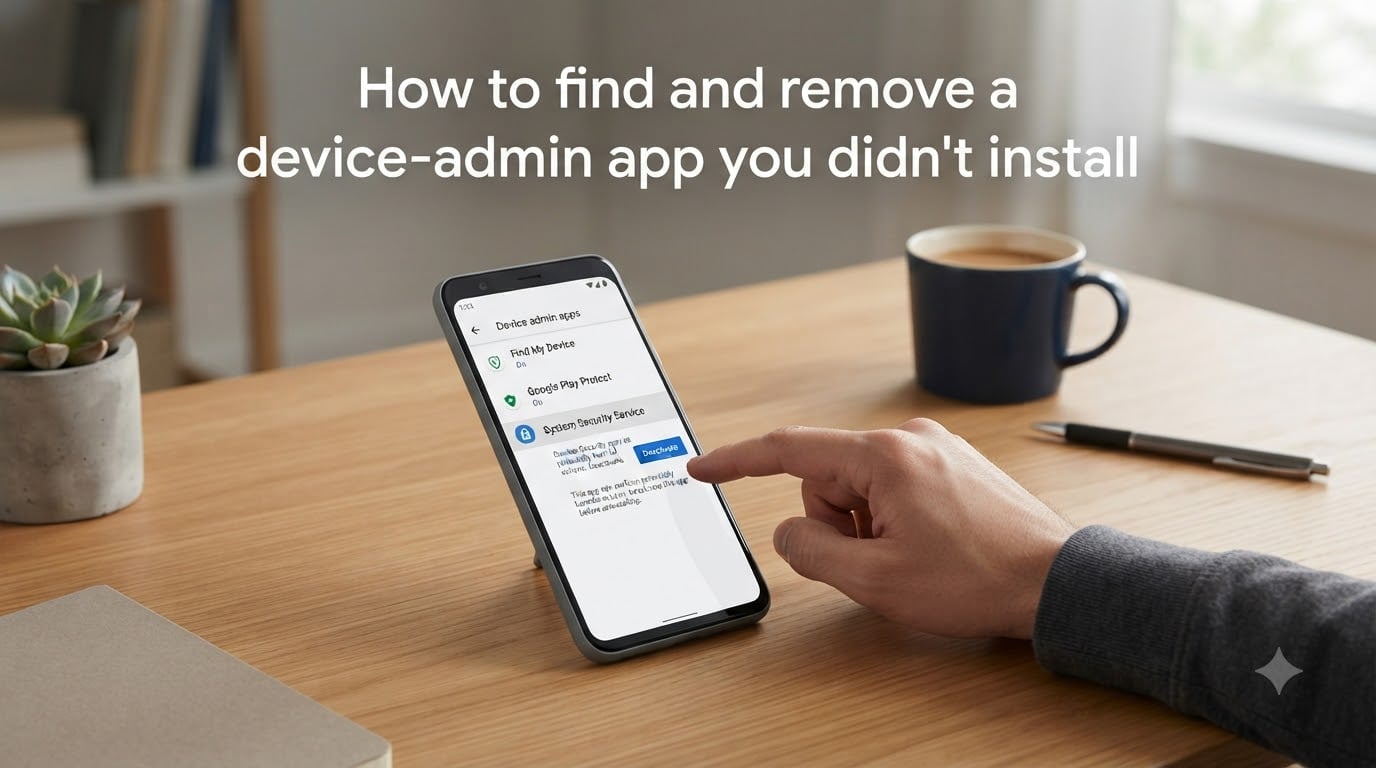
You opened your phone settings one day and spotted an app with administrator privileges that you never installed. That sinking feeling is justified. Device admin apps have deep control over Android, and unknown ones are a serious red flag.
This guide walks you through exactly how to find and remove a device-admin app you didn’t install. I will cover the standard deactivation process, brand-specific settings paths, troubleshooting a greyed-out deactivate button, safe mode removal, ADB commands for stubborn cases, and what to do if a work profile or MDM is holding it in place.
Whether you sideloaded an APK that turned out to be malware, bought a used phone with mystery software, or a corporate enrollment locked things down, the steps below will help you regain full control of your device.
Table of Contents
- What Is a Device Administrator App on Android?
- How to Find Device Admin Apps You Didn’t Install?
- How to Remove a Device-Admin App You Didn’t Install
- Fix a Greyed-Out Deactivate Button
- Use Safe Mode to Force-Remove Stubborn Admin Apps
- Remove Device Admin Apps Using ADB Commands (Advanced)
- Removing Admin Apps From Work Profiles and MDM-Managed Phones
- Signs a Device Admin App Is Malicious
- Factory Reset as a Last Resort
- How to Prevent Suspicious Admin Apps in the Future?
- Frequently Asked Questions
- Conclusion
What Is a Device Administrator App on Android?
A device administrator app is an Android application granted special privileges through Android’s DevicePolicyManager framework. These privileges let the app perform actions that normal apps cannot, such as enforcing a screen lock password, wiping all phone data remotely, disabling the camera, or tracking location without asking each time.
Not all admin apps are dangerous. Legitimate examples include Google’s Find My Device, corporate MDM (Mobile Device Management) tools like Microsoft Intune or Knox Manage, and some parental control applications. These apps need admin rights to do their jobs properly.
The problem is that the same framework is a goldmine for malicious software. A rogue admin app can silently send premium SMS messages, exfiltrate your contacts, prevent you from uninstalling it, and even block access to the Play Store. One Reddit user found a “Screen Lock Service” admin app they never installed that caused WiFi and Bluetooth to turn on by themselves. That is exactly the kind of behavior that demands immediate investigation.
The key difference between a legitimate and suspicious admin app comes down to recognition. If you know the app, understand why it has admin rights, and can trace it to a trusted developer, it is probably fine. If the name is generic, the icon is missing, or you cannot recall ever installing it, you need to act.
How to Find Device Admin Apps You Didn’t Install?
The first step is locating every app with device administrator privileges on your phone. Android buries this menu, which is why so many malicious apps go undetected for months.
Standard Path for Stock Android (Pixel, Motorola, Nokia)
Go to Settings > Security > Device admin apps. On some stock Android versions running Android 13 or later, the path is Settings > Security & privacy > More security settings > Device admin apps. You will see a toggle list of every app with admin rights.
Brand-Specific Settings Paths
Phone manufacturers love to reorganize settings menus, so here are the exact paths for the most common brands:
Samsung (One UI): Settings > Security and privacy > Other security settings > Device admin apps. On older One UI versions, look under Settings > Biometrics and security > Other security settings.
Xiaomi / Redmi / POCO (MIUI / HyperOS): Settings > Privacy protection > Special permissions > Device admin apps. MIUI sometimes nests this under Settings > Apps > Manage apps > special permissions at the bottom.
OnePlus / OxygenOS: Settings > Security & lock screen > Device admin apps. OxygenOS closely follows stock Android, so the path should look familiar.
Vivo / Oppo (Funtouch / ColorOS): Settings > Security > Device administrators. On some ColorOS builds, try Settings > Additional settings > Device administrators.
HTC and older devices: Settings > Security > Device administration > Device administrators.
How to Spot a Suspicious Admin App
Once you open the admin apps list, scan every entry carefully. Look for these warning signs:
An app with no icon or a blank icon tile is immediately suspicious. Legitimate apps always have a proper icon. Generic names like “System Service,” “Screen Lock,” “Device Helper,” or “Update Manager” are common disguises for malware.
If the developer name is unfamiliar or missing, that is another red flag. Tap on the app entry to see more details. You should be able to see the app name, a short description, and the option to deactivate. If you genuinely cannot figure out what the app is, search for its exact name online. Community forums on Reddit and Android Stack Exchange frequently identify known malware by name.
Also check for the briefcase icon on your app drawer, which indicates a work profile. A work profile is a separate managed space on your phone that can install admin apps independently. I cover removing those in detail later.
How to Remove a Device-Admin App You Didn’t Install
Once you have identified the suspicious admin app, the removal process has two phases: deactivate the admin rights, then uninstall the app itself. Android will not let you uninstall an app while it still holds admin privileges.
Phase 1: Deactivate the Admin Rights
Step 1: Open the device admin apps list using the brand-specific path from the previous section.
Step 2: Tap on the suspicious app in the list. This opens a detail screen with information about what the app can do and a toggle or button to deactivate it.
Step 3: Tap “Deactivate this device admin app.” A confirmation popup will appear listing the features that will be disabled.
Step 4: Tap “Deactivate” or “OK” to confirm. The toggle should switch off.
Phase 2: Uninstall the App
Step 5: Go to Settings > Apps (or Apps & notifications on some devices).
Step 6: Find the app in the list. You may need to search by name or scroll through all installed apps.
Step 7: Tap the app, then tap “Uninstall.” If the uninstall button is available, confirm and you are done.
If the deactivation worked smoothly and the uninstall button appeared, congratulations. But many users hit roadblocks at this point, so the next several sections cover what to do when things go wrong.
One common frustration reported across forums: some apps immediately re-enable themselves as admin after you deactivate them. This typically happens because the app has a background service that re-activates its admin privileges within seconds. If you experience this, move directly to the Safe Mode section below.
Fix a Greyed-Out Deactivate Button
The single most common problem people face is a greyed-out or unresponsive deactivate button. You tap it and nothing happens, or it is faded out and cannot be tapped at all. This is a deliberate defense mechanism used by both legitimate apps and malicious ones.
The usual cause is an accessibility service or screen overlay intercepting your taps. Here is how to get around it.
Step 1: Disable All Accessibility Services
Go to Settings > Accessibility (or Settings > Accessibility > Installed apps on Samsung). Turn off every accessibility service listed. Malicious apps often use accessibility services to intercept and block the deactivation tap. Once you disable them, return to the device admin apps screen and try deactivating again.
Step 2: Turn Off Screen Overlays
Screen overlays are another way apps can cover or block UI elements. Go to Settings > Apps > Special access > Display over other apps (the exact path varies by brand). Disable “display over other apps” permission for any suspicious or unfamiliar app. This prevents the app from drawing an invisible layer over the deactivate button.
Step 3: Check Notification Listeners
Some aggressive admin apps register as notification listeners to maintain control. Go to Settings > Apps > Special access > Notification access and disable any unfamiliar app’s notification access.
Step 4: Retry Deactivation
With accessibility services, overlays, and notification listeners disabled, go back to the device admin apps list and attempt deactivation again. In most cases, the button should now respond. If it is still greyed out, the app may be using a deeper protection mechanism, and you should proceed to the Safe Mode method.
I have seen cases where users reported that a malicious app blocked access to the Accessibility settings entirely, creating a frustrating loop. If that happens, booting into Safe Mode (covered next) bypasses all third-party apps and breaks the cycle.
Use Safe Mode to Force-Remove Stubborn Admin Apps
Safe Mode is one of the most effective tools for removing a device-admin app you did not install. When your phone boots into Safe Mode, all third-party apps are temporarily disabled. The malicious app cannot run, cannot re-enable itself, and cannot block your taps. You can then deactivate and uninstall it without interference.
How to Boot Into Safe Mode
Samsung devices: Press and hold the power button (or swipe down and tap the power icon). Long-press the “Power off” option on screen until you see “Safe mode” prompt. Tap to confirm. Your phone will restart with a “Safe mode” label in the bottom-left corner.
Pixel and stock Android: Press and hold the power button, then tap and hold “Restart” (or “Power off” on some versions). When the Safe mode prompt appears, tap OK. The phone will reboot into Safe Mode.
Xiaomi / POCO / Redmi: Turn the phone off completely. Turn it back on. When the MIUI or phone manufacturer logo appears, press and hold the Volume Down button until the lock screen appears with “Safe mode” in the corner.
OnePlus: Same as Pixel. Hold the power button, then press and hold “Power off” until the Safe Mode prompt appears.
Deactivate and Uninstall in Safe Mode
Once in Safe Mode, navigate to the device admin apps list just as you normally would. The malicious app cannot interfere now because it is not running. Deactivate the app, then go to Settings > Apps and uninstall it.
Restart your phone normally to exit Safe Mode. Verify that the app is gone by checking the admin apps list one more time after the reboot.
Remove Device Admin Apps Using ADB Commands (Advanced)
For technically inclined users, Android Debug Bridge (ADB) offers a powerful way to remove admin apps from a computer. This method works when the phone’s own settings are compromised or when malware blocks access to Developer Options entirely.
Most competitors barely touch ADB, but it is one of the most reliable methods for advanced cases.
Step 1: Enable Developer Options and USB Debugging
Go to Settings > About phone and tap “Build number” seven times. You will see a message confirming Developer Options are now enabled. Go back to Settings, open System > Developer options, and enable “USB debugging.”
Connect your phone to a computer with a USB cable. Install ADB and platform-tools on your computer if you have not already.
Step 2: List All Active Admin Apps
Open a terminal or command prompt on your computer and run:
adb shell dpm list-active-admins
This outputs a list of every active device admin component on your phone, identified by their package and component names. Find the suspicious entry in the output.
Step 3: Remove the Admin Component
Use the component name from the previous command to remove the admin:
adb shell dpm remove-active-admin com.suspicious.package/.AdminReceiver
Replace the package and receiver name with the actual values from the list output. This strips admin privileges from the app.
Step 4: Force Uninstall the App
adb shell pm uninstall com.suspicious.package
This command uninstalls the app entirely, even if it was previously refusing to uninstall through Settings. The combination of removing admin rights and then force-uninstalling through ADB is extremely difficult for malware to resist.
You can also list all installed packages with adb shell pm list packages if you want to audit what is on your phone before removing anything.
Removing Admin Apps From Work Profiles and MDM-Managed Phones
If your phone shows a briefcase icon in the notification bar or app drawer, you have a work profile. Work profiles are separate managed spaces, often set up by an employer’s IT department through an MDM platform. Apps inside the work profile can hold admin rights that you cannot remove through normal settings.
Removing a Work Profile
Go to Settings > Accounts (or Settings > Work profile on some devices). Look for the work profile entry. Tap it, then select “Remove work profile” or “Delete work profile.” Confirm your choice.
This removes all apps and data in the work profile space, including any admin apps installed there. Be aware that this also deletes any work email, files, and apps your employer provisioned.
Company-Managed Devices (Device Owner Mode)
If your phone was enrolled through a corporate program, the admin app may be set as the Device Owner. This is a higher privilege level than a standard admin app, and it cannot be removed by the user at all. Only the IT department that enrolled the device can release it.
Zero-Touch Enrollment and some MDM platforms use Device Owner mode. If you see settings greyed out that are not normally restricted, or if the admin app resists every removal method including factory reset, you are likely dealing with Device Owner mode. Contact your IT department to have them unenroll the device.
Personal Devices With an Employer App
If you installed a work app on your personal phone (not a company-issued device), you have more control. The app is running as a standard admin app, not Device Owner. Follow the standard deactivation and removal steps earlier in this guide. If the app resists, use Safe Mode or ADB.
Signs a Device Admin App Is Malicious
Not every unknown admin app is malware, but certain behaviors strongly indicate malicious intent. Drawing from real user reports on Reddit and Android support forums, here are the top warning signs.
Your WiFi or Bluetooth turns on by itself. One user reported that a suspicious “Screen Lock Service” admin app caused WiFi and Bluetooth to activate independently. Malware does this to maintain data connections for sending stolen information.
The app has no icon or a generic, unhelpful name. Legitimate apps like Find My Device clearly identify themselves. Malware hides behind names like “System Update,” “Device Helper,” or “Security Service” to avoid suspicion.
Your phone runs hot or the battery drains fast. A malicious admin app running constant background processes will spike resource usage. Check Settings > Battery to see if an unfamiliar app is consuming unusual power.
Apps close by themselves or new apps appear. Some admin malware force-closes security apps and installs additional payloads. If your antivirus or the Play Store keeps closing, that is a major red flag.
The Play Store is blocked or Play Protect is disabled. Sophisticated malware with admin rights can prevent you from accessing the Play Store or turn off Google Play Protect to avoid detection. If you cannot enable Play Protect, a malicious admin app is likely responsible.
Factory Reset as a Last Resort
If every method above fails, a factory reset is your nuclear option. It wipes everything and returns the phone to its original state. Use this only when deactivation, Safe Mode, and ADB have all been exhausted.
Before You Reset
Back up your photos, contacts, and important files to Google Drive or another cloud service. A factory reset erases everything on the phone. Make sure you know your Google account credentials because you will need them after the reset.
Write down any important information that is not backed up automatically. Once you start the reset, there is no going back.
Performing the Reset
Go to Settings > System > Reset options > Erase all data (factory reset). On Samsung, the path is Settings > General management > Reset > Factory data reset. Follow the on-screen prompts to confirm.
After the Reset
Be aware that some sophisticated malware with Device Owner privileges can survive a factory reset. If the admin app reappears after the reset, you are dealing with Device Owner mode or a persistently provisioned device, and you should flash the factory firmware through a computer or contact your manufacturer’s support.
Google’s Factory Reset Protection (FRP) will ask for your Google account credentials after the reset. This is normal and designed to prevent thieves from wiping stolen phones. Enter your credentials to proceed.
How to Prevent Suspicious Admin Apps in the Future?
Once you have cleaned your phone, take a few preventive steps to avoid repeating the experience.
Only install apps from the Google Play Store. Sideloading APKs from third-party websites is the most common way malicious admin apps get onto phones. If you must sideload for a legitimate reason, verify the source.
Keep Google Play Protect turned on. Go to Play Store > Profile icon > Play Protect and make sure scanning is enabled. Play Protect scans apps for known malware behavior before and after installation.
Review your device admin apps list periodically. I recommend checking once a month, especially if you frequently install new apps or download files from the internet. It takes under a minute and catches problems early.
Audit your permissions regularly. Check which apps have accessibility access, overlay permission, and notification access. These are the same tools malware uses to block deactivation, so limiting them to trusted apps closes a major attack vector.
Frequently Asked Questions
How to get rid of device admin apps?
Go to Settings u0026gt; Security u0026gt; Device admin apps, tap the app you want to remove, tap Deactivate, then go to Settings u0026gt; Apps and uninstall it. If the deactivate button is greyed out, disable accessibility services and screen overlays first, or boot into Safe Mode.
How to find hidden device admin apps?
Open Settings and navigate to Security u0026gt; Device admin apps (on Samsung: Settings u0026gt; Security and privacy u0026gt; Other security settings u0026gt; Device admin apps). This list shows every app with admin privileges. Look for entries with no icon, generic names, or unfamiliar developers.
How do I uninstall an app that is installed by the administrator?
First deactivate the app from Settings u0026gt; Security u0026gt; Device admin apps. Then go to Settings u0026gt; Apps, find the app, and tap Uninstall. If it is managed by a work profile, go to Settings u0026gt; Work profile and remove the profile. If it is a company-managed device with Device Owner mode, contact your IT department.
What is the device admin app on Android?
A device admin app is an application granted special privileges through Android’s DevicePolicyManager framework. It can enforce screen lock passwords, wipe data remotely, disable the camera, and track location. Legitimate examples include Find My Device and corporate MDM tools. Malicious apps abuse these same privileges to control your phone.
How to uninstall suspicious apps on Android?
If the app has device admin rights, deactivate it first in Settings u0026gt; Security u0026gt; Device admin apps. Then uninstall from Settings u0026gt; Apps. If uninstall is blocked, boot into Safe Mode and try again. For advanced removal, use ADB commands: dpm remove-active-admin followed by pm uninstall.
Is it safe to remove device admin apps?
Yes, it is safe to remove admin apps you do not recognize or need. Removing a legitimate app like Find My Device only disables features like remote locating and wiping. Removing a malicious admin app improves your security. Always check what the app does before deactivating it.
Conclusion
Learning how to find and remove a device-admin app you didn’t install comes down to a clear escalation path. Start by locating the admin apps list in your phone’s security settings. Deactivate the suspicious app, then uninstall it. If the deactivate button is greyed out, disable accessibility services and overlays. If the app resists, use Safe Mode. For the most stubborn cases, ADB commands or a factory reset get the job done.
Remember that work profiles and Device Owner mode require different approaches. Work profiles can be removed from Settings, but Device Owner mode means your phone is company-managed and only IT can release it.
Make it a habit to check your device admin apps list monthly and keep Google Play Protect active. A one-minute audit can save you from data theft, unwanted tracking, and the headache of a compromised phone. Your security is worth that small investment of time.