
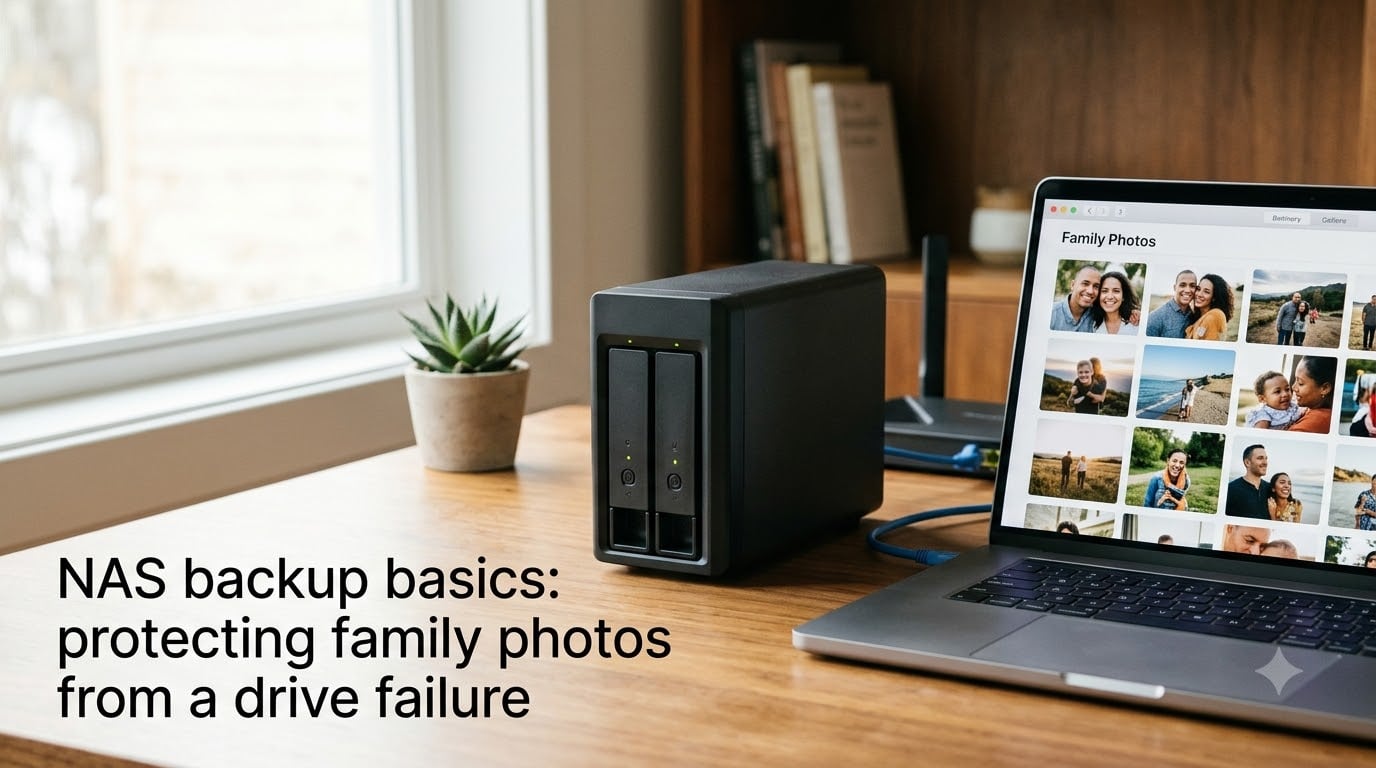
When my first child was born in 2019, I did what every new parent does. I took thousands of photos on my phone. First smile, first steps, first birthday — all captured and stored on a single device with no backup plan at all.
Six months later, that phone took a swim in a swimming pool. And just like that, 3,000 photos were gone.
I was lucky. A repair shop recovered about 80 percent of them. But that experience sent me down a rabbit hole that changed how I store family memories forever. In this guide, I will walk you through NAS backup basics for protecting family photos from a drive failure — explained in plain language, no IT degree required.
You will learn what NAS actually is, how RAID protects your data, the 3-2-1 backup rule that every professional photographer follows, and a step-by-step process to set up a system that runs automatically while you sleep.
Because here is the hard truth: every hard drive fails eventually. The question is not if — it is when. And when that day comes, you want your family’s photos sitting safely on more than one drive.
Table of Contents
- What Is NAS and Why It Matters for Your Family Photos?
- Understanding Hard Drive Failure Risks
- The 3-2-1 Backup Rule Explained
- RAID Configurations Explained: Which Level Protects Your Photos
- How to Set Up NAS Backup for Family Photos: Step by Step Guide
- Adding Cloud Backup as an Extra Protection Layer
- Common NAS Backup Mistakes to Avoid
- FAQs
- Wrapping Up: Your Family Photos Deserve Real Protection
What Is NAS and Why It Matters for Your Family Photos?
A NAS, or Network Attached Storage, is a small box that sits on your home network and holds one or more hard drives. Think of it as a personal cloud that lives in your house. Instead of plugging a drive into one computer, every phone, laptop, and tablet in your home can back up to it over Wi-Fi.
The key difference between a NAS and a simple external USB drive is redundancy. A NAS can hold two, four, or more drives that mirror each other. If one drive dies, your photos still exist on the remaining drives. An external drive gives you one copy. A NAS with RAID gives you copies within copies.
NAS backup basics come down to this single idea: your photos should never exist on just one drive. A NAS makes that automatic. You set it up once, and every new photo you take gets backed up without you doing anything.
For families, this matters more than most people realize. We are generating more photos and videos than ever before. A typical family accumulates tens of thousands of photos across multiple phones in just a few years. Losing those means losing your children’s entire visual history.
Understanding Hard Drive Failure Risks
Hard drives are mechanical devices with moving parts. They spin at 5,400 to 7,200 RPM, and their read-write heads float just nanometers above the disk surface. At that scale, even a tiny bump or a speck of dust can cause a head crash that destroys the drive instantly.
Drive failure rates are higher than most people think. Backblaze, a cloud storage company that tracks over 270,000 drives, reports annualized failure rates between 1 and 2 percent for drives in their first few years, climbing to 3 to 5 percent as drives age past year four. Over a five-year lifespan, you have a real chance of experiencing at least one failure.
There are three main types of drive failure you should understand.
Mechanical failure is what most people picture. The motor dies, the heads crash, or the bearings seize. The drive simply stops working, and data recovery can cost thousands of dollars with no guarantee of success.
Logical failure happens when the physical drive is fine but the data gets corrupted. File system errors, accidental deletion, or a power surge during a write operation can all scramble your files without warning.
Environmental failure covers everything external — a power surge frying the controller board, water damage from a flood, heat degradation from poor ventilation, or a lightning strike that takes out every electronic device in your home at once.
Here is the part that surprises people: RAID does not protect you from all of these. RAID protects against a single mechanical drive failure. It does not protect against accidental deletion, ransomware, file corruption, fire, or theft. That is why a proper backup strategy always goes beyond RAID.
The 3-2-1 Backup Rule Explained
The 3-2-1 backup rule is the gold standard for data protection, recommended by every serious IT professional and photography organization. It is simple enough for anyone to follow, and it could save your family’s entire photo collection.
Here is what each number means:
3 copies of your data. This means the original photos on your phone or computer, plus two additional copies stored somewhere else. One copy is never enough.
2 different storage media. Your backup copies should live on different types of storage. For example, one copy on your NAS hard drives and another on an external USB drive or in the cloud. This protects against a single type of media failing all at once.
1 copy offsite. At least one backup copy must be stored in a physically different location. If your house burns down or gets burglarized, a NAS sitting in your office does not help. A cloud backup or a drive stored at a relative’s house does.
Where does NAS fit in this strategy? Your NAS serves as one of your local backup copies with redundancy built in through RAID. But you still need that third offsite copy — typically a cloud backup or a rotated external drive — to complete the 3-2-1 circle.
I cannot stress this enough: a NAS with RAID is not a complete backup solution on its own. It is one critical layer. The 3-2-1 rule exists because no single layer is perfect. Stack them, and the odds of losing your photos drop to nearly zero.
RAID Configurations Explained: Which Level Protects Your Photos
RAID stands for Redundant Array of Independent Disks. It is the technology that lets a NAS spread your data across multiple drives so that the failure of one drive does not mean the loss of your files. Different RAID levels offer different trade-offs between protection, storage capacity, and cost.
Understanding which RAID level to choose is one of the most important NAS backup basics to get right. The wrong choice can leave you unprotected or waste money on capacity you cannot use.
RAID 0: Speed With Zero Protection
RAID 0 stripes data across two or more drives to increase read and write speed. It offers no redundancy at all. If any single drive fails, you lose everything on the entire array. For family photo backup, RAID 0 is the wrong choice — it actually increases your risk of data loss compared to a single drive.
RAID 1: Simple Mirroring for Beginners
RAID 1 uses two drives that are exact copies of each other. Drive A mirrors Drive B in real time. If one drive fails, the other keeps your data intact and your NAS keeps running. You can swap the dead drive for a new one, and the NAS rebuilds the mirror automatically.
For a 2-bay NAS, RAID 1 is the most popular choice for family photo storage. You get 50 percent usable capacity — two 4TB drives give you 4TB of storage — but the protection is real and the setup is dead simple. Many Reddit users in r/photography recommend RAID 1 as the minimum standard for anyone serious about protecting photos.
RAID 5: Balanced Protection for Growing Libraries
RAID 5 uses three or more drives and spreads data with parity information across all of them. If one drive fails, the NAS can rebuild the missing data from the parity bits on the surviving drives. You get the usable capacity of all drives minus one.
For example, three 4TB drives in RAID 5 give you 8TB of usable storage with single-drive failure protection. Four 4TB drives give you 12TB. This makes RAID 5 the sweet spot for families with large photo and video libraries who want efficient use of their drive investment.
The trade-off is that RAID 5 takes longer to rebuild after a drive failure, and during that rebuild, your array is vulnerable. If a second drive fails during the rebuild, you lose everything. This is why drive health monitoring matters — you want to replace failing drives before they cascade.
RAID 6: Double Failure Protection
RAID 6 works like RAID 5 but uses two sets of parity data, meaning it can survive the failure of two drives simultaneously. You lose the capacity of two drives instead of one, but the protection is significantly stronger.
For families with truly irreplaceable and large photo collections, RAID 6 on a 4-bay or larger NAS offers peace of mind. Four 4TB drives give you 8TB usable with the ability to lose any two drives without data loss. Many professional photographers insist on RAID 6 as their minimum.
Which RAID Level Should You Choose?
For most families starting out, RAID 1 on a 2-bay NAS is the right answer. It is simple, affordable, and provides genuine protection against the most common failure type — a single dead drive. As your photo library grows past a few terabytes, upgrade to a 4-bay NAS with RAID 5 or RAID 6.
Synology and QNAP also offer their own RAID-like systems — Synology Hybrid RAID (SHR) and QNAP RAID — which are designed to be more flexible and beginner-friendly than standard RAID levels. SHR, in particular, is popular among home users because it maximizes usable capacity while still providing redundancy.
How to Set Up NAS Backup for Family Photos: Step by Step Guide
Setting up a NAS for photo backup is less intimidating than it sounds. Modern NAS devices from brands like Synology and QNAP come with guided setup wizards that walk you through every step. Here is the process I followed, broken down into five clear steps.
Step 1: Choose the Right NAS Enclosure
For a family photo backup, a 2-bay NAS is the minimum I recommend, and a 4-bay NAS is ideal if you can stretch your budget. More bays mean more flexibility — you can start with two drives and add more later without replacing the enclosure.
Look for a NAS that includes built-in photo management software. Synology Photos and QNAP QuMagie both offer automatic photo organization, facial recognition, and album creation that rival Google Photos and Apple Photos. This makes your NAS feel like a real photo library, not just a dumb storage box.
Popular family-friendly options in the community include the Synology DS224+ and DS920+, both frequently recommended in Reddit discussions for their ease of use and reliable software ecosystem.
Step 2: Install and Configure Your Drives
Buy NAS-rated hard drives, not standard desktop drives. NAS drives like the Seagate IronWolf or Western Digital Red are designed for 24/7 operation and include vibration sensors that prevent premature failure in multi-drive enclosures. Using cheap desktop drives in a NAS is a common mistake that leads to early failures.
Slide the drives into the bays — most modern NAS enclosures use tool-free installation with plastic caddies. Then power on the NAS and follow the setup wizard in your browser. The wizard will walk you through creating your storage pool (the group of drives working together), selecting your RAID level, and setting up your first shared folder.
Choose RAID 1 for a 2-bay NAS or RAID 5 for a 4-bay NAS when prompted. This gives you the data redundancy that is the entire point of NAS backup basics.
Step 3: Set Up Automated Photo Backup From Your Devices
This is where the magic happens. Install your NAS manufacturer’s mobile app — Synology Photos for Synology, Qfile or QuMagie for QNAP. Open the app, enable background photo backup, and every photo you take on your phone will automatically upload to your NAS over Wi-Fi.
For computers, install the desktop backup software that comes with your NAS. Set it to back up your photo folders — usually Pictures, Photos, and any custom folders you use. Schedule it to run daily or continuously, depending on your preference.
The goal is to make backup invisible. Once this step is done, you never have to think about manually copying photos again. The NAS handles everything in the background.
Step 4: Enable Cloud Sync as Your Offsite Copy
Remember the 3-2-1 rule? Your NAS is copies one and two (with RAID providing the on-device redundancy). Now you need copy three — offsite.
Most NAS devices support cloud synchronization out of the box. You can connect your NAS to Google Drive, Amazon Drive, Backblaze B2, or Dropbox, and configure it to automatically sync your photo folder to the cloud. This gives you a complete offsite backup without any manual effort.
Backblaze B2 is particularly popular among NAS users because it is affordable — roughly $6 per terabyte per month — and integrates directly with Synology and QNAP through their built-in tools. For a typical family photo collection of 1-2TB, cloud backup costs less than a single dinner out.
Step 5: Test Your Backup Regularly
A backup you have never tested is not a backup — it is a hope. Once a month, pick a random photo from your NAS and try to restore it to your computer. Open it, verify it is not corrupted, and confirm the file quality matches the original.
Also, check your NAS dashboard weekly for drive health warnings. All NAS devices report SMART data — temperature, bad sectors, and error rates — for each drive. When a drive starts showing warning signs, replace it immediately before it fails completely. This is the single most important habit for keeping your photo backup reliable over the long term.
Adding Cloud Backup as an Extra Protection Layer
Many people ask whether they even need cloud backup if they already have a NAS with RAID. The answer is yes, absolutely, and here is why.
RAID protects against a single drive failure within your NAS. It does not protect against ransomware that encrypts all your files, a house fire that destroys the physical NAS, a burglary where the NAS is stolen, or a power surge that fries every drive simultaneously.
Ransomware targeting NAS devices is a growing threat. Attackers scan for NAS devices exposed to the internet and encrypt family data, demanding payment for decryption. If your only copy is on the NAS, you are forced to pay or lose everything. An offsite cloud backup makes ransomware a non-issue — you simply wipe the NAS and restore from the cloud.
Physical disasters are the other major risk. A fire, flood, or break-in can destroy your NAS and every drive in it. Insurance can replace the hardware, but no amount of money can replace years of family photos that existed only in that one location.
Cloud backup does not have to be expensive. For families with modest photo collections under 1TB, even free cloud tiers from Google Drive or OneDrive can work as a basic offsite copy. For larger libraries, services like Backblaze B2, Amazon S3 Glacier, or IDrive offer affordable bulk storage specifically designed for backup purposes.
Common NAS Backup Mistakes to Avoid
After years of reading NAS forums and community discussions, I see the same mistakes repeated over and over. Here are the top ones to avoid.
Mistake 1: Treating RAID as a backup. RAID keeps your NAS running when a drive fails, but it is not a backup. If you accidentally delete a photo, RAID instantly deletes it from all mirrored drives. If ransomware hits, all copies are encrypted. Always maintain a separate backup beyond your RAID array.
Mistake 2: No offsite copy. A NAS sitting in your house protects against drive failure, not against disaster. Without an offsite copy — cloud or a drive stored elsewhere — you are one house fire away from losing everything.
Mistake 3: Ignoring drive health monitoring. Drives do not fail without warning. SMART data reports rising error rates, increasing temperatures, and growing bad sector counts long before total failure. Check your NAS dashboard regularly and replace drives at the first sign of trouble.
Mistake 4: Never testing restores. Set up your backup, confirm it is running, and never check it again. Months later, you discover your backup has been silently failing the whole time. Test a restore every month to catch problems before they become disasters.
Mistake 5: Using desktop drives instead of NAS drives. Standard desktop drives are not built for 24/7 NAS operation. They lack vibration compensation and tend to fail faster in multi-drive enclosures. Always buy NAS-rated drives like IronWolf or WD Red.
Mistake 6: Exposing your NAS directly to the internet. Port forwarding to your NAS for remote access is convenient, but it makes you a target for ransomware and brute-force attacks. Use a VPN or your manufacturer’s secure remote access service instead.
FAQs
What is the rule of 3 for backups?
The rule of 3 for backups means keeping three copies of your data: the original on your device, a local backup copy (like on a NAS with RAID), and an offsite copy (like cloud storage). This ensures that no single point of failure can destroy your photos.
What happens if a NAS drive fails?
If a NAS drive fails and you are using RAID 1 or higher, your data remains safe on the surviving drives. The NAS sends an alert, and you replace the failed drive with a new one. The NAS then automatically rebuilds the data onto the new drive. During the rebuild, your photos remain accessible, though the array is temporarily more vulnerable to a second failure.
How to protect against hard drive failure?
To protect against hard drive failure, follow these steps: use a NAS with RAID 1 or higher for redundancy, keep at least one offsite backup copy in the cloud or on an external drive stored elsewhere, use NAS-rated hard drives designed for 24/7 operation, monitor drive health with SMART data, and test your backups monthly to confirm they work.
Is NAS better than cloud for photo storage?
NAS and cloud serve different purposes. A NAS gives you local control, no monthly fees, and large storage capacity, but requires upfront cost and maintenance. Cloud storage is simpler and provides automatic offsite protection, but involves ongoing fees and depends on internet speed. Most experts recommend using both: NAS for your primary local backup and cloud as your offsite copy.
How many drives do I need for family photo backup?
For basic family photo protection, a 2-bay NAS with RAID 1 using two drives is sufficient. This gives you mirrored redundancy so one drive failure does not cause data loss. For larger photo collections or stronger protection, a 4-bay NAS with three or four drives in RAID 5 or RAID 6 provides more capacity and the ability to survive one or two drive failures respectively.
Wrapping Up: Your Family Photos Deserve Real Protection
NAS backup basics come down to a few simple principles: never keep your photos on just one drive, use RAID for redundancy, follow the 3-2-1 rule with an offsite copy, and test your backups regularly. A properly configured NAS protects your family photos from a drive failure automatically, giving you peace of mind that decades from now, your children will still be able to look back at the moments that mattered most.
Start with a 2-bay NAS, two NAS-rated drives, and a cloud sync plan. Set it up once, and let it protect your memories for years to come.