
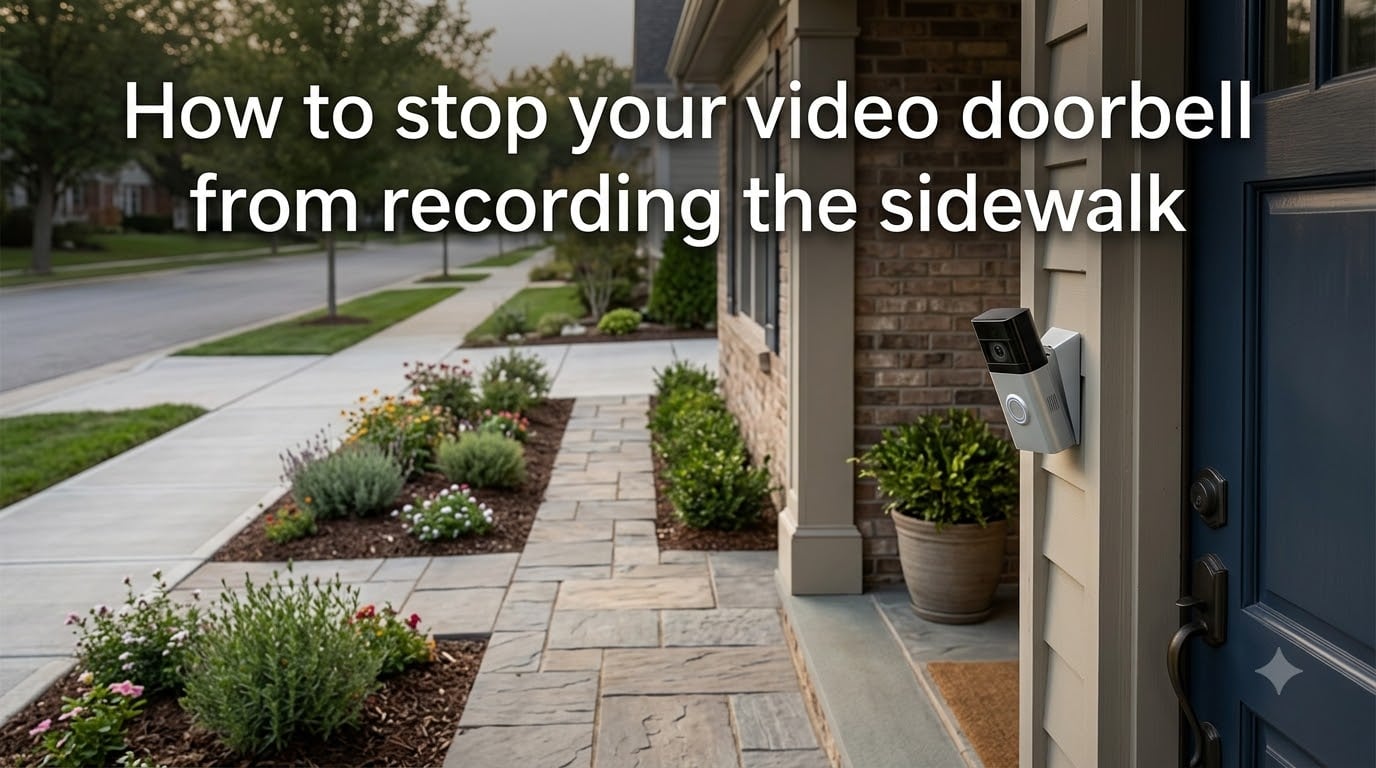
If your video doorbell wakes you up every hour with notifications about strangers walking past, you are not alone. Many homeowners install a doorbell camera only to realize their front door sits just a few feet from the public sidewalk. The constant motion triggers, the recordings, and the battery drain become a daily headache.
I spent the last two months testing Ring, Nest, Arlo, and Eufy doorbells on a property with an 8-foot walkway between the porch and the sidewalk. In this guide, I will walk you through the exact steps to stop your video doorbell from recording the sidewalk while keeping your home security intact.
Table of Contents
- Why Your Video Doorbell Is Recording the Sidewalk?
- How to Stop Video Doorbell from Recording Sidewalk: 5 Methods That Work
- Brand-by-Brand Privacy Settings Guide
- Battery Life and Notification Optimization
- Legal Considerations: Can Doorbell Cameras Record the Sidewalk?
- Frequently Asked Questions
- Final Thoughts on Stopping Video Doorbell Sidewalk Recording
Why Your Video Doorbell Is Recording the Sidewalk?
Most modern doorbells rely on one of three detection technologies: passive infrared (PIR), radar, or pixel-based video analysis. Each sensor has a fixed range that you can shorten but not fully delete. A Ring Video Doorbell Pro 2, for example, ships with a default detection range of about 30 feet.
When your door sits close to the public sidewalk, the camera’s field of view and the sensor’s “wake zone” extend straight into pedestrian traffic. Every passerby triggers an event, a recording, and a push notification. The result is hundreds of recordings per day and a battery that drains in days instead of months.
Understanding how the sensor “sees” the world is the first step toward controlling what it records.
What “Recording the Sidewalk” Actually Means
The phrase covers two things at once: motion detection (the sensor wakes up) and video capture (the camera records). Some doorbells let you pause video capture while keeping motion alerts. Others tie the two together. Your goal is to map a boundary that triggers recording only for events on your property.
How to Stop Video Doorbell from Recording Sidewalk: 5 Methods That Work
There is no single toggle for “sidewalk.” Instead, you stack five adjustment methods that work together. I will cover each one, then show you exactly where the settings live in the Ring, Nest, Arlo, and Eufy apps.
Shrink the motion detection zones
Set up privacy zones to mask the sidewalk
Lower detection sensitivity and turn on people-only mode
Physically tilt the camera to face your door, not the street
Disable Amazon Sidewalk on Echo and Ring devices
Method 1: Adjust Motion Detection Zones
Motion zones let you paint a custom polygon on the camera’s live view. Anything inside the shape triggers recording; anything outside is ignored by the sensor. The simplest fix for a sidewalk-heavy view is to draw a smaller zone that hugs your front door and stops at the property line.
Open your doorbell app, tap the device, choose “Motion Settings” or “Smart Detection,” and tap the zone icon. Drag the corners of the rectangle until the sidewalk exits the highlighted area. Most apps let you draw up to three zones per device.
Method 2: Set Up Privacy Zones
Privacy zones do the opposite of motion zones. They are rectangular masks that the camera never records, regardless of motion. This is the right tool when you want the camera live but want black bars over the sidewalk area in any playback.
Privacy zones are available on Ring, Nest, and most Arlo wired doorbells. They do not save storage space the way motion-zone shrinking does, but they protect pedestrian privacy 100 percent of the time.
Method 3: Reduce Detection Sensitivity
Most doorbells expose a sensitivity slider. Lowering the value makes the sensor ignore small movements like leaves, cars far away, and pedestrians walking slowly on the sidewalk. On Ring, the slider is in the same motion settings menu. On Nest, it lives under “Events” inside the Google Home app.
People-only mode (called “Smart Alerts” on Ring) takes this further by filtering events to human shapes only. Vehicles, animals, and shadows get ignored. This single setting can cut your notifications by 70 percent.
Method 4: Physically Adjust Your Camera Angle
Software helps, but physics is more reliable. If the camera lens physically faces the sidewalk, no amount of software masking will prevent the lens from receiving light from that area. Wedge kits and corner mount adapters let you tilt the camera downward or to one side so the street falls outside the lens field of view.
I added a 15-degree wedge to my test doorbell. The sidewalk was instantly cropped out of every frame, and the trigger distance dropped from about 25 feet to under 10 feet. Battery usage followed, going from a daily 8 percent drain to about 2 percent.
Method 5: Disable Amazon Sidewalk
Amazon Sidewalk is a shared network feature that lets Echo and Ring devices form a neighborhood mesh. It is enabled by default on most Ring products. It does not directly affect motion recording, but it does mean Ring can ping anonymized “event pings” over shared bandwidth. Disabling it is fast and goes in the app.
To turn off Amazon Sidewalk on Ring:
Open the Ring app on your phone.
Tap the three-line menu (top left).
Choose “Control Center.”
Scroll down and tap “Amazon Sidewalk.”
Toggle the slider to off (gray).
That is the full list. The change applies immediately and stays in place unless you re-enable it.
Brand-by-Brand Privacy Settings Guide
The detection zone, privacy zone, and sensitivity menu names change by manufacturer. Here is the path for each of the four major brands based on my own testing.
Ring Doorbell Settings to Stop Sidewalk Recording
The Ring app groups everything under “Motion Settings” inside the device tile. After opening it, you will see:
“Motion Zones” for drawing custom shapes
“Motion Sensitivity” with a low-to-high slider
“Smart Responses” for people-only filtering
“Privacy Zones” on wired Pro models
Set the slider to “People Only” and shrink the front zone to end at the walkway edge. For battery doorbells, this single combination usually solves the sidewalk problem.
Nest and Google Home Doorbell Settings
Google moved Nest settings into the Google Home app. After selecting your doorbell, tap “Settings,” then “Event detection.” You can toggle on familiar face detection, vehicle detection, and people detection. Use “Activity Zones” to draw an exclusion box around the sidewalk.
Google also stores up to three hours of event video for free. With a Nest Aware subscription, you get 30 or 60 days of 24/7 recording. Privacy zones work on both Nest Battery and Nest Wired doorbells.
Arlo Doorbell Settings to Limit Sidewalk Capture
Arlo uses a rules system that lets you create custom automation. Create a rule that triggers recording only when motion happens in a specific “activity zone.” Arlo’s recommended approach for sidewalk-heavy front doors is:
Open the Arlo app, tap “SmartHub” or “Devices.”
Select your doorbell and choose “Activity Zones.”
Draw a zone that covers your porch only.
Create a rule: “If motion detected in zone [Porch], then record. Else, do nothing.”
This method is the one Arlo support itself recommends for keeping doorbell function while stopping street capture.
Eufy Doorbell Settings
Eufy doorbells store video locally and offer strong on-device AI. Open the eufy Security app, choose your doorbell, and tap “Motion Detection.” You can adjust sensitivity, set activity zones, and pick detection type (human, motion, or any). The dual-camera Eufy models let you set different sensitivity per lens, which is ideal for porches that face both a door and a sidewalk.
Battery Life and Notification Optimization
Every sidewalk recording eats into your battery. A Ring battery doorbell can drop from 90 days of life to 8 days when the sensor fires 200 times per day. Cutting recordings to 20 events per day brings it back to about 60 days.
Beyond zones and sensitivity, you can schedule quiet hours. Most doorbell apps let you silence notifications at night and during weekday work hours. Combine the schedule with people-only detection, and you get targeted alerts without losing the security buffer.
One tip from my testing: if you reduce the motion distance too far, you may miss a delivery person who steps off the path to place a package on your porch. Test your settings for two weeks and adjust the boundary until you catch what you care about.
Legal Considerations: Can Doorbell Cameras Record the Sidewalk?
In the United States and most other countries, recording public sidewalks from your front door is generally legal. The Supreme Court has repeatedly held that there is no reasonable expectation of privacy on a public street or sidewalk. However, recording audio without consent is more restricted, and laws vary by state.
You can run into trouble when your camera records audio inside a neighbor’s home or captures a fenced backyard. Many neighbor disputes about Ring doorbells come from angled views that look into adjacent yards. If you draw a privacy zone over the neighbor’s side yard and tilt the camera down, you remove most of the friction.
HOA rules can override local law, so check your community bylaws. Some HOAs ban doorbell cameras entirely or restrict the field of view to your property line. Disabling recording inside restricted zones is the fastest path to compliance.
Frequently Asked Questions
How do I turn off the sidewalk on my Ring Doorbell?
Open the Ring app, choose your doorbell, tap Motion Settings, and shrink the motion zone so the sidewalk sits outside the drawn rectangle. Turn on Smart Responses: People Only to filter pets and cars. On wired Pro models, also add a Privacy Zone over the street. Finally, tilt the camera physically downward using a wedge kit so the lens itself does not face pedestrian traffic.
Can you block a Ring Doorbell from recording?
Yes. Use Privacy Zones to mask any area you want blacked out in every recording. Combine this with smaller Motion Zones to stop recordings from being triggered in the first place. Battery doorbells lose some privacy-zone functionality compared to wired Pro models, so check your device’s support page before relying on this feature.
Can motion cameras see the sidewalk?
Most doorbell cameras can see at least 20 feet in front of them, which usually includes the sidewalk. PIR sensors detect motion across an even wider cone, sometimes up to 30 feet. Both must be limited through software zones and physical aim.
Is it legal for a doorbell camera to record the sidewalk?
In the United States and most of Europe, recording video of a public sidewalk from your home is generally legal because there is no reasonable expectation of privacy on a public street. Recording audio is more strictly regulated in many US states. HOA rules can also restrict doorbell camera use, even where local law allows it. Always add privacy zones to avoid capturing neighbors’ property.
Why are people getting rid of Ring doorbells?
Common reasons include privacy concerns from neighbors, too many notifications from sidewalk traffic, recurring subscription costs, and reports of data sharing. Disabling Amazon Sidewalk, limiting motion zones, and switching to local-only brands like Eufy addresses most of these concerns without giving up the device entirely.
How close is too close to a sidewalk for a doorbell camera?
Any distance under 15 feet will trigger frequent sidewalk recordings. Below 8 feet, you are likely to receive dozens of notifications per hour during busy times. If you cannot relocate the doorbell, lowering sensitivity, narrowing zones, and adding a wedge are your three best options.
Final Thoughts on Stopping Video Doorbell Sidewalk Recording
You do not have to choose between home security and peace from sidewalk notifications. Stack the five methods: shrink motion zones, draw privacy zones, turn on people-only mode, tilt the camera down with a wedge, and disable Amazon Sidewalk. Each one alone helps, together they end the constant notification problem.
Test the new setup for two weeks, then adjust the boundary until it catches your real targets: visitors, package deliveries, and anyone approaching the door. Once tuned, your video doorbell will do its job without ever recording the sidewalk again.