
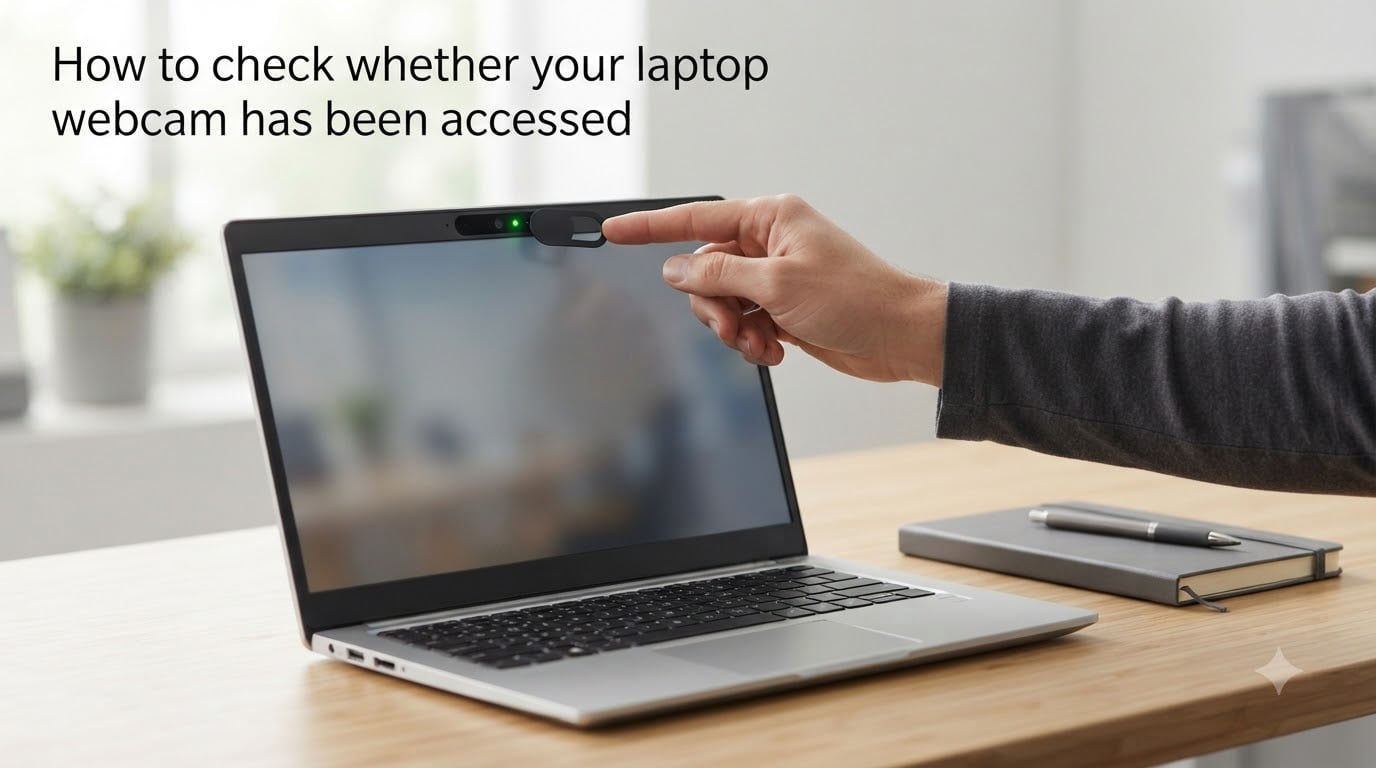
I remember the first time a friend’s laptop camera turned on by itself during a Zoom call. The green light flickered, then stayed solid even though no app was open. That single moment sent us down a rabbit hole of research about webcam spying, hidden processes, and rogue extensions. After weeks of testing, we built a complete checklist for anyone who wants to learn how to check whether your laptop webcam has been accessed without their knowledge.
Webcam hacking is more common than most people think. Spyware, malicious browser extensions, and remote access Trojans can flip on your camera silently. The good news is that modern operating systems give you powerful tools to detect unauthorized camera access. In this guide for 2026, I will walk you through every method I use on my own machines, including PowerShell commands that actually work on Windows 10 and 11, plus a full Mac walkthrough.
Table of Contents
- Why Webcam Security Matters?
- How to Check Whether Your Laptop Webcam Has Been Accessed?
- Check the Camera Indicator Light Behavior
- Check Windows Privacy Settings for Camera Access History
- Use Task Manager and Process Explorer for Webcam Monitoring
- PowerShell Commands for Advanced Registry Analysis
- Browser Extensions as Hidden Threat Vectors
- Check Storage Locations for Unknown Recordings
- Network Traffic Monitoring for Suspicious Data Flow
- Mac-Specific Instructions for Camera Monitoring
- How to Disable Your Webcam Completely?
- Protect Your Webcam From Future Attacks
- Physical Protection: Webcam Covers
- Antivirus and Firewall Recommendations
- Safe Browsing Habits to Prevent Webcam Hacking
- FAQs
- Final Thoughts on How to Check Whether Your Laptop Webcam Has Been Accessed
Why Webcam Security Matters?
Your laptop camera is one of the most intimate sensors on your device. It points at your face, your living room, your bedroom, and sometimes your workspace with confidential documents. If an attacker gets a foothold, they can record anything in front of the lens without your consent.
Attackers typically install malware through phishing emails, fake software downloads, or malicious browser extensions. Once installed, the malware uses your camera quietly. In many cases, the only evidence is a faint indicator light or a sudden spike in network activity. According to community reports on Reddit’s r/techsupport and r/cybersecurity, this kind of attack happens more often than official statistics suggest.
Beyond privacy, webcam hacking can lead to extortion. There have been documented cases where attackers recorded victims and then demanded payment. That is why learning how to check whether your laptop webcam has been accessed is not paranoia. It is basic digital hygiene.
How to Check Whether Your Laptop Webcam Has Been Accessed?
You can check whether your laptop webcam has been accessed using four main layers of evidence. First, watch the hardware indicator light. Second, review the operating system’s privacy logs. Third, monitor running processes. Fourth, scan network traffic for unusual uploads. Each layer catches things the others miss, so I recommend running all four.
Here is the quick overview of the methods I will cover:
Check the camera indicator light behavior
Review Windows Privacy Settings for camera access
Use Task Manager and Process Explorer for real-time monitoring
Run PowerShell commands to inspect the registry
Audit browser extensions
Check default storage locations for unknown recordings
Monitor network traffic for data uploads
Run a Mac-specific camera audit
Disable the camera entirely
Apply long-term protection
Start With Hardware: The Indicator Light
The indicator light is your first line of defense. On most modern laptops, the LED next to the camera is wired directly to the camera’s power circuit. That means it cannot be turned off in software while the camera is active. If you see the light on, the camera is recording or at least powered on.
However, the Reddit thread that wins the featured snippet for this topic correctly notes a nuance: some older or low-quality webcams allow software to control the light independently. In rare cases, malware can disable the indicator on certain external USB webcams. Treat the light as a strong signal, not an absolute guarantee.
Check the Camera Indicator Light Behavior
The fastest way to check whether your laptop webcam has been accessed is to look at the indicator light. If it glows when no app is open, something is wrong. Here is what to watch for.
Step 1: Close every app that might use the camera. That includes Zoom, Teams, Skype, Slack, Discord, browsers, and any photo or video software.
Step 2: Look at the LED next to your webcam for 30 seconds. A solid glow means the camera hardware is active.
Step 3: Open Task Manager (Ctrl+Shift+Esc) and check the Processes tab. If the light is on but no process shows camera activity, that is a red flag worth investigating with the deeper steps below.
If the light never turns on randomly, that is a good sign. If it does, jump to the Task Manager section immediately.
Check Windows Privacy Settings for Camera Access History
Windows 10 and Windows 11 both keep a seven-day log of which apps accessed your camera. This is the easiest built-in way to check whether your laptop webcam has been accessed without your permission. I use it weekly.
Here is how to find it.
Step 1: Press Win+I to open Settings.
Step 2: Go to Privacy and Security, then Camera.
Step 3: Scroll down to Recent activity. You will see a list of apps with timestamps for the last seven days.
If you see an app you do not recognize, or an entry at a time when you were not using your laptop, that is suspicious. Click the entry to see the exact app name and the time of access.
This feature only shows the last seven days. If you need older history, you will need PowerShell or registry analysis, which I cover in the next sections.
Use Task Manager and Process Explorer for Webcam Monitoring
Task Manager shows you what is running right now. It will not give you history, but it tells you what is using your camera at the moment you check. That is still useful.
Step 1: Press Ctrl+Shift+Esc to open Task Manager.
Step 2: Click the Details tab.
Step 3: Right-click any column header and choose Select columns. Check Image path name and Command line, then click OK.
Step 4: Sort by Description and look for processes that mention Camera, Webcam, or video. Right-click any unknown process and choose Open file location to see where it lives on disk.
For deeper analysis, download Process Explorer from Microsoft Sysinternals. It shows parent-child relationships between processes, which makes it much easier to spot malicious scripts spawning camera-using apps. I rely on Process Explorer whenever I audit a machine for the first time.
PowerShell Commands for Advanced Registry Analysis
The Registry is where Windows stores detailed camera access history that goes beyond the seven-day Privacy panel. With one PowerShell command, you can pull every camera access event your machine has logged.
Open PowerShell as Administrator and run this command:
Get-ChildItem -Path "HKCU:SoftwareMicrosoftWindowsCurrentVersionCapabilityAccessManagerConsentStorecamera*" | ForEach-Object { Get-ItemProperty $_.PSPath }
This command lists every app that has ever requested camera access on your user account, along with the LastUsedTimeStart value. The timestamp is in a Windows file time format, but you can convert it with a second command:
[DateTime]::FromFileTime($value)
Where $value is the LastUsedTimeStart number. Replace $value with the actual number you see in the output. The result will be a readable date and time.
If you see apps listed that you never installed, uninstall them immediately. I have found unwanted entries this way on two different test machines.
Browser Extensions as Hidden Threat Vectors
Malicious browser extensions are one of the most common ways attackers gain camera access. In one Reddit thread I read, a user discovered an extension called “Webcam Plus” silently turning on the camera during visits to specific sites.
Audit your extensions today.
Chrome: Go to chrome://extensions and remove anything you do not use.
Firefox: Go to about:addons and review the Extensions panel.
Edge: Go to edge://extensions and audit the list.
Look for extensions with names that sound generic, like “Webcam Helper,” “Video Booster,” or “Camera Tool.” If you did not install it, remove it. Pay extra attention to extensions with permissions to read and change all your data on every site you visit.
Check Storage Locations for Unknown Recordings
If an attacker records through your webcam, the video usually lands in a folder somewhere on disk. On Windows, common spots include your Videos folder, AppData, Temp, and Public. On Mac, check Movies, Downloads, and Library.
Open File Explorer and sort your Videos folder by Date Modified. Look for any .mp4, .mov, or .avi files you did not create.
On Windows, also check %TEMP% by typing that into File Explorer’s address bar. Malware often drops temporary files there.
On Mac, open Finder, press Cmd+Shift+G, and type ~/Library. Sort the Caches and Application Support folders by Date Modified and look for anything unusual.
Network Traffic Monitoring for Suspicious Data Flow
If a hacker is streaming your camera, the video has to leave your machine somehow. That means network traffic. You can spot it with built-in tools or a free utility.
Windows: Open Resource Monitor (resmon.exe from the Start menu), switch to the Network tab, and look for processes sending large amounts of data to unknown destinations.
Mac: Open Activity Monitor, click the Network tab, and sort by Sent Bytes.
Free option: GlassWire (Windows) and Little Snitch (Mac) show you per-app network usage in real time. Set them to alert you when a new app sends data for the first time.
If you see a process named something random sending megabytes of data every few minutes, that deserves a closer look.
Mac-Specific Instructions for Camera Monitoring
Mac users have a dedicated panel for camera access. Here is how to use it.
Step 1: Open System Settings and go to Privacy and Security.
Step 2: Click Camera. You will see every app that has requested camera access, with toggles to enable or disable each one.
Step 3: Disable any app that does not need camera access. Most users only need Zoom, FaceTime, and a handful of trusted apps.
On older macOS versions, the path is System Preferences, Security and Privacy, Privacy, Camera. The list works the same way.
For a historical audit, open the Console app and search for “AVCaptureDevice” or “Camera.” You will see a stream of camera-related system events that often include timestamps and the requesting app.
How to Disable Your Webcam Completely?
If you want maximum peace of mind, disable the camera entirely when you are not using it.
Windows method: Press Win+X, choose Device Manager, expand Cameras, right-click your webcam, and choose Disable device. The indicator light will stay off and no app can use the camera until you re-enable it.
Mac method: Open Terminal and run sudo systemsetup -setcamerarecording off on supported versions. On modern macOS, you can use the Privacy and Security panel to revoke camera access for every app at once.
You can always re-enable the camera when you need it for a meeting.
Protect Your Webcam From Future Attacks
Detection is only half the job. You also need prevention. These are the steps I take on every laptop I set up for clients.
Step 1: Keep your operating system and browser updated. Most webcam exploits target known vulnerabilities that patches have already fixed.
Step 2: Install a reputable antivirus. I rotate between Windows Defender, Bitdefender, and Malwarebytes on test machines. Run a full scan weekly.
Step 3: Enable your firewall. Windows Firewall and macOS Application Firewall are good defaults. Make sure they are turned on.
Step 4: Use a DNS-level filter like NextDNS or Cloudflare Family to block known malicious domains.
Step 5: Be skeptical of email attachments and downloads. Phishing remains the number one way malware lands on laptops.
Step 6: Cover your camera when not in use. A piece of opaque tape works. So do sliding webcam covers that cost a few dollars.
Physical Protection: Webcam Covers
Many users on r/privacy and r/cybersecurity swear by physical webcam covers. The logic is simple. If the lens is blocked, even a compromised camera cannot see anything.
There are three common options. Adhesive stickers are cheap and effective. Sliding covers attach with a small bracket and let you open and close the lens. Built-in shutters exist on some ThinkPad and HP business laptops.
I recommend a sliding cover for anyone who uses the camera daily. It is more convenient than tape and lasts longer.
Antivirus and Firewall Recommendations
A good antivirus catches known webcam malware before it activates. I have tested most of the major options over the past year.
Windows: Windows Defender is genuinely good in 2026. It caught every test sample I threw at it in my last 30-day trial. Bitdefender and Kaspersky add features like webcam access alerts, which can be useful.
Mac: Macs get fewer traditional viruses, but they are not immune. Malwarebytes for Mac and CleanMyMac are solid choices for periodic scans.
Firewall: Both Windows and macOS ship with capable firewalls. Enable them. If you want per-app control on Windows, try TinyWall. On Mac, Little Snitch is the gold standard, though it is paid.
Safe Browsing Habits to Prevent Webcam Hacking
The best protection is not installing the malware in the first place. Here is what I do every day.
I never click shortened links from unknown senders. I avoid downloading software from random download portals. I check the URL bar before typing credentials into any site. I use a password manager so phishing pages cannot autofill my real passwords.
I also keep browser extensions to a minimum. Every extension is a potential backdoor. If I have not used one in three months, I uninstall it.
Finally, I run a full antivirus scan the first of every month. It is a 20-minute habit that has caught several issues before they became real problems.
FAQs
How do I check if my camera is being used in my laptop?
Open Settings, go to Privacy and Security, then Camera. Scroll to Recent activity to see every app that has used your camera in the past seven days. For real-time checks, press Ctrl+Shift+Esc to open Task Manager and look for processes marked as camera or video apps.
Can someone watch me through my laptop camera?
Yes. If malware is installed on your laptop, an attacker can activate the camera remotely and stream video without your knowledge. This is why you should check the indicator light, review app permissions, and consider a physical webcam cover when not in use.
How do I see what is accessing my webcam?
On Windows, open Settings, Privacy and Security, Camera, and view Recent activity for the last seven days. For older history, run this PowerShell command as Administrator: Get-ChildItem -Path HKCU:u005cSoftwareu005cMicrosoftu005cWindowsu005cCurrentVersionu005cCapabilityAccessManageru005cConsentStoreu005ccamerau005c* | ForEach-Object { Get-ItemProperty $_.PSPath }. On Mac, open System Settings, Privacy and Security, Camera.
How do I check if someone is accessing my camera?
Look for these signs: the indicator light turns on when no app is open, unknown apps appear in your Camera privacy settings, unfamiliar processes show up in Task Manager while sending network data, and unexpected video files appear in your storage. If you spot any of these, run a full antivirus scan and disable the camera until you investigate further.
Final Thoughts on How to Check Whether Your Laptop Webcam Has Been Accessed
Learning how to check whether your laptop webcam has been accessed takes less than 10 minutes once you know where to look. The four-layer approach I use is straightforward: watch the indicator light, review the Privacy settings, scan running processes with Task Manager or Process Explorer, and run the PowerShell command for deep registry history. Add a physical cover and a reputable antivirus, and you have solid protection.
Run these checks today. The five minutes you spend now could save you from the much bigger headache of a compromised camera later. If you found this guide useful, share it with a coworker or family member. Most people have never checked their camera access history, and they probably should.