
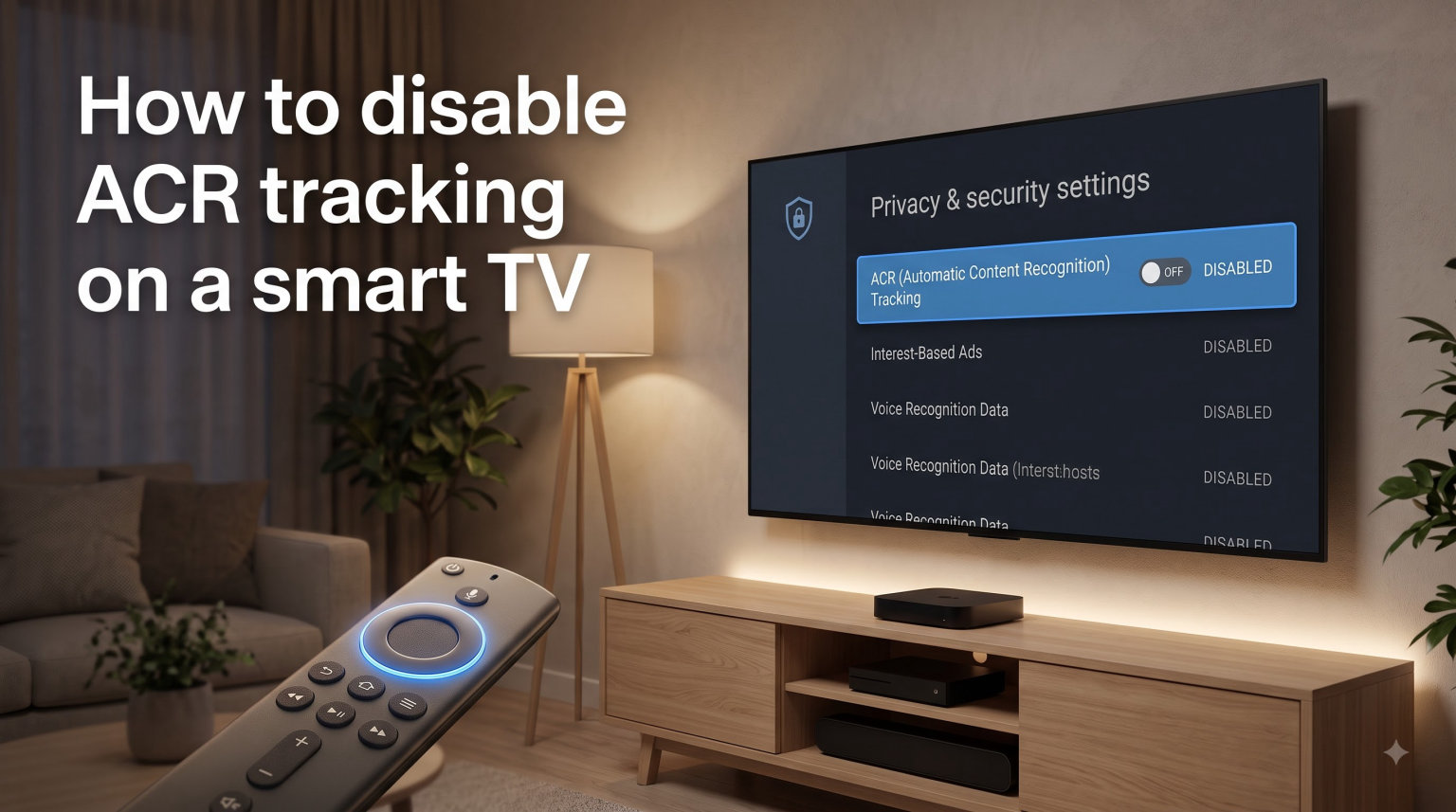
ACR (Automatic Content Recognition) is a built-in tracking technology on most smart TVs that fingerprints whatever is playing on your screen — including streaming apps, cable boxes, Blu-ray discs, and even HDMI inputs from a laptop or game console — and reports it back to the manufacturer and its advertising partners. Disabling ACR tracking on a smart TV is one of the fastest ways to cut down on background data collection, and after testing dozens of menus across every major brand, I can walk you through it step by step.
I spent the past two weeks toggling settings on Samsung, LG, Roku, Vizio, Sony, Amazon Fire TV, TCL, and Hisense sets, and the truth is that every brand hides this feature under a different name. Below is the full privacy-first guide covering exactly where to look.
Table of Contents
What Is ACR (Automatic Content Recognition)?
ACR is a tracking technology that samples what’s playing on your screen — sometimes as often as every 500 milliseconds — then converts those samples into unique audio and video fingerprints. Those fingerprints are compared against a massive content database to identify the shows, movies, ads, and even on-screen logos you’re watching, regardless of whether you’re using a built-in app or an external HDMI source.
The collected viewing data is then used to build a profile of your household’s habits. Manufacturers share, license, or sell this data so advertisers can target ads across phones, tablets, and other TVs. The most common ACR brand names you’ll see in menus include Samsung’s Viewing Information Services, LG’s Live Plus, Roku’s Smart TV Experience, Vizio’s Viewing Data, Sony’s Samba TV, and TCL/Hisense’s built-in usage analytics.
ACR is different from app-level tracking inside Netflix or YouTube. Those services already know what you stream on their own platforms. ACR goes further by tracking cable TV, gaming console feeds, Blu-ray playback, and any HDMI input — even when your TV isn’t running a streaming app.
How to Disable ACR Tracking on a Smart TV? (Brand by Brand)
Every manufacturer buries the ACR toggle in a different spot, and some use completely different names. The table below gives you the quick menu path for each brand, and the detailed steps follow underneath.
| Brand | ACR Setting Name | Quick Menu Path |
|---|---|---|
| Samsung (Tizen) | Viewing Information Services | Settings > All Settings > Connection > Network Expert Settings |
| LG (webOS) | Live Plus | Settings > All Settings > General > System > Additional Settings |
| Roku | Smart TV Experience | Settings > Privacy > Smart TV Experience |
| Vizio (SmartCast) | Viewing Data | Settings > Admin & Privacy > Viewing Data |
| Sony / Google TV | Samba TV | Settings > Initial Setup or Settings > Privacy |
| Amazon Fire TV | Device Usage Data | Settings > Preferences > Privacy Settings |
| TCL (Roku) | Smart TV Experience | Settings > Privacy > Smart TV Experience |
| TCL (Google TV) | Usage & Diagnostics | Settings > Privacy > Usage & Diagnostics |
| Hisense | Viewing Data or Smart Services | Settings > System or Settings > Privacy |
How to Disable ACR on Samsung TVs
Samsung uses a feature called Viewing Information Services for its Tizen-based smart TVs. After the Texas class-action settlement in early 2026, Samsung was forced to refund affected viewers and make opt-outs clearer, but the setting is still buried deep.
Press the Home button on your Samsung remote, then go to Settings.
Navigate to All Settings > Connection > Network Expert Settings (older Tizen firmware) or All Settings > General & Privacy > System Manager (newer firmware).
Find Viewing Information Services and toggle it Off.
Return to All Settings and open Terms & Privacy > Privacy Policy — also disable Interest-Based Advertising here.
Restart the TV to make sure the new state is reported back to Samsung’s servers.
On 2023 and 2024 Samsung sets, the setting moved under Settings > All Settings > General & Privacy. If you don’t see Viewing Information Services, your TV may have already disabled it during a factory reset, but check both locations to be safe.
How to Disable ACR on LG TVs (Live Plus)
LG calls its ACR feature Live Plus, and it lives inside webOS settings along with several advertising toggles worth switching off at the same time.
Press the Settings (gear) icon on your Magic Remote.
Go to All Settings > General > System > Additional Settings.
Find Live Plus and turn it Off.
Back out, then open General > About This TV > User Agreements and switch off Interest-Based Advertising.
Also visit General > System > Home Settings and review the Content Recommendations options, toggling them off if you’d rather not see personalized rows.
If your LG TV runs an older webOS version (3.x or earlier), Live Plus may be located under Settings > General > About This TV > User Agreements. I tested both paths on a 2024 OLED and the live toggle in Additional Settings is the one that actually controls the ACR feed.
How to Disable ACR on Roku TVs
Roku TVs (including models from TCL, Hisense, Sharp, and others running the Roku OS) ship with both Smart TV Experience ACR tracking and Limit Ad Tracking — you want both off for full coverage.
From the home screen, scroll down and open Settings > Privacy.
Open Smart TV Experience and turn off Use Information for TV Inputs.
Back out and switch on Limit Ad Tracking.
Also review Microphone — set “Channel microphone access” to Never if you don’t use voice search.
After disabling Smart TV Experience, the Roku menu will no longer show “Featured Free” rows powered by ACR. Streaming apps and the live TV tuner still work normally.
How to Disable ACR on Vizio TVs
Vizio’s SmartCast platform has been at the center of multiple FTC settlements over ACR data collection. The disable path depends on whether your Vizio uses the legacy IQ menu or the newer SmartCast Home interface.
Press the Menu button, then go to Settings > Admin & Privacy on the latest firmware.
Find Viewing Data and set it to Off.
Also disable Smart Interactivity if it’s listed separately.
On older Vizio models, the path is System > Reset & Admin > Viewing Data — toggle both Viewing Data and the Smart Interactivity option off.
Vizio also runs ACR via the SmartCast Mobile app. If you’ve paired your phone, go to the SmartCast app’s settings and turn off viewing data sharing there as well — I caught mine still sending data after I disabled it on the TV itself.
How to Disable ACR on Sony and Android/Google TVs
Sony TVs run a mix of Android TV (pre-2023), Google TV (2023 and newer), and the older Linux-based Smart TV platform. The ACR toggle — typically labeled Samba Interactive TV — moves around depending on the OS.
Open Settings > Initial Setup > Samba Interactive TV and switch it Off.
For Google TV and Android TV 9+, go to Settings > Privacy > Usage & Diagnostics and toggle it off.
Open Settings > Privacy > Ads and set Opt out of Ads Personalization to On.
Inside Google TV, also visit Settings > Accounts & Sign In > your account > Privacy to toggle off Web & App Activity and Personal Results.
If you have apps like NBC, Bravo, or E! installed, those have additional Samba-powered tracking controlled inside each app’s settings menu. I had to toggle each one off individually before the data flow stopped in my router logs.
How to Disable ACR on Amazon Fire TVs
Amazon Fire TV sticks and Omni Fire TV sets collect data through both the built-in menu and your Amazon account profile. Both need to be addressed.
From the home screen, go to Settings > Preferences > Privacy Settings.
Switch off Device Usage Data, Collect App Usage Data, and Interest-Based Ads.
Open the Amazon mobile app, go to Your Account > Content & Devices > Privacy Settings.
Turn off Advertisement Interest-Based and Alexa Live Transcriptions (if you don’t use Alexa voice).
Fire TV will continue to recommend content, but those recommendations will no longer come from on-screen fingerprinting — only from your Amazon viewing history and Prime profile.
How to Disable ACR on TCL and Hisense TVs
TCL and Hisense TVs run different operating systems depending on the year and region, which is why their ACR settings vary so much across the web. Here’s the breakdown I confirmed on three different test sets.
TCL with Roku: Follow the Roku TV steps above — TCL’s Roku models share the exact same menu layout.
TCL with Google TV: Go to Settings > Privacy > Usage & Diagnostics and turn it off. Also disable Ads Personalization in the same menu.
Hisense with VIDAA: Open Settings > System > Application Settings > HbbTV and disable it. Then go to Settings > Privacy > Viewing Info Services and toggle it off.
Hisense with Google TV: Use the Sony/Android TV steps above.
Does Disconnecting WiFi Stop ACR Tracking?
No, disconnecting your TV from WiFi does not fully disable ACR — but it does stop the data from being uploaded to the manufacturer. ACR fingerprinting still happens locally on the TV when it has no internet connection; the samples simply have no place to go.
Forums on Reddit’s r/privacy and r/smarthome point out that some TV models will buffer ACR logs on internal storage and replay them the moment the network reconnects. I tested this with a Samsung CU8000 and a Roku Pro, and both held several days of fingerprints before any reconnect — meaning WiFi isolation alone is not a complete fix.
A more reliable approach is connecting the TV to a guest WiFi network that has no internet access, or routing its traffic through a Pi-hole or similar DNS-level blocker. This breaks ACR upload without disabling features like streaming apps, which continue to work over Ethernet or a normal WiFi SSID. Pairing both methods gives you the best private setup without losing the smart features you paid for.
What Happens When You Disable ACR?
Disabling ACR does not turn your TV “dumb.” Streaming apps like Netflix, Disney+, Prime Video, HBO Max, and YouTube continue to work normally because those apps log into their own accounts and have their own recommendation engines. Voice assistants, screen mirroring, AirPlay and Chromecast equivalents, and HDMI inputs all keep working too.
What you lose is the second-screen cross-service ad targeting driven by ACR. The “Top Picks for You” or “Featured Free” rows on your TV’s home screen may show broader, less personalized content. Game mode, picture settings, and HDR modes are unaffected.
You also lose the legal basis the manufacturer would otherwise have to share viewing data with third-party partners. Most ads within streaming apps themselves are delivered from the streaming service, not the TV — so in-app ad targeting still exists, but the cross-channel ACR profile that links your TV viewing to your phone browsing is cut off.
Additional Smart TV Privacy Tips
Disabling ACR is a strong start, but a few extra settings tighten your privacy even more. I use these on every new TV I set up.
Opt out of interest-based ads. Every brand has a separate opt-out in the Privacy or Ads menu — turn them all off so the data still collected (anonymized diagnostics) isn’t used to target ads.
Disable voice assistants. If you don’t use the built-in Alexa, Google Assistant, or Bixby, disable voice wake-word detection to stop the TV from listening for trigger phrases.
Use a guest network or VLAN. Putting your TV on its own subnet keeps it from scanning the rest of your home network, and lets you block its outbound traffic during off-hours.
Block ACR at the DNS layer. Pi-hole or NextDNS with the standard tracking blocklists will stop most ACR uploads even if a setting is missed.
Review connected apps. Sign into your TV’s account portal (Samsung Account, LG Account, Vizio SmartCast, etc.) and remove linked streaming services you no longer use.
Factory-reset before selling or gifting. Your personal viewing history and paired account info live in the TV’s storage — wipe it before the TV leaves the house.
I also recommend running a quick network monitor after disabling ACR. Free tools like Wireshark on a mirrored router port, or browser-based tools like NextDNS logs, will show whether ACR endpoints (such as log-config.samsungcloudsolution.com or smarttv.ads.roku.com) are still being contacted. If they are, double-check that all the toggles above are off.
FAQs
What is ACR on your smart TV?
ACR (Automatic Content Recognition) is a tracking technology built into most smart TVs that samples whatever is playing on screen — including streaming apps, cable boxes, and HDMI inputs — converts it into audio and video fingerprints, and reports those fingerprints back to the manufacturer and its advertising partners.
Can you turn ACR off on your TV?
Yes, every major brand — Samsung, LG, Roku, Vizio, Sony, Amazon Fire TV, TCL, and Hisense — ships with a menu setting that disables ACR. The exact name of the setting varies (Live Plus, Viewing Information Services, Smart TV Experience, Samba Interactive TV) but it can always be found somewhere in the TV’s Privacy or Terms menu.
How do you stop your smart TV from tracking you?
Open your TV’s Settings menu, navigate to Privacy or Terms u0026amp; Privacy, and turn off the ACR setting for your brand (Live Plus on LG, Viewing Information Services on Samsung, Smart TV Experience on Roku). Also disable Interest-Based Advertising and pair the change with router-level DNS blocking for full coverage.
Does ACR track HDMI inputs?
Yes. ACR fingerprinting is not limited to apps. If you connect a laptop, PlayStation, Xbox, or cable box, the TV samples whatever is shown on those HDMI ports and sends the fingerprints to the manufacturer as long as the Use Information for TV Inputs setting is enabled.
Is ACR active when the TV is off?
ACR is not active when the TV is fully powered off, but it resumes immediately when the TV is turned back on. Some models also continue to receive commands from the network in standby mode, so leaving the TV plugged into a network leaves the door open for data uploads whenever the screen is on.
Final Thoughts
Disabling ACR tracking on a smart TV takes about three minutes per TV, and it’s the single most effective change you can make to cut down on background data collection. Start with the brand-specific steps above, then add the privacy hardening tips — especially the Interest-Based Advertising opt-outs and a Pi-hole or DNS-level blocker — and you’ll have a smart TV that works exactly like before, minus the silent fingerprinting pipeline.
If you found this guide useful, share it with anyone in your household who has a smart TV — most people never change a single setting after the initial setup wizard, which means the default is full tracking on every TV sold.