
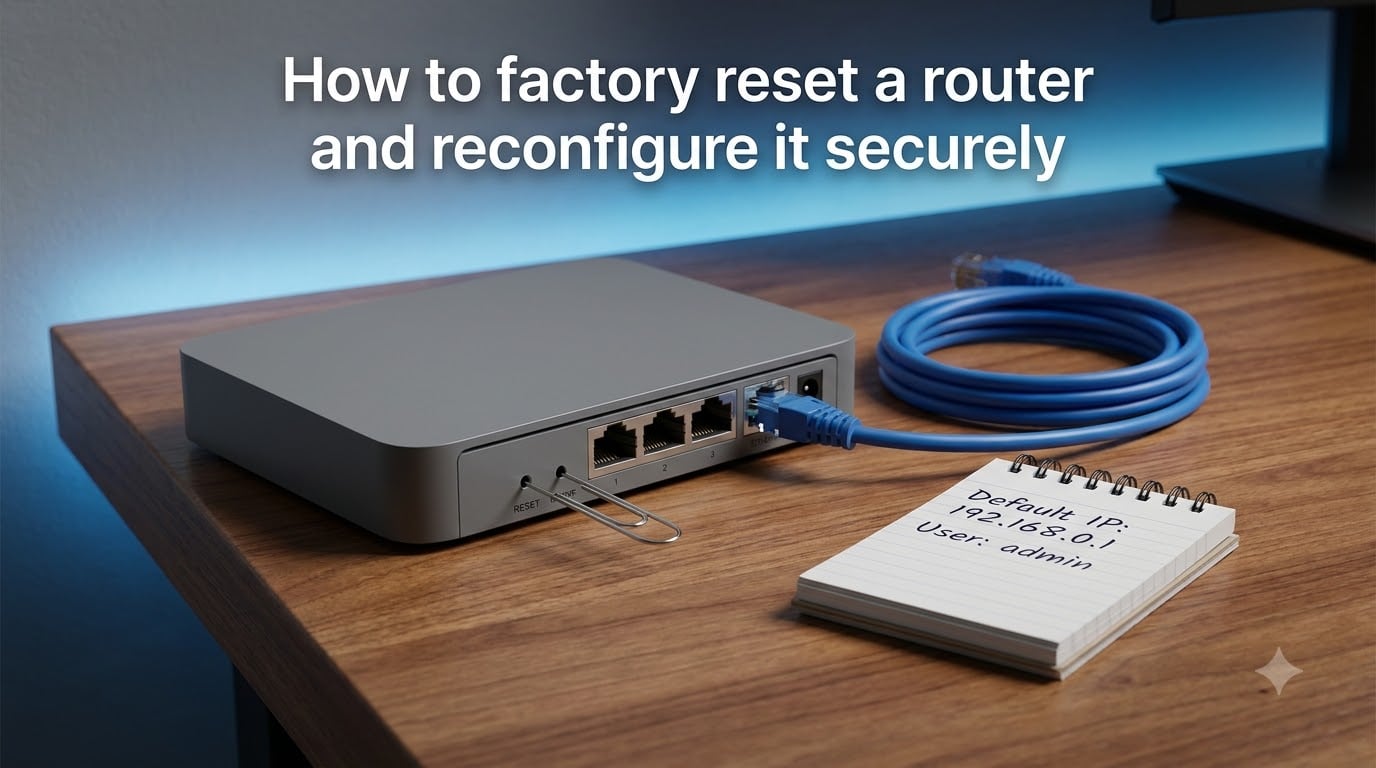
Knowing how to factory reset a router the right way saves you hours of frustration. I have wiped and rebuilt more home networks than I can count, and I will walk you through the exact process I use: when to reset, how to do it safely, and how to reconfigure the router securely afterward.
If your Wi-Fi is unreliable, your admin password is lost, or you suspect someone tampered with your settings, this guide is for you. By the end, you will know the difference between a reboot and a factory reset, what to back up before pressing that button, and how to lock the router down with WPA3 so it does not get compromised again.
Table of Contents
- When to Factory Reset Your Router (and When Not To)
- Router Reboot vs Factory Reset: What Is the Difference?
- How to Back Up Router Settings Before a Reset?
- How to Factory Reset a Router: Step-by-Step
- What Happens After a Factory Reset
- How to Reconfigure Your Router After a Factory Reset
- How to Secure Your Router After Resetting It
- Troubleshooting Common Post-Reset Issues
- FAQs
- Resetting and Securing Your Router the Right Way
When to Factory Reset Your Router (and When Not To)
A factory reset is the nuclear option for your router. It erases every custom setting you ever made and returns the device to the state it was in when you pulled it out of the box. That means the Wi-Fi name, the Wi-Fi password, the admin login, port forwarding rules, parental controls, and any custom DNS settings will all vanish.
You should factory reset your router when you have exhausted simpler fixes. In my experience, these are the situations where a reset is genuinely the right call:
You forgot the admin password and cannot log in to the router.
Your network has been compromised by malware or a stranger who knows your password.
You are selling, donating, or recycling the router and need to wipe personal data.
The router is misbehaving after a failed firmware update or power surge.
You want a clean slate before passing it to someone else in your household.
You should NOT factory reset your router for everyday problems like slow Wi-Fi, dropped connections on one device, or a single website that will not load. For those, restart the router and modem first, then update the firmware. A reset will not fix an ISP outage, a bad Ethernet cable, or a device-side issue.
One warning I give everyone: a reset will not fix hardware failure. If your router’s power LED does not light up at all, or it reboots every few minutes on its own, the issue is almost certainly hardware. No amount of resetting will revive a dying router.
Router Reboot vs Factory Reset: What Is the Difference?
This is the single most common point of confusion, and it is worth clearing up before you touch anything. A reboot and a factory reset are not the same thing, and the consequences are very different.
| Action | What It Does | Custom Settings Kept | Typical Use |
|---|---|---|---|
| Reboot / Restart | Power cycles the router and reloads firmware | Yes – all settings preserved | Slow speeds, dropped connections, minor glitches |
| Factory Reset / Hard Reset | Restores router to out-of-the-box state | No – all custom settings erased | Forgotten password, malware, selling device, persistent issues |
A reboot is what you do on a Tuesday evening when Netflix starts buffering. A factory reset is what you do when you are locked out of the admin panel or selling the router to a stranger. Treat them differently. I have seen people accidentally hit “Restore Factory Defaults” in their router’s admin panel thinking they were rebooting, and then spent the next two hours reconfiguring everything from scratch. Do not be that person.
If you have never reset a router before and just want to “fix” something, start with a reboot. Unplug the router, wait 30 seconds, plug it back in, and wait two minutes for it to fully restart. If the problem persists, then escalate to a factory reset.
How to Back Up Router Settings Before a Reset?
Backing up is the step almost everyone skips, and it is the step that saves the most pain. Before you factory reset a router, take five minutes to save your current configuration. If something goes wrong, you can restore everything instead of starting from zero.
Here is the backup routine I run before any reset:
Connect to the router with an Ethernet cable if possible. Wi-Fi connections drop during the reset process, and a wired connection is more reliable.
Open a browser and go to your router’s admin address. Common addresses include 192.168.1.1, 192.168.0.1, tplinkwifi.net, or routerlogin.net. Check the sticker on the router if you are unsure.
Log in with your current admin username and password. If you have forgotten these, skip ahead to the reset method using the physical button.
Find the “Backup,” “Save Configuration,” or “Export Settings” option. It is usually under System Tools, Administration, or Maintenance, depending on your router brand.
Click the backup button and save the .conf or .bin file to your computer. Name it something like “router-backup-2026” so you can find it later.
If your router does not offer a backup option, write down the settings manually. Take a photo of each admin page with your phone, including Wi-Fi names for both 2.4 GHz and 5 GHz bands, Wi-Fi passwords, port forwarding rules, DNS settings, and any static IP addresses you have configured. This becomes your reference sheet when reconfiguring.
One more thing: locate your PPPoE credentials from your ISP if your internet connection requires them. These are usually printed on your original contract or welcome email. After a reset, your router will forget them and you will need to type them in again.
How to Factory Reset a Router: Step-by-Step
There are two reliable methods to factory reset a router: the physical reset button and the web interface. I will walk you through both so you can pick whichever fits your situation.
Method 1: The Physical Reset Button
This is the universal method that works on every router, even when you cannot log in to the admin panel.
Make sure the router is powered on and has been running for at least one minute. A warm, booted router is more responsive to the reset sequence.
Find the reset button. On most routers it is a tiny recessed hole on the back panel labeled “Reset” or “Restore Factory Settings.” You will usually see it next to the WPS button.
Grab a paperclip, SIM ejector tool, or the tip of a pen. You need something thin and unbent that fits inside the hole.
Press and hold the button. Most routers need 10 to 15 seconds. Hold steady. Do not let go just because a light blinks.
Watch the LED indicators. When the reset is successful, the router’s lights will all flash at once, then the router will reboot itself. This usually takes 30 to 60 seconds.
Wait one to five minutes for the router to fully boot back up. Once the power and internet LEDs are solid, the reset is complete.
For older routers, there is a method called the 30-30-30 reset, which involves holding the button for 90 seconds total across three phases. Modern routers do not need this. If 10 to 15 seconds does not work, hold for 30 seconds. Anything beyond that is wasted effort.
Method 2: The Web Interface Reset
Use this method when you can still log in to your router’s admin panel and want a cleaner, software-driven reset.
Connect to the router via Wi-Fi or Ethernet and log in to the admin panel at the router’s IP address.
Navigate to Administration, System Tools, or Management. The exact name varies by brand.
Look for an option labeled “Restore Factory Defaults,” “Reset to Default Settings,” or “Factory Reset.”
Click the option. You will usually see a confirmation prompt asking if you really want to proceed. Read it carefully. Some routers wipe settings immediately, others give you a 10-second window to cancel.
Wait for the router to reboot. The admin panel will lose connection as the router restarts.
The web interface method is cleaner because you can see exactly what you are clicking. But if you cannot log in, the physical button is your only option.
What Happens After a Factory Reset
A factory reset wipes everything you have customized and restores the original manufacturer defaults. After the router finishes rebooting, you will see the default Wi-Fi network name (often something like “TP-Link_XXXX” or “NETGEAR_XX”) and the default admin login printed on a sticker on the router itself.
Here is what is erased and what stays:
Erased: Wi-Fi name (SSID), Wi-Fi password, admin username, admin password, port forwarding rules, parental controls, custom DNS, static DHCP leases, VPN settings, guest networks.
Preserved: The router’s physical hardware, the firmware version installed at the factory, and the MAC address of each port. Internet connectivity to your ISP still works once you re-enter your credentials.
The default admin credentials are usually printed on the bottom or back sticker of the router. Common defaults include admin/admin, admin/password, or admin/(blank). Once you log in, change them immediately. Leaving the defaults in place is one of the biggest security mistakes you can make on a home network.
How to Reconfigure Your Router After a Factory Reset
Now the real work begins. Reconfiguring a router securely is not complicated, but it does require attention to detail. Skip a step and you may end up with a slower network or an open door for an attacker.
Step 1: Connect and Log In to the Admin Panel
Connect your computer to the router via Ethernet for the most reliable setup. Then open a browser and enter the router’s default IP address (192.168.1.1 or 192.168.0.1 are the most common). Log in using the default credentials from the router’s sticker.
Step 2: Change the Admin Password Immediately
The very first thing you do after logging in is change the admin password. Use a strong password that is at least 12 characters long, with a mix of uppercase, lowercase, numbers, and symbols. Never reuse your Wi-Fi password as the admin password, and never leave the default in place.
Step 3: Set or Confirm Your ISP Connection Type
If your internet works automatically (DHCP), you are done with this step. If your ISP uses PPPoE, you will need to enter the username and password they gave you. These are different from your router admin login. If you do not have them, call your ISP or check the welcome email from when service was installed.
Step 4: Update the Firmware
After a reset, check for firmware updates right away. Manufacturers release firmware patches that fix security vulnerabilities, and a freshly reset router may have older firmware. In the admin panel, go to System Tools or Administration, then click “Firmware Upgrade” or “Check for Updates.” Let it download and install. Do not unplug the router during this process or you may brick it.
Step 5: Set Up Your Wi-Fi Network
Configure both the 2.4 GHz and 5 GHz bands. Give each network a name (SSID) you recognize, and set a strong Wi-Fi password. WPA3 encryption is the modern standard, which I will cover in detail in the next section.
How to Secure Your Router After Resetting It
This is the section most guides rush through, and it is the most important one for long-term safety. A freshly reset router is a blank slate, but a poorly configured one is an open invitation for attackers. After you complete the basic setup, run through these security steps.
Use WPA3 Encryption (or WPA2 If WPA3 Is Not Available)
WPA3 is the current gold standard for Wi-Fi security. It protects against brute-force attacks and uses individualized encryption for each connected device. If your router supports WPA3, select it in the wireless security settings.
If your router is older and only supports WPA2, that is still acceptable for now. Just do not use WPA or WEP, which are outdated and trivially cracked. The setting is usually found under Wireless Settings, then Security or Encryption Mode.
Disable WPS
Wi-Fi Protected Setup (WPS) is the feature that lets you connect devices by pressing a button or entering an 8-digit PIN. It sounds convenient, but the PIN can be brute-forced in seconds. Turn WPS off in your wireless settings. You do not lose anything by disabling it.
Disable Remote Administration
By default, most routers only let you access the admin panel from devices on your local network. Some routers ship with “Remote Management” enabled, which lets anyone on the internet log in. Find this option in the Administration section and make sure it is disabled unless you have a specific reason to enable it.
Turn On the Built-In Firewall
Every modern router has a firewall, and most have it enabled by default. Verify it is on under Security or Firewall settings. Set it to a medium or high level. If you do not run a web server or game server from your home network, the default SPI (Stateful Packet Inspection) setting is enough.
Set Up a Guest Network
If you have visitors frequently, give them a separate guest Wi-Fi network. Most modern routers support this. The guest network isolates visitors from your main devices, so a compromised phone cannot reach your laptop or smart TV. Set a strong guest password and disable guest access to the local network.
Disable UPnP
Universal Plug and Play (UPnP) lets devices automatically open ports on your router. It is convenient for gaming consoles and some apps, but it also opens the door for malicious software to open ports without your knowledge. Disable UPnP unless you specifically need it.
Troubleshooting Common Post-Reset Issues
Even with a clean reset, things can go wrong. Here is how I work through the most common issues.
| Problem | Likely Cause | Fix |
|---|---|---|
| Cannot log in with default credentials | Wrong IP address or sticker is worn off | Try 192.168.1.1, 192.168.0.1, or check the router manual for the model number |
| No internet after reset | PPPoE credentials need re-entry or modem needs reboot | Power cycle the modem, then the router. Re-enter PPPoE details if required |
| Devices will not reconnect to Wi-Fi | Old network name or password saved on device | Forget the old network on each device and reconnect using the new credentials |
| Reset button does nothing | Not holding long enough, or router is frozen | Hold for 30 seconds with router powered on. If still nothing, power cycle first |
| Router keeps rebooting itself | Failed firmware update or hardware fault | Try a manual firmware flash via the manufacturer’s recovery mode. If that fails, the router may be dead |
Special Note for Mesh Network Systems
If you have a mesh Wi-Fi system like Google Nest Wi-Fi, Eero, or TP-Link Deco, the reset process is different. Most mesh systems reset by holding a button on the main node for 10 to 15 seconds. The satellite nodes usually reset themselves once the main node comes back online. Do not reset each node individually unless the manufacturer instructs you to, or you may end up with nodes that refuse to pair again.
For mesh systems, the mobile app almost always handles reconfiguration more smoothly than the web interface. Download the manufacturer’s app before you reset and keep it handy.
FAQs
Is it safe to factory reset your router?
Yes, it is safe as long as you back up your settings first and know your ISP credentials. The process itself does not damage the router. You will need to reconfigure your Wi-Fi name, password, and admin login after the reset.
How do I configure a router after a factory reset?
Connect to the router with Ethernet, log in using the default credentials from the sticker, change the admin password, set your Wi-Fi name and password with WPA3, update firmware, and re-enter PPPoE credentials if your ISP uses them. The full walkthrough is in the reconfiguration section above.
How do I reset a router safely?
Back up your configuration file first, locate the reset button on the back of the router, hold it with a paperclip for 10 to 15 seconds until the lights flash, then wait 1 to 5 minutes for the router to fully reboot. Do not unplug the router during the reset.
Will a factory reset remove malware from a router?
In most cases, yes. A factory reset wipes the router’s configuration and removes any malware that lives in the settings layer. However, some advanced router malware can survive a reset by re-infecting the firmware. After resetting, update the firmware immediately and change all passwords.
What happens if I do a factory reset on my router?
All custom settings are erased: Wi-Fi name, Wi-Fi password, admin login, port forwarding rules, parental controls, and custom DNS. The router returns to its original factory state, and you must reconfigure it from scratch using the default credentials on the sticker.
How do I hard factory reset a router?
Locate the recessed reset button, usually on the back panel. Power on the router, press and hold the button with a paperclip for 10 to 15 seconds, then release. The router lights will flash and the device will reboot to factory defaults within 1 to 5 minutes.
Resetting and Securing Your Router the Right Way
Knowing how to factory reset a router is a skill every home network owner should have. With the steps in this guide, you can wipe a router cleanly, reconfigure it from scratch, and lock it down so attackers cannot get back in. The key takeaways: always back up your configuration first, use WPA3 encryption, change every default password, and disable features like WPS and remote admin that attackers actively exploit.
If your router is more than five years old, this is also a good moment to think about whether it is time for an upgrade. Old routers do not get firmware updates forever, and an outdated router is one of the weakest links in any home network. For 2026, WPA3 and automatic security updates are table stakes, and older hardware may not support either.