
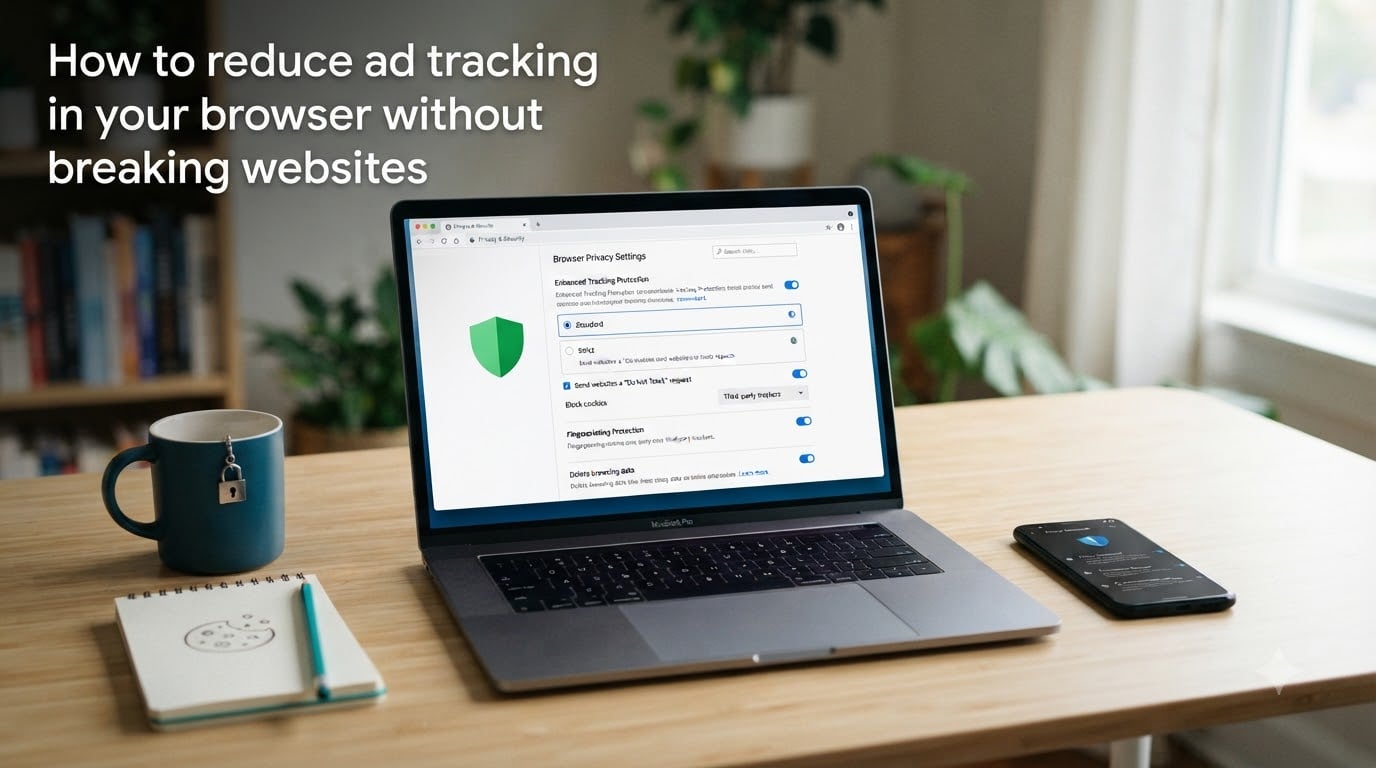
You search for a pair of running shoes once, and suddenly every website you visit shows shoe ads for the next two weeks. Sound familiar? That is browser tracking in action, and it is one of the most common frustrations people share on privacy forums. According to surveys cited across Reddit’s privacy communities, around 79% of people feel they have lost control over their personal data online.
If you want to learn how to reduce ad tracking in your browser without breaking websites, you are in the right place. The biggest challenge most people face is not turning on privacy settings. It is keeping their favorite sites working after they do. Logins fail, shopping carts empty, videos refuse to load, and embedded content disappears.
I have spent months testing privacy configurations across Chrome, Firefox, Safari, and Edge. The goal was simple: find the settings that block the most trackers while keeping websites fully functional. This guide walks you through exactly what works, what breaks, and how to fix it when things go wrong.
You will learn how tracking actually works, step-by-step browser privacy configurations, the best anti-tracking extensions, and most importantly, a troubleshooting system for when privacy settings break your favorite sites. No theoretical advice here. Everything comes from real testing and real user reports.
Table of Contents
- What Is Browser Tracking and How Does It Work?
- Understanding Cookies: First-Party vs Third-Party
- Step-by-Step: Configure Browser Privacy Settings
- Anti-Tracking Extensions That Work Without Breaking Sites
- Do Not Track and Global Privacy Control: Do They Actually Work?
- Private and Incognito Browsing: What It Actually Does?
- Website Compatibility Troubleshooting: When Privacy Settings Break Sites
- Mobile Browser Privacy Settings (iOS and Android)
- Privacy-Focused Browser Alternatives
- FAQs
- Balancing Privacy and Usability
What Is Browser Tracking and How Does It Work?
Browser tracking is the collection of your browsing activity, preferences, and device information by websites and advertising networks to build a profile of who you are and what you might buy. Advertisers use this profile to serve you targeted ads across different websites.
Tracking happens through several technologies working together. Cookies are the most well-known, but trackers also use browser fingerprinting, tracking pixels, web beacons, and local storage. Each method captures different pieces of data about your online behavior.
Here is how the main tracking technologies work:
Cookies: Small text files stored on your device that record your visits, preferences, and session data. Third-party cookies can follow you across multiple sites.
Browser fingerprinting: A technique that identifies you by combining details like your screen resolution, installed fonts, browser version, and operating system into a unique profile.
Tracking pixels: Tiny invisible images embedded in web pages and emails that report back when you load content, confirming you viewed it.
Local storage and IndexedDB: Browser storage mechanisms that some trackers use to persist data even after you delete cookies.
The key insight is that no single technology does all the tracking. Advertisers combine multiple methods so that blocking just one type still leaves others active. This is why simply clearing cookies is not enough to stop targeted advertising.
Understanding Cookies: First-Party vs Third-Party
Not all cookies are created equal, and understanding the difference is essential if you want to reduce ad tracking without breaking websites. Blocking every cookie will make large portions of the web unusable. The trick is knowing which ones to block.
First-party cookies are set by the website you are currently visiting. They handle things like keeping you logged in, remembering items in your shopping cart, and saving your language preferences. These are the cookies that make websites functional. If you block first-party cookies, sites will not remember you between page loads.
Third-party cookies are set by domains other than the one you are visiting. These are typically placed by advertising networks, social media buttons, and analytics services embedded in the page. A single web page can load third-party cookies from dozens of different ad networks. These are the cookies that follow you across the internet and enable cross-site tracking.
The strategy is straightforward. Block third-party cookies aggressively. Leave first-party cookies alone or allow them temporarily. Every major browser now offers this option, and it is the single most effective step you can take against ad tracking without sacrificing website functionality.
Step-by-Step: Configure Browser Privacy Settings
The fastest way to reduce ad tracking in your browser is through built-in privacy settings. Every major browser now includes tracking protection features, but they are not all configured the same way. Here is how to set up each one.
Google Chrome Privacy Settings
Chrome is the most widely used browser, but it also has the weakest default privacy protections since Google’s business model relies on advertising. You can still make meaningful improvements.
Step 1: Open Chrome and click the three dots in the top-right corner, then select Settings.
Step 2: Click Privacy and security in the left sidebar, then select Third-party cookies.
Step 3: Select Block third-party cookies. This is the single most impactful setting in Chrome. If any websites break after enabling this, you can add them to the “Allowed to use third-party cookies” list right below.
Step 4: Go back to Privacy and security and click Ad topics. Turn off ad topic tracking to stop Chrome from categorizing your interests for advertisers.
Step 5: In the same section, disable Site-suggested ads to prevent websites from using your browsing history to suggest ad topics.
Chrome also has a “Send a Do Not Track request” toggle in the same menu. Enable it, but understand that advertisers are not legally required to honor this request. It is a signal, not a rule.
Firefox Enhanced Tracking Protection
Firefox has the strongest built-in tracking protection of any mainstream browser. Its Enhanced Tracking Protection (ETP) blocks trackers by default using lists from Disconnect, a well-known privacy organization.
Step 1: Open Firefox, click the three horizontal lines in the top-right corner, and select Settings.
Step 2: Click Privacy and Security in the left sidebar.
Step 3: Under Enhanced Tracking Protection, select Strict. The Standard mode blocks trackers in private windows only. Strict mode blocks them everywhere.
Step 4: Firefox will warn you that Strict mode may break some websites. Accept this, then use the shield icon in the address bar to disable protection for any site that breaks.
Step 5: Scroll down to Cookie Banner Reduction and enable it. This feature automatically rejects cookie consent banners on supported sites.
Step 6: Enable Tell websites not to sell or share my data to send Global Privacy Control signals.
Firefox Strict mode is the best balance of strong protection and website compatibility I have tested. When a site breaks, the per-site toggle takes two seconds to fix.
Safari Intelligent Tracking Prevention
Safari uses Apple’s Intelligent Tracking Prevention (ITP), which uses machine learning to identify and block trackers automatically. It requires less manual configuration than other browsers.
Step 1: Open Safari, click Safari in the menu bar, then select Settings (or Preferences on older versions).
Step 2: Go to the Privacy tab.
Step 3: Check Prevent cross-site tracking. This blocks third-party cookies and prevents trackers from following you between websites.
Step 4: Check Hide IP address from trackers. This prevents ad networks from using your IP address for tracking across sites.
Step 5: Check Block all cookies only if you are willing to deal with broken sites. Most users should leave this unchecked and rely on cross-site tracking prevention instead.
Safari’s ITP is effective because it is built into the browser engine itself. However, it does not give you the granular per-site control that Firefox offers.
Microsoft Edge Privacy Settings
Edge offers three levels of tracking prevention based on the same Disconnect lists that Firefox uses, making it a solid choice for Windows users who want privacy without switching browsers.
Step 1: Open Edge, click the three dots in the top-right corner, and select Settings.
Step 2: Click Privacy, search, and services in the left sidebar.
Step 3: Under Tracking prevention, select Strict. Balanced is the default, but it allows some trackers through. Strict blocks nearly all of them.
Step 4: Enable Send “Do Not Track” requests by scrolling down and toggling it on.
Step 5: If websites break in Strict mode, click the shield icon in the address bar to pause tracking prevention for that site.
Edge Strict mode works well on most sites. The exceptions toggle is easy to find and quick to use, which makes troubleshooting simple.
Anti-Tracking Extensions That Work Without Breaking Sites
Browser privacy settings catch a lot of trackers, but extensions add another layer of protection. The key is choosing extensions that block trackers intelligently rather than blocking everything indiscriminately. Based on testing and recommendations from privacy communities on Reddit, here are the most reliable options.
uBlock Origin
uBlock Origin is the most recommended ad and tracker blocker in privacy communities. It uses multiple filter lists to block ads, trackers, and malicious domains. Unlike heavier extensions, it has minimal memory usage and does not slow down your browser.
The most important feature for compatibility is its element zapper. If a website looks broken after enabling uBlock Origin, you can click the extension icon, then click the lightning bolt icon to temporarily disable blocking on that site. This makes it trivial to test whether the extension is causing a problem.
For maximum site compatibility, leave the default filter lists enabled and resist the temptation to add dozens of extra lists. More filters means more potential for breaking websites.
Privacy Badger
Privacy Badger, created by the Electronic Frontier Foundation, takes a different approach. Instead of using static block lists, it learns which domains are tracking you by observing their behavior over time. If a third-party domain appears to be following you across multiple sites, Privacy Badger automatically blocks it.
This learning-based approach means Privacy Badger is less likely to break websites than list-based blockers. It only blocks domains that demonstrate tracking behavior, not domains that simply happen to be on a list somewhere.
Ghostery
Ghostery shows you exactly which trackers are present on every website you visit. This transparency is valuable for understanding how tracking works in practice. You can see the names of ad networks, analytics tools, and social media widgets loaded on each page.
Ghostery includes a “Detailed View” that lets you block or allow individual trackers per site. This granular control is useful for sites that break when you block everything. You can allow the specific tracker needed for the site to function while blocking everything else.
Extension Configuration Tips for Compatibility
Running multiple blocking extensions simultaneously increases the chance of conflicts and website breakage. Most users only need one ad blocker (uBlock Origin) and one tracker-specific extension (Privacy Badger or Ghostery). Layering three or four blocking extensions is a common cause of sites failing to load.
Every extension worth using includes an allowlist or site exception feature. When a site breaks, disable the extension for that domain only. This keeps protection active everywhere else while letting the problem site function normally.
Do Not Track and Global Privacy Control: Do They Actually Work?
The “Do Not Track” (DNT) setting has been available in browsers since 2011, but its effectiveness is limited. When you enable DNT, your browser sends an HTTP header with every request stating that you do not want to be tracked. The problem is that honoring this request is completely voluntary.
Most advertising networks simply ignore the DNT signal. A 2021 study found that fewer than 20% of trackers respected the header. Still, enabling it costs nothing, and some smaller, privacy-respecting websites do honor it. You should turn it on as a baseline measure, not as your primary defense.
Global Privacy Control (GPC) is a newer and stronger alternative. It was developed as a legally binding signal under privacy laws like the California Consumer Privacy Act (CCPA) and Colorado Privacy Act. When your browser sends a GPC signal, it communicates that you are opting out of the sale or sharing of your personal data.
Firefox, DuckDuckGo browser, and Brave all support GPC natively. To enable it in Firefox, go to Settings, Privacy and Security, and toggle on “Tell websites not to sell or share my data.” For Chrome, you can install the GPC extension from the EFF or use the Global Privacy Control browser extension.
GPC carries more legal weight than DNT because it functions as a formal opt-out request under applicable privacy laws. Websites subject to those regulations are required to respect it. This makes it a more meaningful signal than the older DNT header.
Private and Incognito Browsing: What It Actually Does?
A common misconception is that private or incognito browsing makes you anonymous online. It does not. Understanding what these modes actually do is important for setting realistic expectations about your privacy.
Incognito mode in Chrome and Private Browsing in Firefox and Safari prevent your browser from saving your browsing history, cookies, site data, and form inputs after you close the window. They create a temporary session that is wiped clean when you exit. This means your spouse, roommate, or anyone else using the same device will not see what you browsed.
However, private browsing does not hide your activity from your internet service provider, your employer, or the websites you visit. Your ISP can still see which sites you access. Websites can still track you within that session using fingerprinting and IP-based identification. When you close the private window, the cookies are deleted, but the site already collected your data during the session.
Private browsing is useful as one layer in a broader privacy strategy. For example, using Firefox with Strict tracking protection inside a private window gives you stronger protection than either method alone. But relying on incognito mode alone provides almost no protection against ad tracking.
One setting worth configuring is automatic data clearing. In Firefox, you can set the browser to clear cookies and site data every time you close it. Go to Settings, Privacy and Security, scroll to “Cookies and Site Data,” and check “Delete cookies and site data when Firefox is closed.” This reduces persistent tracking without requiring you to manually clear data.
Website Compatibility Troubleshooting: When Privacy Settings Break Sites
This is where most privacy guides stop. They tell you to turn on every privacy setting and install every blocking extension, then leave you to figure out why half your websites stopped working. I have tested dozens of privacy configurations specifically to understand what breaks and how to fix it. Here is the system I use.
Common Symptoms of Privacy-Related Breakage
The most frequent problems reported by users on Reddit’s privacy and browsers communities include login pages that redirect infinitely, shopping carts that empty on every page load, embedded videos that show a blank screen, CAPTCHA challenges that never complete, and paywalls that appear even for subscribed users.
These issues happen because websites rely on third-party services for core functionality. A login system might use a third-party authentication service that gets flagged as a tracker. A video player might load from a content delivery network that is on a block list. The tracker blocker is doing its job, but it cannot distinguish between a tracking script and a functional one.
The Step-by-Step Fix Process
When a website breaks after enabling privacy settings, follow this process to identify and fix the problem without disabling protection everywhere.
Step 1: Identify the culprit. Open the website in a new tab. Click the shield icon in your browser’s address bar (Firefox, Edge) or check the extension icon (uBlock Origin, Ghostery). This shows you what was blocked on that page.
Step 2: Test by disabling one layer at a time. Temporarily disable your ad blocker for the site. If the site works, the blocker is the cause. If it still does not work, try disabling tracking protection for the site. Process of elimination identifies the specific layer causing the issue.
Step 3: Add a site exception. Once you know which tool is blocking a needed resource, add an exception for that specific website. In uBlock Origin, click the power button icon while on the site to disable blocking for that domain. In Firefox, click the shield and toggle tracking protection off for that site.
Step 4: Clear cookies and reload. Sometimes the breakage is caused by a corrupted cookie from a partial block. Clear the site’s cookies, reload the page, and see if it works. In Chrome, click the padlock icon, click Cookies and site data, then click Manage on-device site data and clear it.
Step 5: Use per-site granular control. If you use Ghostery, you can allow individual trackers on a site while keeping the rest blocked. This is the most precise approach for sites that need one specific third-party service to function but where you still want to block everything else.
Building an Allowlist Strategy
Instead of disabling privacy tools entirely when sites break, build an allowlist. Add problem sites to your exceptions list one at a time as you encounter issues. Over a few weeks, your allowlist stabilizes and you rarely need to touch it again. Most users end up with 10 to 20 exceptions for banking sites, streaming services, and workplace tools.
The most commonly needed exceptions are banking and financial sites, streaming video platforms (Netflix, Hulu, Disney+), workplace tools that use single sign-on, government websites, and e-commerce checkout pages. These services frequently rely on third-party infrastructure that gets caught by tracking protection.
How to Test If Your Privacy Settings Are Working
After configuring everything, you want confirmation that your setup is actually blocking trackers. Two free tools make this easy.
Visit EFF’s Cover Your Tracks tool atcoveryourtracks.eff.org. It tests your browser for tracking protection, fingerprinting resistance, and ad blocker effectiveness. It gives you a clear report showing whether your configuration is working.
Another option is WhoTracks.Me by Ghostery, which shows you the tracker landscape on any website and reports what your browser is blocking. This helps you understand exactly what protection you are getting in practice, not just in theory.
Mobile Browser Privacy Settings (iOS and Android)
Mobile tracking is a different beast. As users on Reddit’s privacy community have noted, mobile apps collect significantly more personal data than browsers. Moving from apps to mobile websites is itself a privacy improvement. Here is how to configure privacy on mobile browsers.
Safari on iOS
Open Settings on your iPhone, scroll down and tap Safari. Toggle on Prevent Cross-Site Tracking to block third-party cookies. Toggle on Hide IP Address and select From Trackers to prevent IP-based tracking. Scroll down and enable Fraudulent Website Warning for an additional security layer.
For app-level tracking, go to Settings, Privacy and Security, then Tracking. Turn off Allow Apps to Request to Track. This disables Apple’s App Tracking Transparency prompts entirely and prevents all apps from accessing your advertising identifier. No app will be able to track you across other companies’ apps and websites.
Chrome on Android
Open Chrome on your Android device, tap the three dots, and select Settings. Tap Privacy and security, then Third-party cookies. Select Block third-party cookies. Go back and tap Ad topics, then turn it off. Do the same for Site-suggested ads.
For broader protection on Android, consider using Firefox with strict Enhanced Tracking Protection. The mobile version supports the same privacy features as the desktop version and gives you more control than Chrome on Android.
Privacy-Focused Browser Alternatives
If you want maximum tracking protection without spending time on configuration, switching to a privacy-focused browser is the simplest path. Each option has trade-offs between privacy, convenience, and compatibility.
Brave blocks ads and trackers by default with no extension needed. It uses the same engine as Chrome, so website compatibility is excellent. Brave also includes built-in fingerprinting protection and a Tor feature for private tabs. The downside is its crypto rewards system, which some users find intrusive. You can disable it in settings.
Firefox with Strict mode is the best option for users who want strong privacy with full control. It supports extensions, offers per-site exceptions, and is backed by the non-profit Mozilla Foundation. This combination of power, flexibility, and privacy is why Firefox is the most recommended browser in privacy communities.
DuckDuckGo Browser is designed around privacy by default. It blocks trackers, includes GPC support, and offers a fire button that clears all data instantly. It is available on mobile and desktop. The trade-off is fewer extension options and less customization than Firefox.
Tor Browser provides maximum anonymity by routing your traffic through multiple encrypted relays. It blocks virtually all trackers and resists fingerprinting. However, it is significantly slower than other browsers, and many websites block or restrict Tor exit nodes. Use Tor for sensitive research, not for everyday browsing.
A note on VPNs: many users on Reddit report that VPNs are popular for privacy, but a VPN does not block ad trackers. A VPN hides your IP address from websites and encrypts your traffic from your ISP, but trackers embedded in web pages still load and still collect data through cookies and fingerprinting. A VPN is a complement to tracker blocking, not a replacement.
FAQs
How to avoid being tracked by websites?
To avoid being tracked by websites, enable your browser’s built-in tracking protection, block third-party cookies, install an anti-tracking extension like uBlock Origin or Privacy Badger, enable Do Not Track and Global Privacy Control signals, and clear your browsing data regularly. For maximum protection, use a privacy-focused browser like Firefox in Strict mode or Brave.
How to avoid ad tracking?
You can avoid ad tracking by blocking third-party cookies in your browser settings, installing uBlock Origin to block ad scripts, disabling ad personalization in your Google account settings, enabling Global Privacy Control to opt out of data sales, and using a private search engine like DuckDuckGo instead of Google.
What browser blocks all trackers?
No browser blocks 100% of trackers, but Firefox in Strict mode and Brave come closest. Firefox blocks known trackers using Disconnect lists, and Brave blocks ads and trackers by default. Tor Browser offers the strongest tracking resistance but has significant speed and compatibility trade-offs for everyday browsing.
What should you clear to reduce tracking?
To reduce tracking, clear third-party cookies, cache, site data, and local storage. In Chrome, go to Privacy and security, then Clear browsing data, and select Cookies and other site data and Cached images and files. In Firefox, select Clear data under Cookies and Site Data. Clearing this data removes persistent tracking identifiers stored on your device.
How to block browser tracking?
Block browser tracking by enabling your browser’s tracking protection feature, blocking third-party cookies, installing uBlock Origin and Privacy Badger extensions, enabling Global Privacy Control, and using private browsing windows for sensitive sessions. Configure per-site exceptions for websites that break under strict protection.
Is there a way to browse without being tracked?
Complete anonymity online is very difficult to achieve, but you can get close. Use Tor Browser for maximum anonymity, switch to a privacy-focused browser like Brave or Firefox with strict settings, block third-party cookies and trackers, use a private search engine, and avoid logging into accounts like Google or Facebook while browsing. Each layer reduces tracking but adds some inconvenience.
Balancing Privacy and Usability
Learning how to reduce ad tracking in your browser without breaking websites comes down to a few core principles. Block third-party cookies in your browser settings. Add one anti-tracking extension like uBlock Origin and one tracker-specific tool like Privacy Badger. Enable Global Privacy Control for legally backed opt-out signals. Build an allowlist for the handful of sites that need exceptions.
The biggest mistake people make is enabling every privacy feature at once without testing. Start with third-party cookie blocking, then add extensions one at a time. Test your setup with EFF’s Cover Your Tracks tool after each change. This incremental approach lets you catch breakage early and build a configuration that actually works for your browsing habits.
Your next step is simple. Open your browser settings right now and block third-party cookies. That single change, combined with the troubleshooting system in this guide, will dramatically reduce ad tracking while keeping your favorite sites working. Privacy and functionality are not mutually exclusive when you configure things the right way.