
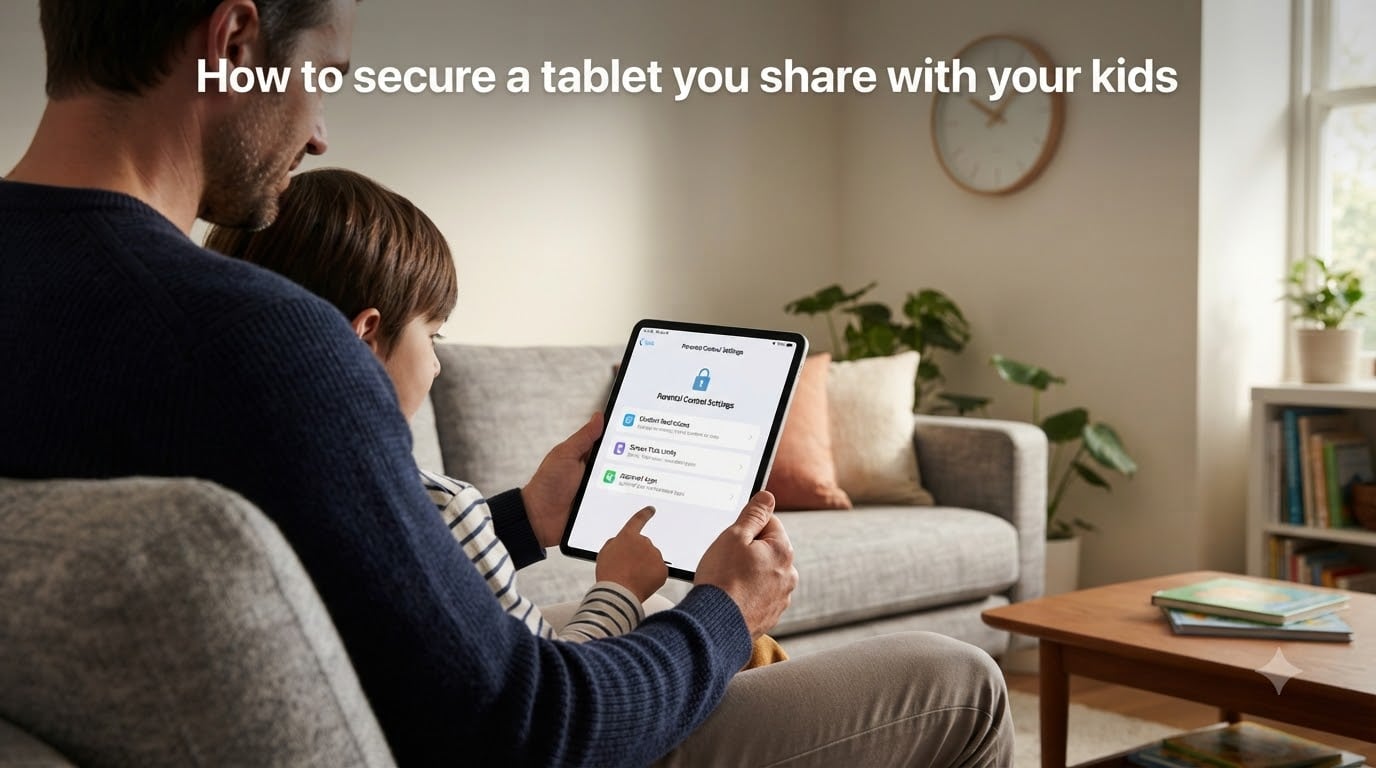
Sharing a tablet with your kids sounds simple until your five-year-old accidentally buys $80 of in-game gems or stumbles onto a video they should never see. If that has happened to you, you are not alone. One frustrated parent on Reddit wrote, “The difficulty I’m having with setting up parental controls on my kid’s tablet is astounding,” and another self-described tech-savvy parent admitted they could not figure it out either. The tools exist, but they are scattered across menus, apps, and account settings that few people know how to connect.
When you learn how to secure a tablet you share with your kids, you get back something parents quietly want the most: peace of mind. You decide what apps open, what sites load, how long the screen stays on, and whether a purchase ever goes through without your fingerprint. This guide walks through every major platform, the built-in controls worth using, the third-party options worth considering, and the sneaky ways kids bypass restrictions (plus how to close those loopholes).
I have broken the steps into Android, iPad, and Amazon Fire sections so you can jump straight to your device. Each section uses the exact menu paths you will see on the screen, not vague descriptions. By the end, your shared tablet will be locked down tighter than most parents realize is possible.
Table of Contents
- What Does It Mean to Secure a Shared Tablet?
- How to Secure a Tablet You Share With Your Kids: The Core Steps
- Setting Up Android Tablet Parental Controls
- Setting Up iPad Parental Controls With Screen Time
- Amazon Fire Tablet Parental Controls
- Screen Pinning and App Locking Techniques
- Setting Up User Profiles and Restricted Accounts
- Preventing In-App Purchases and Downloads
- Web Content Filtering Options
- How Kids Bypass Parental Controls? (and How to Stop It)
- Managing Multiple Kids With Different Ages on One Tablet
- Teaching Cyber Hygiene Basics to Your Kids
- FAQs
- Conclusion
What Does It Mean to Secure a Shared Tablet?
Securing a shared tablet means layering three types of controls on a single device so that a child can use it safely without you standing over their shoulder. The first layer is content control, which filters what websites, videos, and apps they can open. The second layer is time control, which decides when the tablet works and when it goes dark. The third layer is purchase and account control, which stops unauthorized spending and prevents settings from being changed.
Most parents only set up one layer and call it done. That is why so many kids find a workaround within a week. A truly secure shared tablet stacks all three, and it uses a separate parent passcode that the child never learns. Think of it as building a fence, locking the gate, and setting an alarm, not just one of those.
How parental controls work underneath is straightforward. The operating system checks every action against a list of rules you defined. If the action matches an allowed rule, it proceeds. If it does not, the system asks for a parent passcode or simply blocks it. Third-party apps work the same way but with finer control, sometimes using a VPN profile to filter every network request on the device.
How to Secure a Tablet You Share With Your Kids: The Core Steps
No matter which tablet you own, the workflow is the same. You create a separate space for your child, restrict what that space can reach, set a time budget, and lock the parent controls behind a passcode only you know. The exact menus change between Android, iPad, and Fire, but the strategy does not.
Before you touch any settings, do a quick inventory. List the apps your child should use, the apps they should never touch, the daily time you find acceptable, and the purchases you are willing to allow (usually zero). Having this list in front of you makes the setup faster and keeps you from leaving gaps you forget about later.
Setting Up Android Tablet Parental Controls
Android gives you three tools that work together: Google Play parental controls for app and content filtering, Digital Wellbeing for time limits, and Google Family Link for remote management. Setting them up in that order gives you the strongest configuration.
Step 1: Lock Down Google Play
Open the Play Store, tap your profile picture in the top right, then tap Settings. Expand the Family section and tap Parental Controls. Toggle Parental Controls on and create a PIN your child will not guess. This PIN is the single most important security step on an Android tablet, so write it down somewhere safe.
Once the PIN is set, you can filter by maturity level across Apps & Games, Movies, TV, Books, and Music. Most parents pick “Everyone” or “Low Maturity” for young kids and bump it up as they age. You can also turn off the ability to add new apps entirely by requiring the PIN for every download, even free ones.
Step 2: Use Digital Wellbeing for Time Limits
Go to Settings, then Digital Wellbeing & Parental Controls. Tap the chart at the top to see how the tablet is currently being used. For each app you want to limit, tap the hourglass icon and set a daily timer. When the timer runs out, the app grays out and cannot be reopened until midnight.
Digital Wellbeing also includes Bedtime Mode, which turns the screen grayscale and silences notifications on a schedule. Pair that with Focus Mode to pause distracting apps during homework hours. These features were designed for adults, but they work perfectly for shared tablet time management.
Step 3: Install Google Family Link for Remote Control
Family Link is the tool that lets you manage the tablet from your own phone. Install Google Family Link on your device, then install Family Link for Children & Teens on the tablet. Follow the prompts to link your child’s Google Account to yours.
Once linked, you can set a daily screen time limit, a bedtime, lock the device instantly from your phone, see which apps are installed, approve or block app downloads, and even see your child’s location if the tablet has GPS. Family Link is free and works on any Android device running Android 7.0 or newer.
Setting Up iPad Parental Controls With Screen Time
The iPad’s parental control system is called Screen Time, and it is one of the most complete built-in options on any platform. Everything lives under Settings > Screen Time, and the key is to set a Screen Time passcode that is different from the tablet’s unlock code.
Step 1: Turn On Screen Time and Set a Passcode
Open Settings, tap Screen Time, then tap Turn On Screen Time. Walk through the setup, and when prompted, tap Use Screen Time Passcode. Pick a four-digit code that your child will not guess, and enter an Apple ID for recovery in case you forget it.
This passcode is what stops your child from changing any of the limits you set. Without it, they could simply turn Screen Time off. Never share it, and do not use the same code as the iPad’s lock screen.
Step 2: Configure Content & Privacy Restrictions
Inside Screen Time, tap Content & Privacy Restrictions and toggle it on. This is where the real control lives. Under Allowed Apps, you can remove apps like Safari, the App Store, and the Camera from the home screen entirely. Under Content Restrictions, you can filter web content, set movie and TV ratings, and block explicit music.
For web filtering specifically, tap Web Content under Content Restrictions. Choose Limit Adult Websites to block most inappropriate content automatically, or choose Allowed Websites Only to create a whitelist of sites you have personally approved. The whitelist option is the safest choice for younger kids.
Step 3: Set Downtime and App Limits
Downtime is Apple’s word for a scheduled block of time when only phone calls and apps you specifically allow will work. Tap Downtime, toggle it on, and set a start and end time, such as 8 PM to 7 AM. During Downtime, the apps you have not whitelisted show a grayed-out hourglass.
App Limits let you set a daily cap on categories of apps or individual apps. Tap App Limits, then Add Limit, and choose things like Games or Social. You can set one combined limit for a category, so an hour of “Games” covers every game installed, which stops kids from hopping between apps to dodge the timer.
Step 4: Block Purchases
Under Content & Privacy Restrictions, tap iTunes & App Store Purchases. Set Installing Apps, Deleting Apps, and In-App Purchases all to Don’t Allow. This removes the App Store icon from the home screen and blocks any spending inside apps. To make changes yourself later, you just toggle these back on with your passcode.
Amazon Fire Tablet Parental Controls
Amazon Fire tablets have a built-in system called Amazon Kids (formerly FreeTime) that is actually one of the easier setups. Swipe down twice from the top of the screen to open Quick Settings, then tap the Settings gear. Tap Profiles & Family Library, then Add a Child Profile.
After creating the profile, you choose which content the child can access, set daily time limits by activity type (reading, videos, apps), and set educational goals. The parent dashboard at parents.amazon.com lets you adjust everything remotely and view activity reports showing exactly what your child did on the tablet.
One thing to know: some parents on Reddit report that Fire Kids tablets can feel restrictive in confusing ways, with one parent calling the kids-safe settings “awful” because content they expected to be available was hidden. If you hit that, the fix is usually to manually add the specific title in the parent dashboard rather than relying on automatic age filtering.
Screen Pinning and App Locking Techniques
Sometimes you do not want a full profile setup. You just want your child to watch one video app and not touch anything else. That is where screen pinning comes in.
On Android, go to Settings > Security > Screen Pinning (it may be under Advanced). Turn it on, and also enable Ask for PIN before unpinning. Open the app you want your child to use, tap the Recents button, then tap the pin icon on that app’s card. The tablet is now locked to that single app until you enter your PIN.
On iPad, the equivalent is called Guided Access. Go to Settings > Accessibility > Guided Access and turn it on. Set a passcode. Open the app you want, triple-click the side button, and the iPad locks to that app. Triple-click again and enter the passcode to exit. Guided Access even lets you circle areas of the screen to disable them, which is perfect for blocking ads or buttons inside a kids app.
Third-party app lockers like Norton App Lock or AppLock (Android) add another layer by requiring a PIN or pattern to open specific apps. They are useful when your child shares your adult profile and you want to keep them out of your email, banking, or photo apps without switching profiles.
Setting Up User Profiles and Restricted Accounts
The cleanest way to share a tablet between an adult and a child is with separate user profiles. Each person gets their own home screen, their own apps, and their own settings, and switching between them requires your passcode.
On Android, go to Settings > System > Multiple Users (sometimes under Users & Accounts). Tap Add User and create a restricted profile. You choose which apps the restricted profile can open, and the child cannot install anything or change system settings. To switch to your profile, tap your avatar on the lock screen and enter your unlock code.
On iPad, profiles are not really an option. Apple handles multiple users through Screen Time restrictions on a single account, not through separate logins. This is the main reason some families with older kids who want privacy end up choosing an Android tablet over an iPad for shared use.
For families with more than one child, separate profiles are how you give each kid age-appropriate content without resetting the tablet every time. A six-year-old’s profile can have only preschool apps, while a twelve-year-old’s profile can have a broader library. Each profile inherits your global parental controls but can be tuned individually.
Preventing In-App Purchases and Downloads
Unauthorized purchases are the single most common shared-tablet disaster. A kid taps a colorful button inside a “free” game, and a charge appears on your card minutes later. The fix is to remove the ability to spend money at the system level, not inside each app.
On Android, open Google Play, tap your profile, then Settings > Authentication > Require Authentication for Purchases. Choose “For all purchases through Google Play on this device.” Now every transaction needs your password or fingerprint. Pair this with the Play Store parental controls PIN for double protection.
On iPad, the Content & Privacy Restrictions screen under Screen Time handles this. Set In-App Purchases to Don’t Allow, and set Installing Apps to Don’t Allow if you want to remove the App Store entirely. Even if your child finds a purchase button inside a game, the system will block it without your passcode.
On Amazon Fire, open the parent dashboard and toggle the purchase pin under Preferences. Also check your Amazon 1-Click settings in your account on the web, because some older Fire tablets route purchases through that setting rather than the parental controls panel.
Web Content Filtering Options
Filtering the browser is just as important as filtering apps. Kids will find a browser eventually, even if you think you removed all of them.
The built-in option on iPad is the Web Content filter mentioned earlier (Limit Adult Websites or Allowed Websites Only under Content Restrictions). On Android, the Family Link app can filter websites through the Google Chrome browser, and the Google SafeSearch setting under Settings > Digital Wellbeing > Parental Controls helps block explicit images from search results.
For a stronger filter that works across every app and browser on the tablet, consider a DNS-level filter like NextDNS or a service like OpenDNS Family Shield. You enter the DNS address in the tablet’s Wi-Fi settings, and every network request gets checked against a blocklist. This catches apps and browsers that slip past on-device filters, and it works on both Android and iPad.
Third-party parental control apps like Qustodio, Bark, and Net Nanny add deeper web filtering with category blocking, real-time alerts, and detailed activity reports. They typically require a subscription, but they cover every device in the household from one dashboard, which is useful when your child eventually moves from tablet to phone.
How Kids Bypass Parental Controls? (and How to Stop It)
This is the section most guides skip, and it is the one parents ask about most on forums. Kids are creative, and a determined ten-year-old can defeat a weak setup in an afternoon. Here are the most common bypass tactics and how to close each one.
Tactic 1: Changing the device clock. Many time limits reset at midnight, so kids simply change the tablet’s date or time to trick the system. The fix is to lock the Date & Time settings. On iPad, that is under Content & Privacy Restrictions, where you set Date & Time changes to Don’t Allow. On Android, switch the device to Network Time and use Family Link, which enforces time from Google’s servers rather than the local clock.
Tactic 2: Uninstalling and reinstalling apps. If an app has a time limit, a child might delete it and reinstall it to reset the timer. The fix is to disable app deletion. On iPad, set Deleting Apps to Don’t Allow. On Android, use Family Link to require approval for all installs and uninstalls.
Tactic 3: Using a browser you forgot about. Removing Chrome does not remove every browser. Kids find alternative browsers, file managers with web access, or even apps with hidden browsers. Run a manual check through every installed app, and use a DNS filter as a backstop so even an unknown browser hits a blocklist.
Tactic 4: Factory reset. The nuclear option is a factory reset, which wipes all parental controls. The fix is supervision. On iPad, set up the device through Apple Configurator or Apple School Manager so it is “supervised” and cannot be reset without your Apple ID password. On Android, Family Link blocks factory reset attempts and notifies you if a reset is attempted.
Tactic 5: Guessing or watching your PIN. The simplest bypass is also the most common. Use a long, random PIN, never enter it while your child is looking over your shoulder, and change it every few months. If your child knows the PIN, every other control is theater.
Managing Multiple Kids With Different Ages on One Tablet
One of the biggest gaps in existing guides is the multi-kid scenario. A tablet shared by a six-year-old and a thirteen-year-old needs two different rule sets, not one compromise that satisfies neither.
The cleanest solution is separate user profiles. On Android, create a restricted profile for each child, install only the apps appropriate for that age, and apply Digital Wellbeing timers per profile. When the younger child uses the tablet, switch to their profile. When the older one takes over, switch to theirs.
On iPad, profiles are not available, so you have two real options. The first is to use a single Screen Time setup that fits the youngest child, then temporarily relax restrictions for the older one using Downtime exceptions and App Limits you approve per session. The second is to accept that the iPad is really a single-user device and assign the tablet to one child, then use a different device for the other.
With Family Link, each child has their own Google Account, so their settings travel with them. This means the same tablet can serve a six-year-old in the morning and a thirteen-year-old in the afternoon, with completely different content filters, time limits, and approved apps for each.
Teaching Cyber Hygiene Basics to Your Kids
Technical controls are a fence, not a teacher. The goal is to raise a kid who eventually does not need parental controls at all, which means starting the conversation early.
For younger kids, keep it simple: never tap ads, never share your name or photo, and always ask before downloading anything. For older kids, talk about phishing, in-game chat risks, and the fact that anything posted online can be permanent. Use the shared tablet as a teaching tool, sitting with them while they use it and explaining your decisions.
The parents who have the most success treat tablet security as a partnership, not just a punishment. When kids understand why a rule exists, they are less likely to look for a way around it.
FAQs
How can I lock my child’s tablet?
Use screen pinning on Android (Settings u0026gt; Security u0026gt; Screen Pinning) or Guided Access on iPad (Settings u0026gt; Accessibility u0026gt; Guided Access) to lock the tablet to a single app. For a full lock, set a Screen Time passcode on iPad or use Family Link on Android to lock the device remotely from your phone.
What parental controls can I put on a tablet?
You can filter apps by age rating, block web content, set daily screen time limits, schedule downtime, disable in-app purchases, prevent app installs and deletions, restrict communication features, and track the device location. Most tablets include these controls for free through built-in tools like Screen Time, Digital Wellbeing, or Amazon Kids.
Can I control my kids tablet remotely?
Yes. Google Family Link lets you lock an Android tablet, set time limits, approve app downloads, and check location from your own phone. The Amazon parent dashboard at parents.amazon.com offers similar remote control for Fire tablets. iPad remote management requires Family Sharing with Screen Time enabled across devices.
How do I put parental controls on a tablet?
On Android, open Google Play Settings u0026gt; Family u0026gt; Parental Controls and turn them on with a PIN, then add Family Link for remote management. On iPad, go to Settings u0026gt; Screen Time, turn it on, set a passcode, and configure Content u0026amp; Privacy Restrictions. On Amazon Fire, swipe down twice, tap Settings, then Profiles u0026amp; Family Library to create a child profile.
How is my child bypassing parental controls on Android?
The most common bypass methods are changing the device clock to reset time limits, uninstalling and reinstalling limited apps, finding alternative browsers you forgot to block, performing a factory reset, or simply guessing your PIN. Fix each by locking Date u0026amp; Time settings, disabling app deletion, using a DNS-level web filter, supervising the device through Family Link, and using a long random PIN.
How to childproof an Android tablet?
Start with Google Play parental controls under Settings u0026gt; Family, set a PIN, and filter content by maturity. Add Digital Wellbeing timers for daily limits and Bedtime Mode. Install Family Link for remote locking and time management. Create a restricted user profile so your child cannot reach your apps. Finally, require authentication for every purchase in Google Play Settings.
How do I stop my kid from deleting apps?
On iPad, go to Settings u0026gt; Screen Time u0026gt; Content u0026amp; Privacy Restrictions u0026gt; iTunes u0026amp; App Store Purchases and set Deleting Apps to Don’t Allow. On Android, use Family Link to require approval for uninstalls. On Amazon Fire, the child profile prevents app removal by default.
Conclusion
Learning how to secure a tablet you share with your kids comes down to three layers: content filtering, time limits, and purchase protection, all locked behind a passcode your child never learns. Android uses Google Play parental controls, Digital Wellbeing, and Family Link. iPad uses Screen Time with Content & Privacy Restrictions. Amazon Fire uses the built-in Amazon Kids profiles and parent dashboard.
The parents who have the least trouble are the ones who stack all three layers, set up separate profiles for multiple kids, and revisit the settings every few months as their children grow. Start with the built-in tools on your device today, then add a DNS-level web filter as a backstop. Your shared tablet will be safer within the hour.