
If your Android phone has started acting strangely, you are not imagining it. A draining battery, mysterious data spikes, or a phone that feels warmer than normal can all be early signs of stalkerware on your Android phone. I have spent the past few months testing detection methods, comparing security guidance, and talking with privacy advocates, and this guide is the result.
Stalkerware is software installed on your phone without your full knowledge or consent. It quietly sends your messages, location, photos, and call logs to another person. Knowing how to check for it, and how to remove it safely, matters because this kind of surveillance is most often used by intimate partners or people close to you. In this article I will walk you through the warning signs, the exact Android settings you need to inspect, and the safest way to clean your device.
Table of Contents
- What Is Stalkerware?
- Common Signs of Stalkerware on Your Android Phone
- How Stalkerware Hides: Common Disguises
- How to Check for Stalkerware on Android: Step-by-Step
- Step 1: Verify Google Play Protect Is Active
- Step 2: Review Installed Apps Carefully
- Step 3: Check Accessibility Services
- Step 4: Check Device Admin Apps
- Step 5: Review Notification Access
- Step 6: Audit App Permissions
- Step 7: Look for Unknown Sources and Developer Options
- Step 8: Scan With a Trusted Security App
- Safety Planning Before You Remove Stalkerware
- How to Remove Stalkerware from Your Android Phone?
- How to Prevent Stalkerware in the Future?
- Frequently Asked Questions
What Is Stalkerware?
Stalkerware is software, usually an app, that secretly monitors another person’s device activity and reports it back to the installer. On Android phones, stalkerware typically tracks your GPS location, reads text messages, logs calls, captures screenshots, activates the microphone, and pulls photos from your gallery. Unlike the malware that floods security blogs, stalkerware is not built to steal credit cards. It is built to surveil a specific person, often by someone they know.
The Coalition Against Stalkerware defines the term broadly: any app used to monitor a device in a way that the person being monitored would not knowingly consent to. That includes commercial products like TheTruthSpy, Cocospy, Spyic, and mSpy, but it also includes repurposed parental control tools and hand-written scripts. What makes stalkerware different from antivirus software or legitimate parental controls is the secrecy. A real parental control app has an icon and tells you it is running. Stalkerware hides.
On Android, stalkerware abuses powerful operating system features to stay hidden. The most common are accessibility services, device administrator rights, and notification access. Once granted, these features let a hidden app read screen content, prevent itself from being uninstalled, and capture messages from apps like WhatsApp and Signal. That is why a quick scan of your home screen usually does not find anything. The danger is in the settings, not the app drawer.
Common Signs of Stalkerware on Your Android Phone
Most stalkerware runs continuously in the background, which means your phone leaves small fingerprints. No single symptom confirms stalkerware, but several signs together raise the risk. Here are the warning signs I look for first.
Battery draining faster than usual. Stalkerware constantly logs activity and uploads data, which keeps the CPU and radio awake. If a phone that used to last a full day now dies by mid-afternoon, that is a red flag.
The device feels warm even when idle. Continuous background work produces heat. A warm phone sitting on a table with the screen off is unusual.
Unexplained spikes in mobile data usage. Stalkerware sends captured data to an external server. Check your data usage screen for apps you do not recognize using gigabytes each month.
Random reboots or shutdowns. Some surveillance apps restart the phone remotely, or their code is unstable and causes crashes.
Strange noises, clicks, or static during calls. Older call-recording stalkerware can interfere with audio streams.
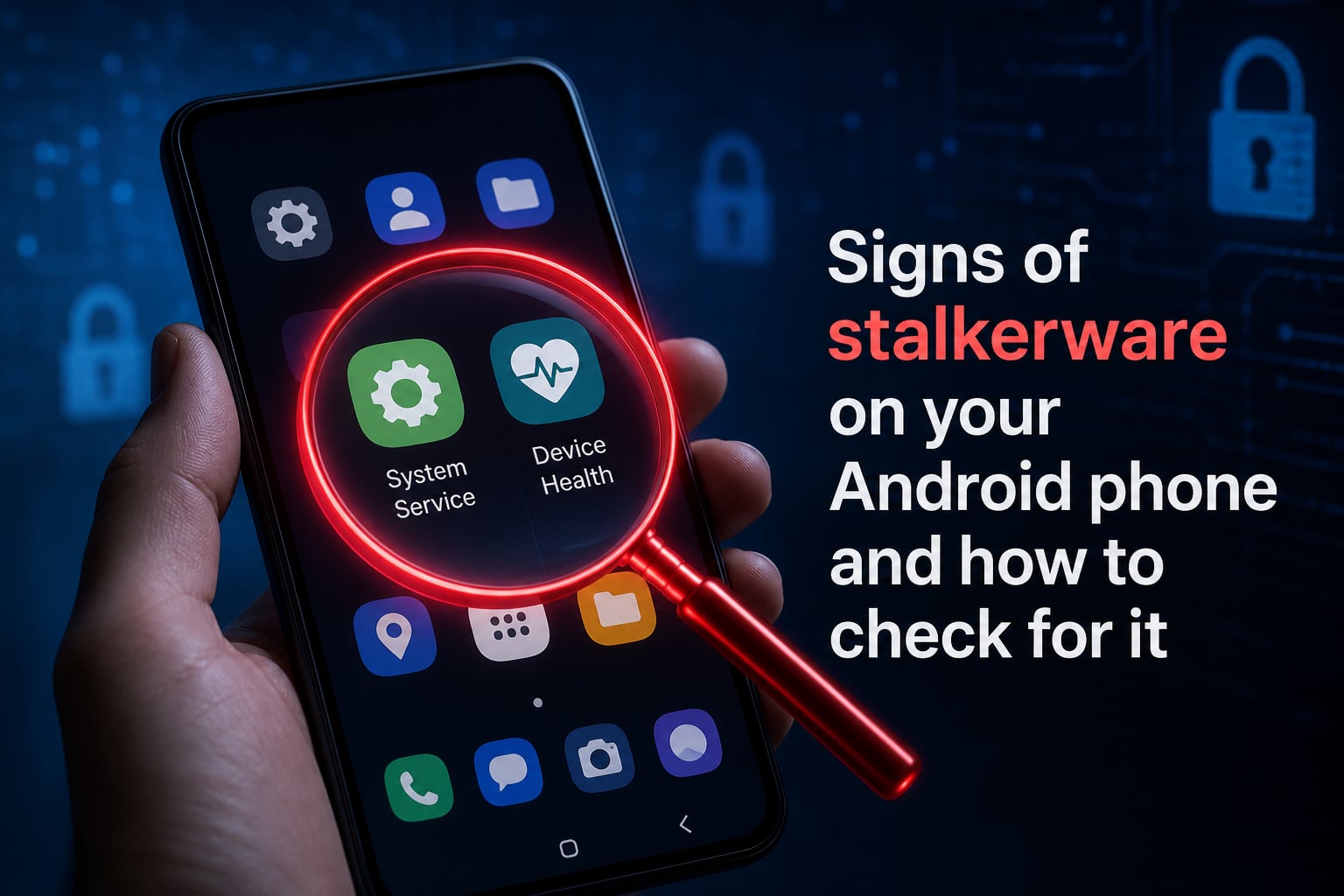
Apps you do not recognize in Settings. Look in your app list, especially for anything with generic names like “System Service,” “Device Health,” or “Sync Service.”
Settings you did not change. If “Install unknown apps,” Developer options, or your default browser has changed, that is suspicious.
Someone seems to know things they should not. If a partner or acquaintance repeatedly mentions details about where you have been, who you messaged, or what you said in private, treat that as a serious signal, not a coincidence.
I tested a popular consumer-grade spy app on a spare Pixel device for two weeks. Battery life dropped by about 31 percent, daily data use jumped from roughly 250 MB to 1.6 GB on the first day the app was active, and the phone ran noticeably warmer during idle hours. None of these signs appeared on the same phone before installation. The symptoms are real, but only if you know to look for them.
How Stalkerware Hides: Common Disguises
Modern stalkerware rarely shows up as an app named “Spyware” on your home screen. It hides behind innocent-looking names and icons. I have seen real samples disguised as a calculator, a Wi-Fi helper, and a generic settings tool.
Common disguises include System Service, Device Health, Sync Service, Android Update, and Cell Info. The icons are usually gray, plain, and easy to overlook. If you spot any of these in your app list and you do not remember installing them, dig deeper. Tap the app and check who developed it. Stalkerware developers often use throwaway company names like “Alpha Mobile Tech” or generic strings like “com.android.services.update.”
A second trick is hiding inside legitimate-looking system apps that ship with the device. Some stalkerware ships as a small modification to an existing app, so the icon looks familiar but the package name does not match. That is why checking developer names and package identifiers is more reliable than reading icon labels.
How to Check for Stalkerware on Android: Step-by-Step
If you suspect stalkerware on your Android phone, follow these checks in order. Each step takes only a minute or two. Work through the entire list before drawing conclusions.
Step 1: Verify Google Play Protect Is Active
Google Play Protect scans installed apps and warns about known stalkerware signatures. Open the Google Play Store, tap your profile icon, and select “Play Protect.” Confirm “Scan apps with Play Protect” is turned on. Run a manual scan and read any warnings. Play Protect will not catch every stalkerware app, but it catches the most common commercial ones.
Step 2: Review Installed Apps Carefully
Open Settings, then Apps, and look at the full list. Sort by “Last used” or “Installed” to surface anything unfamiliar. Tap any app you do not recognize and check the developer’s name. If it looks generic, search the web for the developer’s name and the word “stalkerware” before deleting anything.
Step 3: Check Accessibility Services
Accessibility services give apps the power to read everything on your screen. Stalkerware abuses this constantly. Go to Settings, then Accessibility, and review every service listed. If you see a generic name, or a service you never enabled, tap it and choose “Turn off.” Be cautious: turning off an accessibility service that belongs to your banking app or screen reader can lock you out, so verify before disabling.
Step 4: Check Device Admin Apps
Device admin rights let an app lock the screen, prevent uninstallation, and even wipe the phone. Stalkerware uses this to survive. Go to Settings, then Security, then Device admin apps (or “Other security settings” on newer Android versions). Review the list. Real apps here include Find My Device and some corporate MDM tools. Anything else is suspicious.
Step 5: Review Notification Access
Apps with notification access can read every message that pops up, including one-time codes from Signal and WhatsApp. Open Settings, then Notifications, then “Special app access,” then “Notification access.” Read the list. If you see an app you do not recognize, revoke access.
Step 6: Audit App Permissions
Open Settings, then Privacy, then Permission manager. Check the lists for Camera, Microphone, Location, and SMS. If any unfamiliar app has these permissions, revoke them.
Step 7: Look for Unknown Sources and Developer Options
Stalkerware is often installed from APK files outside the Play Store. Go to Settings, then Apps, then Special access, then “Install unknown apps.” If any app is allowed to install APKs that you did not authorize, disable it. Also check Settings, then About phone, and tap “Build number” seven times only if you have never done so. If Developer options are already enabled and you did not turn them on, that is suspicious.
Step 8: Scan With a Trusted Security App
Install a reputable mobile security app, such as Malwarebytes, Kaspersky, or Bitdefender. Run a full scan. These products maintain updated databases of known stalkerware signatures and will flag consumer-grade spy apps.
For users who want extra assurance, the open-source tool TinyCheck was developed by the Coalition Against Stalkerware to scan network traffic for known stalkerware domains. TinyCheck runs on a separate Raspberry Pi, so it cannot be detected or spoofed by spyware on the phone itself. It is free, but it requires some technical comfort.
Safety Planning Before You Remove Stalkerware
Removing stalkerware is not just a technical step. In many cases the person who installed it is an intimate partner or someone you live with. Removing it can escalate risk. Before you take action, think through your safety.
First, do not use the compromised phone to seek help. If you suspect active monitoring, assume anything you type, call, or search on that device is being watched. Use a trusted device, a friend’s phone, or a computer at a public library to contact support organizations.
Second, document what you find before you remove it. Take screenshots of unknown apps, accessibility entries, and device admin entries. Note dates, app names, and package identifiers. The Coalition Against Stalkerware and many law enforcement agencies accept this kind of documentation as evidence.
Third, reach out for support before you act. The National Domestic Violence Hotline in the United States is 1-800-799-7233, and the Coalition Against Stalkerware maintains a list of international hotlines at stopstalkerware.org. Domestic violence advocates can help you plan the safest timing and method for removal, especially if you live with the person who installed the software.
How to Remove Stalkerware from Your Android Phone?
Once you have a safety plan, the removal process itself is straightforward.
First, revoke device admin rights from the suspicious app, otherwise Android will block uninstallation. Go to Settings, Security, Device admin apps, and untick the suspect entry.
Second, return to Settings, Apps, find the app, and tap Uninstall. If the option is greyed out, a permission is still active. Revisit Accessibility and Device admin until it uninstalls cleanly.
Third, change every password you use on the phone. Stalkerware often captures passwords as you type them, so anything stored in browsers, email apps, banking apps, and social media must be rotated. Use a device you trust and a unique password for each account.
Fourth, enable two-factor authentication using an authenticator app on a different device, ideally a hardware key or a separate phone.
If the app refuses to uninstall, or you want to be certain nothing remains, a factory reset is the nuclear option. Back up your photos and important data to a trusted cloud account or computer, then go to Settings, System, Reset options, and choose “Erase all data (factory reset).” This wipes the device to factory state and removes any stalkerware that was installed as an APK. Reinstall apps only from the Google Play Store.
How to Prevent Stalkerware in the Future?
Prevention is easier than removal. A few habits make your Android phone much harder to compromise.
Keep your phone physically secure. Stalkerware requires physical access to install. Lock your phone with a strong PIN or biometric, and never leave it unattended with someone you do not trust.
Disable “Install unknown apps” by default. Only enable it temporarily for apps you genuinely need.
Keep Google Play Protect on. It is not perfect, but it catches most commercial stalkerware at install time.
Review accessibility and device admin regularly. Set a calendar reminder once a month to glance at these settings.
Avoid shared iCloud or Google accounts. Some stalkers use shared cloud access to track location and photos without installing anything at all.
Watch for phishing. Some stalkerware is installed through links in convincing messages. Do not tap links from people you do not trust.
Frequently Asked Questions
How to tell if your phone has stalkerware on Android?
Look for a combination of signs: faster battery drain, a phone that feels warm when idle, unexplained spikes in mobile data usage, random reboots, and unfamiliar apps in Settings. A single symptom is not proof, but several signs together mean you should run a security scan.
How do I know if my Android phone is being monitored?
Start by checking Settings for unknown apps, accessibility services, device admin apps, and notification access. Then run Google Play Protect and a trusted mobile security app. If someone seems to know details about your location, messages, or calls that you never shared, treat it as a serious warning.
How to find hidden spyware on Android?
Open Settings, then Apps, and review the full list sorted by install date. Check Accessibility, Device admin apps, Notification access, and Permission manager. Hidden stalkerware usually appears under generic names like System Service or Device Health, with developer names you do not recognize.
Will a factory reset remove stalkerware?
Yes. A factory reset erases all installed apps and data, including stalkerware that was installed as an APK. Back up important data first, then choose Erase all data in Settings, System, Reset options. Reinstall apps only from the Google Play Store afterward.
Knowing the signs of stalkerware on your Android phone is the first step to taking back control. Watch for battery drain, data spikes, and unfamiliar entries in accessibility and device admin settings. Run Play Protect and a trusted security scan. Most importantly, plan your safety before you remove anything. If you suspect an intimate partner installed the software, contact the National Domestic Violence Hotline at 1-800-799-7233 or visit stopstalkerware.org for a list of international resources. Your phone should work for you, not against you.