
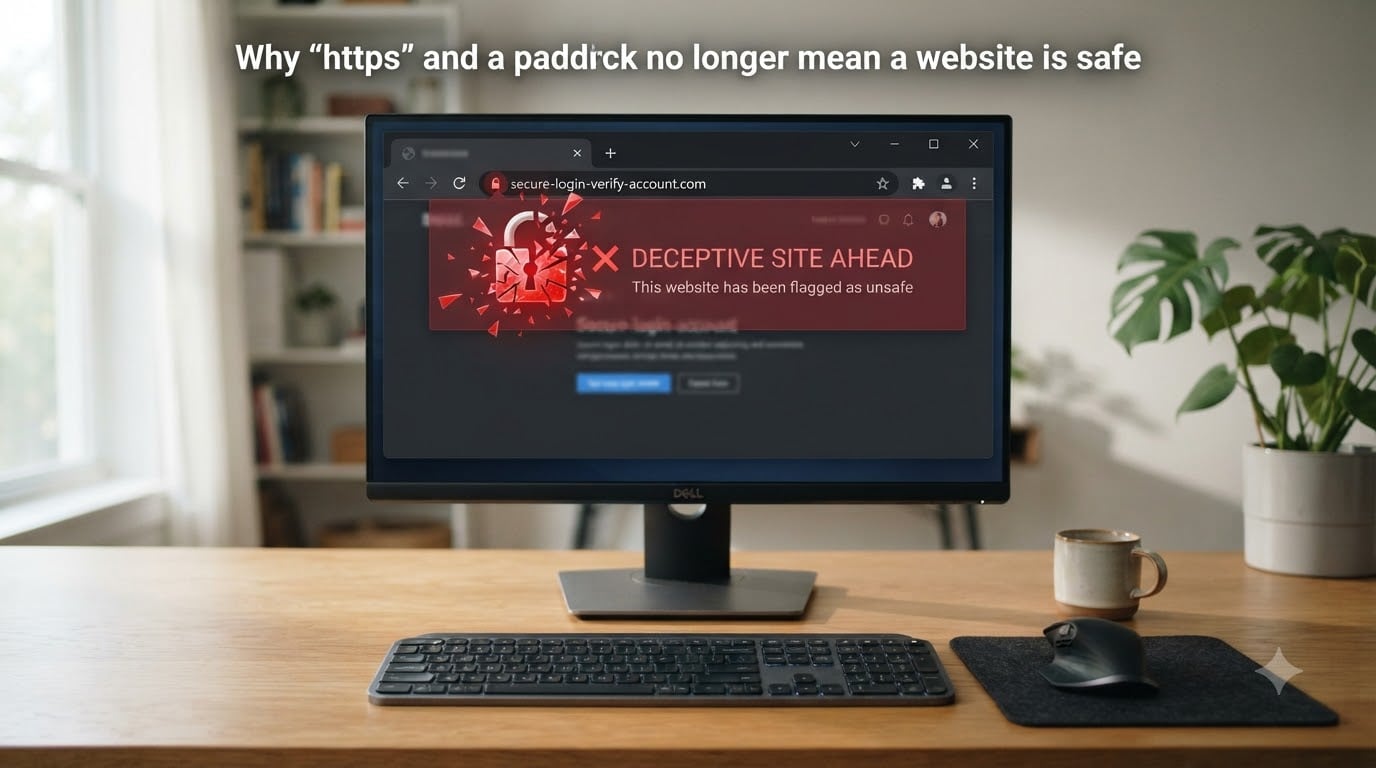
For years, we were taught a simple rule: if you see a padlock icon and “https” in the address bar, the website is safe. That advice is dangerously outdated. The padlock does not guarantee a website is safe to visit. It only means that data sent between your browser and the website is encrypted during transit.
That distinction matters more than ever. According to multiple cybersecurity reports, over 80% of phishing sites now use HTTPS. Attackers obtain valid SSL certificates for free, often in minutes, and display the same padlock you see on your bank’s website. The trust signal you rely on is the very tool scammers use against you.
In this guide, I will break down exactly what HTTPS protects, what it does not protect, and why Google itself started removing the padlock icon from Chrome in 2024. You will learn how attackers weaponize encryption, what certificate types actually verify identity, and how to tell whether a site is genuinely safe. By the end, you will have a step-by-step checklist you can use every time you shop, bank, or log in online.
Table of Contents
- What HTTPS Actually Protects (And What It Doesn’t)
- The 80% Problem: Why Most Phishing Sites Now Use HTTPS?
- How Attackers Get Valid SSL Certificates?
- Chrome Removing the Padlock Icon: What Changed?
- Real Threats That Hide Behind HTTPS
- How to Verify a Website Is Actually Safe?
- What To Do If You Clicked a Phishing Link?
- FAQs
- Conclusion
What HTTPS Actually Protects (And What It Doesn’t)
HTTPS stands for Hypertext Transfer Protocol Secure. It adds a layer of TLS (Transport Layer Security) encryption on top of standard HTTP traffic. When you visit an HTTPS site, your browser and the server negotiate an encrypted tunnel. Any data passing through that tunnel — passwords, credit card numbers, messages — gets scrambled so that third parties intercepting the traffic cannot read it.
That is genuinely valuable. Without HTTPS, anyone on the same Wi-Fi network at a coffee shop or airport could potentially intercept your data using a man-in-the-middle attack. HTTPS stops that specific threat. It ensures that whatever you send arrives at the server without being read or modified along the way.
But here is the critical limitation: HTTPS only protects data while it travels. It says nothing about who is on the other end. A phishing site that perfectly mimics your bank will faithfully encrypt your stolen credentials and deliver them securely to the attacker. The encryption works perfectly. The site is still malicious.
Think of HTTPS as an armored truck. It guarantees that whatever is inside arrives at its destination without being intercepted. But it does not check whether the destination itself is a bank or a warehouse full of criminals. The truck does its job regardless.
What HTTPS protects:
Data encryption between your browser and the server (data in transit)
Protection against man-in-the-middle eavesdropping on public networks
Integrity — data cannot be silently modified during transmission
Server authentication that you are connected to the correct domain (not a perfect copy on a different domain)
What HTTPS does NOT protect:
Whether the website is legitimate or a scam
Whether the content is safe (malware, phishing forms, malicious scripts)
Whether the site owner has been verified in any meaningful way
Whether your data is stored securely after it arrives at the server
Whether the server itself has been compromised
The moment you understand this difference, the entire padlock myth falls apart. Encryption and trust are two separate things. HTTPS provides one and has nothing to do with the other.
The 80% Problem: Why Most Phishing Sites Now Use HTTPS?
Back in 2014, only about 10% of phishing sites used HTTPS. Users were trained to look for the padlock, and very few phishing sites could obtain certificates. That created a useful — if imperfect — trust signal. If a site lacked HTTPS, that was a red flag.
The problem is that attackers adapt faster than user education. By 2019, the percentage of phishing sites using HTTPS crossed 50%. By 2026, security firms including PhishLabs, APWG, and Zscaler report that over 80% of confirmed phishing sites now display the padlock icon. Some reports put the figure even higher.
This shift happened for a straightforward reason. Free certificate authorities like Let’s Encrypt made SSL certificates available to anyone with a domain name, at no cost, with automated issuance. The barrier to getting a certificate dropped to essentially zero. Attackers register a cheap domain, request a free certificate, and launch a convincing phishing page within the same hour.
The user psychology makes this devastating. For over a decade, banks, tech companies, and government agencies told people to “look for the padlock” before entering sensitive information. That training created a reflexive trust response. When users see the padlock on a phishing site, their guard drops. The very education meant to protect them now works against them.
I have seen this play out repeatedly in scam reports on Reddit’s r/Scams and r/phishing communities. Users describe clicking a link, seeing the padlock, and entering their credentials because everything “looked official.” The encryption indicator did not protect them. It gave them false confidence.
Adding to the confusion, browsers like Chrome used to display a green bar for sites with Extended Validation certificates, showing the company name. That visual reinforced the idea that the padlock area signaled trustworthiness. Google removed the EV green bar in 2019, but the mental association persisted in users’ minds for years.
How Attackers Get Valid SSL Certificates?
To understand why HTTPS is no longer a trust signal, you need to understand how certificates are issued. The system relies on Certificate Authorities (CAs) — organizations trusted by browsers to verify domain ownership and issue digital certificates. When your browser sees a certificate from a trusted CA, it displays the padlock.
There are three main types of SSL certificates, and they verify very different things.
Domain Validation (DV) certificates are the most common. The CA only verifies that the applicant controls the domain. This is done through an automated process — usually checking that the applicant can respond to an email sent to the domain or place a specific file on the server. No identity verification happens. No one checks whether the domain belongs to a real business or a scammer. DV certificates are issued in minutes, often for free. Let’s Encrypt, the largest DV provider, has issued billions of certificates since 2015.
Organization Validation (OV) certificates go a step further. The CA performs basic checks on the organization behind the domain — verifying business registration, address, and phone number. This adds a layer of identity verification, but OV certificates are less common because they cost money and take days to issue.
Extended Validation (EV) certificates involve the most rigorous checks. The CA verifies legal, physical, and operational existence of the entity, confirms exclusive right to use the domain, and verifies that the entity has authorized the certificate. Historically, EV certificates triggered the green address bar in browsers. Today, most browsers have removed that visual distinction, making EV harder for users to spot.
The core problem is that DV certificates dominate the web. Over 99% of active certificates are Domain Validation. Since DV requires no identity verification, any attacker with a domain gets the same padlock as a Fortune 500 company. There is no visual difference between a DV-secured phishing site and a DV-secured legitimate site. The browser treats them identically.
Attackers also exploit certificate automation. Tools like Certbot and automated ACME protocols let anyone script certificate issuance. Some phishing operations use CI/CD pipelines to automatically provision certificates for hundreds of disposable domains. The infrastructure meant to make the web more secure also made it more efficient for criminals.
Chrome Removing the Padlock Icon: What Changed?
In September 2023, Google announced it would remove the padlock icon from Chrome’s address bar starting with Chrome 117, rolling the change out through 2024. The padlock was replaced with a “tune” icon — a neutral settings symbol that does not imply trust. This was one of the most significant browser UI changes in years, and it happened because Google finally acknowledged the problem.
Google’s own research showed that users misunderstood the padlock. In user studies, people consistently interpreted the icon as a sign that the website was safe and trustworthy, rather than understanding it as an encryption indicator. When Google tested removing it, users made fewer incorrect trust judgments.
The decision was not made lightly. The padlock had been part of browser interfaces since the early days of Netscape. But Google concluded that the icon was doing more harm than good by creating a false sense of security. The tune icon still lets users access site settings and connection details, but it does not visually suggest that the site is safe.
Other browsers have followed similar paths. Mozilla Firefox revised how it displays connection information. Apple’s Safari adjusted its indicators as well. The industry-wide shift signals that browser makers no longer want the address bar UI to imply trust where none exists.
If you are wondering what to look for instead of the padlock, the answer is: not much in the address bar itself. Modern browsers no longer provide a reliable visual trust signal. The responsibility for verifying site safety has shifted entirely to the user. That is why understanding the verification steps in the next section is so important.
Real Threats That Hide Behind HTTPS
The misconception that HTTPS equals safety would be less dangerous if only a few malicious sites used it. But the reality is that HTTPS now conceals a wide range of active threats. Let me walk through the most common ones.
Phishing sites with valid certificates are the most prevalent. An attacker clones a banking login page, obtains a free DV certificate, and hosts it on a domain like “secure-bank-login.com.” The page looks identical to the real site. The padlock appears. Users enter credentials, and the attacker harvests them. According to the Anti-Phishing Working Group, the majority of phishing attacks detected in 2026 used HTTPS.
Malicious redirects exploit the fact that users trust HTTPS links. You click a link in an email or on social media, land on a page with a valid certificate, and get silently redirected to a malware download or credential harvesting page. The initial HTTPS padlock makes the link appear safe, lowering suspicion before the redirect occurs.
HTTPS-delivered malware is another growing threat. Attackers host malware downloads on HTTPS sites because browsers and security tools are less likely to block encrypted traffic. The encryption that protects legitimate data also hides malicious payloads from network-level inspection. Some ransomware groups distribute their payloads exclusively over HTTPS to evade detection.
Adversary-in-the-middle (AitM) attacks are particularly dangerous. Attackers set up a proxy server with a valid SSL certificate that sits between the victim and the legitimate service. When the victim logs in, the proxy captures credentials and session tokens in real time. Even if the victim uses multi-factor authentication, the attacker can relay the MFA prompt and steal the session cookie. The victim sees a legitimate HTTPS connection the entire time. This technique has been used in high-profile attacks against Microsoft 365 and other enterprise platforms.
Certificate Transparency abuse is a more technical but real threat. Certificate Transparency (CT) logs are public records of all issued certificates. Security researchers use them to detect phishing domains. But attackers also scan CT logs to find newly certified domains, which can reveal legitimate services before they are publicly announced. This gives attackers intelligence about new subdomains, services, or infrastructure they can target. CT logs are a double-edged sword: they help defenders, but they also hand attackers a free reconnaissance tool.
The common thread across all these threats is that HTTPS encryption is working exactly as designed. The problem is not broken encryption. The problem is that encryption was never meant to certify trust — and users were told it did.
How to Verify a Website Is Actually Safe?
Since browsers no longer give you a reliable trust signal, you need your own verification process. Here is a step-by-step checklist I use and recommend, organized from fastest to most thorough.
Step 1: Read the domain name carefully. This is the single most important step. Phishing relies on typos and lookalike domains. Check every character. “amaz0n.com” uses a zero instead of an “o.” “paypa1.com” uses the number one. “appleld-apple.com” looks official at a glance but is not Apple. When in doubt, type the URL manually rather than clicking a link.
Step 2: Check the domain extension. Be suspicious of unusual top-level domains on sites claiming to be major brands. A bank will not send you to “yourbank-login.xyz.” Scammers use cheap, novel extensions because they are easy to register and harder to trace. Legitimate financial institutions typically use .com, national domains, or known financial TLDs.
Step 3: Look beyond the padlock for certificate type. In Chrome, click the tune icon (where the padlock used to be) and select “Connection is secure” then “Certificate is valid.” Look at the certificate details. A DV certificate shows only the domain name. An OV or EV certificate shows organization details. If a site claims to be a major corporation but has only a DV certificate, that is not necessarily proof of fraud, but it is worth investigating further.
Step 4: Check the domain age. Use a WHOIS lookup tool or a service like whois.com. Legitimate businesses typically have domains registered for years. A domain registered two days ago claiming to be a well-known retailer is a massive red flag. Attackers use freshly registered domains because they have no reputation to lose and are cheaper to abandon.
Step 5: Search for the site independently. Do not trust the link in your email or message. Open a search engine and look up the company or service directly. If the site you are on does not appear in official search results, social media profiles, or app stores, treat it with extreme caution.
Step 6: Use reputation and scanning tools. Services like Google Safe Browsing, VirusTotal, and URLVoid check domains against databases of known malicious sites. Browser extensions from reputable security companies add real-time warnings. DNS filtering services at the network level can block known phishing domains before your browser even loads them.
Step 7: Watch for behavioral warning signs. Urgency (“your account will be closed in 24 hours”), requests for unusual information, spelling and grammar errors, mismatched sender email addresses, and login pages that appear after clicking email links are all classic phishing indicators. None of these are blocked by HTTPS.
Step 8: Verify through a second channel. If you receive a security alert from your bank, do not click the link. Call the bank using the phone number on the back of your card or from their official website. Legitimate institutions expect you to verify through independent channels and will never pressure you to act through a single link.
This checklist takes less than two minutes once it becomes habit. It is far faster than recovering from identity theft.
What To Do If You Clicked a Phishing Link?
Even with the best habits, mistakes happen. If you realize you clicked a phishing link or entered credentials on a fraudulent site, act immediately. Speed matters more than anything else.
Step 1: Disconnect and assess. If you downloaded a file or installed anything, disconnect your device from the internet immediately to prevent further data exfiltration. Run a full antivirus and anti-malware scan.
Step 2: Change your passwords. Start with the account that was targeted. Use a different device or network if possible, in case your current device is compromised. Change passwords for any accounts that share the same or similar credentials.
Step 3: Enable or reset multi-factor authentication. If you had MFA enabled, reset your MFA tokens. Attackers who capture session cookies through AitM attacks can bypass MFA, so you need to invalidate active sessions. Log out of all devices through your account security settings.
Step 4: Contact your financial institution. If you entered credit card or banking information, call your bank’s fraud department immediately. They can freeze the account, issue new cards, and monitor for unauthorized transactions.
Step 5: Report the phishing site. Report it to Google Safe Browsing, your country’s cybercrime agency, and the legitimate organization being impersonated. Reporting helps protect other users and can get the malicious domain taken down faster.
Step 6: Monitor your accounts. Watch for unusual activity over the following weeks. Some attackers wait before using stolen credentials to avoid triggering immediate fraud alerts.
FAQs
Is a website safe to visit if it has a padlock?
No. A padlock icon means the connection between your browser and the website is encrypted, not that the website itself is safe. Over 80% of phishing sites now use HTTPS and display a padlock. You still need to verify the domain name, check for warning signs, and confirm the site is legitimate before entering any sensitive information.
Why would the browser add the padlock and HTTPS?
Browsers display the padlock (or the newer tune icon in Chrome) when a website has a valid SSL or TLS certificate, which means the connection is encrypted. The browser checks that a trusted Certificate Authority issued the certificate and that it matches the domain. However, basic Domain Validation certificates require no identity verification, so any site owner including scammers can get one for free in minutes.
Can phishing sites start with HTTPS?
Yes, and the majority now do. Over 80% of confirmed phishing sites use HTTPS with valid certificates. Attackers obtain free Domain Validation certificates from services like Let’s Encrypt, register lookalike domains, and host phishing pages that display the padlock. HTTPS encryption does not prevent a site from being malicious.
What happens if I accidentally clicked a phishing link?
Act immediately. Disconnect your device if you downloaded anything. Change the password for the targeted account from a different device. Reset your multi-factor authentication tokens and log out of all active sessions. Contact your bank if financial data was entered. Report the phishing site to Google Safe Browsing and monitor your accounts for suspicious activity over the following weeks.
Conclusion
The core takeaway is simple: encryption is not trust. HTTPS protects your data in transit, and that protection is real and valuable. But it tells you nothing about whether the site on the other end is legitimate, safe, or honest. Over 80% of phishing sites now use HTTPS, free certificates are available to anyone in minutes, and Google itself removed the padlock because users misunderstood it.
Stop relying on the padlock as a safety signal. It no longer works, if it ever truly did. Instead, build the habit of verifying domains, checking certificate types, looking up domain age, and using reputation tools. The eight-step checklist above takes less than two minutes and catches the vast majority of phishing attempts.
The web did get more encrypted. It did not get more trustworthy. Knowing the difference is what keeps you safe — understanding why HTTPS and a padlock no longer mean a website is safe is the first and most important step in protecting yourself online.