
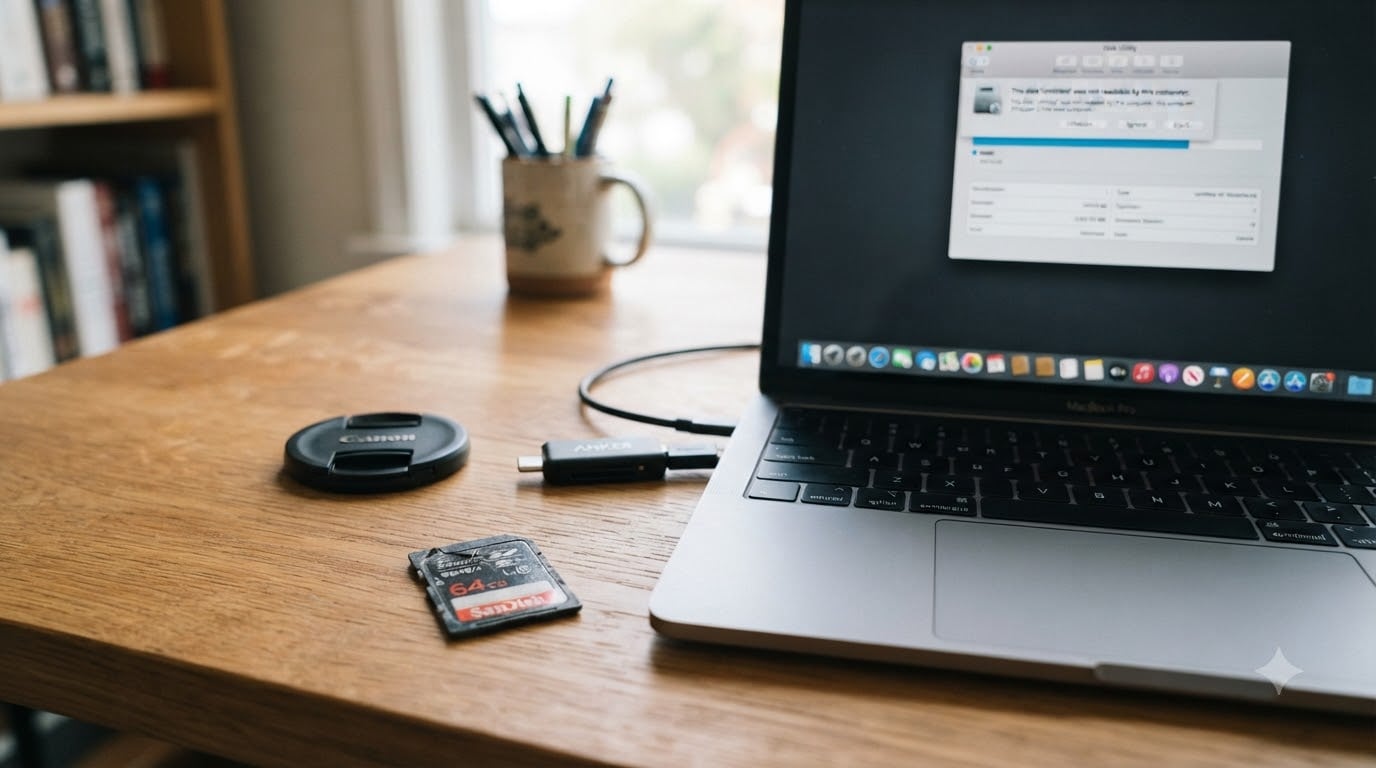
You pull your SD card out of the camera, slide it into your laptop, and a window pops up: “SD card is corrupted. Try reformatting?” Your stomach drops. Maybe you have years of photos on that card. Maybe it’s the 256GB card inside your Nintendo Switch that holds all your saved games. Whatever the scenario, the “SD card corrupted” message is one of the most stressful errors a person can see in 2026, and the panic usually makes people do the wrong thing first.
I have been helping people recover data from damaged storage for years, and I have watched the same mistakes play out again and again. In this guide, I will walk you through what that “corrupted” message actually means, why your SD card shows it, and the exact steps to fix it without losing your files. We will cover the free Windows tools (CHKDSK and Diskpart), Android-only fixes, data recovery software that actually works, when to call a professional, and the habits that keep your card healthy going forward.
Table of Contents
- What “SD card says corrupted” actually means?
- Common signs your SD card is corrupted
- What causes SD card corruption
- Quick fixes to try first
- Fix a corrupted SD card using CHKDSK (Windows)
- Fix a corrupted SD card using Diskpart
- Reassign a drive letter in Disk Management
- How to fix a corrupted SD card on Android without a computer?
- Recovering data before you format
- When to call a professional recovery service
- How to prevent SD card corruption in the future?
- FAQs
- Conclusion
What “SD card says corrupted” actually means?
An “SD card corrupted” message means your device can no longer read the file system on the memory card. The card is still physically responding, but the directory structure that tells your phone, camera, or computer where each file lives is broken or unreadable. Think of it like a book’s table of contents that got erased. The chapters are still inside, but no one can find them.
Most modern SD cards use either FAT32 or exFAT file systems. Both store a critical area called the File Allocation Table (FAT) that maps every file to its physical location on the card. When that table gets damaged, every device that tries to read the card will fail to locate your data and report the card as corrupted. In 2026, this is the single most common cause of the error you are seeing.
There is a key distinction to understand right away. Logical corruption is a software problem, the file system is damaged but the memory chips are fine. This is fixable at home. Physical damage means the memory controller or NAND chips themselves have failed. No amount of formatting or recovery software will fix that. Determining which one you have is the first step in your response.
Common signs your SD card is corrupted
Before you start troubleshooting, confirm the symptoms match SD card corruption and not something simpler like a bad reader or incompatible file system.
“SD card is corrupted” or “Card needs formatting” prompts appear every time you insert the card.
Files and folders are missing or replaced with strange characters like RAW or CHK files.
Card shows wrong capacity, for example a 128GB card shows up as 32MB or 0MB in your file manager.
Read-only error or write-protected warning shows when you try to copy or delete files.
Photos appear as gray placeholders or fail to open even though they take up space on the card.
Camera or phone refuses to save new files and reports “card error” or “memory card full” when it is empty.
If you see one or more of these signs, you are almost certainly dealing with some form of SD card corruption. The next question is what caused it.
What causes SD card corruption
SD card corruption rarely happens for no reason. In most cases, there is a clear trigger that damaged the file system.
Removing the card during a read or write operation. Pulling the card while a camera is saving a photo or your phone is moving an app is the number one cause I see.
Power loss or sudden device shutdown while the card is being written to. A battery dying mid-shoot can corrupt the file system instantly.
Bad sectors developing on the card. NAND flash has a finite number of write cycles. Cheap or old cards start failing blocks after heavy use.
File system incompatibility. A card formatted as NTFS on a computer may not work properly in a camera expecting FAT32 or exFAT.
Malware or viruses that target removable storage, especially when the card is used across multiple computers.
Physical damage from heat, water, bending, or electrical surge. This is the only cause that software cannot fix.
Understanding the cause helps you avoid the same problem in the future. Now let’s get into the actual repair steps.
Quick fixes to try first
Before you open any advanced tools, walk through these five-minute checks. They fix the problem more often than people expect, especially when the issue is a flaky connection rather than true corruption.
Reconnect the card. Remove it, blow out the slot, and reinsert it firmly. Many “corrupted” errors are just bad contact.
Try a different card reader or USB port. A failing reader can mimic corruption symptoms perfectly.
Test the card on another device. If the card works fine in your phone but not your laptop, the problem is your laptop, not the card.
Clean the metal contacts. A pencil eraser rubbed gently across the gold contacts can remove oxidation that interrupts the data signal.
Check the write-protection switch. Standard SD cards have a small slider on the side. If it is in the locked position, slide it back.
If none of these resolves the issue, move on to the software fixes below.
Fix a corrupted SD card using CHKDSK (Windows)
CHKDSK is the built-in Windows tool that scans a drive for file system errors and attempts to repair them. For logical corruption on an SD card, it is the first real repair to try.
Step 1. Connect the SD card to your computer using a card reader. Make sure Windows assigns it a drive letter.
Step 2. Press the Windows key, type cmd, right-click Command Prompt, and choose Run as administrator.
Step 3. Type the following command, replacing E with the actual drive letter of your SD card:
chkdsk E: /f /r /x
Here is what each flag does. The /f flag fixes file system errors. The /r flag locates bad sectors and recovers readable information. The /x forces the volume to dismount before scanning so nothing interrupts the repair.
Step 4. Press Enter and wait. The scan can take anywhere from 20 minutes to several hours depending on card size and damage level. Do not interrupt it.
Step 5. When the scan finishes, type exit and press Enter. Reinsert the card and check whether your files are accessible.
CHKDSK works for most cases of logical corruption. If it reports “CHKDSK is not available for RAW drives” or fails partway through, the file system is too damaged for CHKDSK and you need to escalate to Diskpart or a recovery tool.
Fix a corrupted SD card using Diskpart
Diskpart is a more powerful Windows utility that can clean a stubborn SD card and create a fresh partition. Use it when CHKDSK fails or the card shows as RAW in Disk Management.
Step 1. Open Command Prompt as administrator, just like in the CHKDSK method.
Step 2. Type diskpart and press Enter to launch the utility.
Step 3. Type list disk and press Enter. Locate your SD card by its size. A 128GB card will show as roughly 119GB because of how storage is calculated.
Step 4. Type select disk 2 (replace 2 with your card’s number) and press Enter.
Step 5. Type clean and press Enter. This wipes the partition table and any leftover corruption markers. Stop here if you need to run recovery software first.
Step 6. Type create partition primary and press Enter to build a new partition.
Step 7. Type format fs=exfat quick (or fs=fat32 quick if your device requires FAT32) and press Enter.
Step 8. Type assign letter=E (or any unused letter) and press Enter. Type exit to leave Diskpart.
Warning: the clean command permanently erases the file structure. If there is anything you want to recover, run recovery software before you format the new partition.
Reassign a drive letter in Disk Management
Sometimes the SD card is perfectly fine, but Windows lost the drive letter assignment. This is a 60-second fix that is worth trying before heavier tools.
Right-click the Start button and choose Disk Management. Find your SD card in the lower pane. If it shows a healthy partition but no drive letter, right-click the partition and choose Change Drive Letter and Paths. Click Add, pick an unused letter, and confirm. The card should now appear in File Explorer.
How to fix a corrupted SD card on Android without a computer?
Most guides focus on Windows, but a lot of people only have their phone when the error pops up. Here are the Android-only fixes that actually work in 2026.
Reboot the phone with the card inserted. Sometimes the mount just fails on first try. A clean reboot remounts the card.
Unmount and remount from Settings. Go to Settings > Storage, tap the SD card, and choose Unmount. Wait 30 seconds, then tap Mount.
Clear cache for the external storage service. Go to Settings > Apps > Show system apps, find External Storage or Storage Service, and clear its cache. Restart the phone afterward.
Format the card from the phone’s settings. This is the last resort before connecting to a computer. Settings > Storage > SD card > Format. Any data on the card will be erased.
Use a file manager to scan and repair. Apps like Solid Explorer or Amaze File Manager can sometimes repair folder structures that the default Files app cannot.
Try the card in a second Android device. If a different phone reads the card fine, the issue is your first phone’s SD card slot, not the card.
Note that the card sometimes shows corrupted after a system update because the phone’s storage framework needs to re-index. A simple reboot usually clears this without any repair needed.
Recovering data before you format
If the card has files you cannot afford to lose, stop and run recovery software before you touch a format command. The best paid tools all have free trials that let you preview recoverable files before you pay.
Disk Drill (Windows and macOS) is the most user-friendly option. It supports SD cards from every major brand and recovers photos, videos, and documents. The free version lets you preview up to 500MB before purchase.
DMDE (Windows, macOS, Linux) is the community favorite on Reddit threads about data recovery. The free trial recovers up to 4000 files, which is often enough for a single card. It is more technical than Disk Drill but works on deeper corruption.
Tenorshare 4DDiG (Windows and macOS) is frequently mentioned in forums as effective for cameras and SD cards. It handles RAW file systems and supports a wide range of brands.
Recuva (Windows only) is free and worth trying first. It often fails on severely corrupted cards, which is a sign you need one of the paid tools above.
SD Card Formatter (Windows and macOS) is the official tool from the SD Association. When Windows cannot format a stubborn card, SD Card Formatter often can. It is repair-focused rather than recovery-focused, so use it only after you have recovered your files.
Whichever tool you pick, save recovered files to a different drive, never back to the same SD card. Writing to the card while recovering can overwrite the very files you are trying to save.
When to call a professional recovery service
DIY is the right call for logical corruption. But there are clear situations where a professional is worth the cost, and knowing them saves you from making the damage worse.
Call a professional if the card makes clicking sounds, gets unusually hot, is not detected by any device, has visible physical damage, or has been exposed to water or fire. These are signs of physical damage that no software can fix. Trying to power the card on repeatedly in this state can destroy the remaining chips.
Cost-wise, expect to pay between $100 and $300 for a standard SD card recovery from a service like DriveSavers, Gillware, or Secure Data Recovery. More severe cases with chip-off work can run $500 to $1,500. Most reputable services offer a free evaluation and a no-data-no-charge policy, so you only pay if they actually recover your files.
How to prevent SD card corruption in the future?
Once you have your data back, the cheapest way to never see this error again is to build a few habits around how you treat your cards.
Always use the safe eject option before removing the card from any device.
Never remove the card while the device is writing. Wait for the camera light to stop blinking or the phone to confirm the file is saved.
Format the card in the device that uses it most at least once a year. This refreshes the file system and can surface bad sectors early.
Replace cards every 2 to 3 years if you are a heavy user. Flash memory wears out, and old cards are more likely to fail mid-write.
Maintain a backup on a second card or cloud service. The 3-2-1 rule, three copies on two different media with one offsite, prevents data loss from any single failure.
Buy cards from reputable brands. SanDisk, Samsung, and Lexar have better quality control than no-name cards. Counterfeit cards sold online are a major source of “instantly corrupted” failures.
FAQs
Can a corrupted SD card be fixed?
Yes, in most cases a corrupted SD card can be fixed. If the corruption is logical, meaning the file system is damaged but the memory chips are still working, tools like CHKDSK, Diskpart, or data recovery software can restore access. Physical damage is the main exception and usually requires professional recovery.
What causes an SD card to get corrupted?
The most common causes of SD card corruption are removing the card while data is being written, sudden power loss during a write operation, bad sectors from worn-out memory, file system incompatibility between devices, malware, and physical damage from heat, water, or bending.
How do I uncorrupt an SD card without losing data?
To uncorrupt an SD card without losing data, first run CHKDSK with the /f /r /x flags from an admin Command Prompt. If that fails, install data recovery software such as Disk Drill, DMDE, or 4DDiG, scan the card, and save recovered files to a different drive. Only format the card after you have recovered everything you need.
How much does it cost to fix a corrupted SD card?
Fixing a corrupted SD card is free if you handle it yourself using built-in Windows tools or free recovery software. Professional recovery services typically charge between $100 and $300 for standard cases. Severe physical damage with chip-level work can cost $500 to $1,500.
What is the best memory card recovery tool?
Disk Drill is the best overall memory card recovery tool for most users because it is easy to use and supports a wide range of card brands. DMDE is the most powerful option for technically inclined users and offers a generous free trial of 4,000 files. Recuva is worth trying first since it is free, though it often fails on severely corrupted cards.
Can you still recover files from a corrupted SD card?
Yes, you can usually recover files from a corrupted SD card as long as the memory chips themselves are still functional. The files are still on the card even when the file system is unreadable. Use recovery software before you format, and save the recovered files to a different drive to avoid overwriting anything.
Conclusion
An SD card that says corrupted is rarely a death sentence for your data. The “SD card corrupted” message is almost always a signal that the file system is damaged, not the memory itself. Start with the quick fixes, then escalate to CHKDSK, Diskpart, and recovery software in that order. Only format the card as a last resort, and only after you have tried to recover the files you care about.
If you remember nothing else from this guide, remember this: never write to a corrupted card until after you have recovered what you need. Files are still there even when the file system cannot see them. With the right tools and a little patience, the response to a corrupted SD card in 2026 is straightforward, and you can almost always walk away with your photos, videos, and saved games intact.