
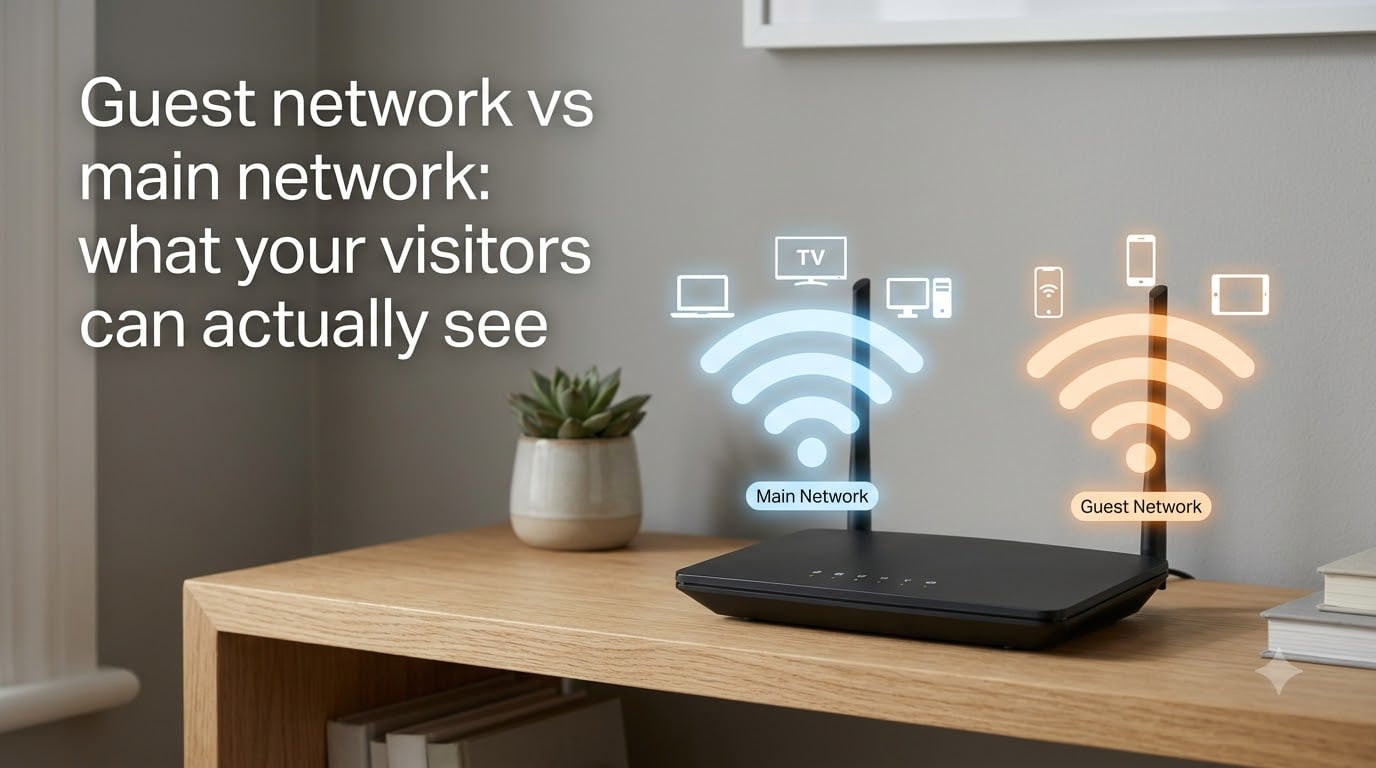
A guest network is a separate WiFi network that isolates visitor devices from your main network, giving guests internet access while blocking access to your personal devices, shared files, smart home gear, and printers. On a properly configured guest network, your visitors can browse the web, stream video, and check email, but they cannot see, reach, or communicate with anything on your primary network.
I have run a guest network in my own home for over three years, and the question I get most often from friends is dead simple: what can they actually see when they connect? The honest answer is that most routers advertise strong isolation, but the real-world behavior depends on a few technical details. In this guide, I will walk you through exactly how guest networks work, what visitors can and cannot see, and where the system breaks down.
Table of Contents
- What Is a Guest Network and How Does It Work?
- What Visitors Can and Cannot See on a Guest Network?
- Guest Network vs Main Network: Side-by-Side Comparison
- Why Client Isolation Sometimes Fails With Apple TV, Sonos, and Other Smart Devices
- What the WiFi Owner Can See About Guest Activity
- How to Set Up a Guest Network the Right Way?
- Best Use Cases: When a Guest Network Makes Sense
- Frequently Asked Questions
- Final Thoughts on Guest Network vs Main Network Visibility
What Is a Guest Network and How Does It Work?
A guest network is a virtual second WiFi network broadcast by the same router, using a different SSID (network name) and password, that runs in an isolated network segment from your main network. The two networks share the same internet connection but cannot see each other’s devices.
Behind the scenes, guest networks rely on three core mechanisms working together.
VLAN (Virtual Local Area Network): Your router assigns guest devices to a separate virtual network segment. Even though the traffic travels through the same hardware, your router treats the guest VLAN and main network VLAN as different broadcast domains. Devices on one VLAN cannot send traffic to devices on the other without explicit routing rules.
Client Isolation: Also called AP (Access Point) isolation, this feature prevents devices on the same guest network from talking to each other. When a guest connects, they can reach the internet but cannot see other guests’ laptops, phones, or tablets on that same SSID.
SSID Segmentation: Each network has its own name and password. Guests connect to “Home-WiFi-Guest” while you stay on “Home-WiFi-Main.” The router handles which traffic stays on which segment based on the SSID the device joined.
When I dug into my Asus RT-AX86U’s admin panel, I could see two completely separate IP ranges: 192.168.1.x for my main network and 192.168.50.x for guest traffic. That separation is what blocks visibility between the two.
What Visitors Can and Cannot See on a Guest Network?
On a properly configured guest network, visitors can see the internet and nothing else. They cannot see your computers, phones, printers, NAS drives, smart TVs, security cameras, or any other device on your main network, and they cannot see other guests either.
This is the part most guides skip, and it is the actual question people want answered. Here is the detailed breakdown.
| Resource on Your Network | Can a Guest See It? |
|---|---|
| Your computers and phones | No |
| Shared files and folders | No |
| Network printers | No |
| NAS drives (Synology, QNAP, etc.) | No |
| Smart TVs on main network | Usually no |
| Security cameras (NVR/DVR) | No |
| Other guests on the same SSID | No (client isolation) |
| Smart home hubs (Home Assistant, SmartThings) | No |
| Game consoles, streaming sticks | Sometimes visible |
| The internet | Yes |
Notice the “sometimes visible” row for game consoles and streaming sticks. That is where things get interesting, and I cover it in detail below.
For a quick real-world test, I connected a guest laptop to my network and ran a network scanner. The result: zero devices from my main network appeared. The only devices visible were the router itself and my guest laptop. The same scan from my main network laptop showed 17 devices. That is what proper isolation looks like.
Guest Network vs Main Network: Side-by-Side Comparison
The difference between a guest network and your main network comes down to access scope, security boundaries, and performance controls. Here is how they compare across the features that matter.
| Feature | Main Network | Guest Network |
|---|---|---|
| Access to local devices | Full access | Blocked by default |
| Access to shared files | Yes | No |
| Access to printers | Yes | No |
| Access to NAS | Yes | No |
| Password required | Yes (WPA2/WPA3) | Optional or separate |
| Encryption | WPA2 or WPA3 | WPA2 or WPA3 |
| Bandwidth limits | Unlimited (typically) | Can be capped |
| SSID broadcast | Always on | Configurable |
| VLAN segmentation | Main VLAN | Separate guest VLAN |
| Client isolation | Off by default | On by default |
| IoT/smart home devices | Yes (full access) | No |
| Visibility to owner | Full admin access | Limited |
The key takeaway: your main network is a fully open local network where every device trusts every other device. A guest network is a walled-off subnet with one door, the internet, and everything else locked.
Why Client Isolation Sometimes Fails With Apple TV, Sonos, and Other Smart Devices
Client isolation can leak visibility for certain smart devices like Apple TV, Sonos speakers, and Chromecast, because these devices advertise themselves using protocols that ignore subnet boundaries in some cases. This is a known issue on consumer routers from Asus, TP-Link, Netgear, and others.
Here is what actually happens. Devices like Apple TV and Sonos use mDNS (multicast DNS) and Bonjour to advertise themselves on the local network. Some routers forward these multicast packets across VLANs even when client isolation is enabled. The result: a guest might see an “Apple TV” icon appear in their AirPlay menu or Spotify Connect list, even though they cannot actually stream to it without permission.
Users on Reddit’s r/HomeNetworking and r/homeassistant report this exact behavior. One user wrote: “I set up guest mode, but my brother-in-law could still see my Apple TV in his AirPlay menu. He could not stream to it, but the icon was there.” That is the limitation in plain terms: visibility without access.
If this matters to you, look for a router with proper multicast filtering or a guest network feature that lets you disable Bonjour/mDNS forwarding. Enterprise gear from Ubiquiti, Aruba, and Cisco handles this cleanly. Consumer routers vary widely.
What the WiFi Owner Can See About Guest Activity
The WiFi owner can see which devices connected to the guest network, when they connected, how much bandwidth they used, and the IP addresses they visited, but they cannot see the content of encrypted HTTPS traffic or what guests searched on Google without specialized tools.
This is the reverse direction of the question, and it matters for both hosts and visitors. Here is what your router’s admin panel typically shows.
Device name or MAC address of each connected guest
Connection time and duration
Total bandwidth consumed per session
Destination IP addresses (the servers your guest contacted)
DNS queries if logging is enabled
What your router cannot see without deep packet inspection: the actual web pages your guest visited (the URL path), their search queries, login credentials, or the content of messages. HTTPS encryption protects that. So a guest searching for something embarrassing on Google is safe from the WiFi owner’s casual snooping, but the owner can tell they visited google.com and spent 45 minutes on the site.
If you run a business or want full transparency, enterprise gear with DPI (deep packet inspection) can log much more, but that is overkill for most homes.
How to Set Up a Guest Network the Right Way?
To set up a guest network, log into your router’s admin panel, find the Guest Network section, enable it on a different SSID, set a strong password, enable client isolation, and optionally set a bandwidth cap. Most modern routers from Asus, TP-Link, Netgear, and Google Nest have this built in.
Here is the exact process I use on my own router.
Step 1: Log into your router. Open a browser and go to 192.168.1.1 or your router’s IP. Enter admin credentials.
Step 2: Find the Guest Network section. It is usually under Wireless, WiFi Settings, or Advanced. Look for “Guest Network,” “Guest WiFi,” or “Guest Access.”
Step 3: Enable the guest SSID. Pick a name like “Home-Guest” or “SmithHouse-Visitor.” Do not reuse your main network’s name.
Step 4: Set a strong password. Use WPA2 or WPA3 encryption. Avoid open guest networks unless you run a cafe or business.
Step 5: Enable client isolation and AP isolation. This is the critical security setting. Most routers have it on by default for guest mode, but double-check.
Step 6: Set a bandwidth limit. Cap guest speeds at 25 to 50 percent of your total bandwidth so a guest streaming 4K Netflix does not slow your work calls.
Step 7: (Optional) Schedule guest access. Some routers let you set hours when the guest network is active. Handy for short-term rentals.
One tip I learned the hard way: print a QR code for your guest network and stick it on the fridge. Guests scan, connect, done. No shouting passwords across the dinner table.
Best Use Cases: When a Guest Network Makes Sense
A guest network is worth setting up if you have frequent visitors, smart home devices, or run a short-term rental. It is the single best way to give someone internet access without handing over the keys to your digital life.
The most common scenarios where a guest network pays off:
Airbnb and VRBO hosts: Give guests internet without giving them access to your smart locks, cameras, or personal files. Rotate the password between bookings.
Smart homes with IoT devices: Put cameras, smart bulbs, and voice assistants on your main network, isolated from visitors.
Home offices: Keep work devices on the main network, family and guests on a separate segment.
Kids’ devices: Some parents put kids’ tablets and gaming consoles on a guest network with stricter bandwidth and content controls.
IoT device isolation: Many security experts recommend putting untrusted IoT devices (off-brand smart plugs, random Chinese cameras) on a guest network as a security measure, even if no human guests use it.
I have personally used all five of these setups over the past three years. The Airbnb scenario is where a guest network is genuinely transformative. You can offer guests fast WiFi, rotate credentials between bookings, and never worry about them stumbling onto your security camera feed.
Frequently Asked Questions
Can a guest network access the main network?
No, a properly configured guest network blocks all access to the main network. Guest devices run on a separate VLAN and cannot see, reach, or communicate with computers, phones, printers, NAS drives, or smart home devices on your primary network. They only have access to the internet.
What are the downsides of a guest network?
The main downsides are reduced convenience (guests cannot print to your printer or cast to your smart TV) and occasional leakage of multicast protocols like AirPlay and Spotify Connect, which can make Apple TV or Sonos icons appear in guest apps even though streaming is blocked. Some routers also lack bandwidth controls for guest traffic.
When you connect to guest Wi-Fi, what can they see?
When you connect to guest Wi-Fi, the network owner can see your device name, MAC address, connection time, bandwidth usage, and the IP addresses of servers you contact. They cannot see the content of HTTPS-encrypted traffic, your search queries, or the specific web pages you visit on sites using HTTPS. With guest mode enabled, you also cannot see other devices on the network.
Can the Wi-Fi owner see what I search on guest mode?
No, the Wi-Fi owner cannot see your search queries on guest mode if you are using HTTPS (which Google, Bing, and most modern sites use by default). They can see that you visited google.com and how long you spent there, but not what you searched for. Basic router logging does not include deep packet inspection.
Final Thoughts on Guest Network vs Main Network Visibility
The guest network vs main network question boils down to one principle: isolation. A guest network exists to give visitors internet access without giving them a window into your personal devices, files, smart home gear, or shared printers. When properly configured with VLAN segmentation and client isolation, your visitors see nothing but the public internet.
Set up a guest network today, enable client isolation, set a bandwidth cap, and print a QR code for easy access. Your visitors get fast WiFi, and your personal data stays personal. That is the whole point.