
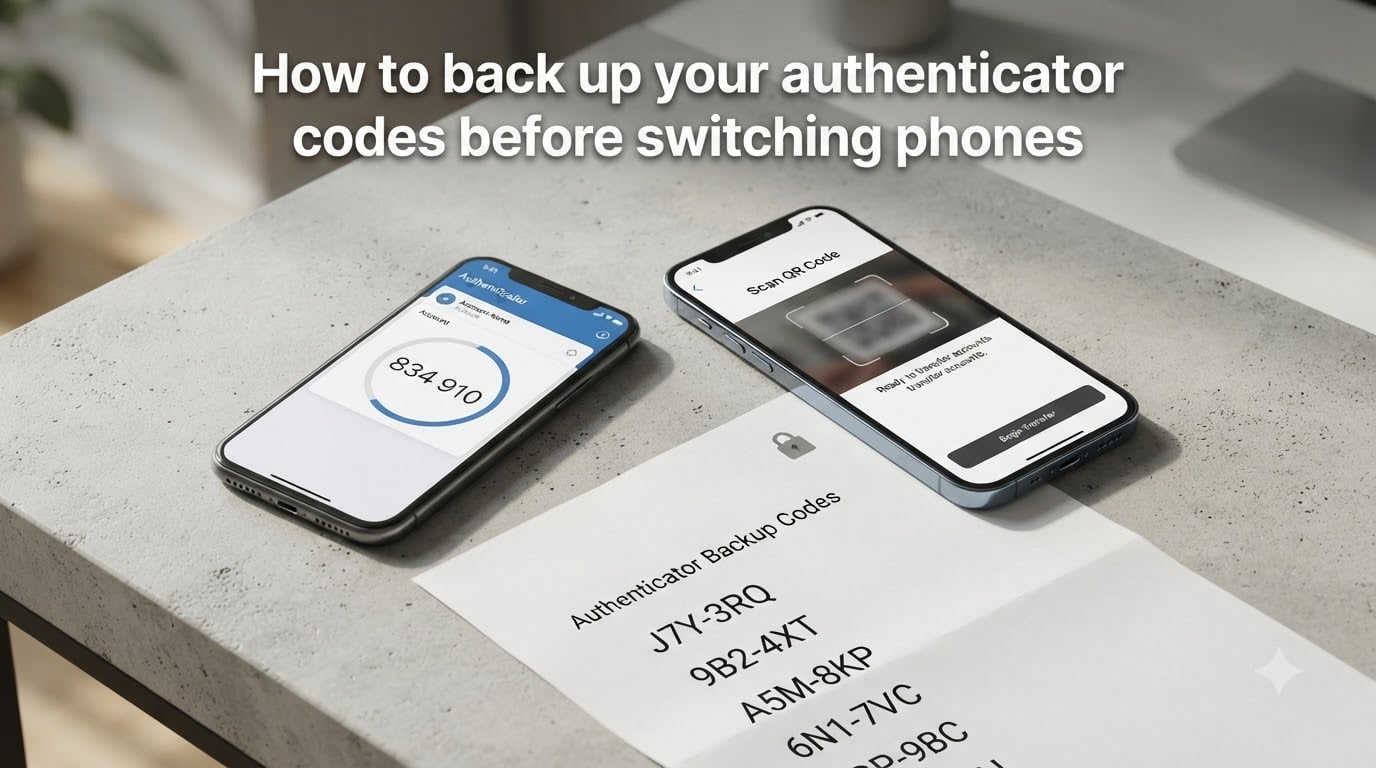
Switching phones is exciting, but losing access to your two-factor authentication codes can lock you out of email, banking, and social media accounts. The fastest way to back up your authenticator codes before switching phones is to use the app’s built-in transfer or cloud backup feature on your old device first, then restore on the new phone.
This guide covers the exact steps for Google Authenticator, Microsoft Authenticator, and third-party apps like Authy and 2FAS. I also cover what to do if you have already lost your old phone, and the common backup errors that catch people out.
Table of Contents
- Why You Must Back Up Authenticator Codes Before Switching Phones?
- How to Back Up Google Authenticator Codes Before Switching Phones?
- How to Back Up Microsoft Authenticator Codes Before Switching Phones?
- How to Back Up Authenticator Codes With Third-Party Apps?
- How to Restore Authenticator Codes on Your New Phone?
- How to Get Your Authenticator Codes Without Your Old Phone?
- Common Backup Problems and How to Fix Them
- Authenticator Code Backup Best Practices
- FAQs
- Final Thoughts on Switching Phones Without Losing 2FA
Why You Must Back Up Authenticator Codes Before Switching Phones?
Authenticator apps generate time-based one-time passwords (TOTP) using a secret key stored only on your phone. When you change phones, that secret key does not move with you automatically.
Without a backup, switching phones can permanently lock you out of every account that uses your authenticator for 2FA. I have seen users lose access to Gmail, Coinbase, and work Slack accounts just because they wiped their old phone too early.
According to Google’s own support threads, the Google Authenticator app has no built-in way to recover secret keys if you lose the device. Microsoft Authenticator does back up to iCloud or Google Drive, but only for personal accounts in most cases.
The bottom line: if you plan to switch phones, factory reset, or even send your device for repair, you need a backup plan in place before the switch happens.
How to Back Up Google Authenticator Codes Before Switching Phones?
Google Authenticator does not offer automatic cloud backup for most accounts. The official way to back up your codes is the “Transfer Accounts” feature, which exports them as a QR code you scan with the new phone. Follow these steps on your old device first.
Step-by-Step Google Authenticator Backup on Android
Open Google Authenticator on your old Android phone.
Tap the three-dot menu in the top-right corner.
Select “Transfer accounts” then “Export accounts.”
Choose the accounts you want to back up (you can select multiple).
Authenticate with your screen lock, fingerprint, or PIN.
A QR code will appear on screen. Keep this phone handy.
Now move to your new phone, install Google Authenticator, and tap “Get started” then “Import existing accounts” then “Scan QR code.” Point the camera at the QR code on your old device, and the codes transfer in seconds.
Step-by-Step Google Authenticator Backup on iPhone
Open Google Authenticator on your old iPhone.
Tap the three-dot menu (or profile icon) in the top-right.
Choose “Transfer accounts” then “Export accounts.”
Select the accounts you want to export.
Verify with Face ID, Touch ID, or your passcode.
A QR code displays. Scan it from your new phone.
Take a screenshot of the QR code as a fallback, or print it. Without a backup, there is no way to recover Google Authenticator codes remotely if something goes wrong.
How to Back Up Microsoft Authenticator Codes Before Switching Phones?
Microsoft Authenticator is the easiest authenticator app to back up because it supports real cloud backup through iCloud or Google Drive. Backups include your account credentials and TOTP secrets, so you can restore them on a new device after a reinstall.
Enable Microsoft Authenticator Cloud Backup on iPhone
Open Microsoft Authenticator on your current iPhone.
Tap the three-dot menu in the top-right.
Select “Settings” then “Cloud backup” (or “iCloud Backup”).
Toggle “Cloud backup” on and sign in with your Microsoft account.
Tap “Back up now” and wait for the confirmation.
Your iCloud account must have enough free storage. If the backup fails, a “Something went wrong” error usually means iCloud is full or you are signed in with a work account that blocks iCloud Drive.
Enable Microsoft Authenticator Cloud Backup on Android
Open Microsoft Authenticator on your Android phone.
Tap the three horizontal lines (hamburger menu) in the top-left.
Choose “Settings” then “Cloud backup.”
Sign in with the Microsoft account tied to your authenticator data.
Tap “Back up now” and confirm the timestamp shows a recent date.
Important: Microsoft Authenticator cloud backup does not cover work or school accounts by default. If your organization manages your account, only the account name restores, not the TOTP secret. You will need to contact your IT admin to re-register the device.
How to Back Up Authenticator Codes With Third-Party Apps?
Many users move to Authy or 2FAS specifically because they offer better backup than Google Authenticator. If you are still choosing an authenticator, or already use one of these, here is how the backup works.
Authy Backup Method
Authy encrypts your tokens and stores them in its own cloud, tied to your phone number. Backups happen automatically once you enable “Backups” in Authy Settings. You can also set an encrypted password that lets you restore on a new device.
To enable Authy backup:
Open Authy and tap “Settings” (gear icon).
Select “Accounts” then “Backup password.”
Set a strong backup password and store it somewhere safe (not on your phone).
Tap “Backups” and make sure the toggle is on.
2FAS Backup Method
2FAS lets you back up tokens as an encrypted file you can save to Google Drive, iCloud, or anywhere you choose. Open 2FAS, go to Settings, and tap “Export” to receive a password-protected backup file. Restore on a new phone by importing the same file.
Both Authy and 2FAS are stronger choices than Google Authenticator if reliable backup is your priority.
How to Restore Authenticator Codes on Your New Phone?
Restoration is the easy part once you have a backup. The exact steps depend on the app you used.
Restore Google Authenticator on New Phone
Install Google Authenticator on the new device.
Tap “Get started” then “Import existing accounts.”
Choose “Scan QR code” and scan the QR code from your old phone.
Verify each account works by generating a code and logging into the service.
If you no longer have the old phone, you must use the printed or saved backup codes from each service. There is no other recovery path.
Restore Microsoft Authenticator on New Phone
Install Microsoft Authenticator from the App Store or Google Play.
Open the app and tap “Restore from backup.”
Sign in with the same Microsoft account used for the backup.
Confirm the recovery location (iCloud or Google Drive).
Your accounts should appear automatically.
Personal accounts restore fully. Work or school accounts usually only restore the account name, and you will need to re-register the device through your IT admin.
Restore Authy or 2FAS on New Phone
Install the app, sign in with the same phone number (Authy) or import the encrypted backup file (2FAS), and enter your backup password. Authy sends a one-time code via SMS or call to confirm the new device.
How to Get Your Authenticator Codes Without Your Old Phone?
If you have already lost your old phone or upgraded without backing up, you still have a few recovery options. Start with these.
Use saved or printed backup codes: Most services that require 2FA offer one-time backup codes when you first enable 2FA. Search your email, password manager, or any printed copies you saved.
Account recovery flow: Services like Google and Microsoft have a recovery process that may let you verify identity through email, phone, or ID. This can take several days.
Contact the service directly: For banking, crypto, or work accounts, you will need to call support and verify your identity in person or through documentation.
Check your password manager: Some password managers (1Password, Bitwarden, etc.) can store TOTP secrets and sync them across devices.
Without any backup, recovery is rarely possible. This is why preparing before switching phones saves hours of frustration later.
Common Backup Problems and How to Fix Them
Even with the right steps, authenticator backups fail. Here are the issues I see most often, and how to resolve them quickly.
Microsoft Authenticator “Something Went Wrong” Error
Almost always caused by iCloud or Google Drive storage being full, or by signing in with a different Microsoft account than the one used during setup. Sign out, sign back in with the correct account, and free up at least 1 GB of cloud storage.
Google Authenticator QR Code Will Not Scan
Increase screen brightness on the old phone, clean the camera lens, and try again. If the QR is still unreadable, take a screenshot and print it at a larger size.
Backup Worked but Codes Do Not Work on New Phone
The device clock may be out of sync. Open your phone’s automatic date and time settings, enable “Set automatically,” and try generating a new code. TOTP codes are time-sensitive, so even a 30-second clock drift can fail verification.
Cross-Platform Transfer Not Working
Google Authenticator does not support restoring an iCloud backup on Android, or vice versa. You must re-enroll accounts manually on the new platform using backup codes or a QR code.
Authenticator Code Backup Best Practices
After walking dozens of users through this process, I recommend three habits that prevent most lockouts.
Save backup codes offline: Print them or store them in a password manager, never on the same phone.
Use two authenticator apps as a fallback: Pair Google Authenticator with Authy or 2FAS so one acts as a backup.
Verify the backup before switching phones: Generate a code from the new phone and log into one critical account before wiping the old device.
These habits take 10 minutes and can save you days of account recovery.
FAQs
How do I restore my Authenticator backup to my new phone?
Install the authenticator app on your new phone, sign in with the same account used for the backup, and choose Restore from backup. For Google Authenticator, scan the QR code exported from your old phone. For Microsoft Authenticator, sign in to the same Microsoft account and the cloud backup restores automatically.
How do I get my Authenticator on my new phone without my old phone?
You can recover codes without your old phone by using saved or printed backup codes from each service, signing in through account recovery (email, phone, or ID verification), or contacting the service directly. If you used Authy or 2FAS, sign in with your phone number or import your encrypted backup file.
How do I transfer my Authenticator data to another phone?
Open the authenticator app on your old phone, use the Transfer Accounts or Export feature to generate a QR code, then scan that QR code from the new phone. For Microsoft Authenticator, enable cloud backup first, then restore on the new device with the same Microsoft account.
What happens to the Authenticator when changing phones?
Your authenticator codes do not automatically move with your phone number or Apple ID. Without a backup, codes generated by the old phone are gone forever, and you will be locked out of any account that uses them for 2FA verification.
Final Thoughts on Switching Phones Without Losing 2FA
Knowing how to back up your authenticator codes before switching phones is the difference between a smooth upgrade and being locked out of your accounts for days. Pick one of the methods above, verify it works, and only then wipe your old device.
If you have not switched yet, do this today: open your authenticator app, enable backup, and save the recovery codes for each service. That 10 minutes of prep is the cheapest insurance you will ever get.