
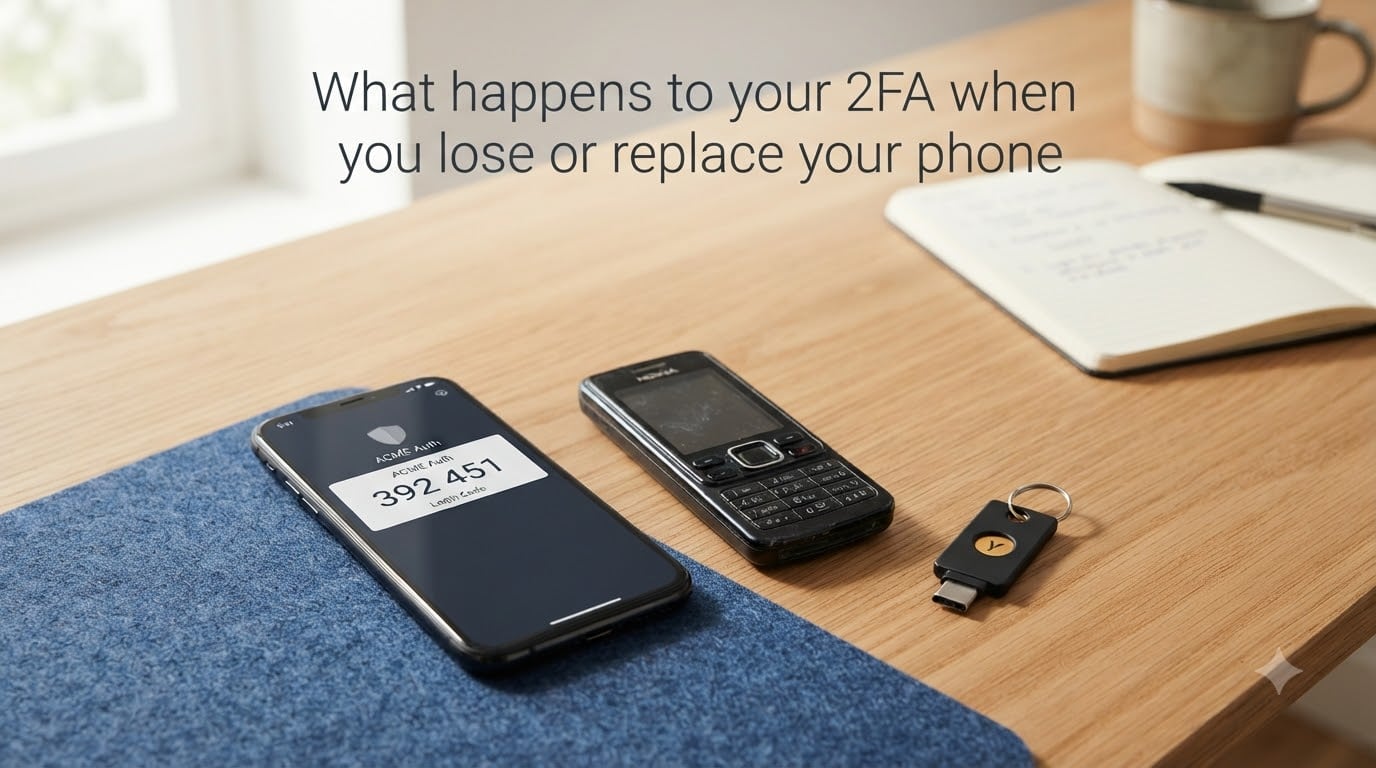
Two years ago, I dropped my phone into a lake on the second day of a camping trip. Within an hour, I realized the real problem was not the phone. It was the dozen accounts I could no longer log into because my two-factor authentication codes lived on that waterlogged device.
If you have ever wondered what happens to your 2FA when you lose or replace your phone, the short answer is sobering. Without your second factor, most services will lock you out until you complete a recovery process that can take hours, days, or sometimes weeks. The longer answer depends on how you set things up before the loss happened.
In this guide, I will walk through exactly what happens to your accounts, how to recover access, how to transfer authenticator codes to a new device, and what you can do right now to make sure a lost phone never becomes a total lockout.
Table of Contents
What Is 2FA and Why It Matters?
Two-factor authentication, or 2FA, is a security method that requires two separate forms of verification before granting access to an account. The first factor is something you know, typically your password. The second factor is something you have, usually your phone generating a temporary code or receiving a text message.
Most modern 2FA systems use a standard called TOTP, which stands for Time-based One-Time Password. Apps like Google Authenticator, Microsoft Authenticator, and Authy generate a fresh six-digit code every 30 seconds using a shared cryptographic secret. The secret is stored on your device, which means the codes are generated locally without any internet connection.
Because that secret lives on your phone, your phone becomes the single point of failure for every account protected by 2FA. This is why so many people on privacy forums describe the moment they lose their phone as a cascade of lockouts across email, banking, social media, and work accounts.
SMS-based 2FA sends a code via text message instead. It is easier to recover because the codes are tied to your phone number rather than the physical device, but it is also more vulnerable to interception. Understanding the difference between these two approaches is the foundation for everything that follows.
What Happens to Your 2FA When You Lose Your Phone?
When you lose your phone, every account that relies on it for 2FA immediately becomes inaccessible unless you configured a backup method. For TOTP-based authenticator apps, the codes stop working the moment your device is gone because the cryptographic seed was never stored anywhere else.
For SMS-based 2FA, the situation is slightly different. Your codes are tied to your phone number, not the device itself. If you can get a replacement SIM card with the same number, SMS codes will start arriving again. But until that happens, you are locked out, and a thief who convinces your carrier to port your number could actually receive your codes instead of you.
Here is what typically happens across different account types:
For email accounts like Gmail, losing 2FA access can create a domino effect. Many services send password reset links to your email, so if your email is locked, every connected account becomes harder to recover. I have seen Reddit users describe spending three full days just to regain access to a single Gmail account after losing their phone abroad.
For social media accounts, recovery often requires submitting identity verification documents. Facebook, Instagram, and X all have dedicated recovery flows, but they are slow and sometimes require multiple attempts. Work accounts managed by an IT department are usually the fastest to resolve because an administrator can reset your 2FA enrollment directly.
The immediate risk is not just inconvenience. If your phone is stolen rather than lost, the thief may attempt SIM swapping to intercept your codes. I will cover how to defend against that in the prevention section.
How to Recover Access Using Backup Codes?
Backup codes are single-use recovery codes generated when you first enable 2FA on an account. They are the single fastest way to get back in after a lost phone, yet most people never save them or forget where they put them.
When you set up 2FA on services like Google, Apple, Microsoft, or GitHub, the setup process displays a list of eight to ten backup codes. Each code can be used once in place of a normal 2FA code. After a code is used, it is consumed forever.
To use a backup code, go to the login page of the service you need, enter your password, and when prompted for your 2FA code, look for a link that says something like “Try another way” or “Use a backup code.” Enter one code from your saved list and you will be logged in.
Once inside, immediately reconfigure your 2FA settings. Add a new authenticator device, generate fresh backup codes, and store them somewhere safe. I recommend keeping backup codes in two separate physical locations, such as a home safe and a locked drawer at a trusted family member’s house.
Some people store backup codes in a password manager. This works well for convenience, but it concentrates risk. If your password manager is also protected by 2FA on the lost phone, you are back to square one. Always have at least one offline copy.
If you never saved your backup codes or cannot find them, you will need to move to the account recovery process, which takes longer but is still possible for most services.
Transferring Your Authenticator App to a New Phone
Replacing your phone does not have to mean losing your 2FA codes, but only if you transfer them before getting rid of the old device. The transfer process varies by app, and doing it wrong can lock you out permanently.
For Google Authenticator, the process changed significantly in recent updates. The app now supports cloud backup through your Google Account, which means codes sync automatically when you sign in on a new device. If cloud backup is enabled, simply install Google Authenticator on your new phone, sign in with the same Google account, and your codes appear. If cloud backup was not enabled, you need both the old and new phone side by side to scan a QR code transfer.
For Microsoft Authenticator, backup happens through your personal Microsoft account or iCloud. When you install the app on a new device and sign in with the same account, your credentials restore automatically. However, the recovery requires the same phone number you originally registered, so keeping your SIM active during a phone swap is important.
Authy takes a different approach by design. It supports multi-device sync, meaning you can install it on multiple phones, tablets, and desktop computers simultaneously. When one device is lost, your other devices still generate codes. This is why privacy forums consistently recommend Authy for people who worry about losing access.
One critical warning: never delete the authenticator app on your old phone before confirming the new device works. I have read countless forum posts from users who wiped their old phone prematurely and lost every 2FA seed in the process. Test a few logins on the new device first.
Account Recovery Options for Major Services
Each major service handles 2FA recovery differently. Here is what to expect from the most common platforms when you have lost access to your second factor.
Google Account Recovery
Google offers the most structured recovery flow. Visit the account recovery page, enter your email address, and Google will ask a series of questions about your account. If you have a backup email address or a still-logged-in device on another phone or computer, Google can send a prompt there to verify your identity.
If no other access points exist, Google may take three to five business days to review your recovery request. The process is automated but slow. Having your backup codes ready skips this entirely.
Apple ID Recovery
Apple uses an account recovery process that can take several days. If you have another Apple device signed into the same Apple ID, you can approve the recovery from there. Apple also offers a Recovery Contact feature where a trusted friend or family member can help you regain access.
For users with only one Apple device, the recovery involves answering security questions and waiting for Apple to verify, which typically takes up to 72 hours but can stretch longer during busy periods.
Microsoft Account Recovery
Microsoft requires you to fill out an recovery form with details about your account, including recent email subjects, contacts, and payment information. The more accurate your answers, the faster the recovery. Microsoft also lets you set up a recovery phone number during initial setup, which can receive a code even if your authenticator is gone.
Facebook and Instagram Recovery
Meta platforms offer a few paths. If you previously authorized another device, you can approve the login from there. Otherwise, you will need to submit a photo of your government ID and wait for manual review, which usually takes one to three days.
Facebook also allows you to designate three to five trusted friends who can receive recovery codes on your behalf. This is one of the most underused recovery features available, and I highly recommend setting it up before you ever need it.
How to Prevent Getting Locked Out of Your 2FA?
The best recovery is the one you never need. Here is a prevention checklist you can act on today.
First, register a second 2FA device. Whether it is an old phone kept on Wi-Fi, a tablet, or a hardware security key like a YubiKey, having a backup factor means a lost phone never equals a total lockout.
Second, set up a carrier PIN with your mobile provider. This is a four-to-eight digit code that must be provided before anyone can make changes to your account, including porting your number to a new SIM. Without a carrier PIN, a social engineer can convince your carrier to transfer your number to their device in what is called a SIM swap attack. That attacker would then receive every SMS-based 2FA code intended for you.
Third, save your backup codes offline. Print them, store them in a fireproof safe, and keep a second copy with someone you trust. Do not rely solely on a password manager for this, especially if that manager is also behind the 2FA you might lose.
Fourth, switch from SMS 2FA to an authenticator app wherever possible. SMS is vulnerable to SIM swapping and interception, while TOTP apps generate codes locally without any network dependency. Google, Amazon, GitHub, and most major platforms offer app-based 2FA as an alternative to SMS.
Fifth, consider adopting passkeys. Passkeys use biometric authentication built into your device and sync across your devices through your cloud account. They eliminate the need for codes entirely and are supported by Google, Apple, Microsoft, and major browsers. Because passkeys sync through cloud accounts, losing one device does not lock you out as long as you can access your cloud account from another device.
Sixth, if you travel internationally, set up at least one alternate 2FA method that does not depend on your primary phone. Forum users repeatedly describe losing their phone overseas with no way to receive SMS codes because their carrier does not roam in that country. A hardware security key fits on your keychain and works offline anywhere.
Finally, take five minutes right now to audit your most important accounts. Log in, check the security settings, and confirm that backup codes are saved, a backup device is registered, and a recovery email or phone is on file. Doing this today is the difference between a minor inconvenience and a multi-day crisis.
FAQs
What happens to 2FA when you lose your phone?
When you lose your phone, every account that relies on it for 2FA becomes inaccessible until you complete a recovery process. For authenticator apps, the codes stop working immediately because the cryptographic seed lived only on that device. For SMS-based 2FA, you remain locked out until you get a replacement SIM card with the same number.
How do I get past 2-Step Verification if I lost my phone?
Use a saved backup code if you have one, approve the login from another device that is still signed in, or start the account recovery process through the service’s help page. For Google, visit the account recovery page and answer identity questions. For most services, having a backup email or trusted contact set up in advance speeds up the process significantly.
What happens to 2FA when you get a new phone?
Nothing happens automatically unless you set up cloud backup. For Google Authenticator with cloud sync enabled, codes transfer when you sign in with the same Google account. For Microsoft Authenticator, codes restore from your Microsoft or iCloud backup. For apps without backup, you must keep both phones and transfer codes manually via QR code before retiring the old device.
Can I recover my authenticator app without the old phone?
Only if the app has cloud backup enabled or you saved your backup codes. Google Authenticator with cloud sync, Microsoft Authenticator with backup, and Authy with multi-device support can all be restored without the original phone. Without any backup, you must go through each service’s account recovery process individually.
How do I prevent getting locked out of 2FA if I lose my phone?
Set up a second 2FA device, save backup codes in two offline locations, add a carrier PIN to prevent SIM swapping, switch from SMS to an authenticator app, and consider passkeys for cloud-synced authentication. Do all of this before you lose your phone, not after.
Conclusion
Losing your phone with 2FA does not have to mean losing access to your accounts. Backup codes, multi-device authenticator apps, carrier PINs, and passkeys all exist to make recovery possible. What happens to your 2FA when you lose or replace your phone ultimately depends on what you set up beforehand.
Take ten minutes today to save your backup codes, register a backup device, and add a carrier PIN. Future you will be grateful.