
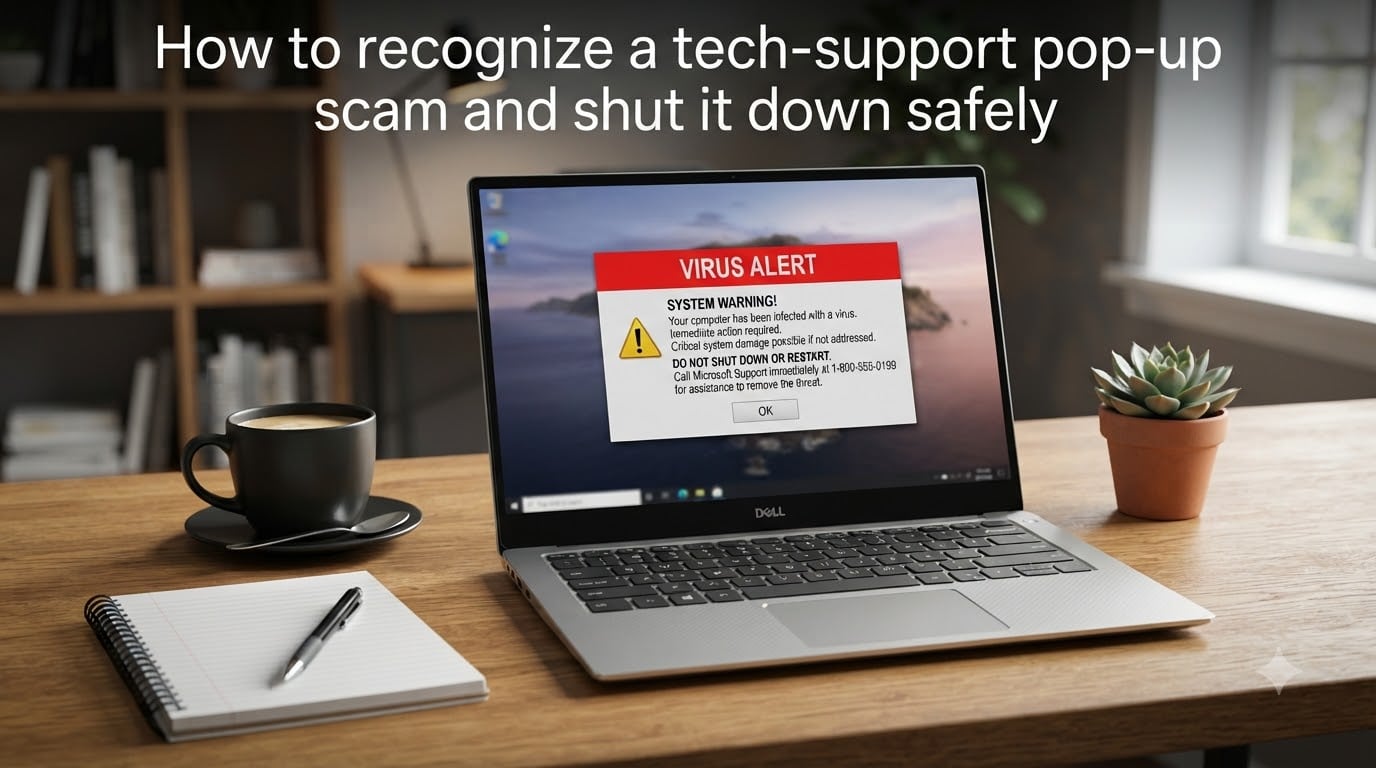
Picture this: you are browsing a perfectly normal website, and suddenly your entire screen fills with flashing red warnings, a loud alarm sound blares, and a message says your computer has been infected with a serious virus. A phone number appears, urging you to call “Microsoft Support” immediately. Your heart rate jumps. That reaction is exactly what the attacker is counting on. This is a tech-support pop-up scam, and in 2026 it remains one of the most common fraud tactics targeting computer users worldwide.
Our team has spent years reviewing scam reports, forum threads from real victims, and guidance from the FTC, FBI, and Microsoft. What we learned is that these scams succeed not because victims are foolish, but because the pop-ups are engineered to trigger panic before logic kicks in. In this guide, we will walk you through exactly how to recognize a tech-support pop-up scam, shut it down safely, and recover if you or a family member already engaged with the scammers.
Whether you saw a fake virus warning five minutes ago or you are researching on behalf of an elderly parent, the steps below are designed to be actionable right now. No technical background required.
Table of Contents
- What Is a Tech-Support Pop-Up Scam?
- How Tech-Support Pop-Up Scams Work?
- Why These Scams Trick Smart People (Psychology of the Scam)
- Seven Warning Signs of a Fake Virus Warning
- How to Safely Shut Down a Tech-Support Pop-Up Scam?
- What to Do If You Already Called the Scammer?
- How to Tell If Your Computer Is Actually Infected?
- How to Report a Tech-Support Scam?
- FAQs
- Stay Calm and Shut It Down
What Is a Tech-Support Pop-Up Scam?
A tech-support pop-up scam is a form of fraud where criminals display a fake security alert on your screen, then pressure you to call a phone number or click a link for “help.” The pop-up almost always impersonates a trusted brand like Microsoft, Apple, or a well-known antivirus company. Once you make contact, the scammer pretends to diagnose a problem that does not exist and asks for payment, remote access to your device, or both.
The tactic is widespread. Microsoft received over 60,000 customer complaints about tech-support scams in a single year, and the FTC has logged losses in the hundreds of millions from victims who paid for fake repairs. The FBI’s Internet Crime Complaint Center reports that elderly victims alone lose an average of over $1,000 per incident, with some losing tens of thousands.
What makes the scam effective is the illusion of legitimacy. The pop-up may use the correct logos, official-sounding language, and even a fake “case number” or “error code.” But no legitimate technology company will ever lock your browser and demand an immediate phone call. That single distinction is your most reliable early warning.
How Tech-Support Pop-Up Scams Work?
To shut a scam down safely, it helps to understand the machinery behind it. Tech-support pop-up scams almost always start with a malicious or compromised advertisement on a legitimate website. You do not need to click anything. The ad can trigger a script the moment the page loads.
That script tells your browser to open a full-screen message, disable the close button, or loop a dialog box so that clicking “OK” just reloads the warning. Some versions play an audio recording on repeat, saying something like, “Your computer has been compromised. Do not turn it off. Call Microsoft immediately.” The number shown routes to a call center staffed by scammers, not a real support team.
When you call, the person on the line will ask you to press a few keys to “run a diagnostic.” What they are actually doing is guiding you to open a remote-access tool like AnyDesk, TeamViewer, or QuickAssist. Once that connection is live, they can move your mouse, open files, and install software. They may show you harmless system logs and claim the entries prove a “hacker” is inside your machine. The fear is manufactured; the “evidence” is fake.
The scammer then asks for payment, and this is where the red flag becomes unmistakable. Legitimate companies bill by credit card or invoice. Scammers almost always demand gift cards, wire transfers, cryptocurrency, or payment apps like Zelle and CashApp. These methods are nearly impossible to reverse. In some cases, the scammer asks for a “refund” of money they claim was accidentally deposited, then walks you through transferring funds to a fake account.
A variation that appeared in 2026 involves the scammer sending a flood of Microsoft Teams messages or spoofed text messages that repeat the warning. The goal is always the same: keep you panicked and compliant until you hand over money or control.
Why These Scams Trick Smart People (Psychology of the Scam)
If you have ever wondered how someone could fall for an obvious scam, the answer is rarely about intelligence. It is about timing and emotion. Tech-support scams are built on social engineering, the practice of manipulating people through psychology rather than hacking their devices.
The first tactic is urgency. The pop-up tells you that turning off your computer will cause permanent damage, or that your data is being stolen right now. This framing is designed to stop you from pausing to think. When your brain is in a fight-or-flight state, you stop questioning details like whether Microsoft actually puts phone numbers on its warnings.
The second tactic is authority. Scammers use real company logos, fake badge numbers, and official-sounding job titles like “Senior Security Engineer.” When a confident stranger with a badge number tells you your machine is infected, your instinct is to defer to expertise. That instinct is what the scammer exploits.
The third tactic is fear of consequence. Forum reports describe pop-ups claiming the user’s IP address was found accessing illegal content, or that banking credentials had already been stolen. The implied threat of legal trouble or financial ruin is enough to override skepticism.
The fourth tactic is isolation. Once you call, the scammer tells you not to hang up, not to talk to anyone, and not to use another device to look up the warning. This is deliberate. Every minute you stay on the phone is a minute you cannot fact-check the story. Breaking that isolation by calling a trusted friend or hanging up is one of the fastest ways to stop the attack.
Seven Warning Signs of a Fake Virus Warning
Real security alerts are quiet and specific. Scam alerts are loud and vague. Here is a checklist you can scan in seconds the next time a suspicious message appears on your screen.
A phone number on the warning. Microsoft, Apple, and antivirus companies do not display support numbers in pop-up alerts. If you see a number to call, it is a scam.
Your browser is locked. If the close button does not work, the back button is disabled, or clicking anything just reloads the warning, you are looking at a browser-lock scam.
Audio or voice playing on a loop. Legitimate warnings do not narrate themselves. A recorded voice urging you to call is a manufactured panic trigger.
A demand for urgent action. “Your data will be destroyed in five minutes” is not a real system message. Real warnings give you information, not deadlines.
Requests for gift cards or cryptocurrency. No real company accepts iTunes, Google Play, or Amazon gift cards for tech support. This payment request alone confirms a scam.
A sudden request for remote access. If anyone you did not independently contact asks you to install AnyDesk, TeamViewer, or QuickAssist, stop immediately.
The pop-up appeared while browsing. Real antivirus software runs in the background and notifies you through its own interface, not through a browser tab you did not open.
If even one of these signs appears, treat the entire warning as fraudulent. You do not need to confirm it. Move straight to the shutdown steps below.
How to Safely Shut Down a Tech-Support Pop-Up Scam?
The safest response to a scam pop-up is to close the browser without clicking anything inside the warning. Clicking even a “Cancel” or “X” button inside the pop-up can trigger a redirect or download. The goal is to kill the browser process directly from outside the browser window.
Here is the general procedure that works on any Windows computer, followed by specific steps for each browser.
Universal Method: Force-Quit the Browser
Step 1: Do not click anything inside the pop-up. No buttons, no links, no close icons. Leave the mouse alone.
Step 2: Press Ctrl + Alt + Delete on your keyboard and select Task Manager. On a Mac, press Command + Option + Esc to open the Force Quit menu.
Step 3: Find your browser in the list. Look for Chrome, Firefox, Edge, or Safari, then click “End Task” or “Force Quit.” This kills the entire browser process, including the malicious script.
Step 4: Reopen your browser carefully. Most browsers will offer to restore your previous session. Do not restore it. That would reload the scam page. Start with a fresh window instead.
Step 5: Clear your browser cache and cookies. This removes any tracking scripts the malicious page may have planted. In Chrome, go to Settings, then Privacy and security, then Clear browsing data. Select cookies and cached images, then confirm.
Step 6: Run a quick malware scan. Use Windows Defender or your installed antivirus to scan for anything that may have downloaded silently. A quick scan takes a few minutes and is sufficient for browser-based scams.
Browser-Specific Shutdown Steps
Google Chrome: If Task Manager is unavailable, open Chrome’s own task manager by pressing Shift + Esc while Chrome is in focus. End the process for the tab showing the scam. You can also use the Chrome menu (three dots, top right) and close the tab if the menu is still accessible. If the pop-up is in full-screen mode, press F11 to exit full screen, then close the tab.
Mozilla Firefox: Press Ctrl + Shift + Esc to open the Windows Task Manager, or use the universal Ctrl + Alt + Delete method above. If Firefox offers a “Restore Session” prompt after reopening, choose “Start a new session” instead. You can also set Firefox to block pop-ups by default in Settings under Privacy and Security.
Microsoft Edge: Edge includes a built-in “Block pop-ups” toggle in Settings under Cookies and site permissions. If a scam tab appears, use Ctrl + W to close the current tab if the window is still responsive. If Edge is locked, use the Task Manager method to kill the msedge.exe process.
On a Mac: Use Command + Option + Esc to force-quit Safari or Chrome. If the browser relaunches with the scam page, hold Shift while opening the browser to bypass automatic session restore. Safari users can also enable “Block pop-up windows” in the Safari menu.
On a smartphone or tablet: If the pop-up appears on your phone, do not tap anything inside it. Swipe the browser app away from your recent-apps list to force-close it. On iPhone, go to Settings, then Safari, then “Clear History and Website Data.” On Android, go to Settings, then Apps, then your browser, then Storage, then Clear cache.
What to Do If You Already Called the Scammer?
If you or a family member already called the number, gave remote access, or made a payment, you are not alone. Forum reports and FTC data show thousands of people fall for these scams every month. What you do in the next hour matters far more than what already happened. Act quickly and in this order.
Step 1: Hang up immediately. If you are still on the phone, end the call. If the scammer calls back, do not answer. There is nothing they need to tell you that will help you.
Step 2: Disconnect your computer from the internet. Unplug the ethernet cable or turn off Wi-Fi. This breaks any active remote-access session and stops the scammer from doing anything further on your machine.
Step 3: Uninstall remote-access software. Check your installed programs for AnyDesk, TeamViewer, LogMeIn, GoToAssist, or QuickAssist. Remove any you did not install yourself. If the scammer installed something you cannot identify, note the name and research it on a separate device.
Step 4: Run a full system malware scan. Windows Defender offers a “Full scan” option under Virus and threat protection. Let it run completely. If it finds threats, follow the recommended actions to quarantine or remove them. Consider a second-opinion scan with a free tool like Malwarebytes if anything seems off.
Step 5: Change your passwords from a different device. Use a phone or another computer you trust. Start with your email, then banking, then any account the scammer might have seen while they had access. If you reuse passwords across accounts, change all of them.
Step 6: Contact your bank or credit card company. If you paid the scammer, report the transaction as fraudulent immediately. Gift card payments are very hard to reverse, but your bank still needs to know. Ask about placing a fraud alert or freeze on your accounts.
Step 7: Watch for follow-up scams. Once scammers know you engaged once, they may call again claiming to be from a “refund department” or a government agency investigating the first scam. Every follow-up is part of the same scheme. Do not engage.
If you granted remote access and the scammer moved files or installed software, consider taking the computer to a professional repair service for a clean inspection. Mention that remote access was granted so the technician knows what to look for.
How to Tell If Your Computer Is Actually Infected?
One of the most confusing moments after a scam pop-up is wondering whether your computer has a real problem. Most of the time, the answer is no. The pop-up was the entire attack. But it is worth knowing the difference between a fake warning and a genuine infection.
Real malware symptoms tend to be subtle and persistent. Your computer may run noticeably slower than usual. Programs might crash repeatedly. You might see unexpected pop-up ads on websites where you never saw them before. Your browser homepage may change without your input, or new toolbars may appear. Your friends might report receiving strange emails from your account.
Fake virus warnings, by contrast, are loud and sudden. They appear out of nowhere, fill the entire screen, and demand immediate action. They vanish the moment you force-quit the browser. If the warning disappears after you kill the browser process and never returns, it was a scam, not an infection. If you are still unsure after following the shutdown steps above, a full scan with Windows Defender or your installed antivirus will give you a definitive answer.
How to Report a Tech-Support Scam?
Reporting matters even if you lost no money. Reports help law enforcement track scam operations and warn other potential victims. The process takes about five minutes.
Federal Trade Commission: Visit ReportFraud.ftc.gov and file a complaint describing what happened. The FTC uses these reports to build cases against scam operations and shares data with other agencies.
FBI Internet Crime Complaint Center: If you lost money or granted remote access, file a report at IC3.gov. The FBI investigates large-scale fraud networks and coordinates with international law enforcement.
Microsoft: If the scam impersonated Microsoft, report it at microsoft.com/reportascam. Microsoft uses these reports to pursue legal action against scammers misusing its brand.
Your bank or payment provider: If you paid, report the fraud to your bank, credit card company, or the payment app’s support team immediately. The sooner you report, the better your chances of recovering funds.
Local authorities: For large losses, file a police report. A case number from local police can help with insurance claims and bank disputes.
FAQs
What should I do if I see a tech-support pop-up?
Do not click anything inside the pop-up. Press Ctrl + Alt + Delete, open Task Manager, and end your browser process. On a Mac, use Command + Option + Esc to force-quit the browser. Reopen it without restoring the previous session, then clear your cache and run a quick malware scan.
Can a tech-support scammer access my bank account?
Only if you gave them remote access, your passwords, or banking credentials. If you did not install remote-access software and did not share any information, the scammer cannot reach your bank account. If you did grant access, disconnect from the internet immediately and change your banking passwords from a different device.
How do I know if my computer has a real virus?
Real malware causes subtle, persistent problems: slow performance, frequent crashes, unexpected pop-up ads, a changed homepage, or friends receiving strange emails from you. Fake virus warnings are loud, sudden, and disappear when you force-quit the browser. If the warning vanishes after closing the browser and never returns, it was a scam.
How do I close a fake virus warning on Windows?
Press Ctrl + Alt + Delete and open Task Manager. Find your browser (Chrome, Firefox, or Edge) in the list, click it, and select End Task. This kills the browser and the malicious script inside it. Reopen the browser without restoring the previous session, then clear your browsing data.
What happens if I already gave a scammer remote access?
Hang up immediately and disconnect your computer from the internet by unplugging the ethernet cable or turning off Wi-Fi. Uninstall any remote-access software like AnyDesk or TeamViewer that the scammer had you install. Run a full malware scan, then change your passwords from a different device. Contact your bank if you made any payment.
How do I report a tech-support pop-up scam?
File a report at ReportFraud.ftc.gov for consumer fraud and at IC3.gov if you lost money. If the scam impersonated Microsoft, report it at microsoft.com/reportascam. Contact your bank or payment provider immediately if you sent any money, and consider filing a local police report for large losses.
Stay Calm and Shut It Down
Every tech-support pop-up scam relies on one thing: making you act before you think. The moment you recognize the pattern, a loud flashing warning, a phone number, a demand for gift cards or remote access, the scam loses its power. You now know how to recognize a tech-support pop-up scam and shut it down safely using Task Manager or Force Quit, without clicking anything inside the pop-up.
Remember the single rule that disarms nearly every variation of this scam: no legitimate technology company will ever lock your browser, blare an audio warning, and demand that you call a phone number. If you see that happen, the correct response is always the same. Do not click, force-quit the browser, clear your cache, and run a scan. If you already engaged, disconnect from the internet, uninstall remote-access tools, change your passwords, and contact your bank.
Share this guide with family members who might be targeted, especially older relatives who use the internet daily. A two-minute conversation about these warning signs can prevent thousands of dollars in losses. The scam only works if you panic. Now that you know the playbook, you can stay calm and shut it down.