
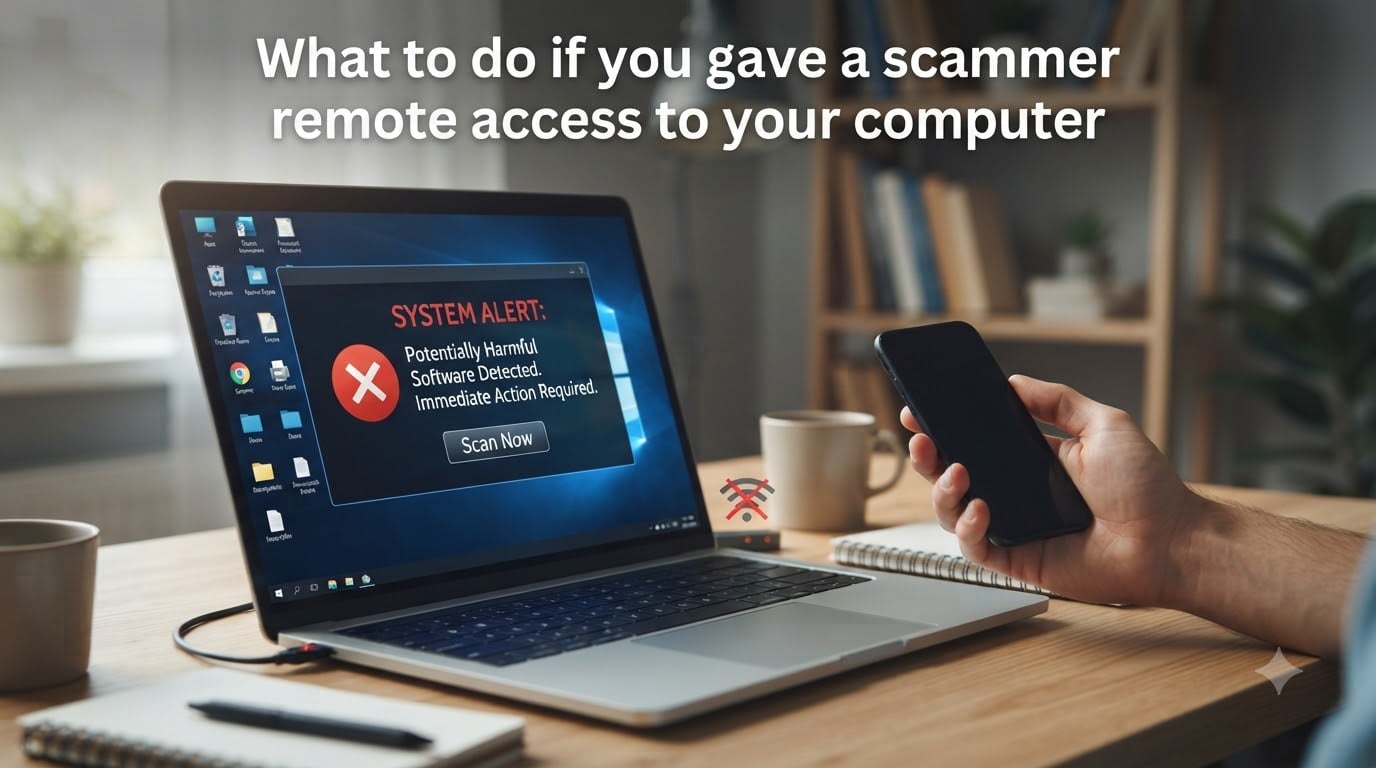
Take a breath. I know the panic that hits the moment you realize what just happened. I have walked people through this exact situation more times than I can count, and the truth is: you can recover. This guide covers exactly what to do if you gave a scammer remote access to your computer, in the right order, with the calm that you may not feel right now.
The first hour matters most. Scammers often work fast, installing malware, copying files, and grabbing saved passwords before you even realize they were a fraud. The faster you act, the less damage they can do. I will walk you through immediate disconnection, what they likely did during the session, how to clean your system, and how to lock down every account they may have touched.
Table of Contents
- What to Do if You Gave a Scammer Remote Access to Your Computer: First 5 Minutes
- What Scammers Can Actually Do With Remote Access?
- How to Tell if a Scammer Still Has Access to Your Computer
- Step-by-Step Recovery Process After a Remote Access Scam
- Should You Factory Reset or Clean Install Your Computer?
- Protect Your Bank Accounts, Identity, and Credit After a Scam
- How to Report a Remote Access Scam to the Authorities?
- How to Avoid Remote Access Scams in the Future?
- Frequently Asked Questions
- Final Thoughts on What to Do if You Gave a Scammer Remote Access
What to Do if You Gave a Scammer Remote Access to Your Computer: First 5 Minutes
The very first thing to do is disconnect from the internet. Pull the ethernet cable, turn off Wi-Fi, or disable your network adapter. Cutting the connection stops the scammer from continuing to control your computer in real time and prevents any installed malware from sending your data out.
If the scammer is actively on your screen, the second step is to shut the computer down using the physical power button. Do not click anything they may have placed on your screen. A forced shutdown breaks their remote session immediately.
Once you are disconnected, take a few minutes to write down everything you remember. Note the company name they claimed to represent, the phone number that called you, what software they had you install (TeamViewer, AnyDesk, LogMeIn, or others), and any accounts you logged into during the call. This record matters for both cleanup and for any report you may file later.
Take These Immediate Actions in Order
Unplug the ethernet cable or turn off Wi-Fi on the device.
Force shut down the computer by holding the power button.
Write down the scammer’s name, phone number, and software used.
Move to a different device for password resets and bank calls.
Do not turn the affected computer back on until you have a cleanup plan.
Do not delete the remote access software yet. We need its name for the cleanup step, and removing it while the scammer is connected could trigger something worse. Just disconnect, then breathe.
What Scammers Can Actually Do With Remote Access?
Once a scammer has remote access to your computer, they can do nearly anything you can do on it. That includes viewing your screen in real time, opening files, downloading your documents, and looking through your browser history.
More dangerously, they can access saved passwords in your browser, open email and banking accounts, install hidden malware that keeps working after the session ends, and copy your personal files, including photos, tax documents, and saved messages. I have seen cases where the scammer spent only 15 minutes inside but walked away with enough data to commit identity theft.
What they typically target in order: saved browser passwords, banking and email logins, crypto wallet files, personal photos and documents, and tax or financial records. Knowing this list helps you prioritize which accounts to change first.
How to Tell if a Scammer Still Has Access to Your Computer
To check if a scammer still has remote access, restart the computer and look for unfamiliar programs. Open your installed apps list and search for TeamViewer, AnyDesk, LogMeIn, Splashtop, RustDesk, or RemotePC. Any of these could be the tool the scammer installed.
Open Task Manager (Ctrl + Shift + Esc on Windows, Activity Monitor on Mac) and look at running processes. Anything you do not recognize is worth investigating. Right-click a process and search its name online to learn what it does.
You should also check your browser extensions, recently installed programs, and startup items. Scammers sometimes leave behind persistent tools that re-establish access the next time you go online.
Quick Detection Checklist
Check installed apps for TeamViewer, AnyDesk, or similar tools.
Review Task Manager for unfamiliar processes.
Look at browser extensions and remove anything suspicious.
Check startup programs for anything you did not install.
Watch for sudden fan noise or slow performance after restart.
If your computer runs slowly, fans spin loudly when idle, or programs open on their own, these can be signs of malware still running in the background.
Step-by-Step Recovery Process After a Remote Access Scam
Now that the immediate danger is contained, here is the full recovery process. Do these steps in order. I recommend setting aside a few hours so you do not feel rushed.
Step 1: Run a Full Antivirus Scan
Before touching anything else, boot into Safe Mode with Networking. On Windows, hold Shift while clicking Restart, then choose Troubleshoot, Advanced Options, Startup Settings, and Restart. Once in Safe Mode, run a full scan with Windows Defender or your installed antivirus. Allow it to quarantine or remove anything it flags.
Step 2: Remove the Remote Access Software
Uninstall any remote access tool the scammer installed. Open Settings, Apps, Installed Apps on Windows or the Applications folder on Mac, find the program, and uninstall it. This breaks any persistent connection the scammer left behind.
Step 3: Change Every Important Password From a Different Device
This step is critical and most people skip it. Using a phone or another computer, change passwords for your primary email first, then banking, then everything else. Enable two-factor authentication on every account that supports it. Saved passwords in your browser were likely exposed, so treat every stored login as compromised.
Step 4: Update Your Operating System and Software
Install any pending operating system updates and update your browser, antivirus, and other software. Updates patch the security holes the scammer may have tried to use.
Step 5: Check Your Router Settings
Log into your router (usually 192.168.1.1 or 192.168.0.1 in a browser) and check connected devices. Remove anything you do not recognize. Change the router admin password and make sure firmware is up to date.
Step 6: Watch Your Accounts Closely for 90 Days
Monitor bank statements, credit card activity, and email login alerts for the next 90 days. Identity thieves often wait weeks before using stolen credentials.
Should You Factory Reset or Clean Install Your Computer?
If the antivirus scan found serious malware, factory reset your computer. A factory reset wipes the drive and reinstalls the operating system, which removes almost all consumer-grade malware.
If you want absolute certainty, or if the scammer had extended, deep access, do a clean install instead. A clean install uses a USB installer to wipe everything and start fresh. Use it when factory reset did not fully clean the system or when you suspect rootkits.
Here is a simple rule our team follows. If the scammer only had a 5-minute screen share and your antivirus came back clean, you likely do not need a reset. If they had control for 30 minutes or more, or if you notice strange behavior after cleanup, do the factory reset. If you are dealing with potential ransomware or business data, go straight to a clean install.
Before You Reset, Back Up These Items
Documents you created yourself.
Photos you want to keep.
Browser bookmarks export.
Calendar and contact exports.
License keys for software you purchased.
Do not back up program files or anything from Program Files. Those can carry malware. Reinstall applications fresh from official sources after the reset.
Protect Your Bank Accounts, Identity, and Credit After a Scam
If you logged into your bank during the scam call, call your bank immediately using the number on the back of your card. Tell them you were the victim of a remote access scam. They will flag your account, watch for suspicious activity, and help you set up new credentials.
Place a fraud alert with one of the three credit bureaus (Equifax, Experian, or TransUnion). The bureau you contact is required to notify the other two. A fraud alert makes it harder for someone to open new credit in your name.
If your Social Security number or full banking credentials were exposed, consider a credit freeze instead. A freeze is stronger than an alert and stops new credit accounts from being opened at all. You can lift it later when you need to apply for credit.
Consider signing up for identity theft monitoring or dark web scanning. Many banks and insurance companies offer this for free, and it can alert you if your information appears in places it should not.
How to Report a Remote Access Scam to the Authorities?
Reporting the scam helps protect others and creates a paper trail in case you need to dispute charges or prove what happened. Report to two agencies.
First, file a report with the FTC at ReportFraud.ftc.gov. The FTC uses these reports to build cases against scam operations and can sometimes help with recovery.
Second, file a complaint with the FBI’s Internet Crime Complaint Center at ic3.gov. IC3 specifically tracks tech support and remote access scams and works with international law enforcement.
Keep copies of your reports. If your bank, insurance, or the police need proof, these reports are often the first thing they ask for.
How to Avoid Remote Access Scams in the Future?
The single most important rule: no legitimate tech company will ever contact you first. Microsoft, Apple, Google, your bank, and your internet provider do not cold-call, send pop-ups, or message you asking for remote access. If someone reaches out claiming there is a problem with your computer, it is a scam.
Real pop-ups from your operating system never include phone numbers to call. Real security warnings inside your browser do not ask you to install software. If a pop-up demands urgent action, that urgency is the scam.
Other habits that protect you going forward: never install remote access software on request, verify any tech support claim by calling the company using a number from their official website, use a password manager so saved logins are not exposed, and keep your operating system and antivirus up to date at all times.
Warning Signs You Can Memorize
An unsolicited call or pop-up about a virus on your computer.
Pressure to act immediately or pay right now.
Requests to install software you have never heard of.
Demands for payment in gift cards or wire transfers.
A caller who refuses to give you time to verify their identity.
If you see any of these, hang up or close the window. No real support agent will be offended by your caution.
Frequently Asked Questions
How do I check if someone is accessing my computer remotely?
Open your installed apps and look for remote access tools like TeamViewer, AnyDesk, LogMeIn, or Splashtop. Open Task Manager or Activity Monitor to view running processes and look for unfamiliar entries. Check your router’s connected devices list and remove anything you do not recognize. Sudden slow performance, loud fans, or programs opening on their own are also signs of active remote access.
How do I stop someone from having remote access to my computer?
Disconnect from the internet immediately by unplugging the ethernet cable or turning off Wi-Fi. Force shut down the computer using the power button to break the active session. Once you reboot safely, uninstall any remote access software the scammer installed. Then run a full antivirus scan, change all your passwords from a different device, and consider a factory reset if malware was installed.
Can a scammer get into your computer without you knowing?
Yes, scammers can install hidden background tools that re-establish access after the initial session ends. That is why simply closing the remote session is not enough. You need to check installed programs, running processes, browser extensions, and startup items, and run a full antivirus scan to find anything left behind.
How do I unlock my computer from a scammer?
Disconnect from the internet and force shut down the computer to break the active session. Boot into Safe Mode with Networking, run a full antivirus scan, and remove any remote access software you find. Change every important password from a different device, then contact your bank if you logged into any financial accounts during the call. If the scammer had extended access or installed unknown programs, back up your essential files and perform a factory reset.
Is it safe to turn my computer back on after a remote access scam?
It depends on whether you have cleaned it first. Turning it back on while the scammer still has the remote access software installed will let them reconnect. Disconnect from the internet before rebooting, boot into Safe Mode, run an antivirus scan, and uninstall the remote access tool before going back online normally.
Final Thoughts on What to Do if You Gave a Scammer Remote Access
Falling for a remote access scam is more common than people realize, and it does not mean you are careless. These scams are designed by professionals who specifically target stressed, distracted users. What matters now is what you do next.
Disconnect, scan, remove, change passwords, and report. Follow those five steps and you have done more than most people do after a security incident. If you remember nothing else from this guide, remember that cutting the internet connection is your single most powerful move, and that real tech companies never initiate contact with you first. Stay calm, act quickly, and you will come out of this with a clean computer and a much sharper eye for next time.