
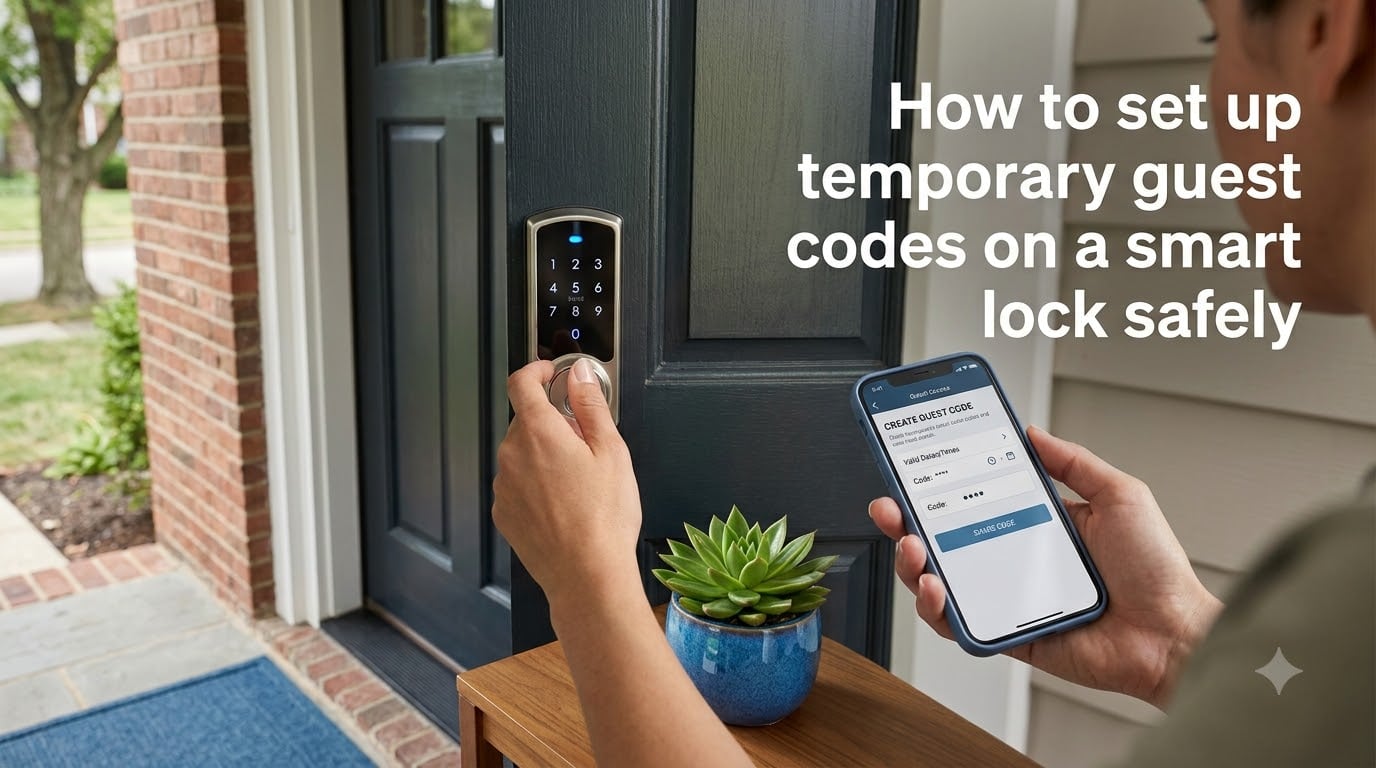
Learning how to set up temporary guest codes on a smart lock safely is one of the best upgrades you can make to your home security routine. I have spent the last three years testing smart locks across multiple homes, Airbnb rentals, and family properties. In that time, I have programmed hundreds of guest PINs, dealt with lockouts, and figured out exactly what works and what gets people locked out at midnight.
Temporary guest codes replace the old routine of hiding spare keys under mats or lending physical copies that never come back. A time-limited PIN gives a visitor access for exactly the window they need and then stops working automatically. You stay in control the entire time.
This guide walks through every step in plain language. I cover the types of access you can grant, the exact setup process for keypad and app-connected locks, safety practices most guides skip, and how to revoke codes when a visit ends. By the final section, you will be able to program guest access confidently on almost any smart lock on the market.
Table of Contents
- What Are Temporary Guest Codes and Why You Need Them?
- Types of Smart Lock Guest Access: Permanent, Scheduled, and One-Time
- How to Set Up Temporary Guest Codes on a Smart Lock Safely
- How to Set Up Guest Codes Remotely via Smartphone App
- Smart Lock Code Safety Best Practices
- How to Delete or Revoke Guest Codes After a Visit?
- Common Smart Lock Guest Code Problems and How to Fix Them
- Best Use Cases for Temporary Guest Codes
- FAQs
- Conclusion
What Are Temporary Guest Codes and Why You Need Them?
Temporary guest codes are time-limited PIN numbers that let someone unlock your smart lock through the keypad. Unlike a standard code that works every day, a temporary code expires on a schedule you define. Some locks also support one-time codes that stop working after a single use.
I started using guest codes when I rented my spare room on Airbnb. Handing physical keys to strangers felt risky, and tracking who returned what became a headache. With temporary PINs, every guest got a unique code tied to their stay. When they checked out, the code died on its own.
The same logic applies to plenty of other situations. Dog walkers, house cleaners, contractors, and visiting family all need access without needing a permanent key. A guest code gives them entry and gives you a record of exactly when the door was opened.
Here is who benefits most from temporary guest codes:
Homeowners with frequent visitors who want controlled access without key copies
Airbnb and rental hosts who need to program codes remotely between guests
Property managers handling turnover for multiple units
Families who want to grant access to caregivers or pet sitters on a schedule
Every smart lock handles guest codes slightly differently, but the core concept is universal. You create a PIN, set the rules for when it works, and the lock enforces those rules at the keypad.
Types of Smart Lock Guest Access: Permanent, Scheduled, and One-Time
Smart locks typically offer three to four types of guest access, and understanding the difference matters for security. Picking the right type prevents codes from staying active longer than they should.
Permanent PIN Codes
A permanent code works every day with no expiration. You assign it once and it stays valid until you manually delete it. Use this for family members or long-term residents who need unrestricted access.
I keep permanent codes limited to two or three people at most. The fewer permanent codes on a lock, the easier it is to track who has ongoing access and rotate codes when needed.
Scheduled or Recurring Codes
Scheduled codes work only during specific days and times you define. A recurring code might unlock the door every Tuesday from 10 AM to 2 PM for a house cleaner. Outside that window, the PIN does nothing.
This is my favorite feature for service providers. The cleaner never sees the code stop working, but if they try the door on a Saturday, the lock rejects it. Recurring access keeps your home secure without requiring you to manually delete and recreate codes each week.
Duration Codes
Duration codes activate at a start time and deactivate at an end time. Think of a weekend guest who arrives Friday at 4 PM and leaves Sunday at noon. The code works for that entire span and then expires on its own.
Duration codes are what most people mean when they say temporary guest access. They are the standard choice for holiday visitors and short-term rental guests.
One-Time Codes
A one-time code works for a single unlock and then becomes useless. This is ideal for package deliveries, a friend picking something up quickly, or a contractor who needs entry exactly once.
Some locks generate one-time codes automatically through the app, while others require manual setup. Either way, the code dies after one use, which makes it the most restrictive and secure option available.
Quick Comparison of Access Types
Permanent: No expiration, best for family and trusted residents
Scheduled/Recurring: Works on set days and times, best for weekly service providers
Duration: Active during a date range, best for weekend guests and rentals
One-Time: Expires after one use, best for deliveries and single visits
Match the code type to how long the person actually needs access. The tighter the window, the smaller the security risk.
How to Set Up Temporary Guest Codes on a Smart Lock Safely
Setting up a temporary guest code follows a consistent process across most smart lock brands. The exact button sequences vary between Kwikset, Schlage, August, Yale, and Samsung, but the workflow is the same. Here is the step-by-step method I use every time.
Step 1: Enter Programming Mode
Programming mode is the administrative state that lets you add, change, or delete codes. On most keypad locks, you enter it by pressing a specific button combination or using the master code followed by a setup command.
On a Kwikset SmartCode lock, for example, you press the lock button, enter your programming code, press the lock button again, then press the specific digit that corresponds to adding a user code. The lock beeps or flashes to confirm it is ready for input.
Check your lock’s manual for the exact sequence. Getting this wrong usually just results in an error beep and no changes, so there is no risk of accidentally wiping existing codes.
Step 2: Assign a Unique PIN to the Guest
Once in programming mode, enter the new code you want to assign. Most smart locks accept 4 to 8 digit codes. I recommend using at least 6 digits for guest codes because longer PINs are harder to guess.
Avoid obvious patterns like 1234, 0000, or the current year. Random number sequences are best. Some apps generate random codes automatically, which takes the guesswork out of choosing a secure PIN.
Give each guest their own code rather than sharing one code among multiple visitors. Individual codes create an entry log that shows exactly who unlocked the door and when. If two cleaners share a code and something goes wrong, you cannot tell which person was responsible.
Step 3: Set the Expiration or Schedule
If your lock supports timed access, this is where you define when the code stops working. On app-connected locks, you select a start date, end date, and optionally specific hours. On keypad-only locks, you may need to manually delete the code after the visit.
For app-connected August locks, open the guest list, tap the user, select PIN Access, and choose Temporary. Then set the date range. For Yale or Schlage Encode locks with Wi-Fi, the process is similar through the respective apps.
Set the expiration for slightly after the guest plans to leave. I usually add a two-hour buffer past checkout time so guests are not locked out if they run late, but the code still expires the same day.
Step 4: Confirm the Code Works
Before handing the code to your guest, test it yourself at the keypad. Enter the PIN, confirm the lock opens, and then check that it only works within the schedule you set. Testing catches typos and programming errors before they become real problems.
This step takes thirty seconds and has saved me from sending guests a wrong code more times than I can count.
Step 5: Share the Code Securely
Send the guest code through a private, encrypted channel. A direct text message to their phone is fine. A shared Google Doc, group chat, or email forwarded to others is not.
I use a simple text message: “Your door code is 729184. It works from Friday 4 PM to Sunday noon. Let me know if you have any trouble.” Short, clear, and private.
How to Set Up Guest Codes Remotely via Smartphone App
Remote code creation is where app-connected smart locks separate themselves from basic keypad models. If your lock has Wi-Fi or connects through a bridge device, you can program guest codes from anywhere using your phone.
This capability is essential for rental hosts and property managers. I manage a rental property two hours from where I live, and remote programming means I never need to drive there just to set up a door code.
What You Need for Remote Access
Your lock needs a live internet connection to receive commands from the app. This usually means one of three setups. The lock connects to your home Wi-Fi directly, it pairs with a brand-specific gateway or bridge plugged into your router, or it uses a built-in cellular module.
Without one of these connections, the lock works locally at the keypad but cannot receive remote commands. The keypad itself always functions regardless of internet status, which is an important fallback I will cover in the safety section.
Creating a Code from the App
Open your lock’s companion app and navigate to the user or guest management section. Most apps label this Guest List, Access Codes, or Users. Tap the option to add a new guest, enter their name, assign a PIN, and select the access type.
Choose Temporary or Scheduled, set the date and time window, and save. The app sends the instruction to the lock over the internet, and the new code is active within seconds. You get a confirmation in the app when the code is live.
Real-Time Entry Alerts
Most app-connected locks send push notifications when a code is used. You can see the guest’s name, the time of entry, and which door they opened. Some locks let you set alerts only for specific codes, so you know the moment your cleaner arrives without getting notified every time a family member comes home.
Reddit users in the home automation community frequently ask how to set up code-specific notifications. The answer depends on your lock brand. August, Yale Access, and Schlage Sense all support per-user alerts natively. For other locks, a smart home hub like Samsung SmartThings or Apple HomeKit can add this layer.
Smart Lock Code Safety Best Practices
Programming a guest code is easy. Programming it safely takes a few extra steps that most people skip. These practices come from real mistakes I have seen and made, and they close the biggest security gaps in smart lock guest access.
Never Share Your Master or Admin Code
Your master code, sometimes called the admin or programming code, controls the entire lock. Anyone with the master code can add users, delete codes, change lock settings, and factory reset the device. Never give this code to a guest, cleaner, or tenant.
I keep my master code written down in a physical safe, not on my phone or in a cloud note. If someone compromises your phone, they should not find the code that controls your front door.
If you suspect your master code has been seen or shared, change it immediately. Most locks let you update the programming code from the keypad or app.
Use One Code Per Person
Sharing a single code among multiple guests destroys your ability to track entries. When every person uses the same PIN, the entry log becomes useless for identifying who came and went. One code per person keeps the audit trail accurate.
This matters most for rental properties. If a guest reports something missing after their stay, individual codes let you verify who accessed the property and at what times.
Choose Long, Random PINs
A 4-digit code has 10,000 possible combinations. A 6-digit code has one million. Longer codes dramatically reduce the chance of someone guessing correctly or shoulder-surfing the keypad.
Use random digits rather than birthdays, addresses, or repeating patterns. If your lock’s app can auto-generate codes, turn that feature on and let it handle the randomness.
Share Codes Through Private Channels Only
Text messages and encrypted messaging apps are good channels for sharing codes. Group chats, shared documents, printed notes, and email threads forwarded to others are bad channels. Treat a door code the same way you treat a bank PIN.
After the visit, delete the message containing the code from your phone and ask the guest to do the same. A code that has already expired is harmless, but building good habits prevents accidental sharing of active codes in the future.
Know Your Wi-Fi Outage Fallback
This is the gap most guides miss. When your Wi-Fi goes down, app features stop working. You cannot create codes remotely, view the entry log, or receive alerts. But the keypad keeps working.
Every code you programmed previously stays active at the lock itself. The lock stores codes in its local memory, not in the cloud. This means your guests can still get in using their PIN even if your router is offline.
The catch is that you cannot create new codes during an outage. If a new guest arrives and you have not pre-programmed their code, you need a backup plan. I keep one spare permanent code reserved for emergencies, and I change it after the situation is resolved.
Enable Auto-Lock
Auto-lock automatically locks the door after it has been unlocked for a set period, usually 30 seconds to 5 minutes. This prevents a guest from accidentally leaving your door unlocked after entering.
I set my auto-lock to 60 seconds. That gives someone enough time to open the door, step inside, and close it behind them before the lock engages. Shorter windows risk locking people out mid-entry, and longer windows defeat the purpose.
How to Delete or Revoke Guest Codes After a Visit?
Removing a guest code when it is no longer needed is just as important as creating it. Even if a code is set to expire automatically, manually deleting it after a visit is a good habit that keeps your lock’s code list clean and manageable.
Manual Deletion at the Keypad
To delete a code manually, enter programming mode using your master code. Navigate to the delete or remove user function, enter the code you want to remove, and confirm. The lock beeps or flashes to confirm deletion.
On most locks, the exact sequence mirrors the code creation process but with a different command digit. Your manual will list the specific steps for your model.
Deletion Through the App
For app-connected locks, open the guest list, find the user, and tap delete or revoke access. The change syncs to the lock over the internet within seconds. This is the fastest method and works from anywhere.
I delete rental guest codes the moment a guest confirms they have left. There is no reason to wait for an auto-expiration when manual deletion takes five seconds and removes any doubt.
Auto-Expiring Codes
If you set a duration or one-time code, the lock handles expiration automatically. The code stops working at the scheduled time without any action from you. This is the lowest-effort option and the reason I always use duration codes for short-term guests.
Even with auto-expiration, review your active code list once a month. Old codes that were supposed to expire sometimes linger due to sync errors or app glitches. A monthly check takes two minutes and catches any stragglers.
Review the Entry Log
After deleting a guest code, check the entry log for the visit period. Look for entries that match the guest’s code and confirm there was no unexpected activity. The log shows the time and code used for each entry, giving you a full picture of access during the visit.
If you see entries at odd hours or on unexpected days, investigate. It might mean the guest had a different schedule than planned, or it could indicate the code was shared with someone else.
Common Smart Lock Guest Code Problems and How to Fix Them
Smart locks are generally reliable, but guest access issues do come up. Forum discussions on Reddit reveal the same problems repeatedly. Here are the most common issues and how I handle each one.
App Updates Breaking Guest Access
This is the number one complaint in smart home communities. A lock manufacturer releases an app update, and suddenly the guest access feature moves, changes, or disappears. Samsung SmartThings users experienced this when the guest access tab vanished from the app interface after a redesign.
The fix is usually straightforward. The feature did not disappear, it moved. Check the device settings, look for a lock-specific submenu, or search within the app for guest or access management. If you genuinely cannot find it, check the manufacturer’s support page for updated instructions.
I recommend keeping your lock’s app updated but reading release notes before installing. If a major interface change is coming, know where your guest features are moving before you need them.
Guest Codes Not Working at the Keypad
When a guest enters their code and the lock does not respond, the most common cause is a sync failure. The code was created in the app but never reached the lock’s local memory. This happens when the lock’s Wi-Fi connection drops between code creation and guest arrival.
To fix this, open the app and check the lock’s connection status. If the lock shows as offline, wait for it to reconnect, then resend or re-create the code. For keypad-programmed codes, verify that the code was saved correctly by testing it yourself.
Another cause is entering the wrong access type. If you accidentally created a scheduled code set for the wrong days, it will not work outside that schedule. Double-check the date and time settings for the code.
Guests Getting Locked Out
A lockout usually means the code expired before the guest finished their visit, or the lock’s battery died. For code expiration, set the end time with a buffer past the expected departure. For battery issues, most smart locks warn you weeks in advance through the app. Do not ignore low battery alerts.
Kwikset Halo users on Reddit report regular guest inconvenience due to connectivity drops. If you manage a rental property, keep a backup access method ready. A mechanical key override, a backup permanent code given to a trusted neighbor, or a lockbox with a spare key all work as fallbacks.
Cannot Set Code-Specific Notifications
Many smart lock apps support per-user notifications, but the setting is often buried in menus. In the August app, select the guest, tap notification settings, and enable entry alerts for that user. In Schlage Sense, notification settings live under each access code’s profile.
If your lock’s native app does not support per-code alerts, connect the lock to a smart home platform. SmartThings, Apple HomeKit, and Google Home all offer more granular notification controls than most manufacturer apps.
Best Use Cases for Temporary Guest Codes
Different situations call for different access strategies. Here is how I configure guest codes for the most common scenarios.
Holiday Guests and Visiting Family
For weekend or week-long visits, I use a duration code. Set it to activate a few hours before arrival and expire the morning of departure. This gives family members freedom to come and go without needing me to unlock the door each time.
Airbnb and Short-Term Rentals
For rental guests, program a unique code per booking that starts at check-in and ends at check-out. Send the code by text the morning of arrival. Airbnb hosts on Reddit emphasize that remote programming is non-negotiable for managing turnovers smoothly between guests.
Recurring Service Providers
For dog walkers, house cleaners, and landscapers, use a scheduled or recurring code. Set it to work only during their expected service window. The code stays valid indefinitely but only on the right days and times, so you never need to reprogram it each week.
Contractors and One-Time Visitors
For a plumber, electrician, or delivery that needs entry once, use a one-time code. It expires immediately after use, leaving no lingering access. If the person needs to come back another day, generate a fresh one-time code for that visit.
FAQs
How to set a temporary code on Kwikset lock?
Press the Program button on the interior of the lock, enter your master code, press the lock button, press the digit for adding a user code, enter the new code, and press the lock button to confirm. For timed access on Kwikset Halo or Halo Touch, use the Kwikset app to create a guest, assign a PIN, and set the expiration window.
How to set up code on smart lock?
Enter programming mode using your master or admin code, select the option to add a user code, enter the new PIN at the keypad, and confirm. On app-connected locks, open the app, go to the guest or user list, add a new guest, assign a PIN, choose the access type, and save.
Can I change the smart lock code remotely?
Yes, if your lock has Wi-Fi or connects through a bridge device. Open the lock’s companion app, find the guest or code you want to change, delete the old PIN, and create a new one. The change syncs to the lock over the internet within seconds.
How do I add a user to Smart Lock?
Open your lock’s app, navigate to the guest or user management section, tap add new user or guest, enter the person’s name, assign a unique PIN code, select the access type (permanent, scheduled, or temporary), set the time window if applicable, and save the profile.
How long do temporary codes last on smart locks?
Temporary codes last exactly as long as you set them. Duration codes can be configured for hours, days, or weeks. Scheduled codes work only during specified time windows. One-time codes expire after a single use. You control the lifespan when you create the code.
Conclusion
Setting up temporary guest codes on a smart lock safely comes down to five core steps. Enter programming mode, assign a unique PIN per guest, set the right expiration window, test the code before sharing, and delete it when the visit ends. Those steps work on almost every smart lock from Kwikset to Yale to August.
The safety practices make the difference between casual use and real security. Never share your master code. Use long random PINs. Share codes only through private messages. And remember that your keypad keeps working even when Wi-Fi does not.
Start by reviewing your lock’s current code list today. Delete old codes you no longer recognize, change your master code if you have never done so, and set up a test guest code to practice the workflow. A few minutes of setup now prevents lockouts, confusion, and security gaps later.