
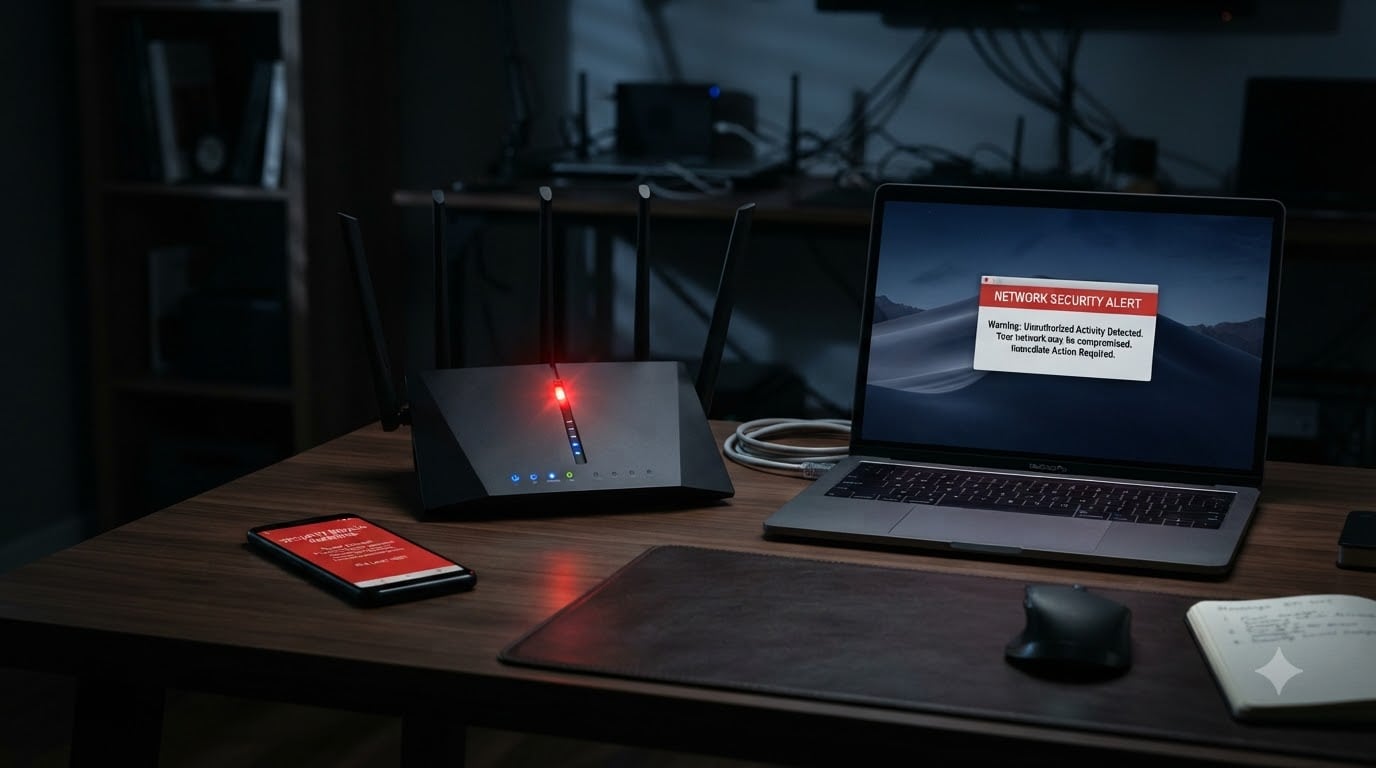
Learning how to tell if someone hacked your Wi-Fi router could save you from stolen bank credentials, identity theft, and months of headaches. Your router is the single gateway between every device in your home and the internet. When an attacker breaches it, they can intercept traffic, redirect you to phishing sites, or quietly enlist your router into a botnet used for larger cyberattacks.
I have spent years helping friends, family, and colleagues diagnose home network issues. In my experience, most people never think about router security until something goes obviously wrong. By then, the damage may already be done.
This guide walks you through every warning sign to watch for, the exact steps to verify whether your router has been compromised, and what to do if it has. Whether you are dealing with mysteriously slow internet or you got locked out of your own admin panel, you will find clear, actionable answers here.
Table of Contents
- Quick Diagnostic Checklist: Is Your Router Compromised?
- 10 Warning Signs Your Wi-Fi Router Has Been Hacked
- 1. Your Router Login Password No Longer Works
- 2. Unknown Devices Appear on Your Network
- 3. Your DNS Settings Have Been Changed
- 4. Browser Redirects and Unexpected Pop-Ups
- 5. Sudden, Unexplained Slow Internet Speed
- 6. Your Wi-Fi Network Name (SSID) Changed
- 7. Your Internet Activity Light Blinks When Nothing Is Connected
- 8. Ransomware Messages or Fake Security Alerts
- 9. Software Installed Without Your Permission
- 10. Your ISP Flags Unusual Data Usage
- How to Tell If Someone Hacked Your Wi-Fi Router: Step-by-Step Verification
- What to Do If Your Router Has Been Hacked
- How to Prevent Router Hacking in 2026?
- FAQs
- Conclusion
Quick Diagnostic Checklist: Is Your Router Compromised?
If you want a fast answer before reading the full guide, run through these five checks right now. Each one takes under two minutes.
1. Try logging into your router admin panel. Open a browser and type your router’s IP address (usually 192.168.0.1, 192.168.1.1, or 10.0.0.1). If your usual username and password no longer work, that is an immediate red flag.
2. Check the connected devices list. Once inside the admin panel, look for the DHCP client list or connected devices section. Count every device. If you see more entries than phones, laptops, and smart devices in your home, someone else may be on your network.
3. Run a DNS settings check. Look at the DNS server settings in your router. If they point to unfamiliar IP addresses instead of your ISP’s default DNS or a provider you personally configured (like Cloudflare or Google), your traffic may be getting hijacked.
4. Test your internet speed. Run a speed test at a trusted site. If speeds drop dramatically compared to your plan, and your ISP reports no outage, unauthorized devices or malicious background activity could be the cause.
5. Check for browser redirects. Visit a few well-known websites. If you get redirected to unfamiliar pages, see unexpected pop-up ads, or receive fake virus warnings, your router’s DNS may have been tampered with.
If any of these checks raised concerns, read on. The following sections break down every sign in detail and walk you through full verification and recovery.
10 Warning Signs Your Wi-Fi Router Has Been Hacked
Router hacks rarely announce themselves with flashing alarms. The signs are subtle, and many people mistake them for normal aging hardware or ISP issues. Here are the ten most common symptoms of a compromised router, based on both cybersecurity research and real user reports from communities like Reddit’s r/HomeNetworking and r/techsupport.
1. Your Router Login Password No Longer Works
This is one of the most definitive signs of a router hack. If you type your usual admin credentials into the router’s login page and they are rejected, an attacker likely changed them to lock you out and maintain persistent access.
Many users on Reddit’s tech support forums report this exact scenario. They go to update a setting, discover their password is wrong, and realize weeks may have passed since the actual breach. If you did not change the password yourself, someone else did.
2. Unknown Devices Appear on Your Network
Every device that connects to your Wi-Fi gets assigned an IP address and appears in your router’s connected devices list. If you see devices you do not recognize, whether unfamiliar phone names, random MAC addresses, or computers you never owned, someone has access to your network.
I recommend checking this list weekly. Open your router admin panel, find the DHCP client list or attached devices section, and match each entry to a device in your home. Anything unaccounted for needs investigation.
Keep in mind that smart home devices like TVs, thermostats, and smart plugs may show up with cryptic names. Cross-reference unfamiliar entries before assuming the worst.
3. Your DNS Settings Have Been Changed
DNS hijacking is one of the most common and dangerous router attacks. DNS, or Domain Name System, translates website names into IP addresses. When an attacker changes your router’s DNS servers, every website request from every device on your network routes through servers they control.
This lets attackers redirect you to convincing phishing clones of your bank, email provider, or shopping sites. You type your real credentials into a fake page, and the attacker captures them.
Check your DNS settings in the router admin panel under WAN, Internet, or Network settings. Common default DNS entries from your ISP look like clusters of numbers. If you see unfamiliar DNS IPs you never configured, investigate immediately.
4. Browser Redirects and Unexpected Pop-Ups
If your browser suddenly starts sending you to websites you did not type, or you see a surge of pop-up advertisements across multiple devices, your router may be the culprit. This happens when attackers modify DNS settings or inject scripts at the network level.
The key distinction here: if redirects happen on only one device, the issue is likely malware on that specific device. If redirects happen across every phone, laptop, and tablet on your network, the router is the common factor.
Pay special attention to fake antivirus warnings or pages claiming your device is infected. These are classic phishing attempts designed to get you to download malware or pay for fake security software.
5. Sudden, Unexplained Slow Internet Speed
A sudden and persistent drop in internet speed can indicate your router has been compromised. Attackers may use your network bandwidth to carry out attacks, download illegal content, or route traffic through your connection.
Before blaming a hack, run through the usual troubleshooting. Restart your router, check for ISP outages in your area, and test your speed with a wired Ethernet connection to rule out Wi-Fi interference.
If the speed drop persists across wired and wireless connections, and your ISP confirms no issues on their end, unauthorized activity on your router is a strong candidate.
6. Your Wi-Fi Network Name (SSID) Changed
If your Wi-Fi network name suddenly looks different from what you set, someone has accessed your router settings and changed it. This sometimes happens as a taunt from the attacker or as a side effect of a factory reset triggered by malware.
Legitimate SSID changes only happen when you or someone in your household makes them, or if your ISP pushes a firmware update that resets settings. If neither applies, your router has been accessed without authorization.
7. Your Internet Activity Light Blinks When Nothing Is Connected
Most routers have LED indicators that show internet activity. If every device in your home is off or disconnected and the activity light continues blinking rapidly, data is flowing through your router to an unknown destination.
This could mean an attacker is actively using your connection, or that malware on a compromised device is communicating with a command-and-control server. Either way, traffic you did not initiate is crossing your network.
8. Ransomware Messages or Fake Security Alerts
In severe cases, a compromised router can lead to ransomware messages appearing on your devices. Attackers may use DNS hijacking to display fake FBI warnings, claim illegal activity was detected, or demand payment in cryptocurrency.
These messages often appear across multiple devices simultaneously because the compromise is at the router level, not on individual devices. Never pay the ransom. Instead, disconnect your router from the internet and follow the recovery steps later in this guide.
9. Software Installed Without Your Permission
If you notice unfamiliar programs, browser extensions, or apps appearing on your devices, a compromised router may be redirecting your downloads. Attackers can intercept legitimate download requests and serve malware-laden versions instead.
This is particularly dangerous because the malicious software often looks legitimate. Always verify downloads through checksums or by downloading from the official source on a different network, like mobile data.
10. Your ISP Flags Unusual Data Usage
Many internet service providers send alerts when data usage spikes abnormally. If your ISP notifies you of massive data consumption that does not match your habits, someone may be using your router to download or stream large amounts of data.
Check your monthly data usage through your ISP’s portal or app. Compare it to your typical patterns. A sudden tenfold increase with no change in your own behavior is a serious warning sign that demands investigation.
How to Tell If Someone Hacked Your Wi-Fi Router: Step-by-Step Verification
Recognizing warning signs is only half the battle. Now I will walk you through the exact verification process so you can confirm whether your router has actually been compromised. These steps require no special tools beyond a web browser and about thirty minutes of your time.
Step 1: Access Your Router’s Admin Panel
Open a web browser on a device connected to your Wi-Fi network. Type your router’s IP address into the address bar. The most common addresses are 192.168.0.1, 192.168.1.1, and 10.0.0.1.
If none of those work, you can find the correct address on Windows by opening Command Prompt and typing “ipconfig.” Look for the Default Gateway entry. On a Mac, go to System Settings, then Network, click your connection, and check the Router field.
Enter your admin username and password. If you never changed them from the factory defaults, check the sticker on the bottom or back of your router. If those default credentials were never changed, change them immediately after logging in. Default admin passwords are publicly listed and are the easiest way attackers gain access.
Step 2: Review the Connected Devices List
Once inside the admin panel, look for a section called Connected Devices, DHCP Client List, Attached Devices, or something similar depending on your router brand. This list shows every device currently or recently connected to your network.
For each entry, note the device name, IP address, and MAC address. Go through your home and mentally match each entry to a physical device. Phones, laptops, tablets, smart TVs, streaming devices, game consoles, smart speakers, and even appliances like smart fridges should all be accounted for.
Reddit users in r/HomeNetworking frequently recommend checking the ARP table if your router provides that option. The ARP table maps IP addresses to MAC addresses and can reveal devices that might be hiding from the basic client list.
Any device you cannot identify needs further attention. You can look up the first six characters of a MAC address in an online OUI lookup tool to see the manufacturer, which helps narrow down what type of device it might be.
Step 3: Check DNS Server Settings
Navigate to the WAN, Internet, or Network settings section of your admin panel. Look for DNS server entries. Your router typically has a primary and secondary DNS server listed.
If you never configured DNS manually, these should match your ISP’s default values. If you see IP addresses you do not recognize, write them down. You can search for these IPs to see which DNS provider they belong to.
For reference, well-known secure DNS providers include Cloudflare at 1.1.1.1 and 1.0.0.1, Google at 8.8.8.8 and 8.8.4.4, and Quad9 at 9.9.9.9. If you configured one of these yourself, that is fine. Unknown DNS servers that route to random IP addresses are a strong sign of DNS hijacking.
Step 4: Inspect Firmware Version and Security Settings
Look for a section called Firmware Update, System Information, or Router Status. Check the firmware version and date. If the firmware is months or years old, known security vulnerabilities may exist that attackers can exploit.
While in the admin panel, verify these security settings:
Encryption type: Should be WPA2-AES or WPA3. If it shows WEP or WPA, those are outdated and crackable in minutes.
Remote management: Should be disabled unless you specifically need it. Remote management allows access to your router from the internet, which is a major attack surface.
WPS (Wi-Fi Protected Setup): Should be disabled. WPS has known vulnerabilities that allow attackers to brute-force the PIN and gain access to your network.
UPnP (Universal Plug and Play): Consider disabling if you do not need it. UPnP can automatically open ports that attackers exploit.
Firewall: Should be enabled. A disabled firewall on the router leaves your entire network exposed.
Step 5: Run a Network Scan
For a deeper investigation, you can use free network scanning tools. Fing is a user-friendly mobile and desktop app that scans your network and lists every connected device with identifying details. It flags unknown devices and potential security issues.
For more technically inclined users, Wireshark provides deep packet inspection. Reddit users in r/cybersecurity frequently recommend it for analyzing what data is actually flowing through your network. If you see traffic to unfamiliar destinations when your devices are idle, that warrants concern.
Another option is Nmap, a command-line tool that scans for open ports on your router. Open ports you did not configure could indicate an attacker has opened a backdoor for remote access.
Step 6: Check Router Logs
Many routers keep logs of login attempts, connection events, and system changes. Look for a section called System Log, Security Log, or Event Log. Check for repeated failed login attempts from unfamiliar IP addresses, which indicates someone is trying to brute-force your admin password.
Also look for entries showing configuration changes you did not make, firmware modifications, or new services being enabled. Suspicious log entries help you understand what happened and when the compromise may have started.
What to Do If Your Router Has Been Hacked
If your verification confirms a hack, take action immediately. The longer a compromised router stays online, the more damage an attacker can do. Follow these recovery steps in order.
Step 1: Disconnect the Router From the Internet
Unplug the WAN cable (the cable connecting your router to your modem or wall outlet) or power off the modem. This cuts the attacker’s connection while keeping your local network active for the recovery process.
Keep your devices connected to the router’s Wi-Fi for now, but understand that internet access is cut. This prevents any further data exfiltration while you work.
Step 2: Factory Reset Your Router
A factory reset wipes all settings and returns the router to its out-of-the-box state, removing any malicious configuration changes the attacker made. Find the reset button, usually a small recessed button on the back or bottom of the router.
Use a paperclip or pin to press and hold the reset button for 10 to 30 seconds until the router’s lights flash. Wait for it to fully reboot, which typically takes two to five minutes.
Keep in mind that a factory reset erases every custom setting, including your Wi-Fi name, password, port forwarding rules, and any parental controls. You will need to reconfigure everything from scratch.
Step 3: Update Firmware Immediately
After the reset, before doing anything else, check for firmware updates. A reset restores the firmware version that shipped with the router, which may have known vulnerabilities. Installing the latest firmware patches security holes that attackers exploit.
Look for a Firmware Update option in the admin panel. Some modern routers update automatically after setup, but older models require manual checks. If your router manufacturer has stopped releasing firmware updates for your model, seriously consider replacing it. Running unsupported firmware is a permanent security risk.
Step 4: Change All Passwords
Set a new, strong admin password for the router itself. Use at least 16 characters with a mix of letters, numbers, and symbols. Never reuse a password you have used anywhere else.
Then change your Wi-Fi network password. Choose a WPA2 or WPA3 password that is long and unpredictable. After changing it, reconnect each of your devices manually.
Finally, change passwords for important online accounts, especially your email, bank, and any service where you entered credentials while the router may have been compromised. If the attacker was intercepting traffic through DNS hijacking, they may have captured login details.
Step 5: Configure Secure DNS
Instead of relying on your ISP’s default DNS, set your router to use a trusted, security-focused DNS provider. Here is how the top options compare:
Cloudflare DNS (1.1.1.1 and 1.0.0.1): Fast, privacy-focused, does not log your browsing data. Good general-purpose choice for speed and privacy.
Google DNS (8.8.8.8 and 8.8.4.4): Highly reliable and fast. Google does collect some usage data but offers strong security against DNS-level attacks.
Quad9 DNS (9.9.9.9): Security-focused, automatically blocks requests to known malicious domains. Best option if you want built-in protection against phishing and malware sites.
I personally recommend Quad9 for routers that have been previously compromised, as it adds an active layer of filtering against malicious destinations.
Step 6: Reconfigure Security Settings
Go through every security setting in your admin panel and lock it down. Disable remote management, disable WPS, enable the firewall, set encryption to WPA3 or WPA2-AES, and disable UPnP if you do not need it.
Set up a guest network for visitors and IoT devices. Smart home devices like cheap security cameras and smart plugs often have weak security and are frequent entry points for attackers. Putting them on a separate guest network isolates them from your primary devices.
Step 7: Monitor for Recurrence
After recovery, check your connected devices list daily for the first week. Run periodic speed tests to establish a new baseline. If symptoms return, your attacker may have a persistent method of access, such as malware on a connected device or a vulnerability in your ISP-provided equipment.
In that case, consider replacing the router entirely, especially if it is more than five years old or the manufacturer has stopped supporting it with firmware updates.
How to Prevent Router Hacking in 2026?
Recovery is stressful. Prevention is far easier. Here are the most effective steps you can take right now to keep your router secure against attacks.
Change Default Admin Credentials
This is the single most important step. Default usernames and passwords for every major router brand are published online. Attackers run automated scanners that test these defaults against millions of routers. If yours still uses “admin” and “password,” you are a sitting target.
Change both the username and password to something unique and strong. Write it down and store it somewhere physical, not in a note on your phone.
Keep Firmware Updated
Firmware updates patch security vulnerabilities that manufacturers discover. Check for updates monthly, or enable automatic updates if your router supports it. Some modern mesh Wi-Fi systems like Eero and Nest Wifi handle this automatically in the background.
If your router is no longer receiving firmware updates from the manufacturer, replace it. There is no workaround for unpatched vulnerabilities.
Use WPA3 or WPA2 Encryption
WPA3 is the current standard for Wi-Fi encryption and offers significantly better protection against brute-force attacks than WPA2. If your router supports WPA3, enable it. If not, WPA2-AES is still secure when paired with a strong password.
Never use WEP or WPA encryption. Both can be cracked in under a minute using freely available tools, regardless of how complex your password is.
Disable Remote Management
Remote management allows you to access your router’s admin panel from outside your home network. While convenient, it also exposes your router to the entire internet. Unless you have a specific need for remote access, disable this feature entirely.
Set Up a Guest Network
Most modern routers support a guest network feature. This creates a separate Wi-Fi network that cannot access your main devices. Use it for visitors, smart home devices, and any IoT equipment with questionable security.
Smart devices like budget security cameras, smart bulbs, and cheap smart plugs are notoriously insecure. They rarely receive firmware updates and can give attackers a foothold on your network. Isolating them on a guest network limits the damage if one gets compromised.
Disable WPS and UPnP
WPS lets devices connect by pressing a button or entering an 8-digit PIN. The PIN method has a design flaw that lets attackers guess it within a few hours of brute-force attempts. Disable WPS entirely.
UPnP automatically opens network ports for applications that request them. While convenient for gaming and some software, it can also open ports for malware. Disable it unless you have a specific application that requires it.
Use Strong, Unique Wi-Fi Passwords
Your Wi-Fi password should be at least 16 characters long, include a mix of character types, and not be used anywhere else. Avoid basing it on personal information like names, addresses, or phone numbers. A passphrase made of four random words is both strong and easy to remember.
FAQs
Can I tell if my router has been hacked?
Yes. Log in to your router admin panel (usually at 192.168.0.1 or 192.168.1.1) and check for changed DNS settings, unfamiliar devices in the connected devices list, altered admin passwords, or disabled security features like your firewall and encryption. If any of these are different from what you configured, your router may be compromised.
Can you tell if someone is accessing your Wi-Fi?
You can check by opening your router admin panel and reviewing the connected devices or DHCP client list. Every device using your Wi-Fi appears here with a name, IP address, and MAC address. If you see devices you do not own or recognize, someone is accessing your network without permission. Tools like the Fing app can also scan and identify all connected devices automatically.
Can hackers get into your Wi-Fi router?
Yes, hackers can access Wi-Fi routers through several methods including brute-forcing weak or default admin passwords, exploiting unpatched firmware vulnerabilities, abusing WPS PIN weaknesses, and tricking users into visiting malicious websites that exploit router vulnerabilities. Routers with outdated firmware and default credentials are the most common targets.
Does unplugging a router stop hackers?
Unplugging or power-cycling a router temporarily cuts the attacker’s connection, but it does not fix the underlying compromise. When the router reconnects, the attacker can regain access if security settings were changed or malware is present on a connected device. To fully remove a hacker, perform a factory reset, update firmware, change all passwords, and reconfigure security settings.
Conclusion
Knowing how to tell if someone hacked your Wi-Fi router empowers you to protect every device and every piece of data in your home. The warning signs are clear: changed passwords, unknown devices, suspicious DNS settings, browser redirects, and unexplained speed drops all demand immediate attention.
Run through the verification steps in this guide, and if you confirm a compromise, follow the recovery process without delay. A factory reset, firmware update, and password change can restore your security in under an hour.
Prevention is always simpler than recovery. Change your default credentials today, update your firmware, enable WPA3 encryption, and isolate your IoT devices on a guest network. Your router is the front door to your digital life. Make sure it stays locked.