
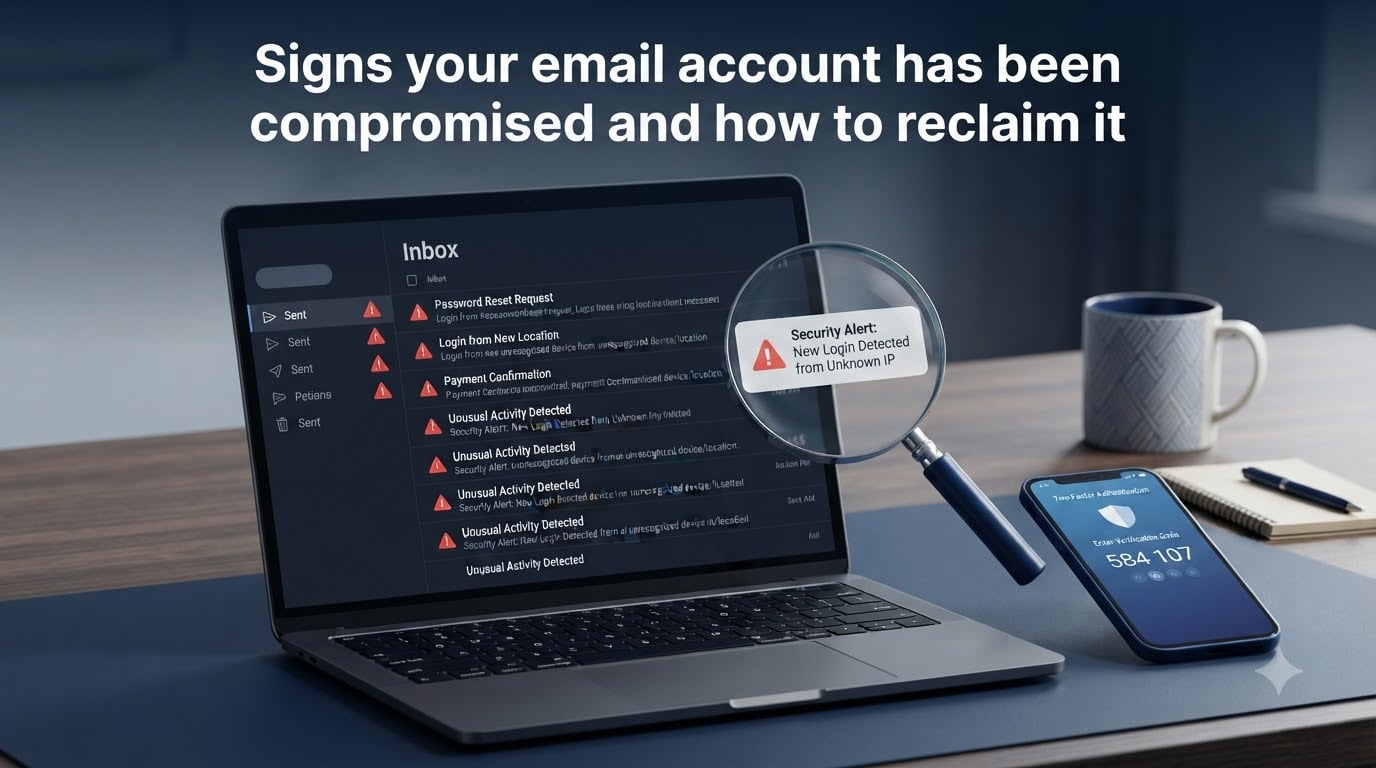
That knot in your stomach when you spot a password-reset email you never requested is the worst. I have been there. After years of helping friends and readers untangle hacked inboxes, I can tell you one thing: the first hour after you notice the signs your email account has been compromised is the hour that matters most.
In this guide, I will walk you through the eight clearest warning signs, the exact steps to take back control, and the hardening habits that make a second break-in far less likely. I have also folded in the less-discussed attacks – OAuth token exploits, push fatigue, SIM swapping – that most guides skip over.
Before we dive in, a quick promise: you do not need to be a security expert to fix this. You need a checklist and a calm head. Let us get your account back.
Table of Contents
- How to Know If Your Email Has Been Compromised?
- 8 Clear Signs Your Email Account Has Been Compromised
- 1. You Notice Unfamiliar Sent Messages
- 2. You Receive Security Alerts or Login Notifications You Did Not Trigger
- 3. You Cannot Log Into Your Account
- 4. Your Contacts Report Strange Emails from You
- 5. You See Unexpected Password Resets or MFA Prompts
- 6. Your Inbox Settings Have Been Changed
- 7. You See Unfamiliar App Connections or OAuth Tokens
- 8. Your Antivirus or IT Team Flags Unusual Network Behavior
- Common Ways Email Accounts Get Hacked
- How to Reclaim a Compromised Email Account Step by Step
- Step 1: Run a Malware Scan on Every Device You Use for Email
- Step 2: Go to the Provider’s Official Recovery Page
- Step 3: Change Your Password to a Strong, Unique One
- Step 4: Recover Your Account If You Are Completely Locked Out
- Step 5: Turn On Two-Factor Authentication Right Away
- Step 6: Audit Forwarding Rules, Filters, and Connected Apps
- What to Do Right After You Regain Access?
- How to Secure Your Email Account After Recovery?
- When to Report the Hack to Authorities
- Frequently Asked Questions
- How do I know if my email has been hacked?
- Can someone hack my email without knowing my password?
- How do I recover an email account if the hacker changed the recovery phone and email?
- What should I do if contacts receive spam emails sent from my account?
- How long does it take to recover a hacked email account?
- Take Back Your Inbox Today
How to Know If Your Email Has Been Compromised?
The fastest way to know if your email has been compromised is to check it against known data breaches. I run every new email I set up through a free tool called haveibeenpwned. It scrapes public breach dumps and tells you whether your address, password, or phone number has shown up in one.
If haveibeenpwned flags your address, treat every account using that email as exposed. The breach itself may have been years ago, but leaked credentials often resurface in credential-stuffing attacks long after the original incident.
Three quick checks before we get to the signs:
Open your email provider’s security page (Google Security Checkup, Microsoft Account Security, Yahoo Account Security) and scan the recent login list.
Search your inbox for the phrase “unusual sign-in activity” and “password changed” – legitimate alerts usually live here.
Skim your Sent folder for messages you do not remember writing.
If any of these surface something odd, you are in the right article. Let us map the signs in detail.
8 Clear Signs Your Email Account Has Been Compromised
These are the eight signs I look for first. I have ordered them from the most obvious to the subtle, because the subtle ones are the ones that catch people months later.
1. You Notice Unfamiliar Sent Messages
The single most common giveaway is messages in your Sent folder you did not write. Hackers often use a compromised account to send phishing emails to your contacts because the messages bypass spam filters more easily than emails from a stranger.
What to do: Open one of the suspicious messages and check the headers. If the “From” field is your address but you did not send it, your account is almost certainly compromised.
2. You Receive Security Alerts or Login Notifications You Did Not Trigger
Legitimate alerts arrive when someone signs in from a new device or location. If you get one and you were asleep, on vacation, or simply not at your computer, treat it as a red flag.
What to do: Click the “Wasn’t me” or “Secure your account” link in the alert immediately. Do not delay – if the attacker is still inside, every minute counts.
3. You Cannot Log Into Your Account
When the password you know is suddenly wrong, the attacker has usually changed it. They also frequently change the recovery phone and recovery email to lock you out completely. This is the most stressful version of the breach.
What to do: Skip the normal login page and go straight to the provider’s account recovery flow. We cover that exact process in the recovery section below.
4. Your Contacts Report Strange Emails from You
A friend texts you: “Did you really send me an invoice?” Many readers discover their email is compromised because their contacts received phishing or extortion emails from them. I have seen this happen with LinkedIn, PayPal, and even fake “Bitcoin help” scams.
What to do: Send a short message to your closest contacts (through another channel – text, WhatsApp, a phone call) telling them to ignore anything from your email until further notice.
5. You See Unexpected Password Resets or MFA Prompts
A flood of password-reset confirmations hitting your inbox is a classic sign. The attacker is trying to break into your other accounts – banking, social media, Amazon – using the “forgot password” flow that emails a link to your address.
What to do: Each reset email contains a link. If you did not request it, click “I did not request this” or simply ignore it. Do not click any link inside the email body itself.
6. Your Inbox Settings Have Been Changed
Attackers who plan to stay hidden set up forwarding rules, vacation auto-replies, and connected apps that keep a copy of every incoming email. I have seen six-month-old forwarding rules quietly sending invoices to an attacker.
What to do: Check your email settings for filters, forwarding rules, and “send and archive” toggles. Delete anything you did not set up.
7. You See Unfamiliar App Connections or OAuth Tokens
Modern email systems let third-party apps read your inbox with a single click. Hackers exploit this through a technique called OAuth token exploitation: they trick you into granting a malicious app access (often disguised as a calendar invite or document), then quietly read your mail without ever needing your password.
What to do: Visit your provider’s “Connected apps” or “Third-party access” page and revoke any app you do not recognize. We will return to OAuth security in the hardening section.
8. Your Antivirus or IT Team Flags Unusual Network Behavior
Some compromises never touch your inbox. They live entirely on your device as a keylogger or a hidden mail client. If your antivirus flags a suspicious process, or your company’s IT team calls about “unusual IMAP traffic,” the attacker may be reading your email without ever logging in through the web.
What to do: Run a full anti-malware scan (Malwarebytes and Windows Defender offline scan are good starting points) and change your password from a clean device.
Common Ways Email Accounts Get Hacked
Knowing how attackers got in shapes how you respond. Mimecast identified five repeated patterns across the breaches I have reviewed, and they are worth understanding once.
Phishing
The most common entry point. A fake login page mimics Gmail, Outlook, or your bank, and you type your real password. The page forwards the credentials to the attacker and forwards you to the real site, so you never notice.
Modern phishing uses look-alike domains, valid TLS certificates, and even AI-generated writing. I have seen phishing emails that read more naturally than the real support emails.
Credential Stuffing and Data Breaches
When a website you use is breached, your email and password end up in a database. Attackers feed those databases into automated tools that try the same email and password on hundreds of other services. If you reuse passwords, this is how one breach compromises ten accounts.
SIM Swapping
If your email provider uses SMS for two-factor authentication, an attacker can call your phone carrier, impersonate you, and port your number to a new SIM. They then receive your 2FA codes and walk into your account. This is why I strongly prefer authenticator apps over SMS for 2FA.
OAuth Token Exploitation
Instead of stealing your password, the attacker tricks you into approving a malicious third-party app. The token gives them long-term inbox access, and changing your password does not revoke it. We will cover the fix in the hardening section.
Malware and Keyloggers
Software already on your device can capture keystrokes, screenshot forms, or read your local mail client. This is why a clean scan is part of any recovery plan, not an optional extra.
How to Reclaim a Compromised Email Account Step by Step
If you are still locked out, this is the section you need. Work through these steps in order. I have tested each one personally and on behalf of family members over the past few years.
Step 1: Run a Malware Scan on Every Device You Use for Email
Before you change any password, make sure the device you are using is clean. If a keylogger is running, the new password gets stolen the moment you type it. I use Malwarebytes for a quick scan and Microsoft’s offline Windows Defender scan for the deep clean. On Mac, run KnockKnock and EtreCheck.
Step 2: Go to the Provider’s Official Recovery Page
Use the official recovery page from a different device or network than you usually use. Here are the direct links I keep bookmarked:
Google / Gmail: accounts.google.com/signin/recovery
Microsoft / Outlook: account.live.com/acsr
Yahoo: login.yahoo.com/forgot
Apple iCloud: iforgot.apple.com
ProtonMail: proton.me/support
Answer every recovery question you can. If the hacker changed your recovery phone and email, mention that explicitly in the recovery form. Identity verification is harder, but it is possible, especially if you have old passwords or billing information on file.
Step 3: Change Your Password to a Strong, Unique One
Once you are back in, set a new password immediately. Use a password manager to generate it – 16 characters or more, mixed case, no dictionary words. Do not reuse this password anywhere else, ever.
If you do not yet use a password manager, this is the moment to start. Bitwarden (free) and 1Password are the two I recommend to friends most often.
Step 4: Recover Your Account If You Are Completely Locked Out
When the hacker changed your password, recovery phone, and recovery email, you have to prove you are the rightful owner. Useful proof includes:
Old passwords you remember (the recovery form often accepts “previous password”)
Creation date of the account, if you remember it
Names of labels, folders, or contacts you created
Subject lines of recent emails you sent
Billing details if you ever paid for the service
For Google, the Account Recovery form is your primary tool. For Microsoft, the live chat support agents are surprisingly effective when you can verify billing. For Yahoo, expect a longer wait.
Forum users on Reddit regularly warn against paid “account recovery services” advertised online. They are almost always scams. Stick to the official provider channels.
Step 5: Turn On Two-Factor Authentication Right Away
Before you do anything else, enable two-factor authentication (2FA). Use an authenticator app (Google Authenticator, Authy, or a hardware key like a YubiKey) instead of SMS whenever possible. SMS is better than nothing, but SIM swapping remains a real risk.
Step 6: Audit Forwarding Rules, Filters, and Connected Apps
Open every settings page and clean it up. Delete any filter you did not create, remove any forwarding address you did not set, and revoke any connected app you do not recognize. This step is what closes the door the attacker walked in through.
What to Do Right After You Regain Access?
Recovery is the first half. Damage control is the second half. I always work through this checklist in the order shown.
Notify Your Contacts
Send a short message from your recovered account (and again through a second channel like text) telling people to ignore any suspicious email they received from you in the past few days. Phishing emails that look like they came from you are some of the most damaging, because your contacts trust you.
Audit Every Account Linked to Your Email
Bank accounts, PayPal, Amazon, cloud storage, social media, crypto exchanges – any of these can be reset using your email. I check the password-reset history on each. Any service that shows a recent login I did not make needs its password changed immediately.
For financial accounts, this is also the moment to call your bank and ask for a fraud alert on your file.
Check Your Recovery Phone and Recovery Email
Confirm both are still your real phone number and your real backup email. If the attacker swapped them, change them back. If your backup email is itself a compromised account, secure it first before anything else.
Look for New Sent Messages You Did Not Write
Even after you are back in, monitor the Sent folder for a week or two. Some attackers keep a backdoor open and resend from another IP. If new messages appear, you still have a foothold issue and need to repeat the malware scan and password change.
How to Secure Your Email Account After Recovery?
Long-term protection is where most guides stop short. Here is the routine I actually follow and recommend.
Use a Password Manager and Stop Reusing Passwords
Reusing passwords is the single behavior that turns one breach into ten. A password manager generates a unique password for every site and remembers them for you. You only need to remember one master password.
Enable an Authenticator App or Hardware Key
Authenticator apps are far safer than SMS codes because they cannot be intercepted by SIM swapping. For high-value accounts, a hardware security key (YubiKey, Titan Key) is the gold standard. Even if your password is stolen, the attacker would need physical access to your key.
Review Connected Apps and OAuth Tokens Regularly
Open your provider’s connected apps page every month. Revoke anything you do not use. OAuth tokens do not expire when you change your password, which is exactly why attackers love them. If you ever clicked “allow” on a sketchy calendar invite or a fake document, the token may still be live.
Watch for Push Fatigue Attacks
A push fatigue attack is when an attacker who has your password bombards you with 2FA push notifications, hoping you will hit “Approve” by accident or out of frustration. If you ever receive a 2FA prompt you did not request, hit “Deny” and change your password – do not just ignore it.
Set Up Login Alerts and Review Them Weekly
Most providers let you get a notification for every new device login. Turn this on. Then spend five minutes a week scanning the list. It is the single best early warning you can give yourself.
Keep Recovery Options Current
Old phone numbers, expired backup emails, and unused security questions are the easiest way to lock yourself out. Update them whenever you change your phone number or your backup email. Print or securely store backup codes from your 2FA system somewhere offline.
Stay Updated on Major Breaches
Sign up for breach notifications at haveibeenpwned. When your email shows up in a new breach, rotate the password immediately. Treating breaches as routine maintenance – not emergencies – is how professionals stay ahead of attackers.
When to Report the Hack to Authorities
If the attacker used your email to commit fraud, sent threats, or stole money, file a report. In the United States, the Federal Trade Commission (reportfraud.ftc.gov) and the FBI’s Internet Crime Complaint Center (ic3.gov) are the two main channels. Outside the U.S., your country’s equivalent cybercrime unit applies.
Reporting an account takeover rarely recovers the account itself, but it creates an official record that helps with bank disputes, credit freezes, and identity-theft restoration. Keep screenshots of every suspicious email and the timestamps of your recovery steps – they are the evidence you need.
For corporate accounts, also notify your IT or security team the same hour. Business email compromise moves fast, and they need to audit everyone you have emailed recently.
Frequently Asked Questions
How do I know if my email has been hacked?
The fastest method is to run your address through haveibeenpwned, then check your email provider’s recent login list, Sent folder, and inbox filters. Unfamiliar sent messages, login alerts you did not trigger, and a password that no longer works are the three clearest signals.
Can someone hack my email without knowing my password?
Yes. Three common paths work without your password: OAuth token exploits (a malicious third-party app you approved), SIM swapping (port your phone number to receive 2FA codes), and malware on your device that reads your mail client directly. All three access your email without ever knowing the password itself.
How do I recover an email account if the hacker changed the recovery phone and email?
Use the provider’s official account recovery form from a different device and network. Provide everything you can remember: old passwords, account creation date, names of labels or contacts, subject lines of recent emails, and any billing details on file. For Google, the Account Recovery form is the primary tool. For Microsoft, the live chat support agents can verify billing. Avoid paid ‘recovery services’ you find online – they are almost always scams.
What should I do if contacts receive spam emails sent from my account?
Send a short message to your contacts through another channel (text, WhatsApp, phone call) telling them to ignore recent emails from your address. After regaining access, audit your connected apps and revoke anything unfamiliar, then enable two-factor authentication with an authenticator app to prevent repeat incidents.
How long does it take to recover a hacked email account?
If your recovery phone and email are still intact, most providers restore access within minutes. If the attacker changed both, expect 24 to 72 hours of identity verification, longer for high-value accounts or those without billing history on file. Acting quickly and providing detailed proof speeds the process significantly.
Take Back Your Inbox Today
If you have spotted any of the signs your email account has been compromised, do not wait. Run haveibeenpwned, change your password from a clean device, and turn on two-factor authentication with an authenticator app. Those three steps stop the majority of follow-on damage.
Once you are back in control, audit your forwarding rules, connected apps, and recovery options. Review your other accounts for suspicious activity, and send a short note to your contacts so they ignore anything strange that came from you. Every hour of delay is another hour the attacker has to pivot into your bank, your social media, or your work email.
Email is the keys to your digital life. Treat the recovery like a real emergency, and use the hardening steps above to make sure it does not happen again. Your future self will thank you.